How to Customize WooCommerce Email Notifications: The Complete Guide

Summarize with


Last Updated:
Your customer just placed an order. They’re excited, anticipating that reassuring confirmation email. But what if it never arrives? Or worse—what if it looks so generic that they wonder if their payment even went through?
The stakes are higher in 2026 than ever before. Google, Yahoo, and Microsoft now strictly enforce SPF, DKIM, and a published DMARC record for sending domains, with non-compliant mail rejected outright at the SMTP level. Your email deliverability isn’t just about design anymore; it’s about technical compliance, mobile optimization, and creating experiences that convert casual buyers into loyal customers.
This guide walks you through everything you need to know: from fixing WooCommerce’s default email pitfalls to implementing mandatory authentication, customizing templates that convert, and building automated sequences that multiply revenue.
Why WooCommerce Email Customization Matters
When a customer hits “Place Order,” that confirmation email becomes your most important touchpoint. If it arrives looking generic or doesn’t arrive at all, you aren’t just missing a branding opportunity; you are actively eroding your customer’s trust.
Here is why customizing your email strategy has shifted from a “nice-to-have” to an absolute business necessity:
The Hidden Cost of Default WooCommerce Emails
Picture this: A customer completes checkout at 2:00 PM. By 2:30 PM, they’re checking their inbox. Nothing. By 3:00 PM, they’re wondering if the charge went through. By evening, they’ve filed a dispute with their bank.
This isn’t a hypothetical edge case; it happens to unoptimized WooCommerce stores every single day.
By default, WooCommerce relies on your web host’s built-in PHP mail function to send transactional emails. While functional for basic server scripts, PHP mail lacks the modern authentication headers that mailbox providers demand. There is no SPF alignment and no DKIM signature in the mix.
The result? Emails that bounce, disappear into spam folders, or fail to send entirely. Even when they do arrive, they look identical to every other generic store: plain, unbranded, and forgettable.
What’s Actually at Stake
When your WooCommerce emails underperform or fail to land in the inbox, you lose far more than a simple notification:
- Customer Trust: More than 60% of consumers check order confirmations on their smartphones. If those emails look broken or unprofessional, they question your store’s legitimacy.
- Revenue Opportunities: Welcome emails boast a 58.26% click-to-conversion rate. Leaving them uncustomized leaves money on the table.
- Brand Consistency: Generic templates break the carefully crafted visual experience you’ve built on your website.
- Domain Reputation: Once your root domain is flagged for poor authentication, recovering your sender score can take weeks of painful mitigation.
The Present Email Deliverability Landscape: What Changed?
In recent years, major inbox providers systematically transitioned from filtering spam to outright rejecting unauthenticated mail. Failing to meet these requirements doesn’t just reduce your email deliverability; it blocks your store from communicating with its customers.
Technical Requirements Breakdown
| Requirement | Standard Senders (<5,000 emails/day) | Bulk Senders (5,000+ emails/day) |
|---|---|---|
| Authentication | SPF or DKIM required | Both SPF and DKIM are required |
| DMARC Record | Highly Recommended | Mandatory (Minimum p=none) |
| Domain Alignment | Recommended | Mandatory (From: header must align with SPF/DKIM) |
| Spam Ceiling | Strictly below 0.3% (0.1% target) | Strictly below 0.3% (0.1% target) |
| Unsubscribe | Standard opt-out link | One-Click Unsubscribe via headers (RFC 8058) |
| Encryption | TLS connection required | Both SPF and DKIM are required |
The 5,000 Threshold Trap: Google permanently classifies your domain as a bulk sender the moment you cross the 5,000-daily email threshold just once. A single flash sale, holiday promotion, or product launch can permanently change your technical requirements. Treat bulk standards as your baseline from day one.
The DMARC Policy Progression
While a baseline policy of p=none (monitoring mode) Keeps you compliant for now, maintaining it indefinitely sends a weak trust signal to Microsoft and Google filters. Serious brands should follow a structured progression:
p=none(Monitoring): Collect data and identify all legitimate sending sources (store, CRM, helpdesk).p=quarantine(Updated Recommended Baseline): Send unauthorized or unauthenticated emails straight to the spam folder.p=reject(Maximum Protection): Block unauthorized emails entirely, preventing malicious phishing or spoofing of your brand.
Understanding WooCommerce’s Default Email System
WooCommerce categorizes its core transactional emails into two distinct buckets:
Admin Notifications
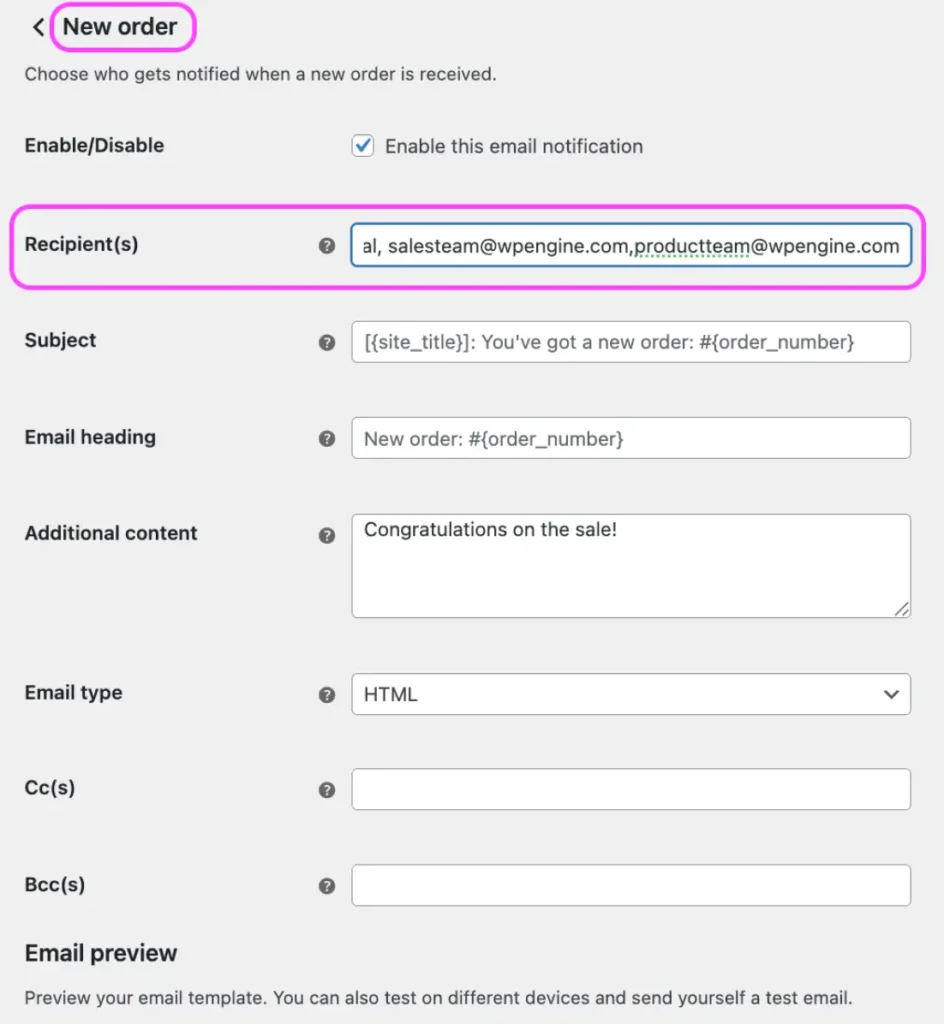
- New Order: Alerts you or your team when a sale occurs.
- Cancelled Order / Failed Order: Vital updates for inventory management and customer outreach.
Customer Notifications
- Order On-Hold: Triggered when payment is pending (e.g., bank transfers).
- Processing Order: Sent automatically upon successful payment confirmation.
- Completed Order: Dispatched when items are shipped or fulfilled.
- Customer Invoice / Customer Note: Manual or programmatic touchpoints containing specific data or notes.
- Password Reset / New Account: Fundamental account management alerts.
The Limits of Native Customization
Out of the box, the core WooCommerce settings only allow you to alter the header logo, footer text, and a few base colors. The layout remains rigid, single-column, and devoid of marketing features. You cannot natively add product cross-sells, dynamic banners, or loyalty program callouts without leveraging code or advanced plugins.
How to Customize WooCommerce Emails
Whether you are a store owner looking for quick visual updates or a developer needing complete control over your markup, there is an approach for every skill level.
Small contextual details like shipping expectations significantly reduce support tickets while improving the post-purchase customer experience.
Method 1: Basic Branding via the WordPress Dashboard
Perfect for new store owners who need a clean, branded baseline without writing code.
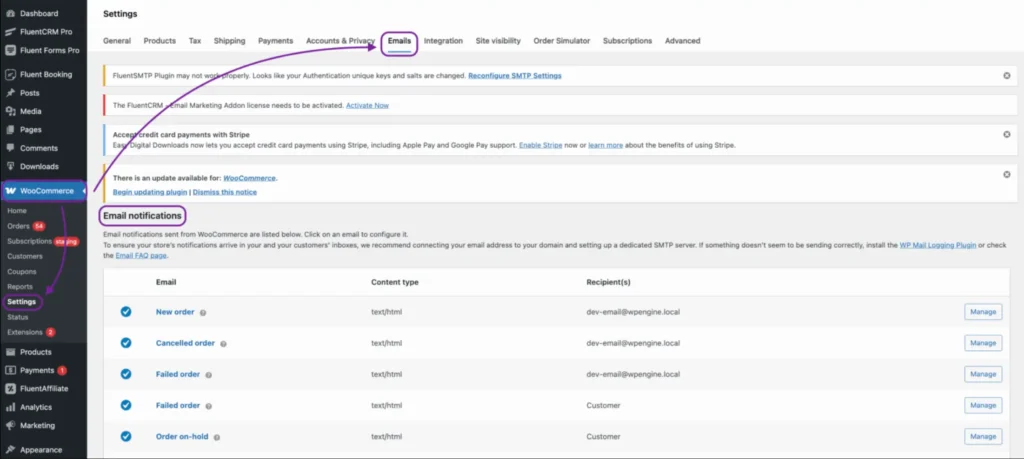
- Navigate to WooCommerce → Settings → Emails.
- Scroll to the bottom to access Global Template Options.
- Set your Header Image (recommended: max 600px wide, transparent PNG).
- Update the Footer Text to include your legal entity name and contact details.
- Adjust Base Color, Background Color, and Body Text Color to match your brand guidelines.
- Click an individual email type (like Processing Order) to modify its specific subject lines and headings using placeholders like
{order_number}and{site_title}.
Method 2: Injecting Dynamic Content Using Email Hooks
Perfect for developers and advanced users who want to add dynamic marketing features directly into child themes without hacking template files. These snippets are update-proof and belong in your child theme’s functions.php file or a custom functionality plugin.
1. Personalized Greetings & Contextual Copy
Inject a warm introduction right before the rigid order table displays.
PHP
add_action('woocommerce_email_before_order_table', 'ts_add_personalized_greeting', 10, 4);
function ts_add_personalized_greeting($order, $sent_to_admin, $plain_text, $email) {
    if ($sent_to_admin) return; // Skip admin notifications

    $first_name = $order->get_billing_first_name();
    $order_number = $order->get_order_number();

    echo '<p style="font-size: 16px; color: #333; font-family: Helvetica, Arial, sans-serif;">Hi ' . esc_html($first_name) . ',</p>';
    echo '<p style="font-size: 14px; color: #666; line-height: 1.5;">Thank you for your order #' . esc_html($order_number) . '! Our team is already preparing your package.</p>';
}
2. Category-Specific Care Instructions
Display specific text block conditions if a customer bought an item from a specific category (e.g., “electronics”).
PHP
add_action('woocommerce_email_after_order_table', 'ts_category_specific_care_guide', 10, 4);
function ts_category_specific_care_guide($order, $sent_to_admin, $plain_text, $email) {
    if ($sent_to_admin) return;

    $items = $order->get_items();
    $has_electronics = false;

    foreach ($items as $item) {
        $product = $item->get_product();
        if ($product && has_term('electronics', 'product_cat', $product->get_id())) {
            $has_electronics = true;
            break;
        }
    }

    if ($has_electronics) {
        echo '<div style="margin: 30px 0; padding: 20px; background: #fff3e0; border-left: 4px solid #ff9800; font-family: sans-serif;">';
        echo '<h3 style="margin: 0 0 10px 0; color: #e65100;">⚡ Electronics Quick Start Guide</h3>';
        echo '<ul style="margin: 0; padding-left: 20px; color: #555; font-size: 14px; line-height: 1.6;">';
        echo '<li>Charge your device completely before its first use.</li>';
        echo '<li>Keep hardware away from extreme heat and liquids.</li>';
        echo '<li>Register your device serial number on our site to activate your warranty.</li>';
        echo '</ul>';
        echo '</div>';
    }
}
3. Dynamic High-Value Order VIP Offers
Reward big spenders immediately upon their order confirmation.
PHP
add_action('woocommerce_email_after_order_table', 'ts_vip_tier_rewards_trigger', 12, 4);
function ts_vip_tier_rewards_trigger($order, $sent_to_admin, $plain_text, $email) {
    if ($sent_to_admin) return;

    if ($order->get_total() >= 200) {
        echo '<div style="margin: 30px 0; padding: 25px; background: linear-gradient(135deg, #4f46e5 0%, #7c3aed 100%); border-radius: 8px; font-family: sans-serif; text-align: center;">';
        echo '<h3 style="color: #ffffff; margin: 0 0 10px 0;">🌟 Welcome to VIP Rewards</h3>';
        echo '<p style="color: #e0e7ff; margin: 0 0 15px 0; font-size: 14px;">Your order qualified you for our elite tier. Enjoy automatic free expedited shipping on all future purchases.</p>';
        echo '<a href="' . esc_url(home_url('/vip-dashboard')) . '" style="display: inline-block; padding: 12px 28px; background: #ffffff; color: #4f46e5; text-decoration: none; font-weight: bold; border-radius: 6px; font-size: 14px;">View VIP Perks</a>';
        echo '</div>';
    }
}
Method 3: Core Template Overrides for Structural Control
Perfect for developers who need to completely rewrite the underlying HTML skeleton of an email.
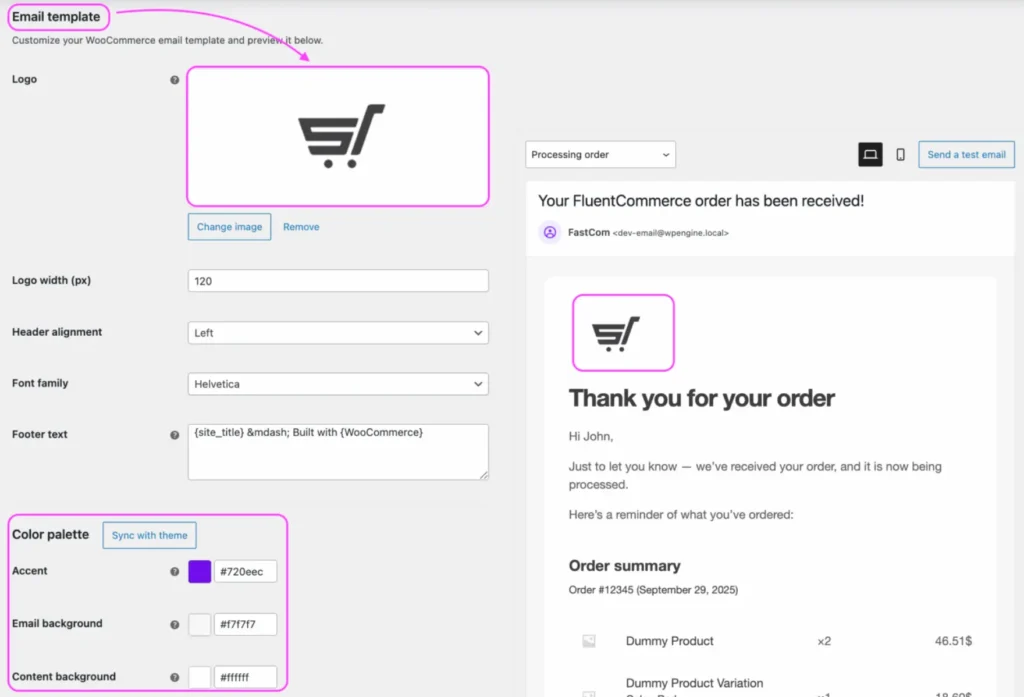
To safely modify these files without losing changes during plugin updates, replicate the structural architecture inside your active child theme:
- Locate the default templates inside your server file manager:
wp-content/plugins/woocommerce/templates/emails/ - Copy the file you wish to modify (e.g.,
customer-processing-order.php). - Paste that file into your child theme using this exact structure:
wp-content/themes/your-child-theme/woocommerce/emails/
Once your structural overrides are in place, you can further refine WooCommerce emails with lightweight styling controls, personalized messaging, and dynamic customer-facing content.
How to Customize WooCommerce Emails for Better Branding
Once your structural overrides are in place, you can further refine WooCommerce emails with lightweight styling controls, personalized messaging, and dynamic customer-facing content.
1. Quick Styling & Per-Email Controls
Perfect for store owners who want fast branding updates without touching PHP.
WooCommerce already includes built-in controls for customizing individual transactional emails directly from the dashboard.
Navigate to WooCommerce → Settings → Emails.
From here, you can:
- Toggle specific email notifications on or off.
- Customize each email’s Subject Line, Heading, and Recipient settings.
- Configure your global Email Sender Name and Sender Address.
- Adjust template colors, logos, and footer text under Email Template Options.
After updating your settings, click Save changes.
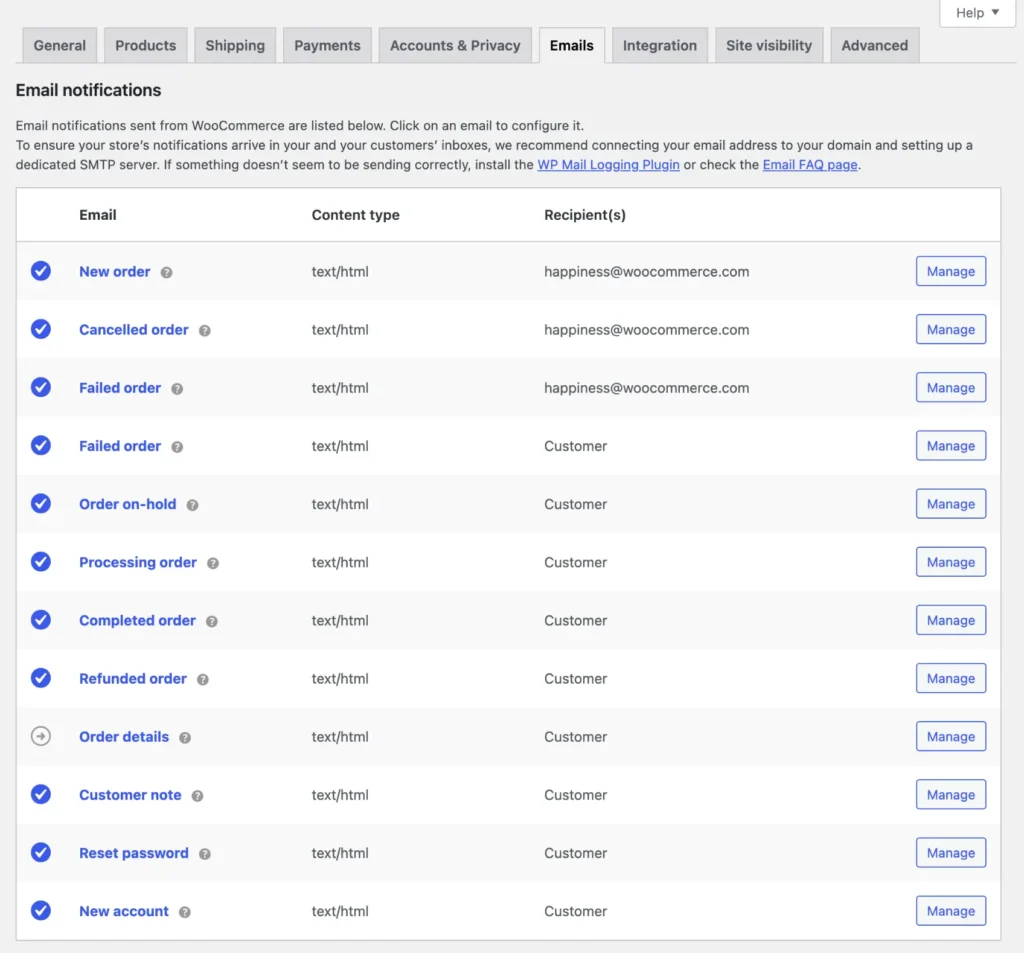
This is the fastest way to align WooCommerce emails with your brand identity without editing templates manually.
2. Preparing a Safe Child Theme Workflow
Perfect for developers who need update-safe customization architecture.
Directly editing files inside:
wp-content/plugins/woocommerce/
It is never recommended because all changes will be overwritten during WooCommerce updates. Instead, create a child theme and mirror WooCommerce’s email structure inside:
wp-content/themes/your-child-theme/woocommerce/emails/
WooCommerce often provides a convenient Copy file to theme button inside each email template management screen, allowing you to automatically generate the correct override structure.
You can also place email-related PHP snippets inside:
- your child theme’s
functions.php, or - a lightweight site-specific functionality plugin.
For example, you can personalize email subject lines dynamically using the customer’s first name and order number:
PHP
add_filter('woocommerce_email_subject_customer_processing_order', function($subject, $order, $email){
    $first = $order ? $order->get_billing_first_name() : '';
    $num   = $order ? $order->get_order_number() : '';

    return "Thank you {$first} for your order #{$num}";
}, 10, 3);
This creates a far more human and engaging transactional experience compared to generic default subject lines.
3. Customizing Email Templates with Your Brand
Perfect for stores that want visually consistent transactional communication.
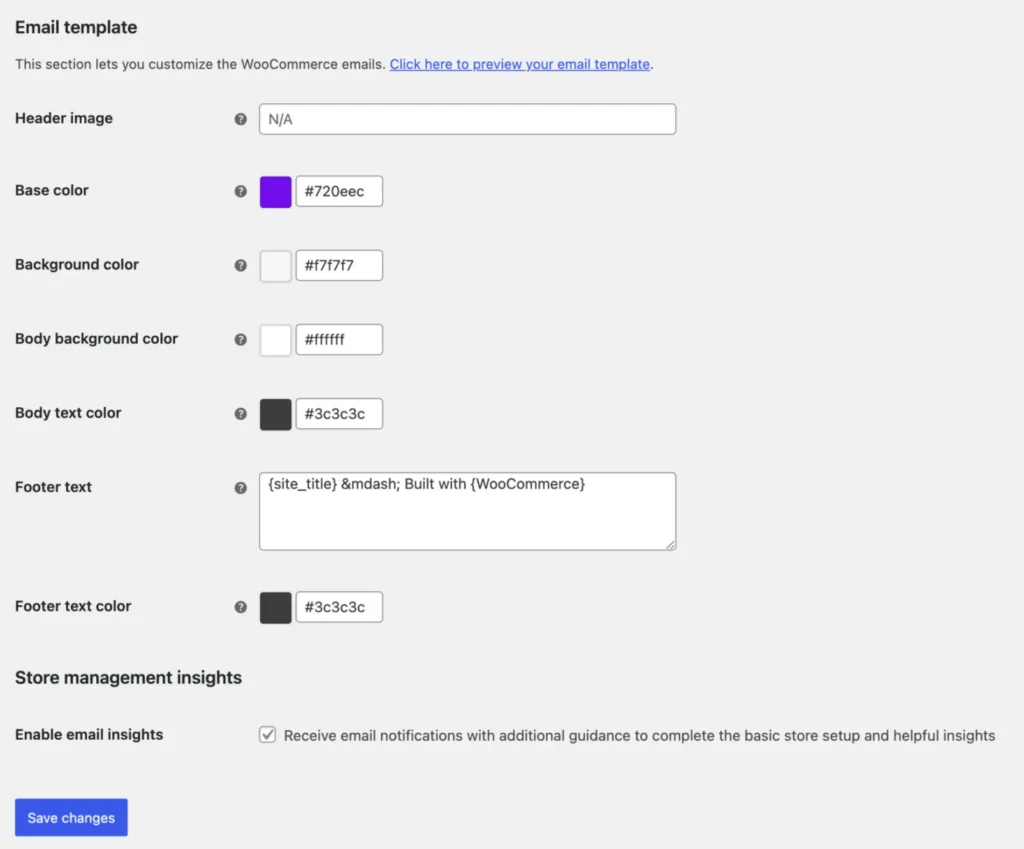
WooCommerce allows you to apply global branding styles directly from the Email Template settings panel.
Navigate to: WooCommerce → Settings → Emails
Then scroll down to the Email Template section.
From here, you can:
- Upload your store logo.
- Add a custom Header Image.
- Configure template colors to match your design system.
- Update Footer Text with legal or support information.
After saving your changes, preview the email to verify spacing, readability, and mobile responsiveness.
Consistent branding improves trust and makes transactional emails feel like a seamless extension of your storefront experience.
4. Using HTML & CSS for Advanced Styling
Perfect for developers who need complete visual and structural flexibility.
For advanced layouts like promotional banners, modular content sections, or highly branded transactional experiences, override WooCommerce email templates directly.
Copy templates from:
wp-content/plugins/woocommerce/templates/emails/
into your child theme:
wp-content/themes/your-child-theme/woocommerce/emails/
You can then safely customize the underlying HTML structure.
Adding Promotional Banners
Insert promotional banners immediately after the email header:
PHP
echo '<table width="100%" cellpadding="0" cellspacing="0" style="margin:0 0 20px 0;">
  <tr>
    <td>
      <a href="'. esc_url( home_url('/sale') ) .'">
        <img src="'. esc_url( get_stylesheet_directory_uri() . '/images/email-banner.jpg' ) .'" alt="Sale now on">
      </a>
    </td>
  </tr>
</table>';
This approach works well for seasonal campaigns, limited-time launches, or upsell promotions.
5. Adding Dynamic Customer Content
Personalized transactional emails consistently outperform generic notifications in engagement and customer trust.
WooCommerce supports dynamic placeholders inside email subjects and headings, including:
{order_number}
{order_date}
{site_title}
You can also inject fully dynamic customer-specific content using WooCommerce hooks.
1) Personalized Customer Greetings
PHP
add_action('woocommerce_email_before_order_table', function($order, $sent_to_admin, $plain_text, $email){
    $name = $order ? $order->get_billing_first_name() : '';

    echo '<p>Hi ' . esc_html($name) . ', thanks for your order!</p>';
}, 10, 4);
2) Dynamic Delivery Estimates
Display estimated delivery times based on shipping method logic:
PHP
add_action('woocommerce_email_order_meta', function($order, $sent_to_admin, $plain_text, $email){

    $eta = '3 to 5 business days';

    $methods = $order ? $order->get_shipping_methods() : [];
    $method  = reset($methods) ? reset($methods)->get_name() : '';

    if (stripos($method, 'express') !== false) {
        $eta = '1 to 2 business days';
    }

    echo '<p><strong>Estimated delivery:</strong> ' . esc_html($eta) . '</p>';

}, 10, 4);
Designing for Present Change: Mobile-First Best Practices
Mobile opens account for up to 81% of email interactions. If your transactional layouts fail on smaller viewports, your store experience falls apart.
- Responsive Maximum Width: Keep your wrapper tables strictly at 600px. This width formats beautifully on desktop without causing annoying horizontal scrolling on mobile viewports.
- Typography Scaling: Tiny fonts cause friction. Scale text sizes to match accessible readability criteria:
- Body Copy: 16px minimum (with a line height of 1.6).
- Headlines: 24px–26px. Avoid going over 30px, as oversized fonts can trigger aggressive desktop display spam filters.
- Touch-Friendly Call-To-Actions (CTAs): Human fingertips require adequate targets. Ensure primary action buttons are a minimum of 44px in height, well-padded, and separated from adjacent text elements by at least 10px of white space.
- Layout Mechanics: Stick to clean, vertical, single-column layouts. Multi-column table elements often break, stack awkwardly, or compress columns on mobile screens.
Dark Mode Optimization: Many users default their mobile devices to Dark Mode. Ensure your logo images are saved as transparent PNGs with light drop-shadows or outlines so they don’t disappear against dark email backgrounds.
Advanced Personalization and Automation Sequences
Optimizing your transactional templates fixes your foundation, but building automated lifecycle sequences is what scales your store’s revenue.
Using on-premise tools like FluentCRM allows you to leverage native hooks into your WooCommerce purchase data without paying recurring monthly contact fees to third-party providers.
1. The Post-Purchase Engagement Engine
Don’t let the relationship go cold after shipping. Set up a post-purchase automated sequence triggered immediately upon order completion:
Plaintext
[Order Fulfilled] ──> (Day 1: Care Instructions) ──> (Day 5: Review Invite) ──> (Day 14: Cross-Sell Coupon)
2. High-Yield Abandoned Cart Pipelines
Cart abandonment sequences require rapid deployment and step-by-step incentive progression to recapture lost conversions:
- 1 Hour Delay: Send a gentle reminder asking if they encountered technical checkout bugs.
- 24 Hour Delay: Inject urgency by notifying them that stock or cart reservations are expiring.
- 72 Hour Delay: Deliver a tactical discount incentive (e.g., 10% off or free shipping) to close the deal.
3. Load Metrics and the Gmail Clipping Risk
Keep your final email output document size under 102KB. If your template files include bloated inline CSS configurations, extensive layout blocks, or heavy structural markup, Gmail will clip the text.
This hides your footer data, structural links, and legal opt-out parameters, which can quickly trigger compliance issues and spike user spam complaints.
Tip: Know what the email compliance rules are. You can implement it properly once you know it, as skipping email compliance isn’t an option anymore.
The Complete Implementation Blueprint
To avoid overwhelming your live system, execute your email customization strategy across a structured, 3-week sprint. This staggered timeline ensures your technical delivery pipeline is completely airtight before you layer on visual assets and complex automation logic.
| Timeline | Phase Focus | Key Deliverables |
| Week 1 | The Technical Foundation | Install FluentSMTP: Eliminate unreliable native PHP mail routing.Secure Mail Provider: Link a dedicated sender (e.g., Amazon SES, SendGrid, or Mailgun).Authentication Audit: Verify that SPF, DKIM, and DMARC all return a clean PASS status. |
| Week 2 | Branding & Core Coding | Global Styling: Upload transparent logos and map core brand colors into WooCommerce settings.Functional Snippets: Inject custom PHP hooks into your child theme for smart greetings and category rules.Content Refresh: Update default subject lines and header copy. |
| Week 3 | Automation & Auditing | Lifecycle Automations: Deploy high-yield post-purchase and abandoned cart recovery workflows.Mobile Optimization: Test responsive rendering across major clients (Gmail, Apple Mail, Outlook).Size Optimization: Audit final HTML document sizes to keep them safely under the 102KB threshold. |
Turn Every Transactional Email into Your Brand Voice
If your WooCommerce emails are currently bland, unbranded, or technically unverified, you are leaving your store’s reputation to chance. More importantly, you are missing the single most attentive moment in the entire customer lifecycle.
In 2026, transactional emails are no longer just automated background noise or sterile receipts—they are a direct extension of your digital storefront. When a customer opens an order confirmation or a shipping update, they aren’t just looking for a tracking number; they are seeking reassurance that they made the right choice by buying from you.
The Core Insight: Your checkout page isn’t the finish line of the customer journey; it is the starting gate of the relationship. Transactional emails command the highest engagement metrics in ecommerce because the reader is actively waiting for them. Leaving these messages unoptimized means ignoring your most intimate, captive audience. Seamless technical authentication protects your reputation, but personalizing the experience is what protects your revenue.
By moving away from unreliable PHP mail, enforcing strict sender compliance, and infusing your unique brand voice into every hook and template, you transform dry logistical data into a memorable customer experience.
Take control of your WooCommerce emails, secure your place in the inbox, and start making every automated notification work for your brand today!
Samira Farzana
Once set out on literary voyages, I now explore the complexities of content creation. What remains constant? A fascination with unraveling the “why” and “how,” and a knack for finding joy in quiet exploration, with a book as my guide- But when it’s not a book, it’s films and anime.
Table of Content
Related Articles and Topics
-
Automated Discounts: How to Increase Conversions Without Constant Promotions
Picture a Monday morning checking your store’s sales report. Numbers look decent after last week’s…
-
E-commerce Email Marketing: The Complete Guide to Driving Revenue in 2026
Email marketing for e-commerce is about responding to what shoppers actually do. Let it be…