How to Organize Contacts Using Lists, Tags & Custom Fields in FluentCRM

Summarize with


Last Updated:
If you had to send an email right now to every contact who has shown interest in one of your products, could you do it in under two minutes?
If not, chances are you did not organize contacts within your contact database.
And before you blame the tool, here’s the thing: almost every email marketing platform is built to handle this.
FluentCRM is no different. It gives you specific features to keep your contacts organised: Lists, Tags, Custom Fields, and Dynamic Segments.
Once you understand what each one does and how they work together, that two-minute test becomes genuinely easy to execute.
This guide will help you get there.
TL;DR
- FluentCRM gives you four tools to organize contacts: Lists, Tags, Custom Fields, and Dynamic Segments
- Use Lists for broad groupings, Tags for behavior and interests, Custom Fields for specific data, and Dynamic Segments for auto-updating audience groups
- Contacts can be organized manually, through automations, via integrations or through Smart Links
- Once organized, you can segment contacts using basic filtering, advanced filtering, dynamic segments, or campaign-based actions
- The better you organzine your contact dashboard, the more precise your segmentation, and the more effective every email
Why Organizing Contacts is the Foundation of Email Marketing?
Before learning how to organize contacts, it’s important to understand why contact organization matters in the first place.
If your business relies on email marketing but you send the same message to your entire list, things start to fall apart. You end up treating customers, cold leads, recent buyers, and completely inactive contacts the same way. That’s not email marketing, it’s email blasting.
And, blasting email hurts more than it benefits. It hampers your deliverability, your sender reputation, and your relationship with subscribers.
The solution?
Organizing email contacts in terms of their behaviour and activity. When you organize contacts, it allows you to:
- Send the right email to the right people: A welcome offer for new leads, a loyalty reward for long-term customers, a re-engagement nudge for inactive subscribers.
- Trigger automations based on behaviour: Automatically start a post-purchase email sequence when someone purchases a product, or stop sending promotional emails the moment someone unsubscribes.
- Keep your list healthy: Identify, re-engage, or remove inactive contacts without touching everyone else.
- Personalise your campaigns: Use contact data to make personalize campaigns that feel like it was written specifically for that person.
Now, if you are a FluentCRM user, managing your contacts is really simple. FluentCRM gives you built-in tools to do all of this. You just need to understand what each one is for.
Read More: 7 Email List Management Best Practices
What FluentCRM Gives You to Manage Contacts?
FluentCRM gives you tools to organize contacts using Lists, Tags, Custom Fields, and Dynamic Segments.
Each one has a specific job. Use them the right way, and your contact database becomes something you can actually work with.
Here is what each one does.
Lists
A List is a broad grouping of contacts that share a common relationship with your business. Think of it as the widest bucket you can put someone in.
For example:
- Your newsletter subscribers are a List.
- Your free trial customers are a List.
- People enrolled in your free course are a List.
These are stable, long-term groups that reflect who someone is in relation to your business at the highest level.
FluentCRM recommends categorizing larger audiences with Lists and sorting them into smaller groups by user behavior with Tags.
Tags
Tags are labels you attach to individual contacts to capture what they’ve done, what they’re interested in, or where they are in their journey with your business.
They are similar to Lists but give you more ways to filter contacts. A List can have multiple Tags, and it can be assigned to a single contact.
Your Tags should be built around these:
- Behavior-based Tags: What a contact has done. Did they download your free guide, click a link in your promo email, attend a webinar, or finish your onboarding?
- Interest-based Tags: What a contact cares about. Maybe they signed up because of your WooCommerce content, or they decided to go for your product free trial.
- Lifecycle Stage Tags: Where a contact is in their journey. Is a person a brand new lead, a paying customer, or someone who has gone quiet for a few months?
- Source Tags: How a contact found you. Did they come from a Google ad, a blog post, a referral, or a podcast?
Custom Fields
Custom Fields are structured data fields you add to every contact’s profile to store specific information that FluentCRM’s default fields don’t capture.
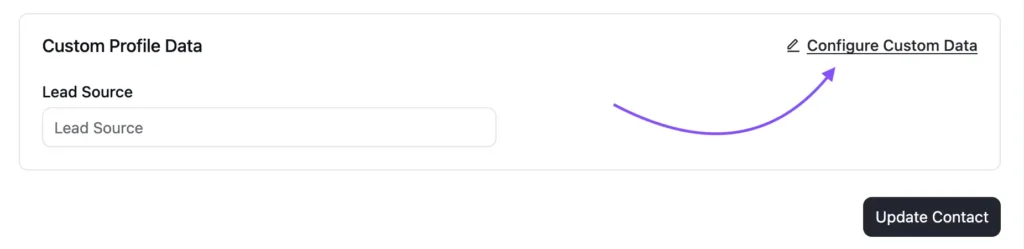
FluentCRM comes with a standard set of contact fields: first name, last name, email, phone, address, date of birth, and more. These cover the basics. But depending on your need, you can create additional fields that store additional contact information.
Available field types in FluentCRM:
- Single Line Text: Free-text entry for short answers (e.g., job title, company name)
- Multi-Line Text: For longer notes or descriptions
- Numeric: Numbers, including decimals (e.g., lifetime value, order count)
- Date: Store specific dates (e.g., contract renewal date, trial end date)
- Select Choice: A dropdown where the contact picks one option
- Multiple Select Choice: A dropdown where the contact can pick several options
- Radio Choice: Single selection from visible options
- Checkboxes: Multiple selections from visible options
Dynamic Segments
Dynamic Segments are FluentCRM’s way of grouping contacts automatically based on conditions you define. Instead of manually sorting contacts into a group, you set the rules once, and FluentCRM keeps the group up to date on its own.
Think of a Dynamic Segment as a saved search that stays live. You give it a name, set your filter conditions, and every time a contact matches those conditions, it gets added to that specific segment.
Ways List, Tags, and Custom Fields are Applied to a Contact
FluentCRM gives you several ways to apply these, and the more of these you use, the less time you spend on contact management.
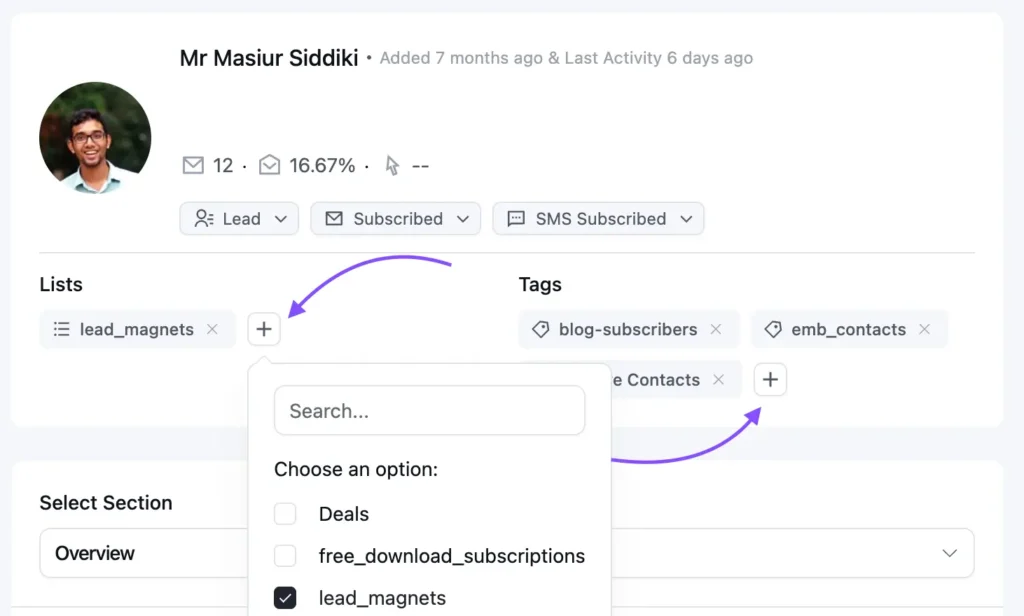
- Manually from a Contact’s Profile: You can open any contact’s profile and add or remove a List or Tag manually.
Also, if you need to update a group of contacts at once, you can select them from the Contacts dashboard and apply bulk changes across all of them in one action.
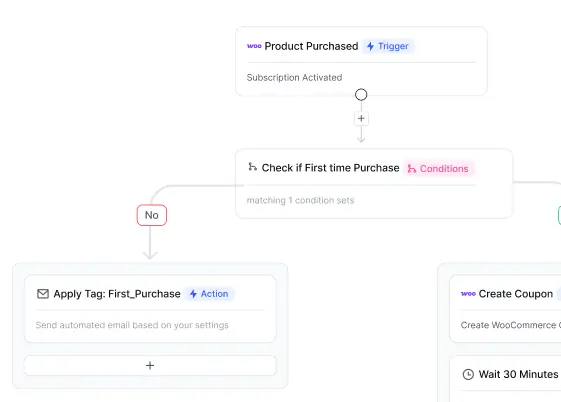
- Automatically via Automation: You can set up automation rules that add or remove Lists and Tag values whenever a specific event happens.
For example, if a contact opens an email, clicks a link, and makes a purchase right away, they get added to the “purchased list.”
- Through Integrations: When FluentCRM is connected to its ecosystem tools, Lists and Tags can be configured and applied automatically based on actions that happen in those tools.
- Via Smart Links: Smart Links let you apply Tags or add contacts to Lists the moment someone clicks a specific link, whether that link is inside an email or placed anywhere on your website.

How to Organize and Segment Contacts Using List, Tags & Custom Fields
Contact organizing and contact segmenting are not the same thing, but one makes the other possible.
Organization is what you’ve just done so far.
- Building your Lists
- Applying your Tags
- And, adding your Custom Fields.
Now that the groundwork is done, and a organized structure is given to every contact in your contact dashboard.
Segmentation is what happens next. It’s the act of slicing the organized data to find a specific group of contacts for a specific purpose, such as campaigns, an automation, a re-engagement sequence, or a special offer.
With FluentCRM, you can segment your contacts in various ways and find a perfect match for each campaign and situation:
Basic Filtering
The simplest way to segment your contacts in FluentCRM is by using basic filtering, which is available directly within the contact dashboard.
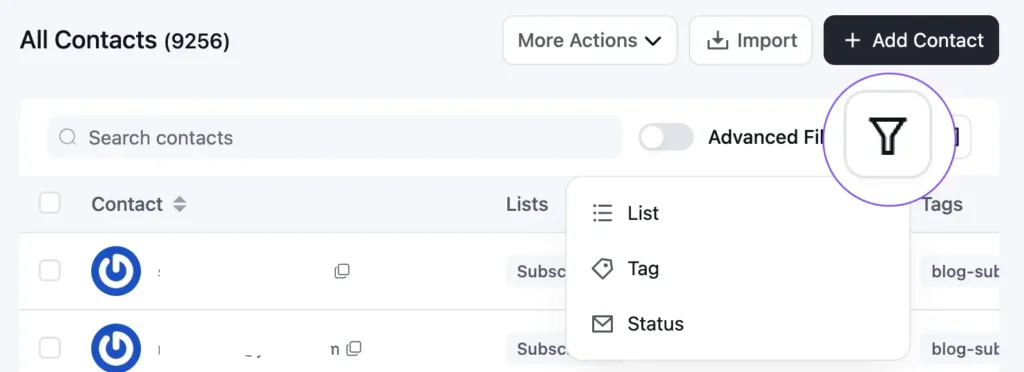
In the top right corner, you will find a funnel-shaped icon, along with dropdown filters. These options allow you to filter contacts based on Lists, Tags, Status, Custom Fields, and more.
When the funnel icon is clicked, you can filter by list or tags. After you select either one of them, you can view the all list or tags that were previously created.
For example, if you choose “List,” you will see every list that currently exists in your FluentCRM dashboard, making it easy to filter contacts accordingly.
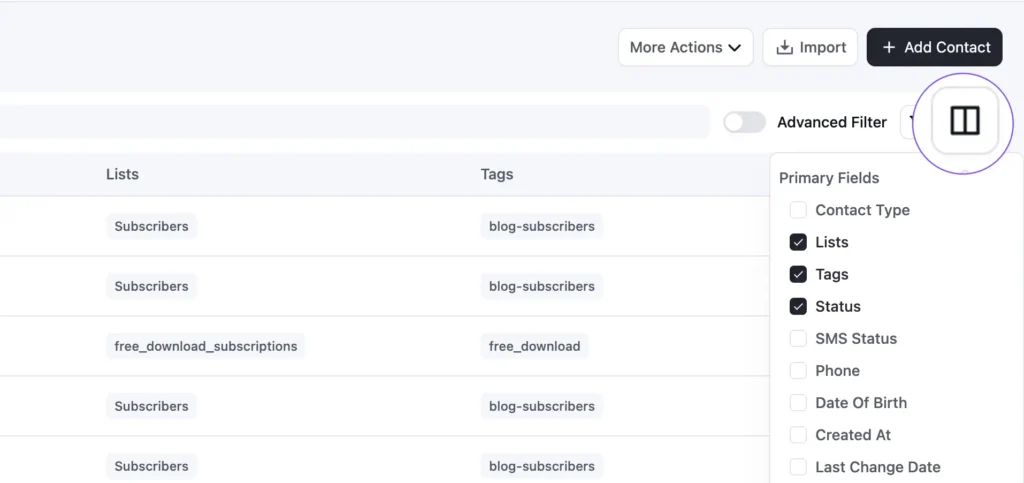
Moreover, you can also use the dropdown filters to segment your contacts. These include several primary filtering options along with any custom fields you have set up, giving you more flexibility in how you organize your contacts.
One important thing to note is that the filters you apply will only appear as columns next to your contacts.
Advanced Filtering
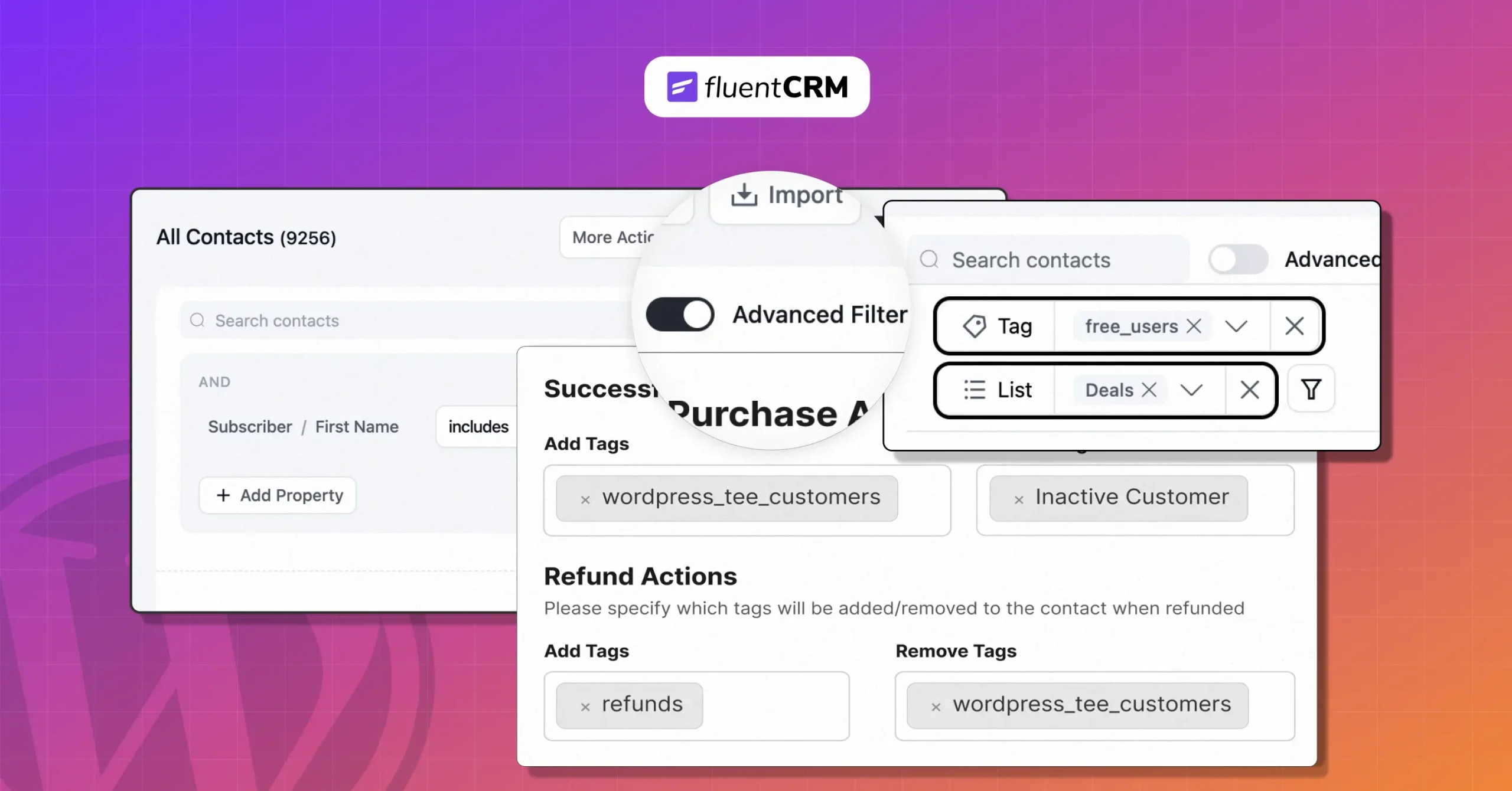
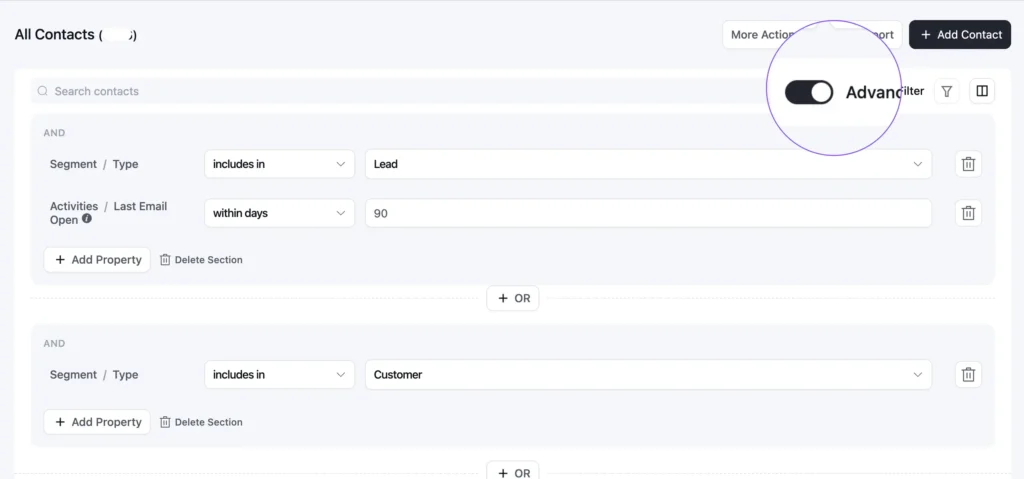
When you need more specific contact segments by crossing multiple data lists, tags, and values, Advanced Filter is the tool to reach for. Toggle it on from the Contacts dashboard, and you can segment contacts across Lists, Tags, Custom Fields, email activity, and other data types using both AND and OR conditions. It will allow you to segment contacts in multiple ways based on their activity.
For Example:
Let’s say you want to target people who showed interest in a lead magnet and are engaging with your emails. You can set up a segment like this:
List = “Downloaded Lead Magnet”
AND Email Activity = “Opened campaign: Welcome Email”
OR Email Activity = “Opened any campaign in last 7 days”
This way, you are identifying contacts who signed up through your lead magnet and are also actively opening your emails, making them ideal for your next offer or follow-up sequence.
In short, if you have a huge contact list, the advanced filter will let you identify contact groups such as:
- Engaged Leads
- Warm Prospects
- Inactive Contacts
- Re-engagement Targets
- Potential Conversion-ready Customers
Dynamic Segments
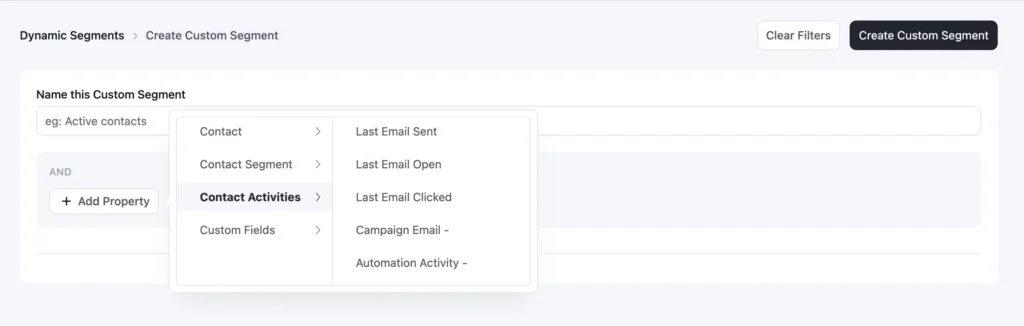
With Dynamic Segments, you set your conditions once, assign a name, and FluentCRM takes care of the rest by keeping the segment automatically updated. Contacts are added or removed in real time as they meet or no longer meet your defined criteria.
Over time, these segments evolve into continuously updated audience groups that require no manual effort.
When it’s time to send an email campaign, simply select the segment you want, and your campaign is ready to go to your targeted group.
Product-Based Segmentation
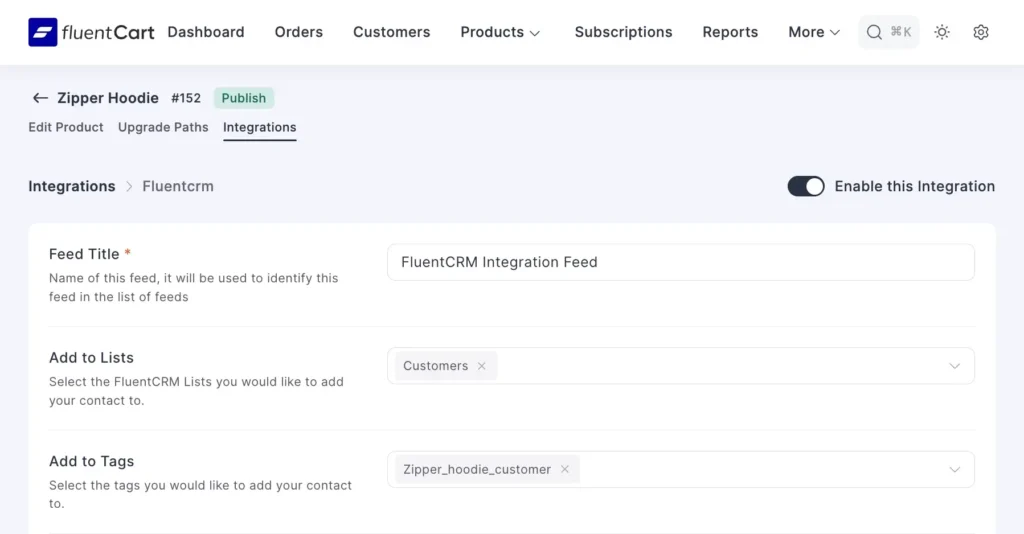
If you are selling products through FluentCart, every purchase automatically acts as a segmentation trigger. You can easily segment eCommerce purchases inside FluentCRM by tracking who bought which product, how much they spent, and other purchase-related details.
For each product, you can set up specific lists and tags through the FluentCRM integration. This means whenever a customer buys that product, they are automatically assigned to the corresponding list or tagged based on the rules you have defined in the settings.
Event-Based Segmentation
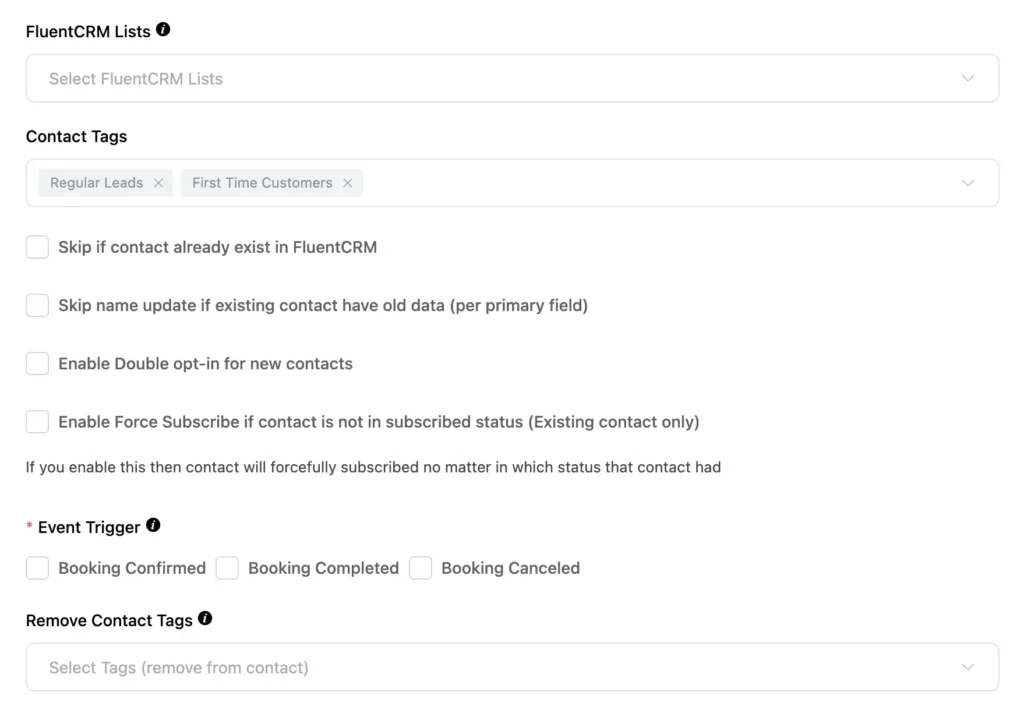
FluentBooking users get a different kind of segmentation advantage. Rather than tracking what someone bought, you are tracking what they did: booked a call, completed a session, canceled at the last minute, or rescheduled.
Inside each event or meeting in FluentBooking, you can connect FluentCRM and decide which list or tag applies depending on the booking activity.
Lead Generation Specific Segmentation
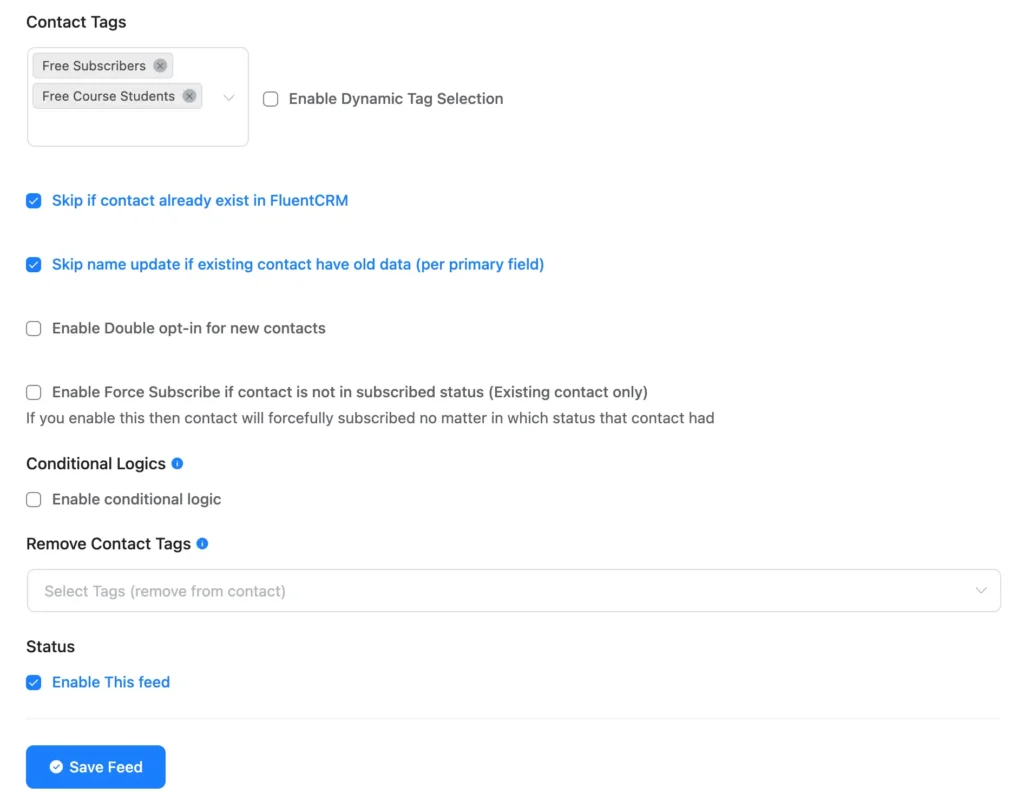
Most contacts enter your database through a form. With Fluent Forms connected to FluentCRM, that moment of entry is also the moment of segmentation.
You set up the rules inside each form configuration. From that point on, every new submission sorts itself via list and tags.
Start Organizing Contacts, Start Seeing Results
A disorganized contact database is not just an inconvenience. It is the reason campaigns underperform, automations misfire, and good leads go cold. Every time you send the wrong email to the wrong person, it costs you something.
But, it won’t happen if you know:
- Who is in your contacts?
- What have they done?
- What do they care about?
- And the specific details that make them unique.
When you know these contact details, you stop sending the same email to 5,000 people and hoping a few of them find it relevant. You start sending the right message to the right person at the right moment, and that is when email marketing starts producing results worth talking about.
So, setting up Lists, Tags, Custom Fields, and Dynamic Segments is not complicated. But they do require intention. The setup may take an afternoon. But the payoff lasts as long as your business does.
Start with what you have, organize it intentionally, and let FluentCRM do the rest.
Tanzil Ebad Efti
Content Writer & Strategist
Words are my favorite playground. As a Creative Writer at WPManageNinja, I don’t just produce content; I tell stories. By mixing fiction and metaphors with real-life examples, I turn my writing into a creative journey that’s easy for readers to digest and relate to.
Table of Content
Related Articles and Topics
-
What is Email Segmentation? A Simple Guide to Targeting the Right Subscribers
Ask any email marketer a simple question: When was the last time you sent a…
-
How to Segment Email List Based on Email Activity
If you sent a newsletter campaign last month, could you name the group of people…