FluentCRM Email Signature Generator: Create Professional Signatures for Every Email

Summarize with


Last Updated:
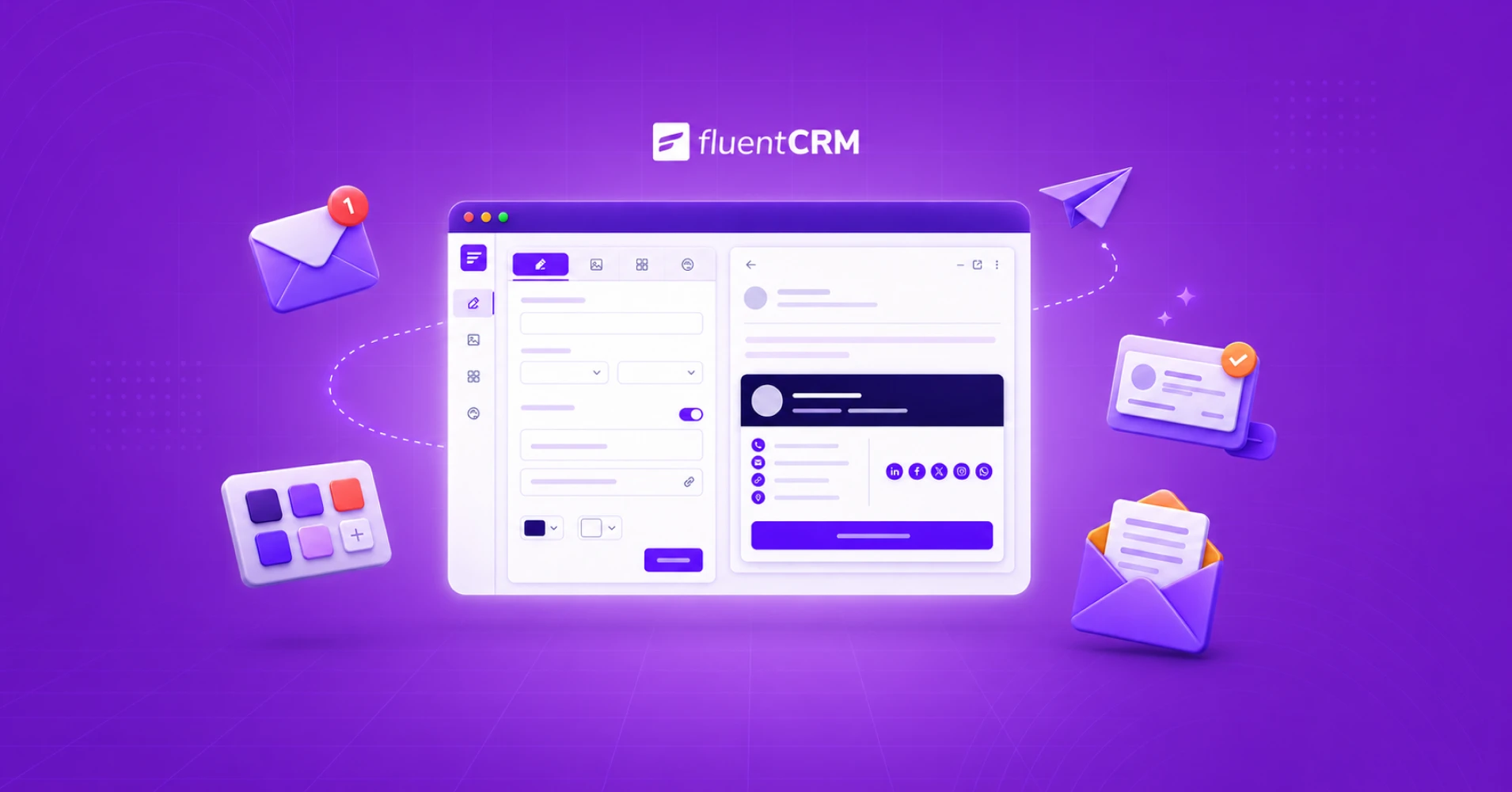
FluentCRM’s Email Signature Generator is a browser-based email signature builder that creates professional, HTML-formatted signatures for Gmail, Outlook, Apple Mail, and more in under 5 minutes. No account required.
Choose from 10 professional email signature templates, customize with your brand colors and logo, and copy your signature directly into FluentCRM or any email platform. Below you’ll find answers to common email signature questions, setup guides for every major email client, and email signature best practices.
What is an Email Signature?
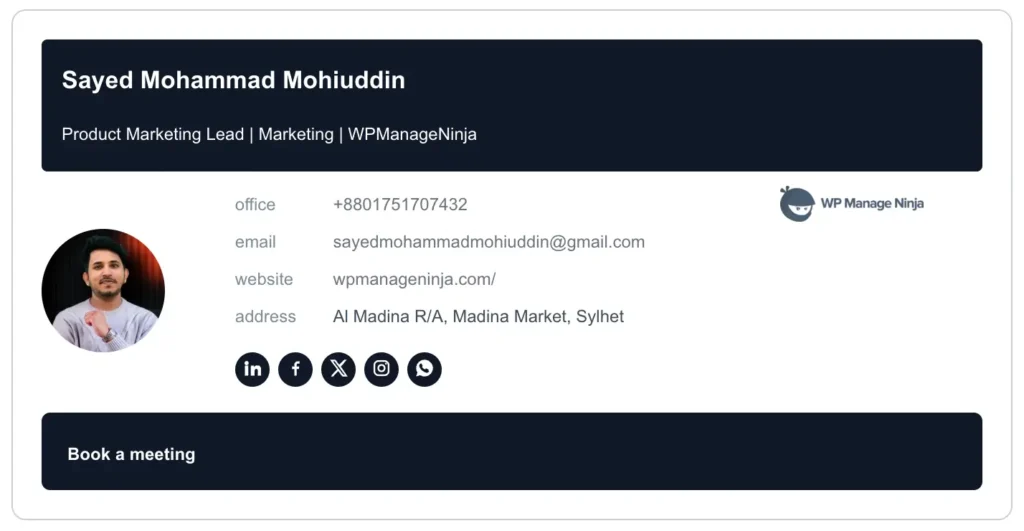
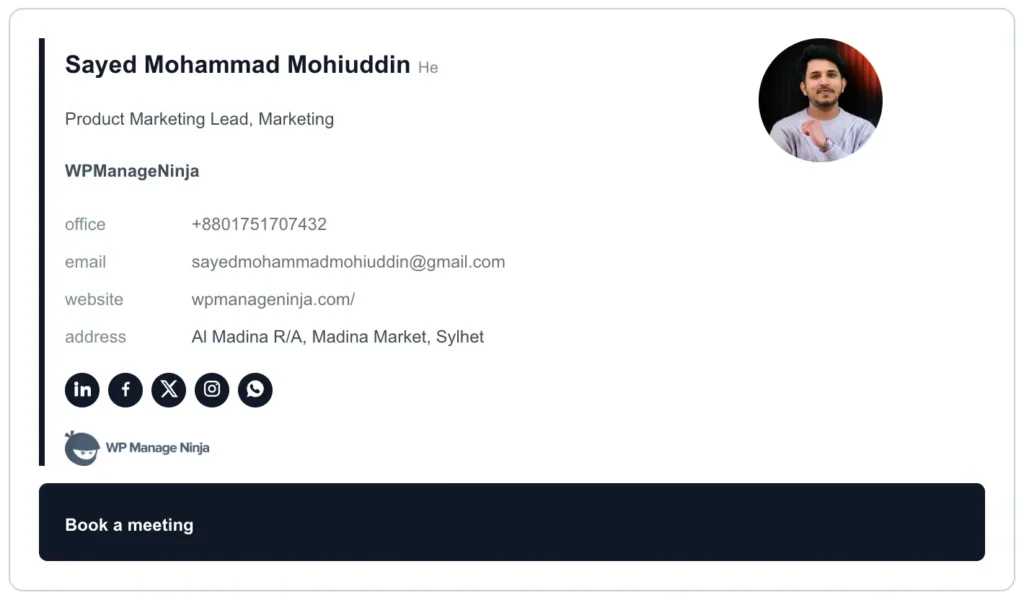
An email signature is a professional information block containing your contact details, job title, company logo, and social media links that automatically appears at the end of every email. The signature acts as a digital business card, making you instantly reachable while reinforcing brand identity with each message sent.
Email signatures serve three core purposes:
- Build Trust: Complete signatures increase email response rates because recipients trust senders who provide full contact information.
- Enable Contact: Multiple contact methods let recipients call your direct line, visit your LinkedIn, or book meetings through your website.
- Promote Your Brand: Custom company logo uploads, taglines, and website links turn every email into a marketing touchpoint.
FluentCRM’s Email Signature Generator creates signatures that convert contacts into conversations, making it the best email signature tool for WordPress-powered CRM workflows. No hidden costs or registration required. Get a finished professional email signature in under 5 minutes.
What is an Email Signature Maker?
An email signature maker (also called an email signature builder or email signature generator) is a browser-based tool that creates formatted HTML signatures for use in professional email clients. You enter your contact details, upload a logo or headshot, choose a template and brand colors, and the tool outputs ready-to-use signature code.
FluentCRM’s Email Signature Generator is a free, browser-based email signature maker that creates professional HTML email signatures compatible with Gmail, Outlook, Apple Mail, Yahoo Mail, and FluentCRM. The email signature builder generates responsive HTML signatures with images, brand colors, and social media links that maintain formatting across all major email clients.
FluentCRM Email Signature Generator’s free features:
- 10 zero-cost professional templates that are free and accessible (with no account requirement)
- Direct FluentCRM integration for seamless signature implementation
- Mobile responsive design that adapts to smartphone displays
- Direct social media integration with LinkedIn, Twitter, Facebook icons
- Custom HTML export compatible with any email client
What is the Best Email Signature Generator?
The best email signature generator is one that produces clean HTML output, supports your email client, costs nothing for core features, and takes under 5 minutes to use. FluentCRM’s Email Signature Generator satisfies all these requirements, delivering professional-grade output at zero cost with no account or credit card needed.
Are Email Signature Makers Free?
FluentCRM’s Email Signature Generator is completely free with no hidden costs, no trial period, and no account required. While many email signature generators charge for templates, logo uploads, or HTML export, FluentCRM provides unlimited free access to:
- 10 enterprise-grade design templates
- Social media icon integration (LinkedIn, Twitter, Facebook, and more)
- Custom color branding and font selection
- Mobile-responsive, HTML-validated output
- Direct HTML export for any email client
Built for ease of use, FluentCRM’s Email Signature Generator delivers professional results in under 5 minutes. No design skills needed.
What Should be Included in an Email Signature?
A professional email signature includes five essential elements, with five additional enhancements that maximize response rates and brand recognition:
Essential Elements:
- Full name: your complete professional name, displayed prominently
- Job title: current position and department
- Company name: full business name with correct spelling
- Email address: direct professional email for contact
- Phone number: direct line with extension if applicable
Recommended Additions:
- Company logo: builds brand recognition on every send
- LinkedIn profile: primary professional social network
- Company website: direct link to your business homepage
- Physical address: for local businesses and regulated industries
- Calendar booking link: removes friction from meeting scheduling
FluentCRM’s Email Signature Generator automatically formats all these elements for optimal display across Gmail, Outlook, Apple Mail, and 50+ email clients. Create unlimited professional signatures for free.
How to Use the FluentCRM Email Signature Generator
To create an email signature with FluentCRM’s free email signature builder, follow these 5 steps:
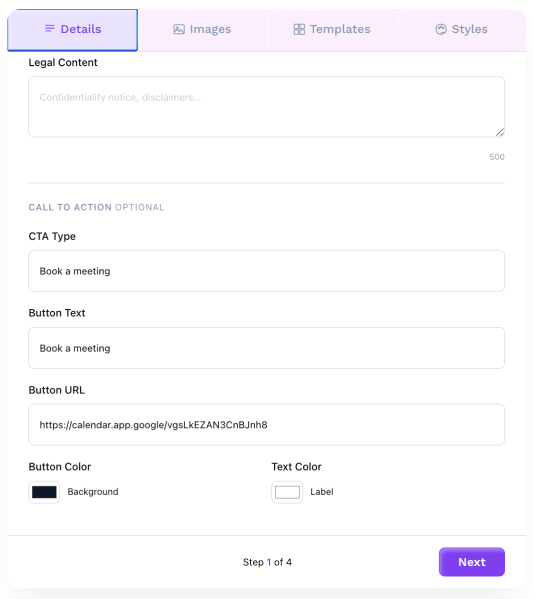
Step 1: Enter contact details in the first tab: name, title, email, phone number, and company. Information automatically formats for professional display.
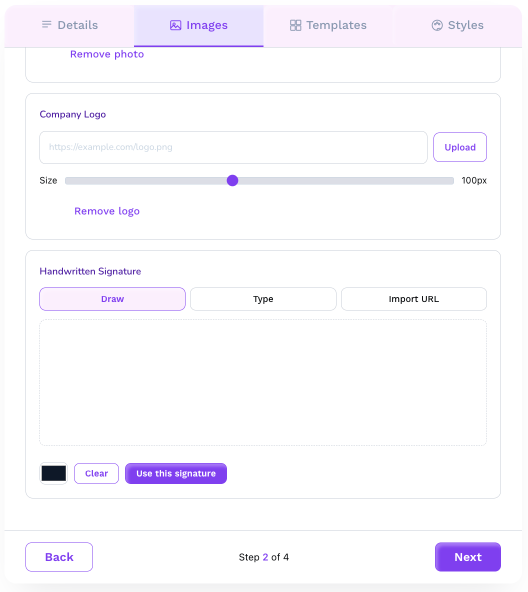
Step 2: Upload visual elements in the second tab: add a profile picture, company logo, or handwritten signature to enhance professional impact.
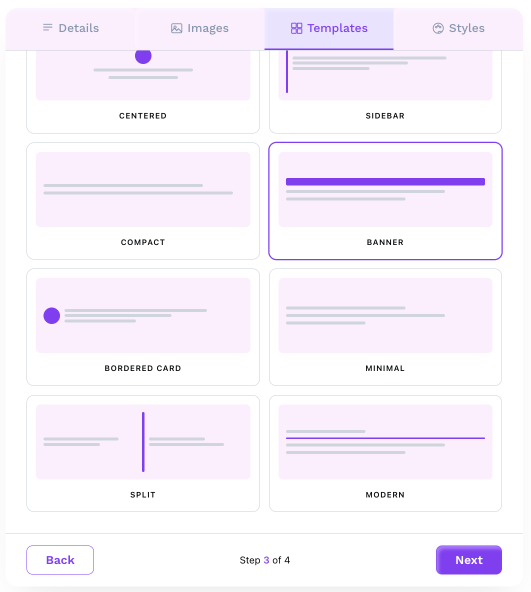
Step 3: Select a template in the third tab: choose from 10 professional layouts that present information cleanly and directly.
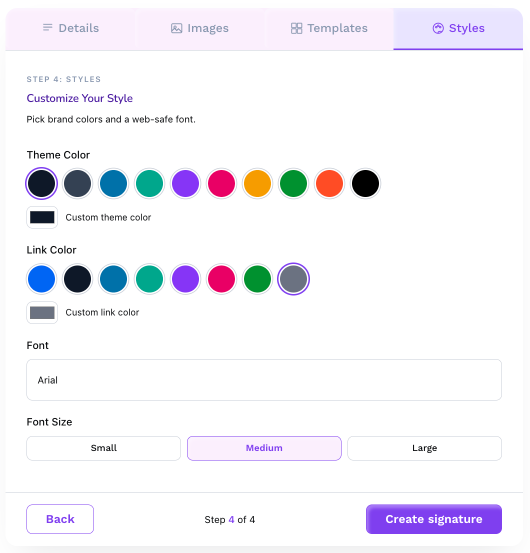
Step 4: Customize styling in the fourth tab: select brand colors, font, and font size to match your brand guidelines.
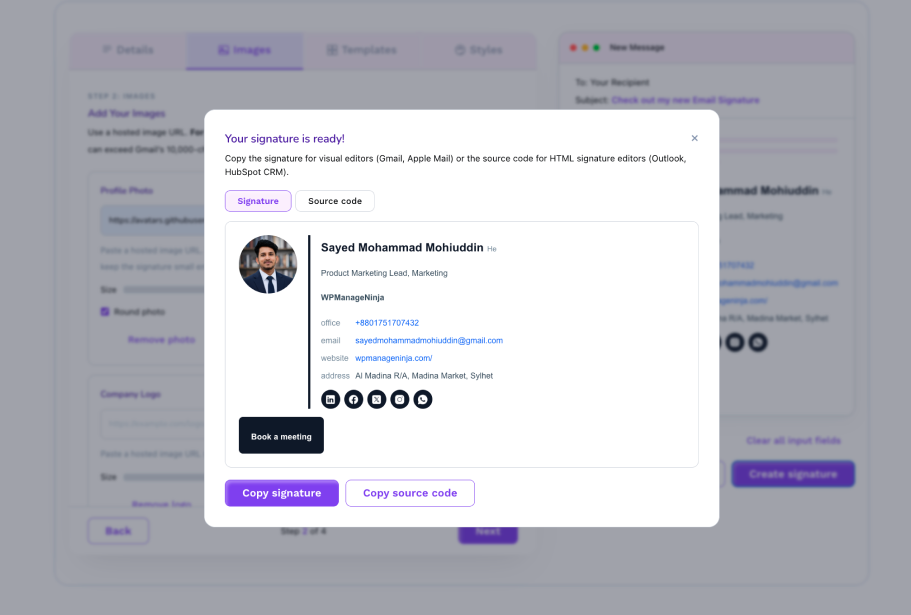
Step 5: Generate your signature: click ‘Create Signature’ to instantly generate HTML code ready for any email client.
This ease of signature creation with no learning curve and no design skills required is what distinguishes FluentCRM’s email signature tool from more complex alternatives. Experience seamless and user-friendly email signature creation with professional-grade results.
What is an HTML Email Signature Generator and Do I Need One?
An HTML email signature generator creates email signatures using HyperText Markup Language, the same code that powers web pages. HTML signatures support images, clickable links, brand colors, and responsive layouts that adapt to different screen sizes. Plain-text signatures, by contrast, cannot include logos, formatted fonts, or social media icons.
You need an HTML email signature generator if you want:
- A company logo or headshot displayed in your signature
- Clickable links to your website, LinkedIn, or booking calendar
- Brand colors and custom fonts that match your visual identity
- A signature that looks the same across Gmail, Outlook, and Apple Mail
FluentCRM’s free HTML email signature generator creates validated, cross-client HTML that works in Gmail, Outlook, Apple Mail, Yahoo Mail, and FluentCRM itself with no coding knowledge required. Simply copy the HTML output and paste it directly into your email client’s signature settings or FluentCRM’s email builder.
What are Email Signature Best Practices?
Best practices for email signature design start with consistency, clarity, and a generator that handles the heavy lifting. FluentCRM’s Email Signature Generator ensures your signature follows these essential guidelines:
Contact Information Hierarchy
- Full name displays in largest font size
- Job title and department appear prominently
- Direct phone number enables immediate contact
- Professional email address confirms authenticity
- Company name and website URL build credibility
Visual Brand Consistency
- Company logo reinforces brand recognition
- Brand color palette maintains visual identity
- Professional headshot adds personal connection
- Social media icons limited to 3-4 professional platforms
Mobile-First Design Principles
- Single-column layout ensures smartphone compatibility
- Readable font sizes (10-14pt) optimize mobile viewing
- Clickable elements use proper HTML formatting
Create a signature that meets all current email signature standards in under 5 minutes with FluentCRM’s Email Signature Generator.
How do I Add a Company Logo or Image to my Email Signature?
To add a company logo or any other photo to your email signature in FluentCRM’s Email Signature Generator, follow these 3 steps:
Step 1: Upload your logo to an image hosting platform, like Dropbox, or any image host that provides a direct URL.
Step 2: Copy the direct image URL.
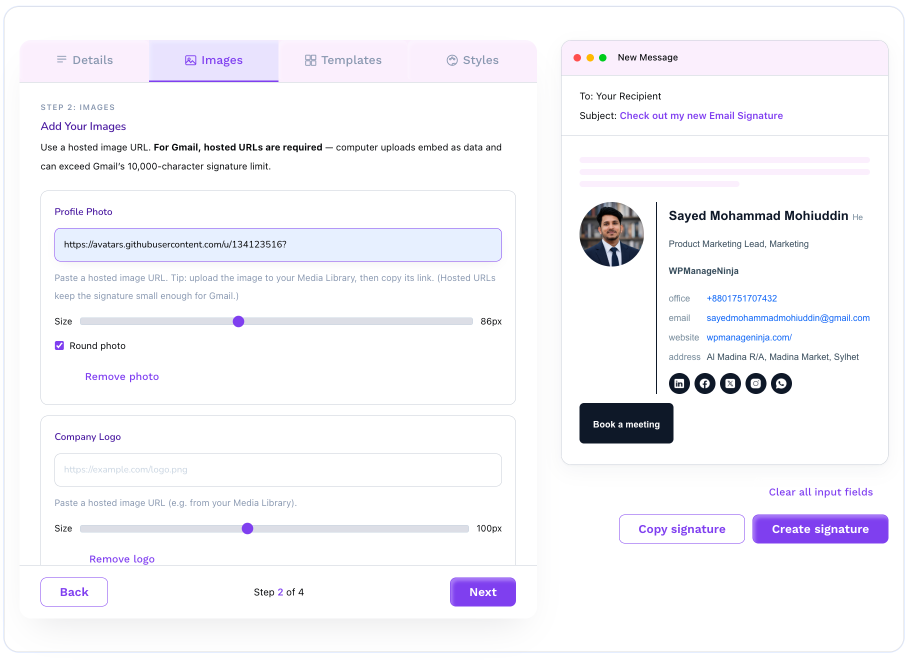
Step 3: Paste the URL in FluentCRM’s signature creator under the Images tab. The generator auto-sizes your logo for correct display across all email clients.
For best results, use a PNG with a transparent background sized to 200-300px wide.
Should I Include my Photo in my Business Email Signature?
Yes, adding a professional headshot to your email signature increases response rates and builds instant trust. A quality photo humanizes your emails, making recipients more likely to remember and respond to you. After uploading your photo to FluentCRM’s email signature tool, our quick signature generator will automatically optimize the dimensions for perfect display across all email clients and templates.
How to Create an Impactful Professional Email Signature?
Create an impactful and polished professional email signature by following these five essential steps:
Step 1: Choose a Clean and Simple Design
Select a design that aligns with your professional image and brand guidelines. Professional email signatures use no more than 2-3 colors and stick to standard fonts like Arial, Times New Roman, or Georgia in 10-14pt size. Avoid cluttered layouts that distract from your contact information.
Step 2: Include Your Full Professional Identity
Add your complete name, current job title, and company name to establish credibility immediately. Recipients should know exactly who you are and what you do within one glance at your signature.
Step 3: Provide Essential Contact Information
List your direct phone number, professional email address, and company website URL. Including links to your professional social media profiles, such as LinkedIn, can also enhance your credibility.
Step 4: Personalize with Visual Elements
Add a headshot or company logo to make your signature more memorable and brand-consistent. FluentCRM’s Email Signature Generator supports logo image uploads and will keep your details current.
FluentCRM’s free signature designer automates these five steps. Create your own signature that works across all email platforms in under 5 minutes.
How to Make a Business Email Signature?
Effective business email signatures include 5 essential elements that transform emails into networking opportunities:
1. Full Name and Professional Title: List your complete name and current job title on separate lines. Recipients immediately understand who you are and your role within the organization. Example: “Jane Smith | Senior Marketing Manager”
2. Company Name and Department: Include your company’s full legal name and specific department if relevant. Large organizations benefit from adding department names to route inquiries correctly. Example: “Marketing Agency | Enterprise Sales Division”
3. Direct Contact Information: Provide your direct phone number with extension and professional email address. FluentCRM’s Email Signature Generator automatically formats these fields to create a clickable email signature.
4. Company Logo and Visual Branding: Incorporate your company’s logo to reinforce brand recognition. Maintain consistent brand colors across all employee signatures.
5. Strategic Website and Social Links: Include your company website URL and 3-5 relevant social media profiles. Prioritize LinkedIn for B2B companies, Instagram for visual brands, and Twitter for thought leadership.
Follow these 5 best practices to create a first-rate professional signature that drives results. FluentCRM’s signature maker is one of the top email signature generator tools for professionals, automatically optimizing every element for professional impact across every email platform.
What Fonts Work Best for Email Signatures Across all Platforms?
FluentCRM’s Email Signature Generator uses web-safe fonts that display perfectly everywhere: Arial, Georgia, Times New Roman, Verdana, and more. These system fonts guarantee a consistent, professional appearance across Gmail, Outlook, Apple Mail, and all devices whether Windows, Mac, iOS, or Android.
Choose fonts that match your industry: Sans-serif options like Arial and Helvetica deliver modern clarity and superior mobile readability, while serif fonts like Georgia convey traditional authority ideal for legal and financial professionals.
How to Make a Student Email Signature?
FluentCRM’s free Student Email Signature Generator helps college students and recent graduates create a signature that bridges academic credentials and professional identity. A well-crafted student email signature makes every email to a professor, recruiter, or alumni contact look intentional and career-ready.
Your student email signature becomes especially important during:
- Internship and job applications
- Emails to professors and academic advisors
- Alumni networking outreach
- Student organization communications
- Graduate school application correspondence
A good college student email signature should include:
- Full Name and Graduation Year
- University and Major/Minor
- College Student Email and Phone Number
- LinkedIn Profile
- Relevant Personal Websites or Portfolios
Student signature tips: Keep it to 4-5 lines. Use a professional email address, not a nickname. Link your LinkedIn even if it’s not fully built out; a placeholder is better than nothing. Update your graduation year as you progress, and remove it once you’ve graduated.
Use FluentCRM’s free student email signature generator to create a polished signature in under 5 minutes, completely free and budget-friendly with no account required.
Does this Tool Support Handwritten Signatures?
Yes. FluentCRM’s Email Signature Generator provides native handwritten signature support, giving your professional communications a personal touch. Create and insert a custom handwritten signature either manually or from a variety of preexisting fonts.
How Can I Create a Handwritten Signature?
Click into the “Images” tab to quickly create a handwritten signature through one of the following methods:
- Import existing signature: Insert the URL of your pre-existing handwritten signature image.
- Draw a new signature freehand: Use your mouse or touchpad to create a signature directly in the tool to capture your unique style.
- Select handwriting font: Choose from 8 professional handwriting fonts to effortlessly generate a signature.
- Adjust the size to your liking once you’ve generated your handwritten signature.
Your handwritten signature will automatically integrate with your other signature elements to create a cohesive, personalized email signature.
How do I Create my Email Signature on Mobile or Tablet?
FluentCRM’s mobile email signature generator works seamlessly on phones and tablets. The mobile-optimized interface lets you create professional email signatures directly from any device with no desktop required.
To create your signature on mobile:
- Visit the FluentCRM Email Signature Generator directly in your mobile browser.
- Select from the range of professional email signature templates.
- Customize with your name, title, company, and contact details.
- Add your brand colors and logo to match your company’s visual identity.
- Preview how your signature will look on mobile.
- Copy your signature to your clipboard or send it directly to your email.
FluentCRM’s mobile email signature generator provides the same features as the desktop version, ensuring professional-quality signatures on the go.
How do I Add my Signature to FluentCRM?
FluentCRM makes it simple to add your generated signature in two ways:
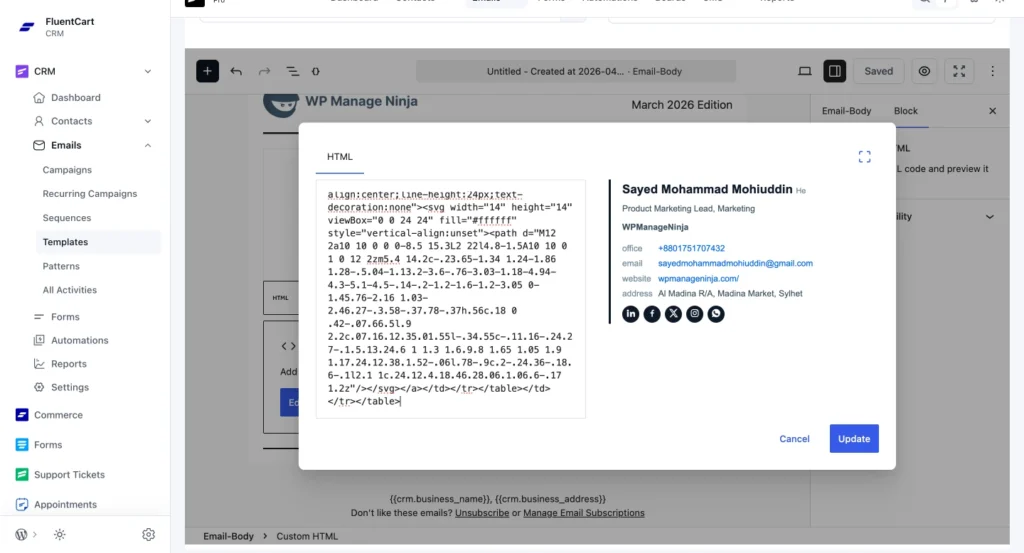
Method 1: Add to Individual Email Templates (FluentCRM Email Builder)
- Copy your signature code from the FluentCRM Email Signature Generator.
- Go to your FluentCRM dashboard and open the email builder for the campaign or automation you’re working on.
- Add a “Custom HTML” Gutenberg block where you want your signature to appear.
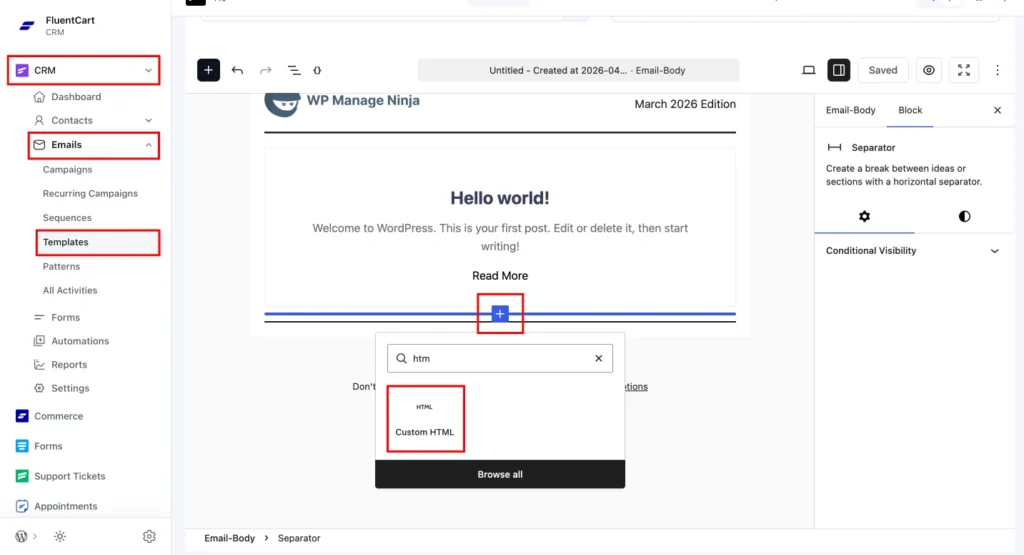
- Paste your signature source code into the custom HTML block.
- Save your email template. Your signature is now embedded and will appear at the end of that email.
Method 2: Add Globally to All Email Footers
To apply your signature to every email sent through FluentCRM:
- Go to your FluentCRM dashboard.
- Navigate to Settings.
- Open “Global Email Settings.”
- Scroll down to the “Email Footer Text” section.
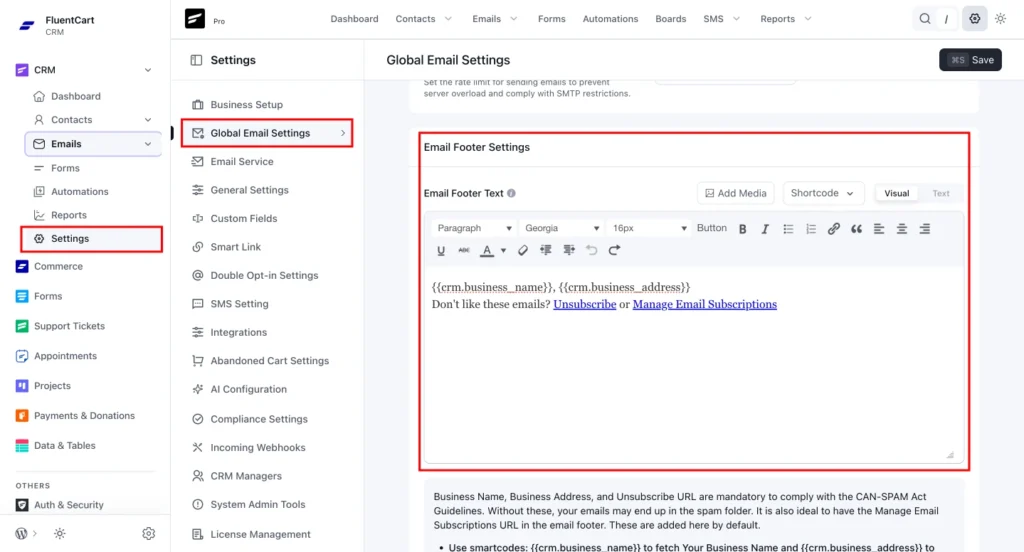
- Remove the default text like {{crm.business_name}},{{crm.business_address}}.
- Paste your generated signature source code into the text field.
- Save your settings.
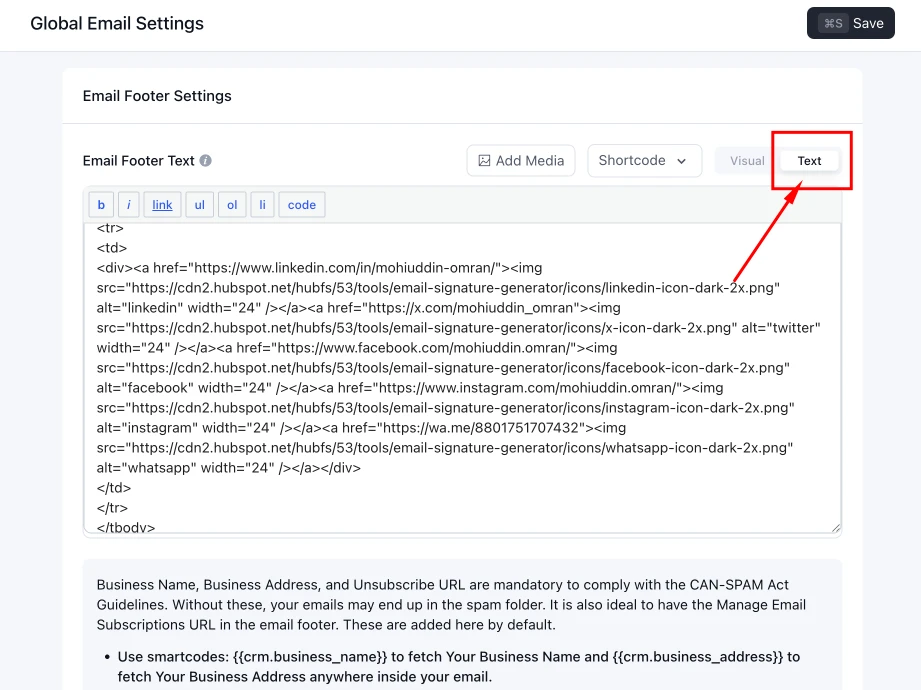
Now all emails sent through FluentCRM will automatically include your professional signature in the footer.
How do I Add my New Email Signature to Gmail?
To add signature in Gmail, Log in to your Gmail account, then click the gear icon in the top right corner. Click on See All Settings from top. Scroll down until you reach the email signature editor, then paste your new email signature there. Scroll to the bottom of the page and click ‘save changes’.
How do I Add my New Email Signature to Outlook?
FluentCRM’s Email Signature Generator is perfectly compatible with creating Outlook Mail signatures. To create a signature in Outlook for Windows and Mac:
- Log in to your Outlook account and select the Home Tab and New Email.
- Click the Message tab.
- In the Include group section, select Signature and then Signatures.
- In the Choose Default Signature section, select the account you would like to associate with the signature from the email account dropdown.
- In the Select Signature to Edit section, click the New button and name your signature.
- In the Edit Signature section, paste in your generated signature and select OK.
How do I Create a Signature for Outlook on the Web and Outlook.com?
To set up an email signature for the online versions of Outlook:
- Log in to Outlook on the web and click on the gear icon in the top-right corner.
- Select View all Outlook settings at the bottom of the column.
- Navigate to Email and then Compose and Reply.
- Name your signature in the Edit Signature name field.
- Paste your signature for Outlook in the Edit Signature section.
- Select Save.
Why Doesn’t my Signature Work in Outlook?
When copying and pasting email signatures into Microsoft Outlook, certain formatting may not display correctly if your paste settings are not configured properly. To ensure signatures render with all styles intact, follow these steps:
For Outlook Desktop (Windows):
- In an email message, click File and then Options.
- Select Mail and then Editor Options.
- Click Advanced.
- Scroll to the Cut, copy, and paste section.
- Set “Pasting from other programs” to “Keep Source Formatting”.
- Click OK to save changes.
- Restart Outlook for changes to take effect.
Note: These instructions apply to Outlook 2016 and later on Windows. For other versions or platforms, please refer to Microsoft’s official Outlook documentation or contact Microsoft support for guidance.
How do I Add my New Email Signature to Yahoo Mail?
- Log in to your Yahoo Mail account and select Settings and then More Settings.
- On the left side of the screen, select “Writing email” and then locate the Signature header.
- If you have multiple Yahoo Mail accounts, use the toggle to select the account you want to customize your email signature for.
- Paste your new email signature into the text box to save it.
How do I Create an Email Signature for Apple Mail?
FluentCRM’s Email Signature Generator provides native Apple Mail support, making it easy to set up a polished signature on Mac. To set up an email signature for Mac via Apple Mail:
- Open Apple Mail and click Mail and then Settings.
- Choose the Signatures section of Settings.
- Click on the plus “+” symbol.
- Paste your new email signature into the box on the right.
- Edit the name of your signature.
- In the “Choose Signature” section, use the dropdown menu to select the name of your newly added signature.
Why Doesn’t my Email Signature Look as Expected?
If your signature doesn’t look as expected, here are some solutions to try:
On mobile: Almost every email signature template will display as expected on both mobile and desktop, with the exception of template 3. If you’re using template 3, remove any images (headshot and logo) to ensure an optimized mobile display.
Try using a different web browser to create your signature. Some web browsers don’t copy the formatting along with the text, and this changes with each update of the browsers.
Copy the source code instead. Some email clients require you to copy the source code rather than the email signature itself for uploading. If your signature isn’t displaying properly, try copying and uploading the source code instead.
Why does My Email Signature Look Wrong or Unreadable in Dark Mode?
Some email clients automatically invert colors when users enable dark mode, which can make certain signature elements difficult to read. Light-colored text may become invisible, and some colors may appear distorted.
To ensure your FluentCRM signature remains readable in both light and dark modes:
- Avoid very light text colors (white, light gray). Choose darker theme colors visible on both backgrounds.
- Select a link color that works in both modes. Dark blues or purples typically hold up better than bright colors.
- Test your signature in both light and dark mode before finalizing.
- Check that your logo displays correctly in dark mode. Logos with light backgrounds or transparent elements may appear poorly.
Tip: Dark text on transparent backgrounds and mid-tone brand colors typically provide the best cross-mode compatibility.
How do I Change my Email Signature on iPhone?
To change your email signature on iPhone, navigate to Settings, Mail, and then Signature. Here you can replace the default “Sent from my iPhone” text with a professional mail signature containing your name, title, company, and contact information.
You have two options when adding an email signature on iPhone:
- All Accounts: Use the same signature across Gmail, Outlook, iCloud, and any other connected email accounts.
- Per Account: Create unique signatures for each individual email account.
This simple process takes less than a minute and instantly professionalizes every email you send from your iPhone.
Do you Have Any Updated Email Signature Templates?
Yes. FluentCRM’s online signature maker now includes 10 professional email signature templates to cover every realm of your signature needs. Simply choose the template that matches your communication style, personalize it with your information, and you’ll have a polished signature ready to use in seconds. No design skills or technical knowledge required. FluentCRM Email Signature Generator templates are built for everyone.
What Export Options does FluentCRM’s Email Signature Generator Support?
FluentCRM’s Email Signature Generator lets you export your signature in a few ways depending on your email client. You can copy the HTML code directly and paste it into any client that supports custom HTML signatures, including Gmail, Outlook, and Apple Mail. For clients with a visual editor, you can copy the formatted signature instead. Either way, your signature is ready to use in seconds with no reformatting needed.
Can I Create Team Email Signatures with FluentCRM’s Tool?
Yes. FluentCRM’s online signature maker enables efficient team email signature creation. Administrators and team leaders can design brand elements (logos, colors, fonts) that employees can then apply when creating their email signatures. This ensures 100% brand consistency across all employee communications while allowing the personalization of names, titles, and direct contact information. Create a company email signature today.
Does the FluentCRM Email Signature Generator let you export custom HTML?
Yes. FluentCRM’s Email Signature Generator lets you export your signature as custom HTML and paste it into any email client in seconds.
How do I Track Clicks on Links in my FluentCRM Email Signature?
FluentCRM’s email signature tool lets you add any URL to your signature. To track clicks, add UTM parameters to those links before generating your signature. From there, you can monitor performance in whatever analytics platform you use, like Google Analytics.
Mohiuddin Omran
Email Deliverability Specialist
Mohiuddin Omran is a mathematician with a passion for writing. A technology enthusiast and a keen follower of software trends dealing with digital marketing at FluentCRM. When not in the workspace, you’ll find him roaming with his friends.
Table of Content
Related Articles and Topics
-
How to Change the Gmail Profile Picture of Your Custom Email (2026)
Email communication is a vital tool for any business since it’s an opportunity to connect…
-
How to Send Automated Payment Reminder Using FluentCRM
Late payments are rarely dramatic. People forget, get busy, miss a date, or mean to…