How to Create a Newsletter Archive on WordPress within 5 Minutes!

Summarize with


Last Updated:
You send a newsletter to your subscribers, once they reach their inboxes and read it once, then it gets buried forever.
When new subscribers join weeks or months later, they never see some of your best work. And for search engines? They can’t crawl an email inbox at all.
A newsletter archive changes all of that. It turns your sent emails into a permanent, searchable, public library on your website.
New visitors can browse before subscribing. Search engines can index every issue. And your past newsletters, instead of sitting idle in inboxes, keep working for you.
In this guide, you’ll learn everything related to newsletter archives and exactly how to create one on your WordPress site using FluentCRM’s built-in Campaign Archive feature.
What is a Newsletter Archive?
A newsletter archive is a publicly accessible collection of your past email newsletters displayed on a website for visitors to browse, search, and share.
Within email marketing tools like FluentCRM, this is often called a campaign archive. When configured, it automatically publishes sent campaigns to a web page your visitors can browse anytime.
Why Every Business Should Have a Newsletter Archive
Most businesses treat email newsletters as a one-and-done channel.
A newsletter archive changes that. It transforms every email campaign you send into a long-term asset that works for your brand beyond just campaigns.
Here’s why every business should have one:
- Give Content a Longer Exposure: Publishing newsletters as an archive acts like a helpful tip or insight that still educates, engages, and converts even after a year.
- Higher Subscriber Conversions: Letting visitors browse real past campaigns before signing up is far more persuasive than any description of your newsletter.
- A Cohesive Brand Narrative: When all your newsletters live in one place, new readers can catch up on your story, absorb your voice, and feel connected, before they even subscribe.
- Context for New Subscribers: New joiners can catch up with all the previous stories, so they feel more connected to your brand from day one.
- Crawlable Content for Search Engine: A newsletter archive gives every issue a permanent URL that search engines can crawl and rank, turning one-time emails into compounding organic traffic over time.
What is the FluentCRM Campaign Archive?
FluentCRM is a self-hosted email marketing and CRM plugin built natively for WordPress.
The Campaign Archive is a native FluentCRM feature; once enabled, it allows you to publish your sent email campaigns to the frontend of your WordPress website.
With that feature, visitors can browse your past newsletters, read individual email stories, and search by keyword.
This makes FluentCRM’s Campaign Archive the ideal newsletter archive solution for WordPress users because:
- It lives on your own domain, not a third-party platform
- It’s fully crawlable and indexable by search engines
- It requires zero extra plugins to set up
- It integrates natively with your existing FluentCRM workflow
How to Create a Newsletter Archive with FluentCRM
Setting up your newsletter archive in FluentCRM takes just a few minutes.
Follow the steps below to enable the feature, create your archive page, and make it ready for both visitors and search engines.
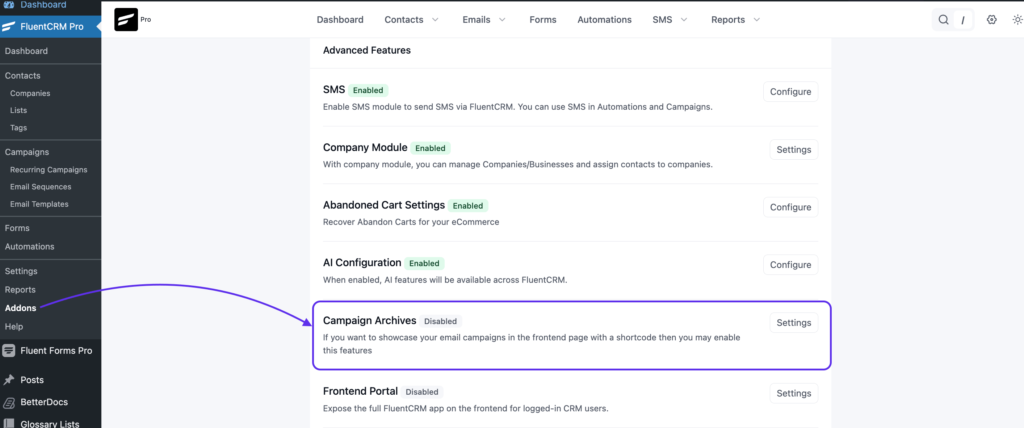
Step 1: Find the “Campaign Archive” Addon
Go to FluentCRM > Addons. Find the Campaign Archives and click on Settings.
Step 2: Enable the Frontend Feature
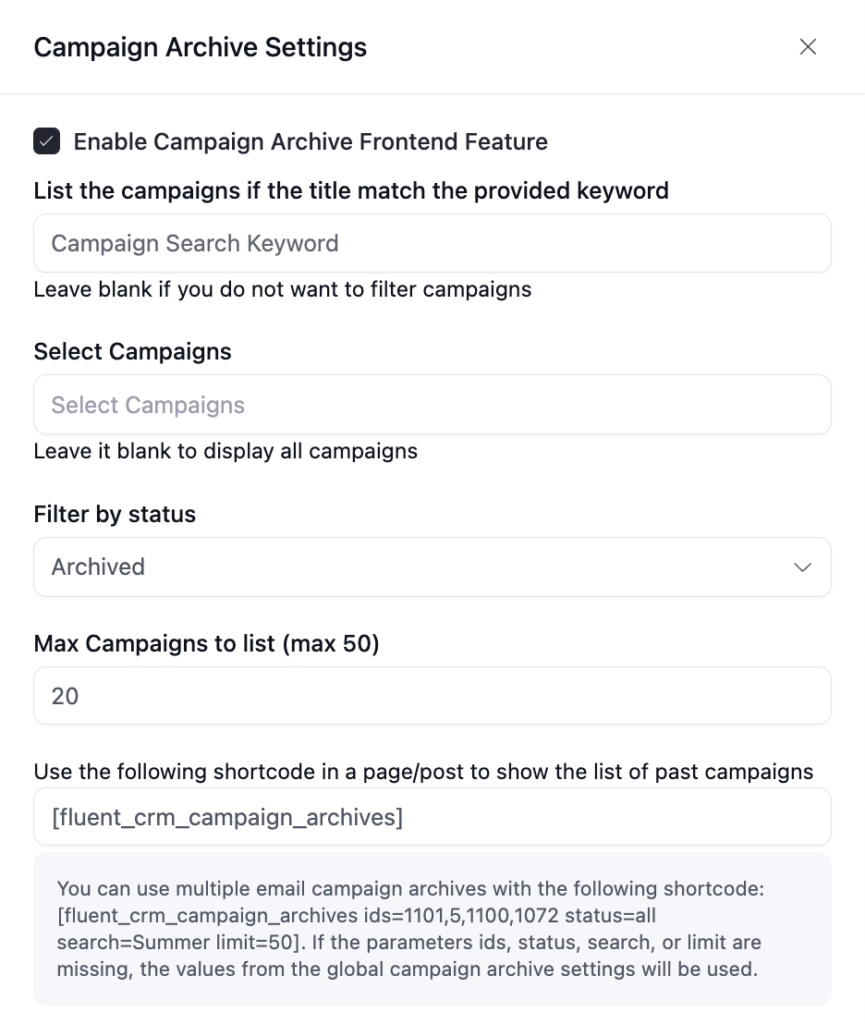
Once clicked, check the box labelled “Enable Campaign Archive Frontend Feature” and save your settings.

Step 3: Configure Campaign Archive
Once enabled, a Campaign Archive Settings panel appears where you can fine-tune what gets displayed on your archive page.
Here’s what each option does:
- List the campaigns if the title matches the provided keyword: This works just like the search box on your FluentCRM campaign dashboard. Enter a keyword, and the archive will only display campaigns whose titles match it.
Leave it blank to show all campaigns without any filtering. - Select Campaigns: Handpick specific campaigns to display in the archive.
- Filter by Status: Set which campaigns are shown based on their current status.
- Max Campaigns to list: Control how many campaigns are displayed at once.
- Shortcode: Once configured, FluentCRM generates your shortcode at the bottom of the panel. Use to display the archive on any page or post.
For more control, you can also use the advanced shortcode format to display multiple archives with different filters on the same page. [Will be Discussed Below]
Step 4: Copy Shortcode
Before you move on to the next step, copy the shortcode.
Step 5: Create Your Archive Page
In WordPress, go to Pages > Add New.
Name it something like “Newsletter Archive” or “Past Campaigns”. Paste the shortcode into the content area and publish. FluentCRM automatically populates the page with all your archived campaigns.

Step 6: Design Page Layout & Paste the Shortcode
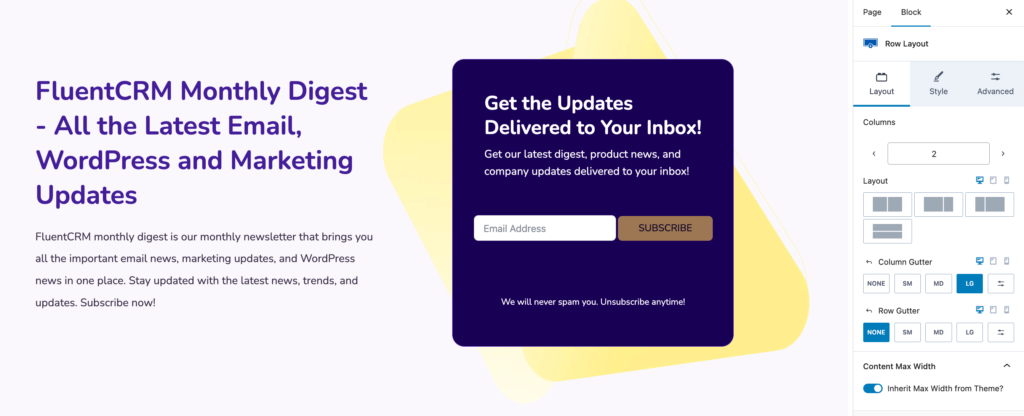
Now, think about how your newsletter archive page should look and feel to visitors.
A well-designed campaign archive isn’t just a plain list of links; it should be easy to browse, visually consistent with your site, and guide visitors naturally toward subscribing.
Here are the key layout elements to consider:
- Page Header: Add a clear heading such as “Newsletter Archive” or “Past Campaigns” along with a short description explaining what visitors will find there. This sets context immediately and reinforces the page’s keyword for SEO.
- Subscription Form Above the Archive: Place a signup form at the top of the page, before the list of campaigns. Visitors who land here from search are warm leads; give them the option to subscribe before they even start browsing.
- Campaign Listing Layout: FluentCRM will display your campaigns as a list on the frontend once you paste the shortcode to the right place.
- Search or Filter Bar: If you have a large number of archived campaigns, consider adding a visible keyword search so visitors can quickly find topics they care about rather than scrolling through everything.
- Individual Campaign Preview: Each campaign in the archive page should take visitors to its own dedicated page to preview the individual campaign.
- Mobile Responsiveness: Most visitors will browse your archive on a phone. Preview the archive page on mobile and ensure everything is in a readable format.
Step 7: Set URL & SEO Metadata
Now, it’s time to make the page crawlable.
Keep the archive page URL short and descriptive, something like [yoursite.com/newsletter-archive/] or [yoursite.com/past-campaigns/].
A clean URL is easier to share and reinforces your target keyword.
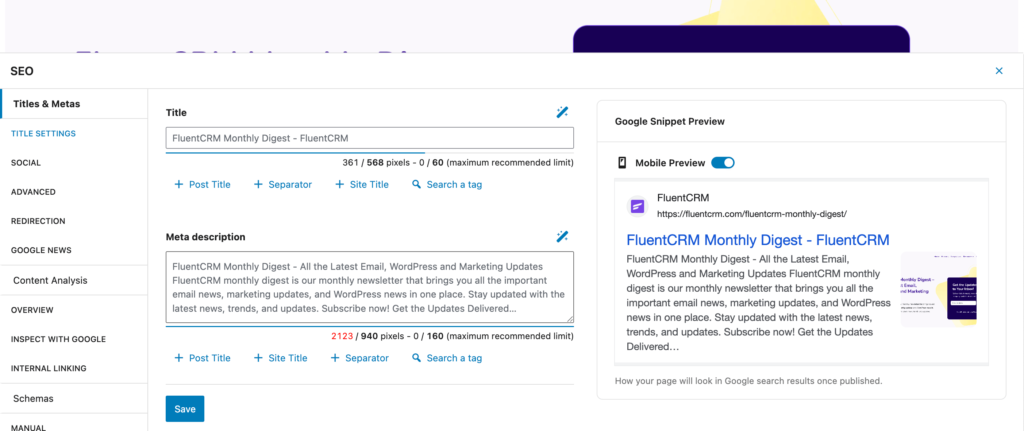
Then, if you’re using any plugins for search engine optimization, go there and add a meta title and meta description to the page, targeting the keyword “newsletter archive.”
This ensures the page is properly described to search engines and shows up with a compelling snippet in search results.
Step 8: Link the Archive Page from Different Places
Once the page is published, place the URL in different places of your website, navbar, footer, and subscription landing page. The more places it’s linked from, the more easily search engines and visitors will find it.
Pro Tip: Link to your campaign archive from your email subscription landing page. Letting potential subscribers browse past campaigns before signing up is one of the most effective conversion tactics you can use.
#Special Mention: Show Individual Campaigns
By default, your campaign archive displays all archived campaigns automatically.
But what if you only want to highlight your best-performing campaigns, a handpicked selection rather than everything you’ve ever sent?
FluentCRM’s advanced shortcode makes this possible. Instead of using the standard shortcode, paste this parameterised template into your page:
[fluent_crm_campaign_archives ids=1101,5,1100,1072 status=all search=Summer limit=50]Each parameter gives you a specific layer of control:
- ids: The campaign IDs of the specific campaigns you want to display. Find these in your campaign URL.
- status: Filter campaigns by their status. Set all to include campaigns regardless of status, or use archived to show only fully sent campaigns.
- search: Narrow the selection further by matching a keyword against campaign titles.
- limit: Set the maximum number of campaigns to display, up to 50.
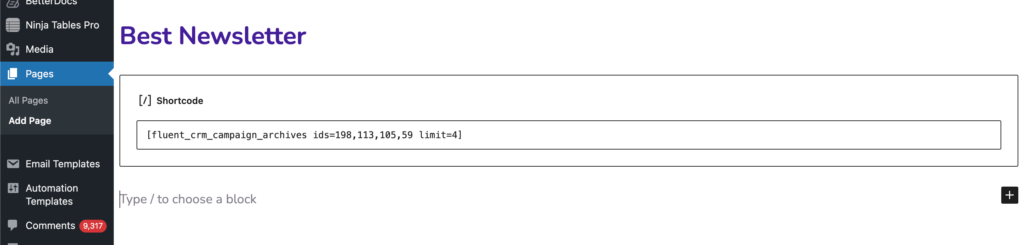
So if you want to showcase, say, your five most popular campaigns from a summer series, simply grab their IDs from the campaign dashboard, plug them into the ids parameter, and paste the shortcode onto any page. Only those campaigns will appear, giving you a curated, high-impact newsletter archive rather than a catch-all list.
SEO Best Practices for Your FluentCRM Newsletter Archive
Setting up your campaign archive is only half the job. Follow these practices to make sure it gets found and ranked by search engines.
Ensure Archive Page Is Indexed
After publishing your archive page, check that it isn’t accidentally blocked in your robots.txt file. Then submit the URL to Google Search Console to confirm it’s being indexed and to speed up discovery.
Write SEO-Friendly Titles for Each Campaign
Your email subject line and your SEO page title are not the same thing.
Subject lines are written to get opened in an inbox. Campaign titles in your archive should match what someone would type into Google.
| Email Subject Line | SEO-Friendly Campaign Title |
|---|---|
| 🎉 Big news this week! | Email Marketing Trends to Watch in Q3 2026 |
| Our favourite tools right now | 10 Email Marketing Tools Worth Trying in 2026 |
| Quick update from us | How We Grew Our Newsletter to 10,000 Subscribers |
Build Internal Links to Your Archive
Your newsletter archive won’t get crawled if nothing on your site links to it. Add links from:
- Your site footer
- Your site menubar
- Your email subscription landing page
- Your welcome email
- Your about page
- Related blog posts
Add a Subscription CTA on Your Archive Page
Every visitor who lands on your campaign archive through search is a warm lead.
FluentCRM makes it easy to embed a subscription form on any WordPress page using its built-in form builder, FluentForms. Prepare a form and place one above or below your archive to convert readers into subscribers before you start nurturing them.
Make Newsletter Archive Your Growth Engine
Every newsletter you send carries brand-building power, SEO potential, and conversion value; but only if it lives somewhere people can find it.
A newsletter archive transforms your campaigns from one-time sends into a permanent growth asset.
With FluentCRM’s built-in Campaign Archive, you can make that happen in about 5 minutes.
The more campaigns you archive, the more search engines index, the more visitors you attract, and the more subscribers you gain.
Start today and let your past campaigns keep working for you.
Tanzil Ebad Efti
Content Writer & Strategist
Words are my favorite playground. As a Creative Writer at WPManageNinja, I don’t just produce content; I tell stories. By mixing fiction and metaphors with real-life examples, I turn my writing into a creative journey that’s easy for readers to digest and relate to.
Table of Content
Related Articles and Topics
-
How to Use Video Lead Scoring for a Product Launch Waitlist [Complete Guide]
You put together a teaser video for the thing you’re about to launch. It goes…
-
New Gutenberg Editor: The Email Builder WordPress Users Always Wanted in FluentCRM
If you’re a WordPress user, isn’t it satisfying to write in Gutenberg? You click the…