How to Send WooCommerce Order Notifications and Follow-Ups via SMS & WhatsApp

Summarize with


Last Updated:
A customer visited your store, added a product to the cart, then clicked “Place Order.”
WooCommerce immediately sends the confirmation email; however, for some reason, it lands in the Promotions tab!
Two days later, you get a follow-up message from the customer: “Where’s my order?”
Because the order confirmation update landed in a place where customers usually don’t look frequently.
That’s the gap WooCommerce order notifications via SMS and WhatsApp close.
A text or a WhatsApp message gets seen within minutes, and the same channel can carry everything related to your business that you are running on WooCommerce.
Every follow-up related to your store can be automatically handled and sent to the respective customers without any manual effort, and that’s what this article will show you.
TL;DR
- Email is still best for detail, but time-sensitive order updates get seen faster by SMS and WhatsApp.
- Use SMS for short, urgent updates, WhatsApp for richer messages and two-way replies, and email for anything long.
- FluentCRM runs SMS, WhatsApp, and email from one WordPress dashboard, synced with your WooCommerce store.
- WooCommerce triggers can send an SMS or WhatsApp message automatically.
- Follow-ups after delivery, such as check-ins, review requests, and cross-sell coupons, turn one order into the next.
- Start with the order confirmation, then add the other automations over time.
Why Send WooCommerce Order Notifications by SMS & WhatsApp?
Email is undoubtedly the backbone of how a store talks to its customers. Receipts, product guides, newsletters: nothing carries detail better.
But some moments can’t wait for someone to check their inbox. For example:
- A shipping delay
- A failed payment
- A question about a delivery
These moments need a quick response in minutes, and email rarely guarantees that.
That’s where WooCommerce order notifications by SMS and WhatsApp come in.
Order updates are time-sensitive and demand a quick view.
With WooCommerce order notifications via SMS & WhatsApp, those updates:
- Get Read Fast: People check their phones constantly, and a short message is read in seconds.
- Cut Support Load: Most “where’s my order?” tickets disappear once customers have a tracking link on their phone.
- Open a Conversation: On WhatsApp, customers can reply instead of opening a ticket, and “Can I change the address?” gets sorted in the same thread.
- Carry the Next Sale: Once customers trust your texts, the same channel works for a review request or a reorder reminder.
None of this replaces email. It just puts each message on the channel where it’s most likely to be seen.
SMS vs WhatsApp vs Email: Which Channel for Which Order Moment?
So which channel should carry which message?
As a rule of thumb,
- SMS handles the short, urgent updates
- WhatsApp handles richer messages and replies
- Email keeps everything long or designed
Here’s how the three compare:
| Parameters | SMS | ||
|---|---|---|---|
| Best for | Shipping alerts, payment issues, quick check-ins | Order confirmations, review requests, conversations | Receipts, product guides, newsletters |
| Length | 160 characters (approx) | Up to a few paragraphs, plus buttons and media | No practical limit |
| Customer Replies | Possible, plain text | Built for two-way chat | Rare |
| Rule to Know | Opt-in for promotional texts; opt-out keyword | Meta-approved templates outside the 24-hour window | Unsubscribe link |
| Cost | Per message, set by your provider | Per template message, set by Meta | Usually lowest |
How to Send Automated WooCommerce Order Notifications and Follow-Ups via SMS & WhatsApp
Picking the right channel is the easy part. Running all three is where stores get stuck.
In WordPress, usually you need one tool for SMS, another for WhatsApp, a third for email: three dashboards, three contact lists, and no single view of what a customer has received. Unless you are managing all three inside a CRM that helps you manage all three in one dashboard.
FluentCRM is something that has everything inside one dashboard and syncs effortlessly with WooCommerce so you can manage everything related to your store on autopilot.
So, here’s how you can automate your WooCommerce SMS & WhatsApp order notifications and follow-ups using FluentCRM:
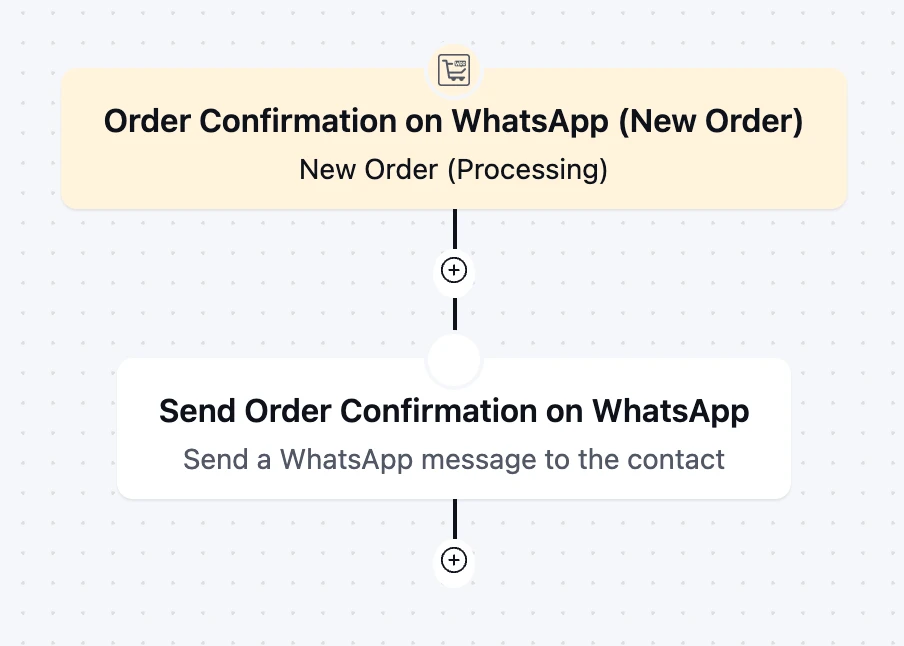
Confirm Every New Order on WhatsApp
The New Order (Processing) trigger fires the moment a paid order lands, which is exactly when a buyer wants reassurance.
When paired with a WhatsApp confirmation, it puts that reassurance on the app they already have open, instead of an inbox they might not check for hours.
Hi {{contact.first_name|there}},
Thanks for your order #{{woo_order.order_number}} with {{crm.business_name}}! 📦
Your total is {{woo_order.total_amount}}.
We’re packing it now and will message you here as soon as it ships.
It also opens a chat thread from the first minute, so if the customer wants to make any adjustment to the order, they can contact the seller directly instead of waiting for support for days.
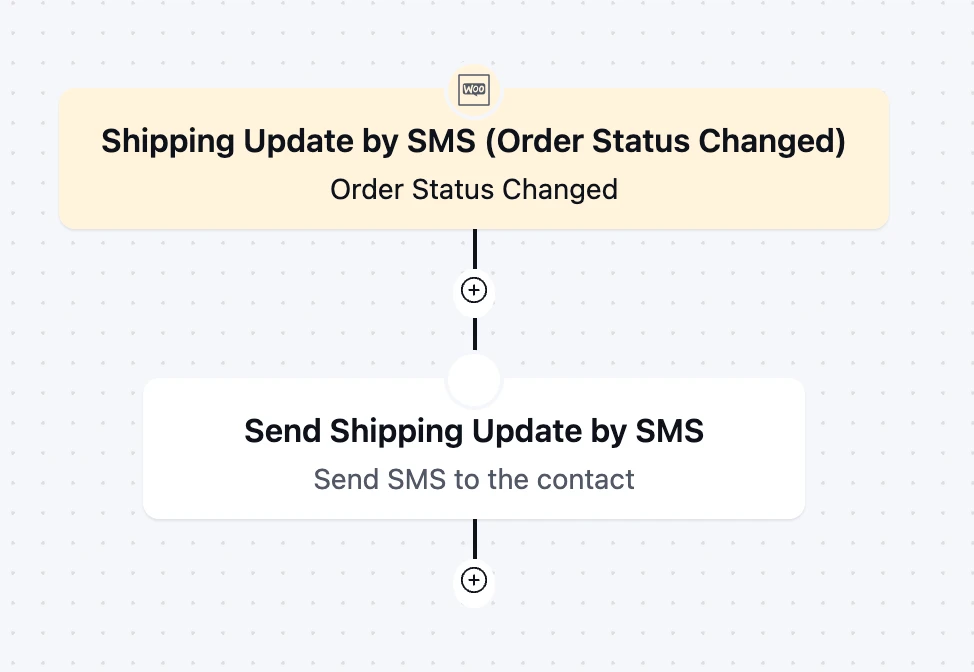
Send Shipping Updates by SMS
The Order Status Changed trigger fires whenever an order moves from one status to another, like Processing to Shipped.
A gentle SMS reminder on this gives customers the necessary status of the product’s order progression with a live link to track by themselves.
Hi {{contact.first_name}}, Your order #{{woo_order.order_number}} from {{crm.business_name}} is on its way!
Track it here: [woo_order.view_url]
Eventually, it eliminates the problem related to “Where’s my order?” that we discussed earlier.
Check In and Ask for a Review
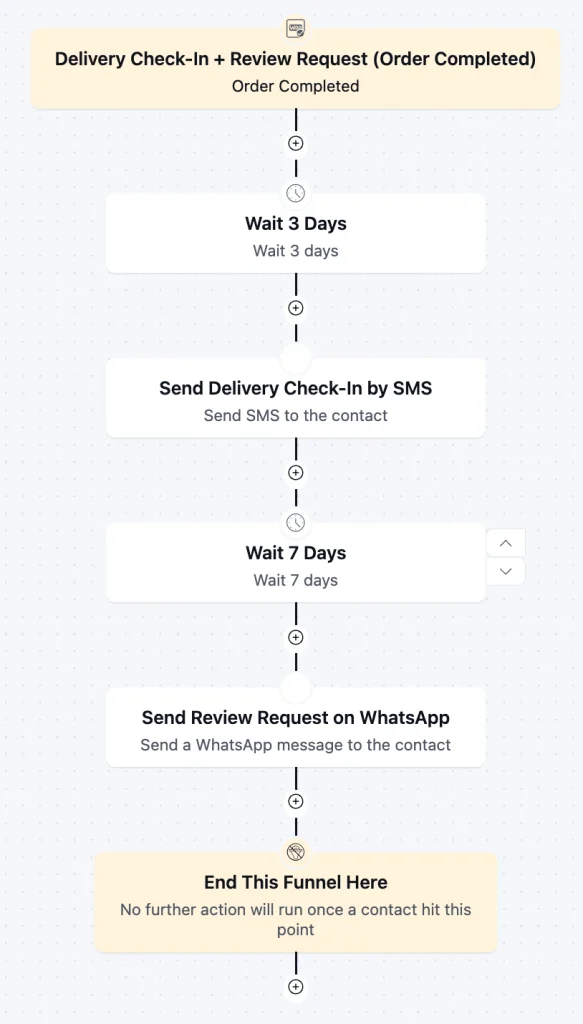
When an order is marked complete, this is where WooCommerce follow-ups can begin.
When you pair order completion with a short WhatsApp check-in a few days later, it shows the customer you care about customer satisfaction more than the sale.
Hi {{contact.first_name}}, did order #{{woo_order.order_number}} arrive OK?
Just reply here if anything’s not right.
– {{crm.business_name}}
If something arrived damaged, they reply right there, and you can fix it before it becomes a bad review.
And if the customer loved your product, you can just ask for a short written note.
Hi {{contact.first_name|there}}, how are you finding your order #{{woo_order.order_number}}?
A quick review helps other shoppers decide: [woo_order.view_url]
Here’s a demo automation you can run using FluentCRM:
Confirm Refunds Before Customers Ask
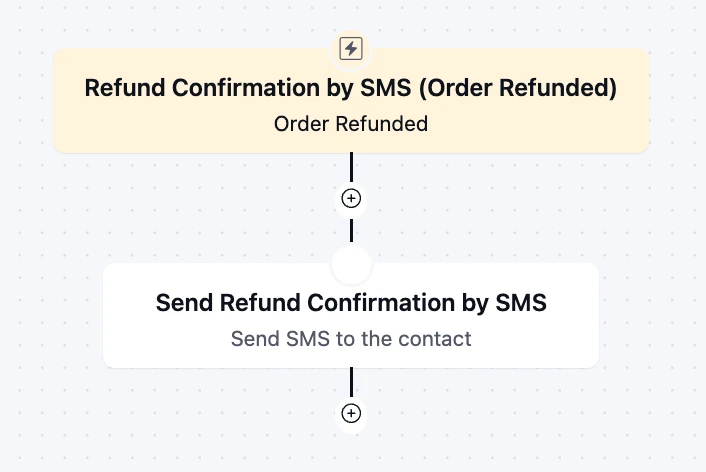
The Order Refunded trigger fires as soon as a refund is processed in WooCommerce.
A refund is a nervous moment for a customer. When paired with an SMS, the confirmation reaches them before they start wondering where their money went.
Hi {{contact.first_name}}, your refund of {{woo_order.total_amount}} for order #{{woo_order.order_number}} has been processed.
It can take 5–10 business days to show up.
That saves you an anxious follow-up email and keeps a disappointed buyer from becoming an angry one.
Recover Abandoned Carts on WhatsApp
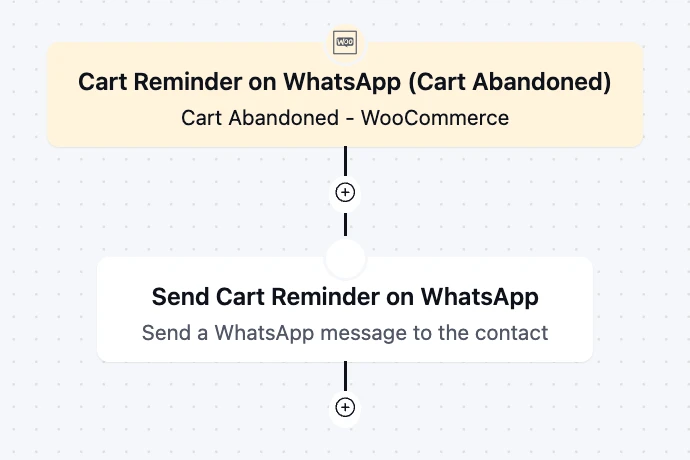
Cart abandonment is a common issue faced by any product seller. People usually check the product, add it to the cart, then they wander around and leave items behind in the cart.
Cart Abandoned trigger recovers those lost sales, typically via email, but email doesn’t always guarantee a shopper will open it, so if we send a text to WhatsApp, it can guarantee the shopper will open it and might take action.
Hi {{contact.first_name|there}},
You left {{ab_cart_woo.cart_total}} worth of items in your {{crm.business_name}} cart.
We’ve saved it for you here: [ab_cart_woo.recovery_url]
But make sure to send to the right audience who truly abandoned their cart instead of wrongfully sending to all contacts.
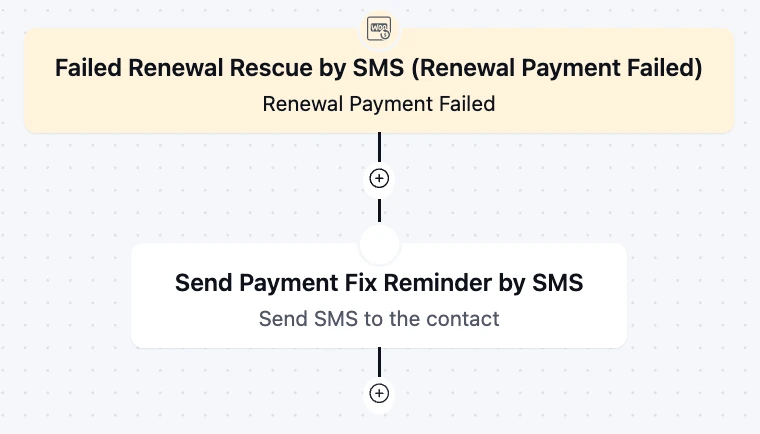
Rescue Failed Subscription Renewals by SMS
The Renewal Payment Failed trigger fires when a WooCommerce Subscriptions renewal doesn’t go through.
When paired with an SMS, the customer sees the problem the same day, before an expired card quietly turns into a cancellation.
Hi {{contact.first_name}},
Your {{woo_subscription.total_amount}} subscription renewal didn’t go through.
Update your payment here to keep it active: [woo_order.view_url]
Recovering that one payment protects every renewal that would have come after it.
Win the Second Order with a Cross-Sell Coupon
Two to three weeks after delivery, many customers are ready for their next purchase.
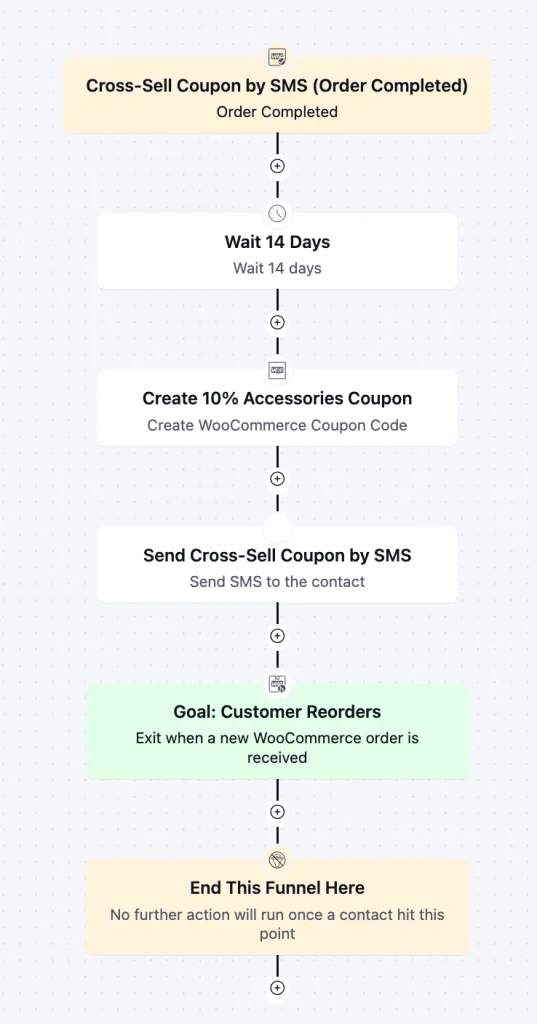
That’s the natural window for cross-selling, and the Order Completed trigger can handle it with a special discount coupon.
Send that coupon by SMS, and it lands right when the product is running low. Reordering takes one tap instead of a fresh search.
Hi {{contact.first_name}}, running low?
Here’s 10% off your next {{crm.business_name}} order with code {{woo_coupon.61_293}}, valid for 7 days.
Reply STOP to opt out.
Once the customer orders again, they drop out of the automation, so nobody gets nudged about a purchase they’ve already made.
You can also match the offer to what each customer bought with product activity-based segmentation, so a skincare buyer never gets a kitchenware coupon.
How to Get Customers to Opt In for WooCommerce SMS & WhatsApp Order Notifications
Every automation above depends on one thing to send the right message to the customer, and that is their phone number and permission to use it.
Order updates a customer expects are usually treated as transactional. Review requests, coupons, and cart reminders are promotional.
So, companies need to take clear, explicit consent before sending such messages.
The simplest way to collect it:
- Make the phone field worth filling in: Tell customers why you’re asking: “Get shipping updates by text.
- Add a consent checkbox: Add a separate, unticked consent checkbox for offers and reminders, so promotional consent is never assumed.
- Explain what they’ll receive: Say what they’ll get and how often order updates, plus the occasional offer. Reply STOP anytime.”
- Honor opt-outs right away: A STOP reply or unsubscribe should take effect before the next message goes out.
Collected this way, consent becomes a segment you can trust, and every promotional follow-up reaches only the people who asked for it.
When to Send Each WooCommerce Order Notification
Once customers have opted in, the next question is timing. Here’s how the whole sequence might run for a store selling physical products:
| Step | Timing | Channel | Purpose |
|---|---|---|---|
| Order confirmation | Immediately | WP | Reassure the buyer |
| Shipping update | When it ships | SMS | Share tracking, cut support tickets |
| Delivery check-in | +3 days | SMS | Catch problems early |
| Review request | +10 days | WP | Collect social proof |
| Cross-sell or reorder | +21 days | SMS | Earn the second order |
| Refund notice | Immediately | SMS | Remove doubt |
| Cart reminder | 1–4 hours | WP | Recover the sale |
Note: These are starting numbers. You can tweak this according to your preferences.
Put Every WooCommerce Order Update Where Customers Will See It
Checkout isn’t the end of the buying experience. It’s usually the start of it.
You need to stay in touch right after the day a customer places an order. Usually, shops that earn repeat orders are the ones that stay in touch during that window.
But you don’t need every automation to run on day one.
Order processing is the start of all automation, and everything else follows the path it leads customers.
Because once a customer is added to a workflow of small, well-timed messages that are hard to ignore. Over time, these messages add up to something customers remember: a store that keeps them informed before they ever have to ask.
Tanzil Ebad Efti
Content Writer & Strategist
Words are my favorite playground. As a Creative Writer at WPManageNinja, I don’t just produce content; I tell stories. By mixing fiction and metaphors with real-life examples, I turn my writing into a creative journey that’s easy for readers to digest and relate to.
Table of Content
Related Articles and Topics
-
Automated Discounts: How to Increase Conversions Without Constant Promotions
Picture a Monday morning checking your store’s sales report. Numbers look decent after last week’s…
-
E-commerce Email Marketing: The Complete Guide to Driving Revenue in 2026
Email marketing for e-commerce is about responding to what shoppers actually do. Let it be…