Course Enrollment Welcome Email
Send a course enrollment welcome email the moment a student signs up. Confirm enrollment, share course details, and reduce drop-off.
Get this template in your inbox
Thanks for sharing your email, please click below to download the template.
What is a Course Enrollment Welcome Email Template?
A course enrollment welcome email template is a pre-designed email layout sent automatically the moment a student signs up for your online course. It confirms their enrollment, sets expectations, and gives them a clear next step, whether that is logging into the platform, completing their profile, or jumping straight into Module 1.
With FluentCRM, this welcome email template is triggered instantly upon enrollment. It personalizes every detail with the student’s name, course name, and a direct link to their dashboard, without writing a single line of code.
Best for:
- Online course creators and instructors
- eLearning platforms running LMS plugins (LearnDash, LifterLMS, LearnPress)
- Membership sites with gated course content
- Cohort-based courses and coaching programs
How to Use the Course Enrollment Welcome Email Template
This template is almost ready to be sent to your subscribers. Just follow these steps to use:
Where does this fit in Your Automation?
This template is typically the first email in a Course Onboarding Automation, triggered immediately after a student completes enrollment. It is usually followed by a module reminder on day two or three, a mid-course check-in around the halfway point, and a course completion congratulations email at the end.
How do I Trigger this Email Automatically on Enrollment?
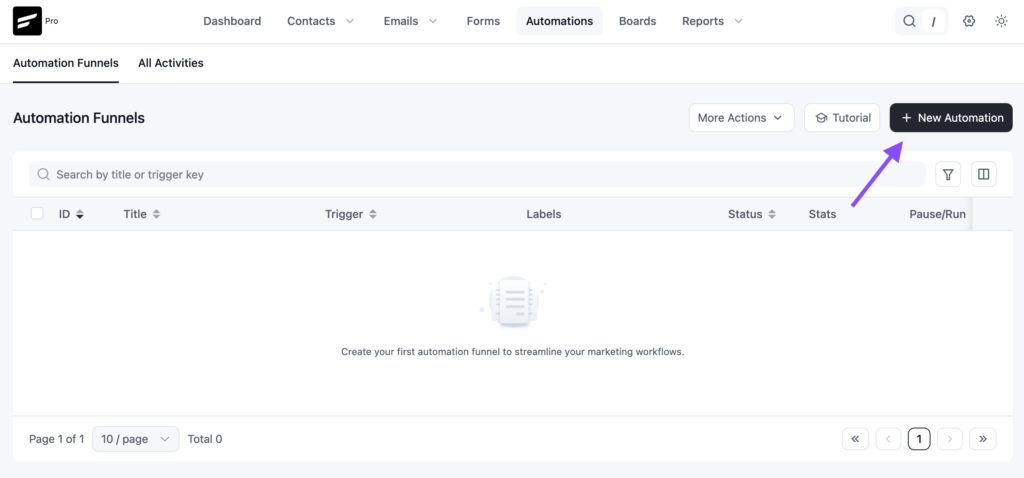
Step1: In FluentCRM, go to Automations → Create New Automation
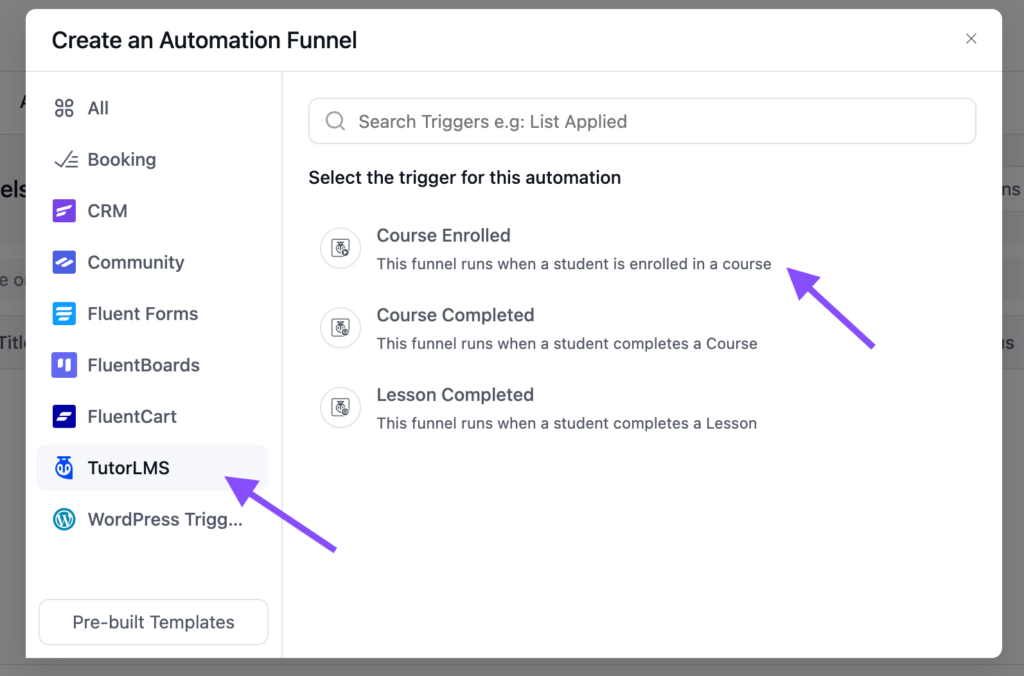
Step 2: Select your LMS enrollment trigger (for example, “TutorLMS Course Enrolled”)
Step 3: Add a “Send Custom Email” action and select this Course Enrollment Welcome Email Template
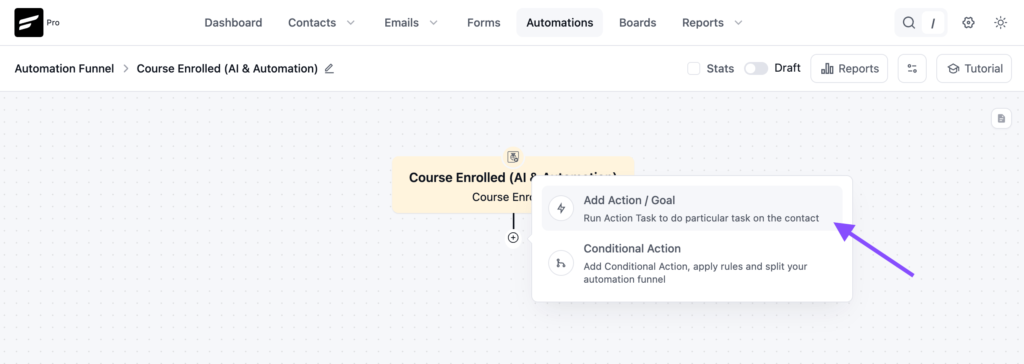
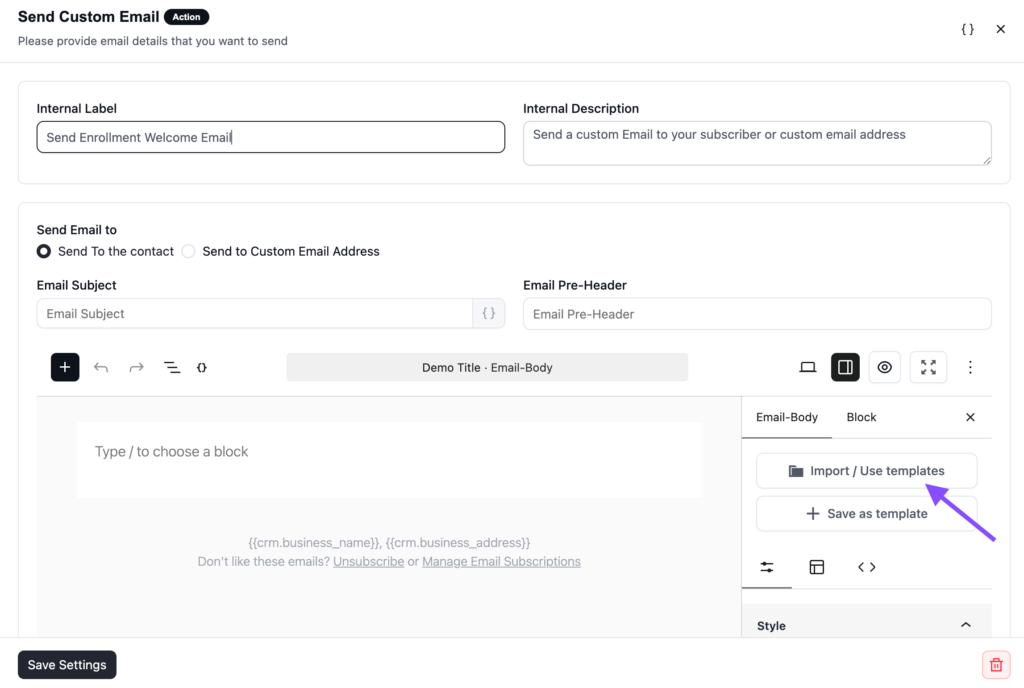
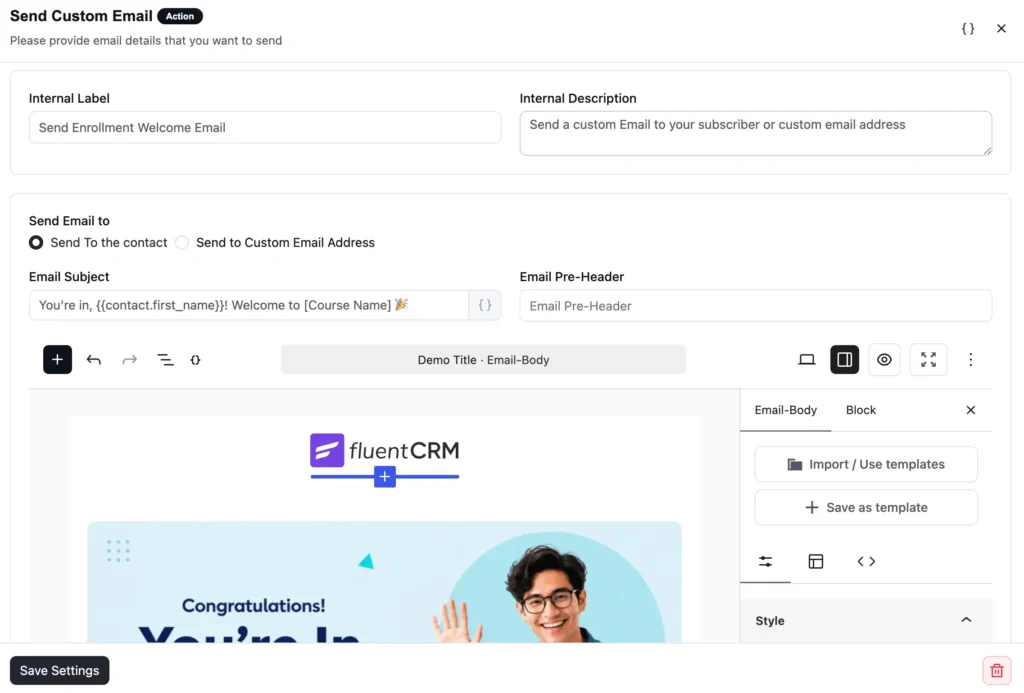
Step 4: Toggle the button to Published to activate the automation
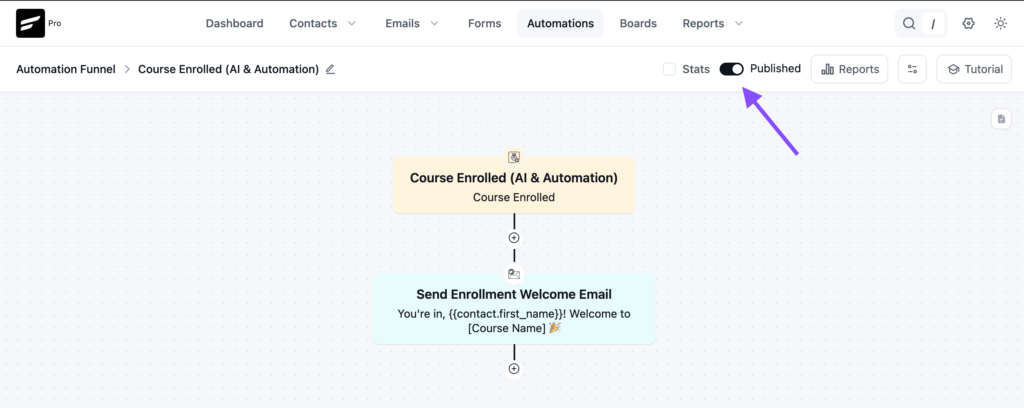
From then on, the automation will run in the background every time a student enrolls, with no manual work required.
This template is part of the Student Onboarding Automation
Customization Tips
- Swap in your course name (use course-specific shortcodes depending on your LMS integration)
- Edit the instructor name and the brand colors
- Change the banner image and logo to match your brand tone
- Edit the email footer to include your business address and social media links
- Don’t forget to add an unsubscribe link to stay compliant with standard email-sending guidelines
- Personalize the subject line and preview text with merge tags like
{{contact.first_name}} - Update the CTA button to link directly to your course dashboard or student login page
- Add your support email or community URL so students know where to go for help
- Include a “first thing to do” tip to reduce friction and get students moving immediately
- Use dynamic merge codes (shortcodes) to auto-fill student details
Why Use a Course Enrollment Welcome Email Template?
A well-timed enrollment welcome email sets the tone for the entire student experience. It helps you:
- Confirm Enrollment: Give new students instant reassurance that their spot is secured and the purchase went through
- Reduce Early Drop-off: Get students into the course on day one, while their motivation is at its highest
- Share Key Details: Communicate the course structure, access instructions, and what to expect right upfront
- Build Trust: Show students they made the right choice with a professional, on-brand welcome
- Support From the Start: Include help links or instructor contact details so students never feel left on their own
A strong course enrollment welcome email reduces early churn, improves course completion rates, and makes students feel like they joined something worth their time.
Frequently Asked Questions
When should a course enrollment welcome email be sent?
Immediately after enrollment confirmation, while the student’s excitement is fresh and they are most likely to log in and start.
Can I customize this template without coding?
Yes. The subject line, course name, CTA button, body copy, and branding can all be edited directly inside FluentCRM’s drag-and-drop campaign editor.
What should a course enrollment welcome email include?
At minimum: a confirmation that enrollment was successful, the course name, clear instructions on how to access the course, a direct CTA button to the student dashboard, and a contact point for support. A brief overview of what the course covers and what to do first also helps reduce first-login hesitation.
How is a course enrollment welcome email different from a purchase receipt?
A receipt confirms the transaction. A welcome email starts the relationship. The receipt answers “did my payment go through?” The welcome email answers “what do I do now?” Both are important, but the welcome email does the heavier lifting for student retention.
Can I use this template with LearnDash, LifterLMS, or LearnPress?
Yes. FluentCRM integrates natively with LearnDash, LifterLMS, and LearnPress. You can trigger this welcome email template automatically when a student is enrolled in a specific course through any of these LMS plugins.
Related Templates
-
- eLearning
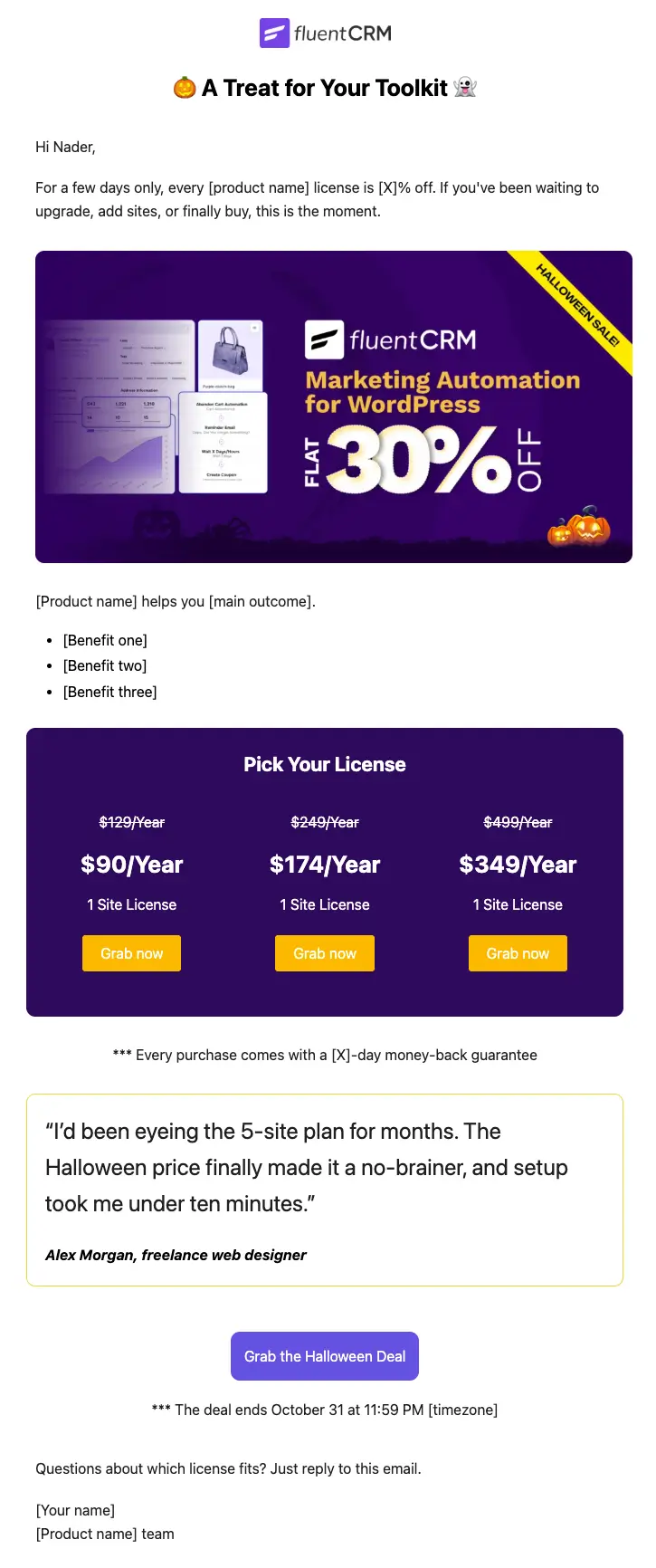
Halloween Email Template for Digital Products
Announce your Halloween license sale with a ready-to-send email built for plugins, themes, SaaS, and online courses
-
- eLearning
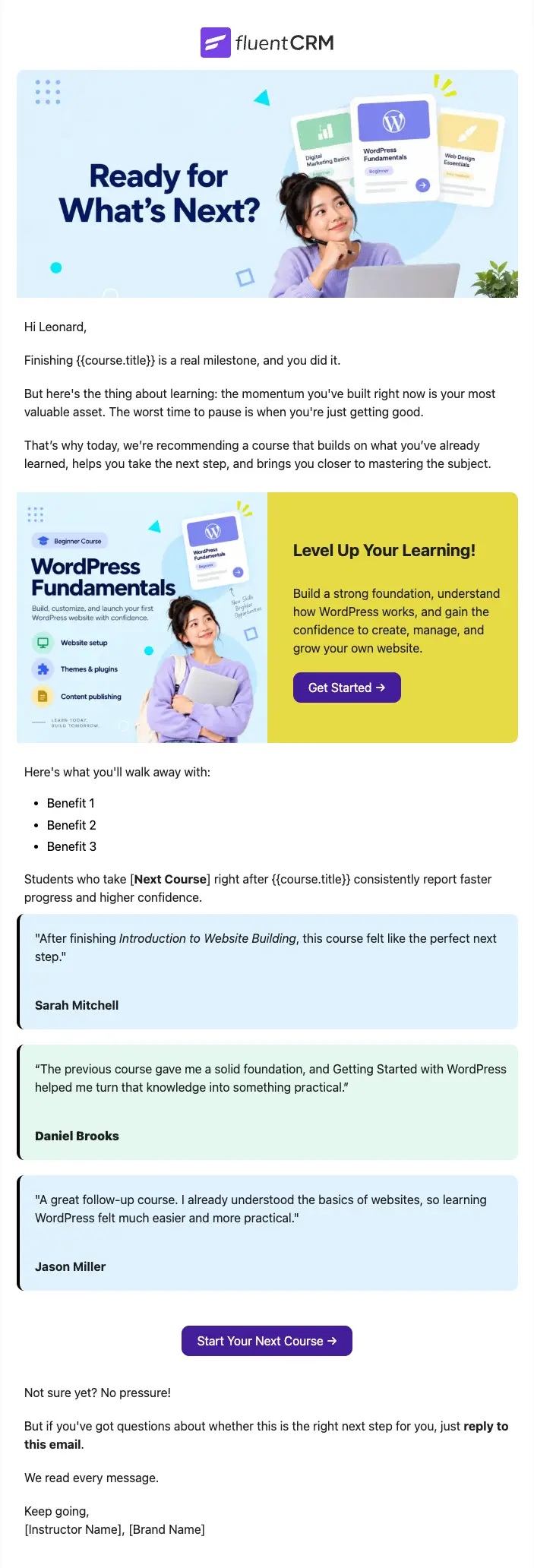
Next Course Recommendation Email
Use this free course recommendation email template to re-engage students after course completion and drive repeat enrollments with FluentCRM automations
-
- eLearning
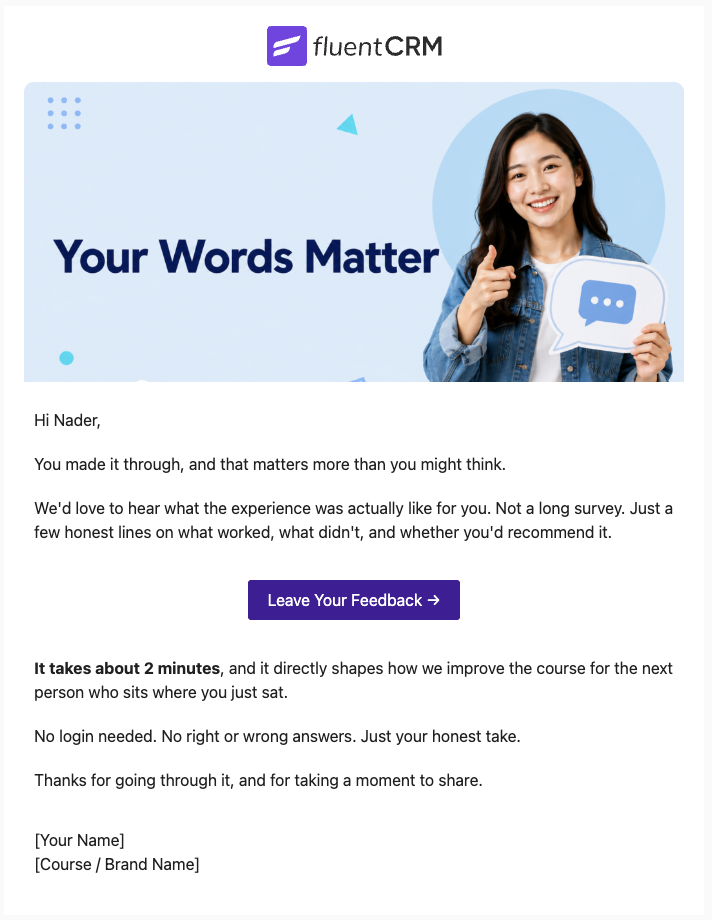
Course Feedback Email
Collect honest student reviews automatically and turn course completions into the insights that make your next launch better.
Want More Resources?
Access resources to start faster, decide smarter, and grow your revenue with less complexity.