Product Recommendation Email for WooCommerce Cross-Sells
Recommend the one product that makes a customer’s last purchase better. Explain why the two products belong together, and sends customers straight to the add-on.
- eLearning Emails
Get this template in your inbox
Thanks for sharing your email, please click below to download the template.

What is a Product Recommendation Email Template?
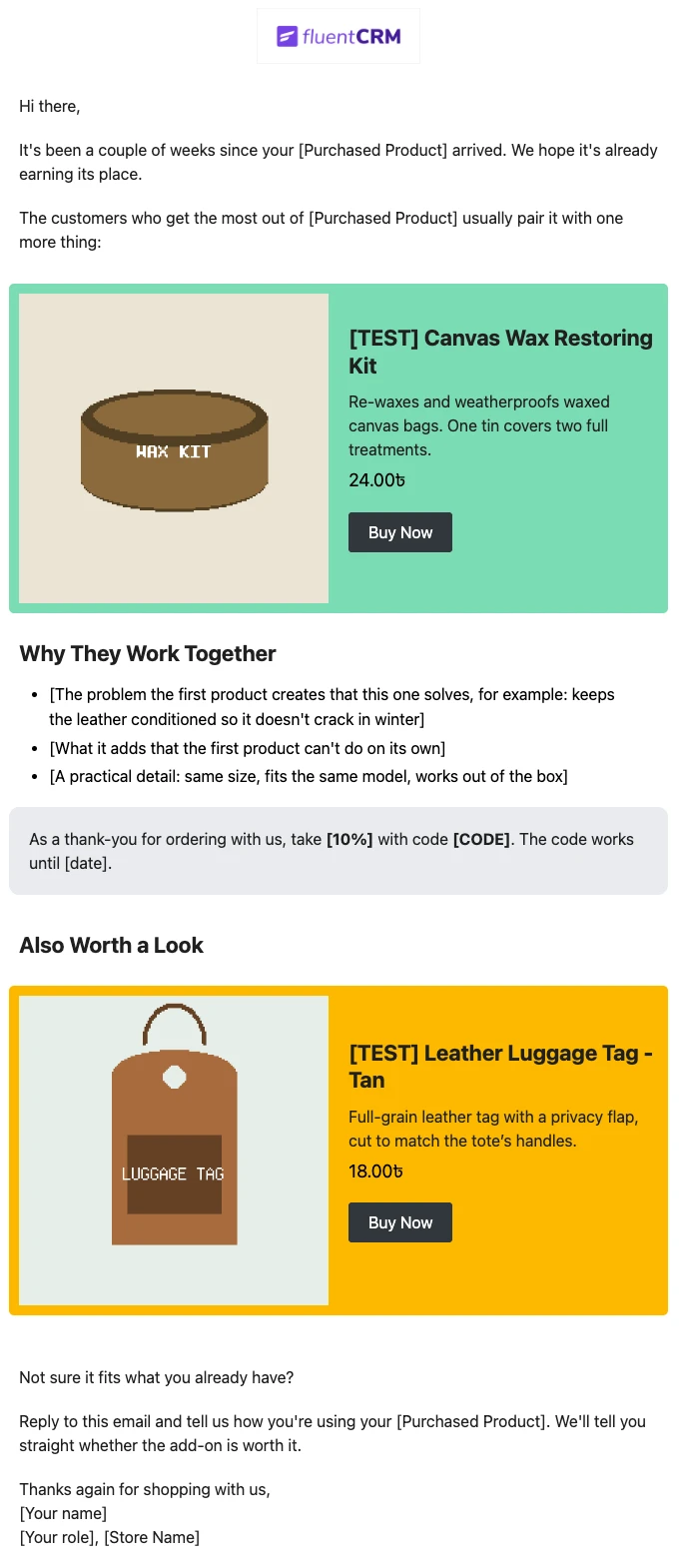
A product recommendation email template is a ready-made message that suggests a product to a customer based on something they already bought. This one is built for WooCommerce cross-sells: a tote buyer hears about the wax kit that keeps it weatherproof; a camera buyer hears about the spare battery. It sends from FluentCRM when an order is completed, after a wait you choose, so it arrives once the customer has used what they bought.
The email opens with a short check-in on the original purchase, then features one recommended product with its image, price, and a button to the product page. A “Why They Work Together” list gives three concrete reasons to buy the add-on, an optional highlighted box holds a returning-customer discount, and an “Also Worth a Look” section shows a second, lighter pick. It closes with an invitation to reply and ask whether the add-on fits, signed by a real person. The greeting uses the contact’s first name through merge tags, with a fallback for guest customers who never typed one.
Best for:
- WooCommerce stores with products that have obvious companions: refills, care kits, cases, spare parts, accessories
- Stores with a handful of hero products, where one automation per product is easy to manage
- Shops that want repeat orders from existing customers without running a storewide sale
- Store owners who sell on expertise and want the email to explain the pairing, not just push a product
- Agencies setting up retention emails for WooCommerce client stores
How do I Send This Cross-Sell Email Automatically?
This email runs in an automation, so it goes out on its own after every matching order. You choose which purchase triggers it and which product it recommends. FluentCRM does not pull from WooCommerce’s Cross-sells field, so build one automation for each pairing you want to promote. The Order Completed trigger needs FluentCRM Pro.
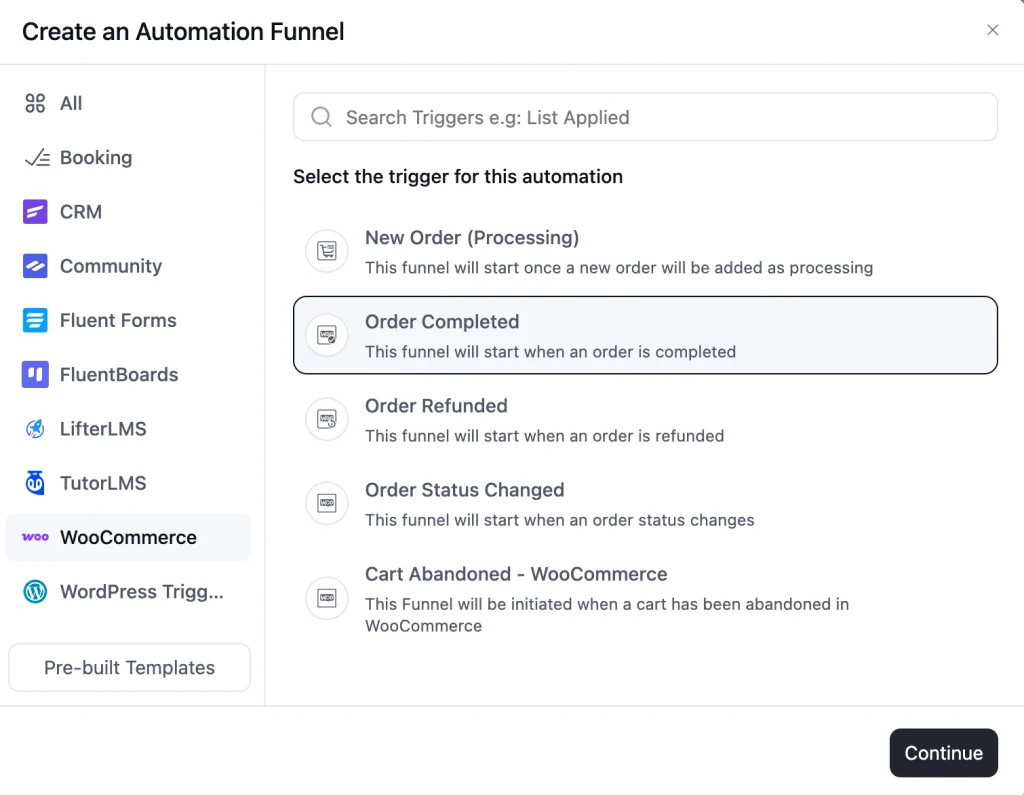
Step 1: In FluentCRM, go to Automations → New Automation, select WooCommerce, and choose the Order Completed trigger
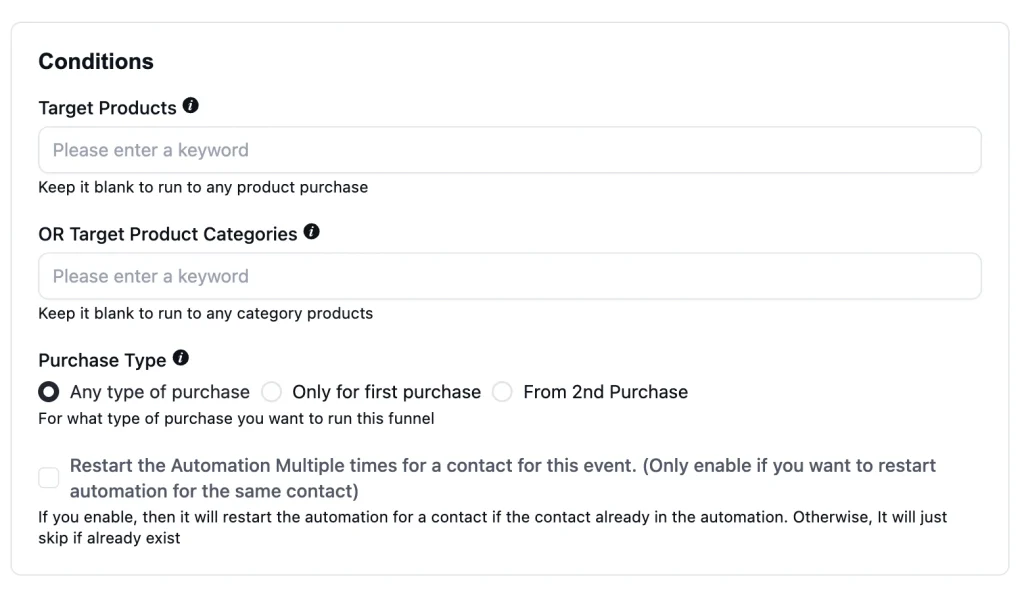
Step 2: Under Target Products, select the product this email follows up on, such as your waxed canvas tote. To cover a whole range, leave Target Products empty and pick a category under “OR Target Product Categories” instead
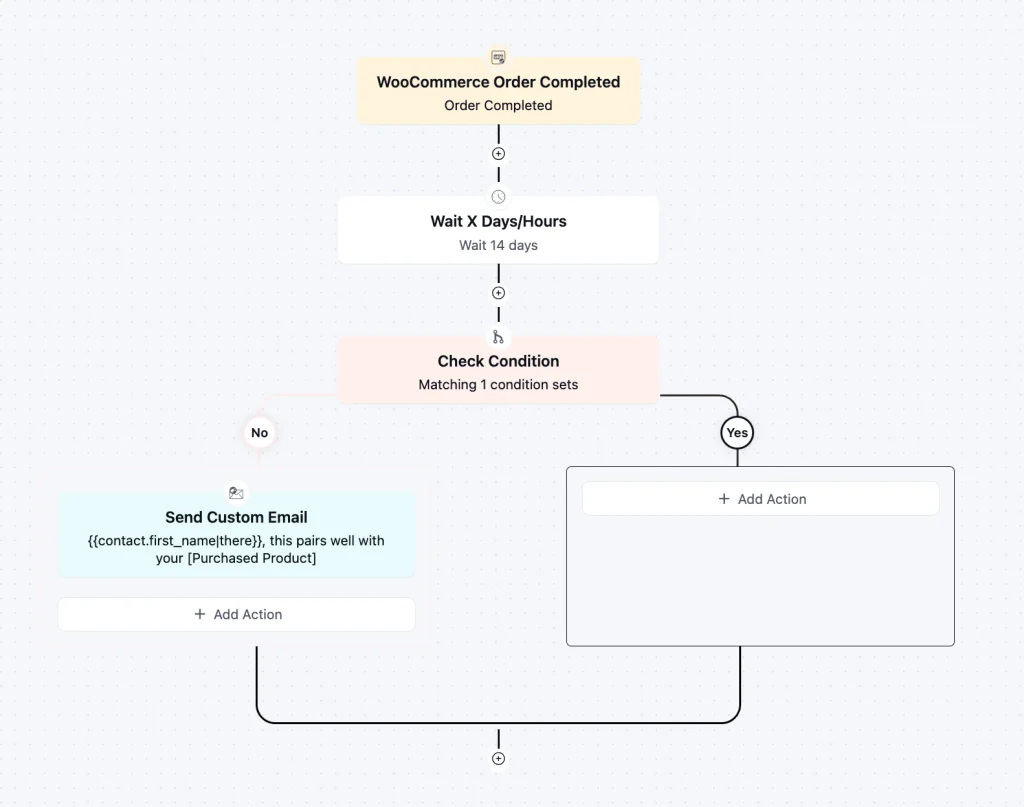
Step 3: Add a Wait step of 14 to 21 days, so the customer has used the product before you recommend the add-on
Step 4: Add a condition that checks Purchased Products for the recommended item, and end the automation for anyone who already bought it
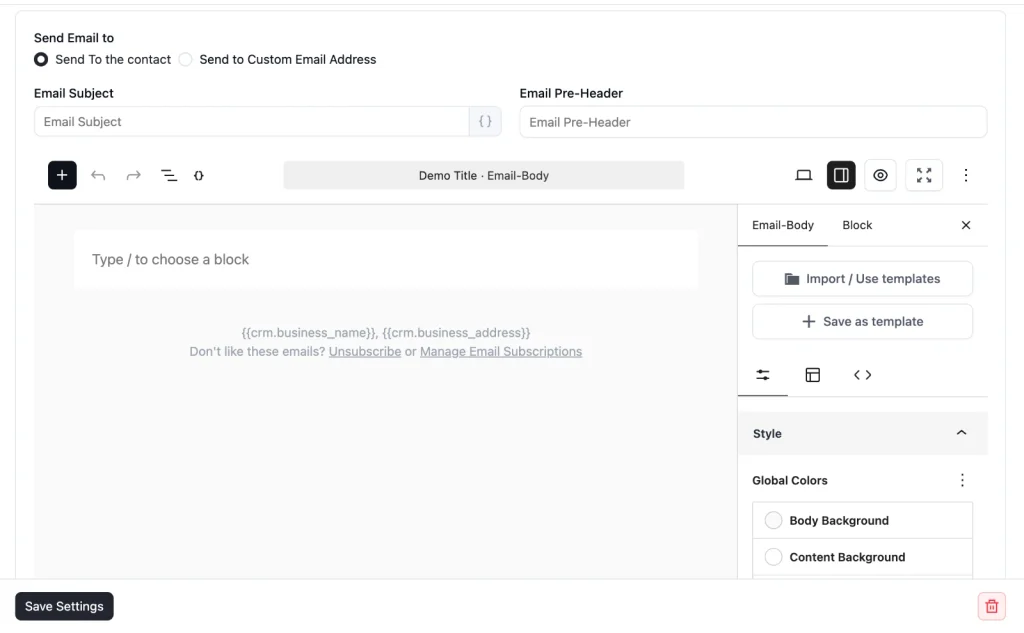
Step 5: Add a “Send Custom Email” action, select the WooCommerce Cross-Sell Email template, and replace the two placeholder cards with the “Woo Product (Single)” block, set to your recommended products
Step 6: Publish the automation
For a store with many products, work at the category level instead of product by product: trigger on a category, and use the “WooCommerce Products” block to show items from the matching accessory category.
Customization Tips
- Replace the two grey product cards with FluentCRM’s “Woo Product (Single)” block. It pulls the product’s real image, name, and price from your store, so the email stays correct when you change a price
- Replace every [Purchased Product] placeholder with the product the automation is triggered by. Since each automation follows one product or category, you can write the name in plain text
- Write the “Why They Work Together” list from your customers’ real problems, such as the wear, the missing part, or the question they keep emailing about. Three specific reasons beat a paragraph of general benefits
- Keep “The customers who get the most out of [Purchased Product] usually pair it with one more thing” only if your order history backs it up. If it doesn’t, change it to “One thing we’d recommend with your [Purchased Product]”
- Delete the discount box if you don’t run offers. Recommendations to recent buyers often convert without a discount, and a code in every follow-up teaches customers to wait for one
- Use the “Also Worth a Look” slot for a cheaper, lower-commitment item, or delete it. Two products is the maximum. More than that turns a recommendation into a catalog
- Keep the reply line and send from an inbox someone reads. A customer asking “will this fit my model?” is ready to buy
Cross-Sell Email Subject Lines You Can Use
Name the purchased product in the subject line. “This pairs well with your tote” gets opened. “You might also like” reads like every other store’s automated email. Keep the fallback on the first name tag, like {{contact.first_name|there}}, so guest customers don’t get a subject line that starts with a comma.
| Subject line | Preview text |
|---|---|
| {{contact.first_name|there}}, this pairs well with your [product] | One pick from us, based on what you ordered. |
| The one thing that makes your [product] better | It takes two minutes and saves a lot of wear. |
| Getting the most out of your [product]? | A small add-on our customers keep coming back for. |
| You might want this before winter | Keeps your [product] in shape through the wet months. |
| A quick recommendation from our team | Not a sale. Just something that goes with your order. |
Why Use an Abandoned Cart Email Template?
Your easiest sale is to a customer who just bought from you and liked it. A focused cross-sell email helps you:
- Sell to People Who Already Trust You: A customer who received their order and had a good experience is far easier to sell to than a new visitor, and the email reaches them without ad spend
- Recommend Something That Actually Fits: Because each automation follows a specific product or category, every customer sees an add-on that matches what they bought, not a generic bestseller list
- Explain the Pairing, Not Just the Product: The “Why They Work Together” section answers the question every customer asks before buying an add-on: do I really need this
- Skip Customers Who Already Own It: The Purchased Products check keeps the email away from people who already bought the add-on, which keeps it from looking careless
- Run It Inside WordPress: Orders, products, and emails all stay in your WordPress site, with no separate recommendation app to sync with WooCommerce
Build Your Full Post-Purchase Sequence
This template is the third email after an order. The WooCommerce Post-Purchase Thank You Email goes out first, when the order is completed, with no selling. A review request follows about a week later. This cross-sell email comes last, two to three weeks after the order, once the customer has used the product and knows whether they like it. Keeping the three separate means the thank-you stays a thank-you, and the recommendation reaches people at the moment an add-on makes sense.
Frequently Asked Questions
When should a cross-sell email be sent?
Two to three weeks after the order is completed, for most physical products. That’s long enough for the customer to use what they bought and short enough that it’s still on their mind. For consumables, time it to when the first one runs low. Set the timing with the Wait step in your automation.
Does FluentCRM pick the recommended product automatically?
No. FluentCRM doesn’t read WooCommerce’s Cross-sells field. You choose the recommended product in the email with the “Woo Product (Single)” block, and the automation’s Target Products setting decides who receives it. One automation per pairing gives you full control over what each customer sees.
Does this work in the free version of FluentCRM?
Partly. The Woo product blocks are in the free version, so you can import the template and send it as a campaign. The Order Completed trigger and the Purchased Products condition are part of FluentCRM Pro, so sending it automatically after each order requires Pro.
Can I stop the email going to customers who already bought the add-on?
Yes. Add a condition that checks Purchased Products before the email, select the recommended product, and end the automation for anyone who already owns it. This needs FluentCRM Pro.
What merge tags can I use to personalize this template?
FluentCRM supports contact tags such as {{contact.first_name}}, {{contact.full_name}}, and {{contact.email}}. Add a fallback, like {{contact.first_name|there}}, for guest customers without a name. In an automation started by the Order Completed trigger, you can also use WooCommerce order codes such as {{woo_order.order_number}} and {{woo_order.order_items_table}}.
Related Templates
-
- eLearning Emails
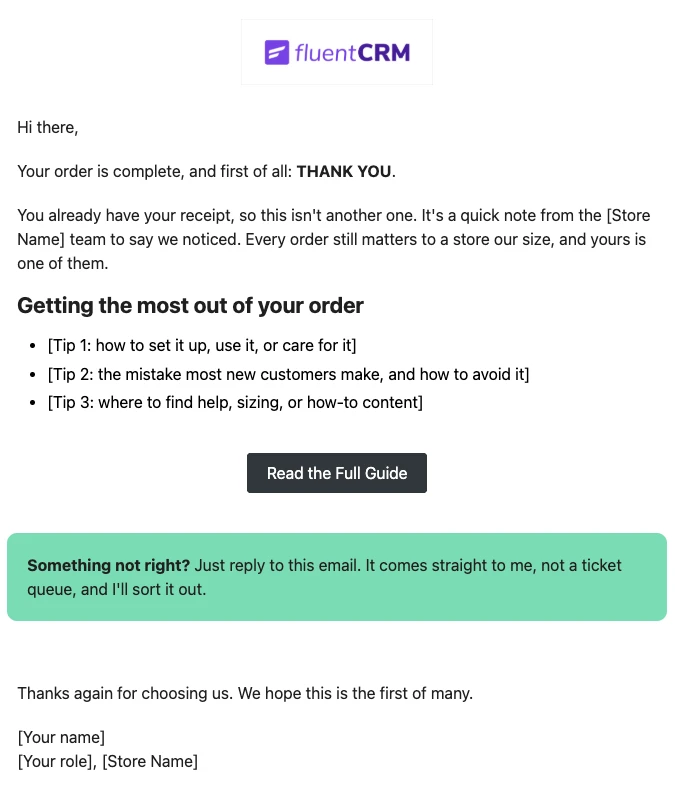
WooCommerce Post-Purchase Thank You Email
Thank customers like a person, not a receipt. Send a short, personal thank-you when a WooCommerce order is completed, with tips that help customers get real value from what they bought.
-
- eLearning Emails
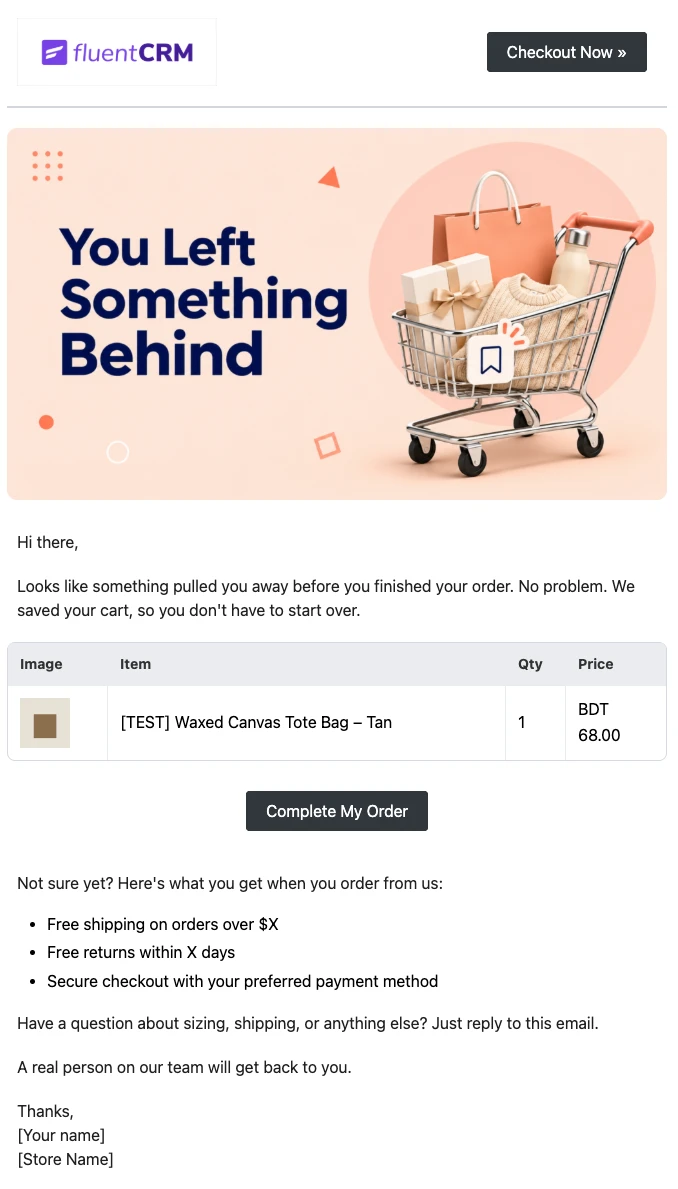
WooCommerce Abandoned Cart Email Template
Bring shoppers back to the checkout they left. Show each customer the exact products in their cart and send them back to a checkout that is already filled in, automatically.
-
- eLearning Emails
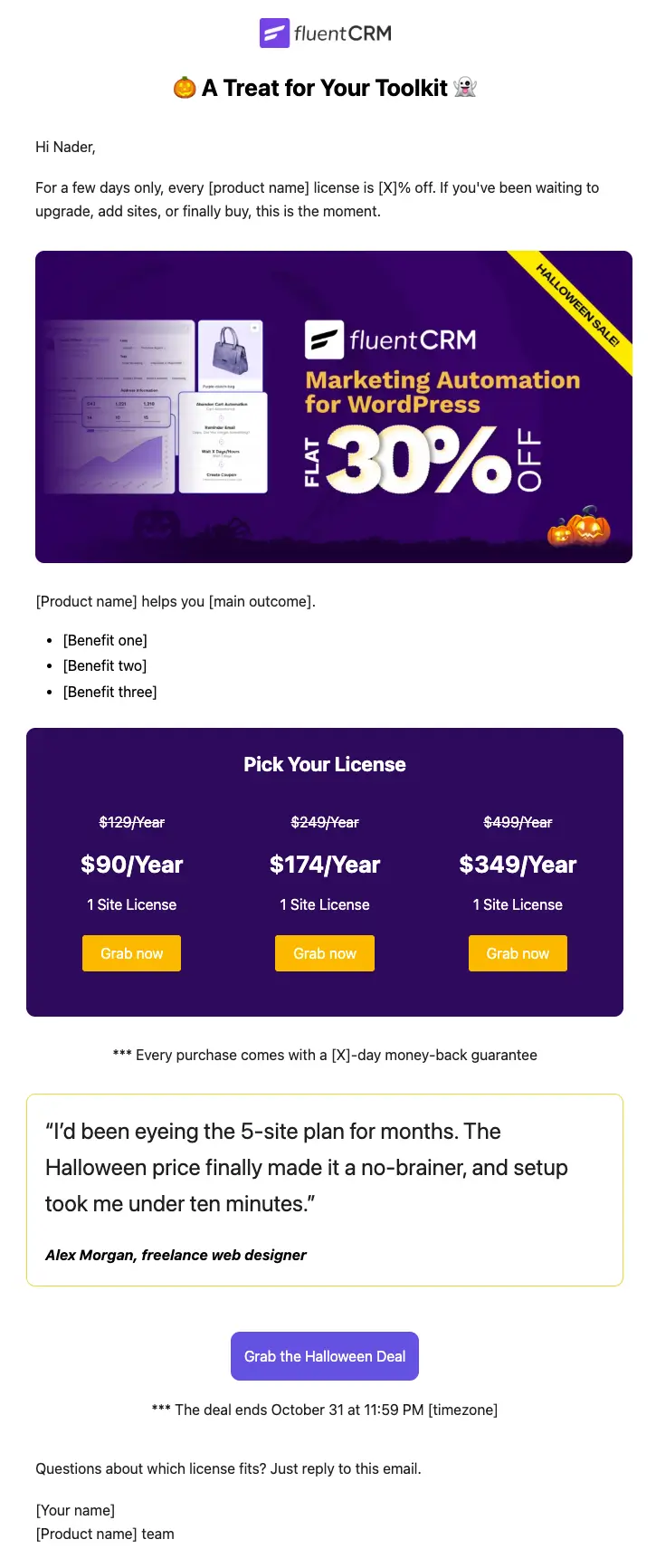
Halloween Email Template for Digital Products
Announce your Halloween license sale with a ready-to-send email built for plugins, themes, SaaS, and online courses
Want More Resources?
Access resources to start faster, decide smarter, and grow your revenue with less complexity.