WooCommerce Abandoned Cart Email Template
Bring shoppers back to the checkout they left. Show each customer the exact products in their cart and send them back to a checkout that is already filled in, automatically.
- eLearning Emails
Get this template in your inbox
Thanks for sharing your email, please click below to download the template.

What is a WooCommerce Abandoned Cart Email Template?
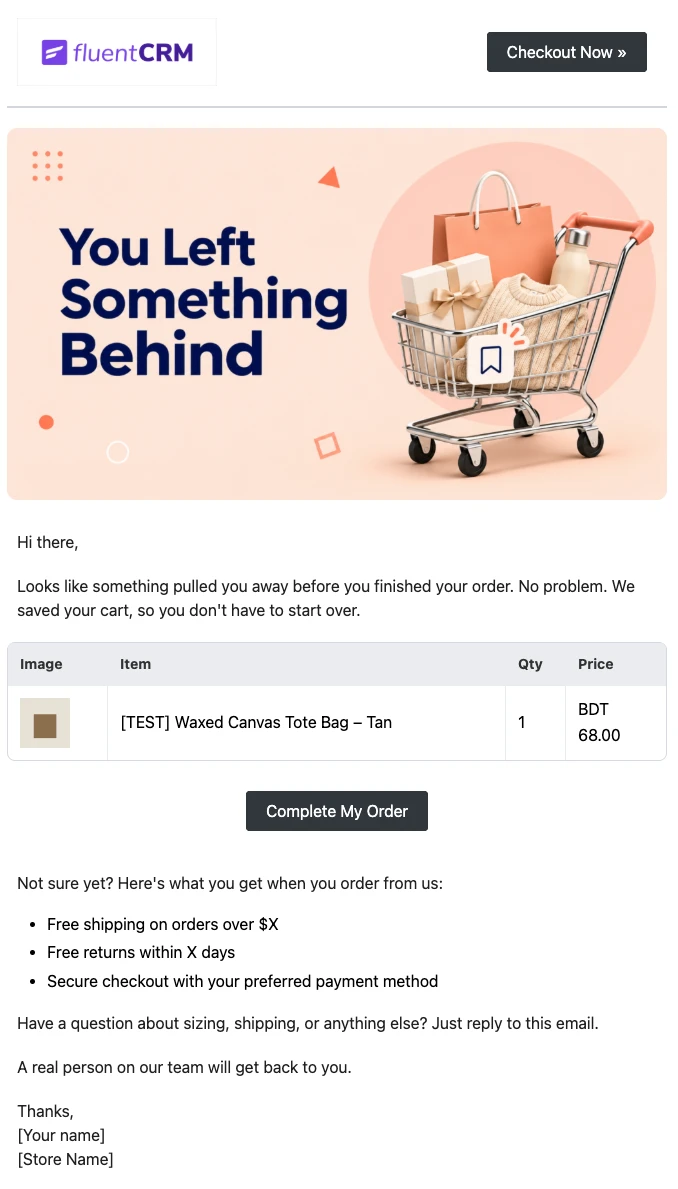
An abandoned cart email template is a ready-made reminder you send to shoppers who started checking out and left before paying. This one is built for WooCommerce stores and runs inside FluentCRM’s Cart Abandoned automation, so it sends on its own once a cart is marked abandoned.
The email opens with a short, friendly note, then shows the shopper’s cart: product image, name, quantity, and price for every item, plus the cart total. One “Complete My Order” button, repeated as a small “Checkout Now” link in the header, takes them back to your store with the same cart restored and their checkout details filled in.
Below that, three short reasons to buy from you and an invitation to reply with questions. The greeting uses the contact’s first name through merge tags, and the cart content comes from FluentCRM’s abandoned cart SmartCodes.
Best for:
- WooCommerce stores that want a working first recovery email without designing one
- Stores selling considered purchases, such as apparel, furniture, or gifts, where shoppers often leave to compare
- Shops with guest checkout, where the cart email may be the first message a shopper ever gets from you
- Store owners moving abandoned cart recovery off a separate paid app and into FluentCRM
- Agencies setting up cart recovery for several WooCommerce client sites
How do I Send this Abandoned Cart Email Automatically?
This email runs in an automation, not a campaign. Turn on cart tracking once, then build a short automation around the template.
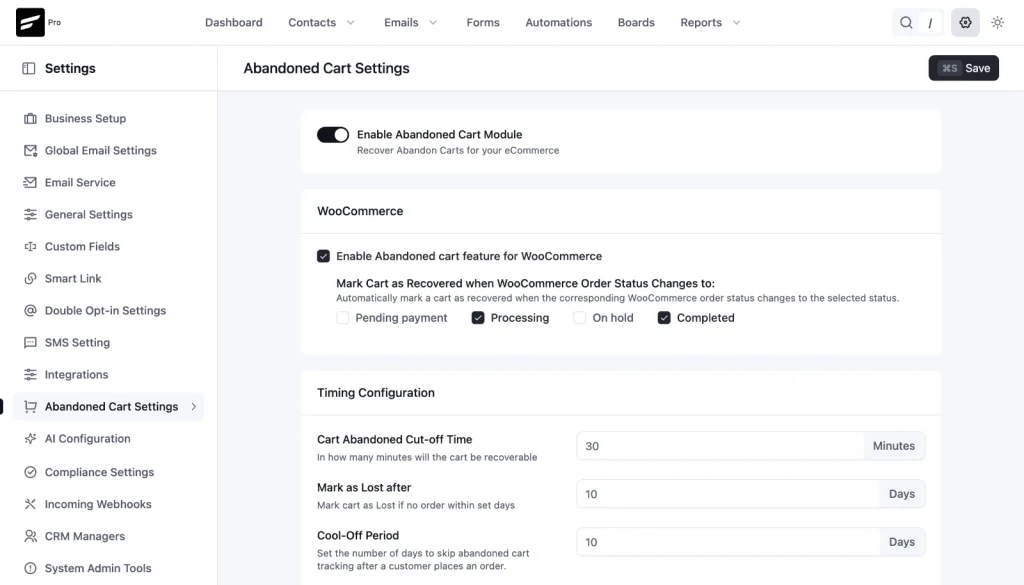
Step 1: In FluentCRM, go to Settings → Abandoned Cart Settings, turn on the Abandoned Cart Module, check “Enable Abandoned cart feature for WooCommerce”, and save
Step 2: Go to Automations → New Automation, select WooCommerce, and choose the Cart Abandoned trigger
Step 3: Add a “Send Custom Email” action and select the WooCommerce Abandoned Cart Email template
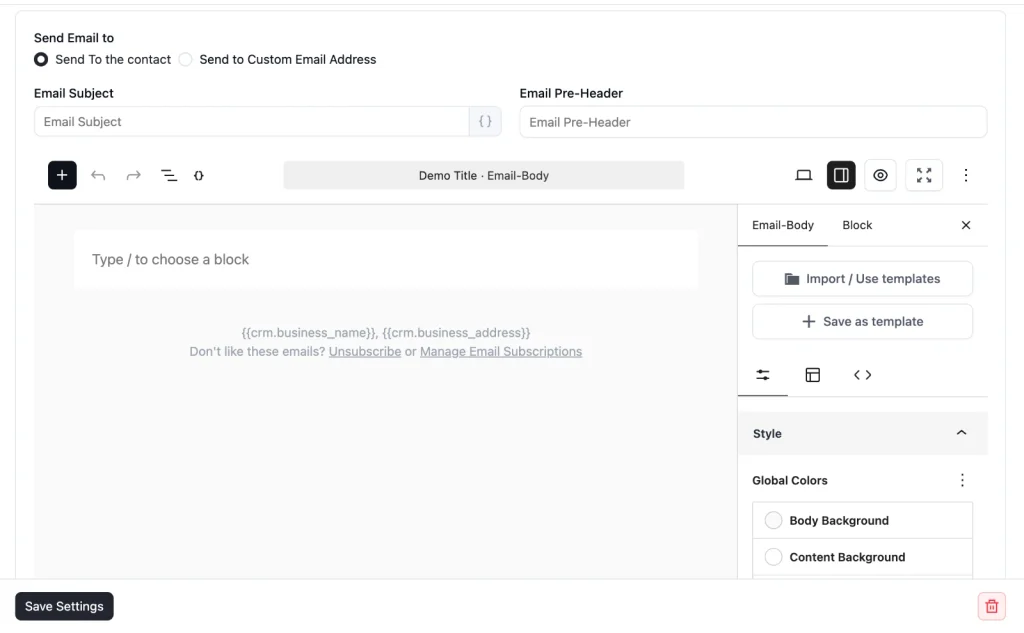
Step 4: Publish the automation
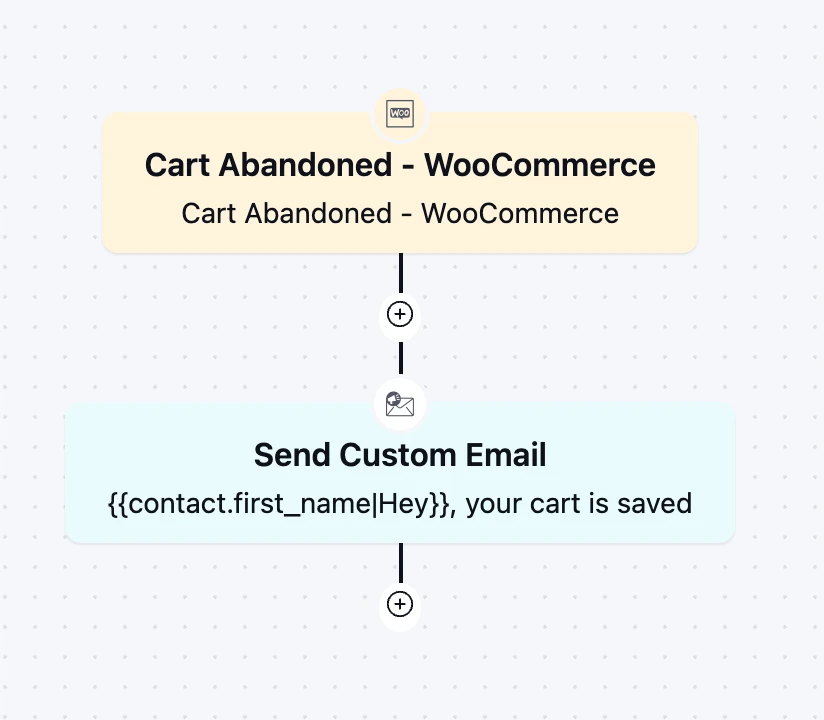
FluentCRM starts tracking a cart when the shopper reaches the checkout page and their email is available. If they don’t complete the order within your Cart Abandoned Cut-off Time, FluentCRM marks the cart as abandoned and starts this automation. If they place the order while the automation is running, FluentCRM cancels the remaining emails for that cart.
Customization Tips
- Replace the “[Your Store Logo]” placeholder with your logo, and keep the header “Checkout Now” button. Shoppers who already know what they want can click before they scroll
- Keep the cart block where it is.
{{ab_cart_woo.cart_items_table}}Builds the product table and{{ab_cart_woo.cart_total}}adds the total, so every shopper sees their own items - Both buttons use
##ab_cart_woo.recovery_url##. This link restores the shopper’s cart and fills in their checkout details, so keep it on both buttons instead of linking to your shop page - Replace the three bracketed reasons with real policies from your store, such as your actual free shipping threshold and return window. Delete any you don’t offer
- Keep the “just reply to this email” line, and make sure the reply-to address goes to a monitored inbox. A shopper with a sizing or shipping question is close to buying
- Leave the discount out of this first email. Save it for a later email in the sequence, so shoppers don’t learn that leaving checkout earns a coupon
- Sign the email with a real name from your team. It reads as a person checking in, not an automated system
Abandoned Cart Email Subject Lines You Can Use
Add a fallback to the first name tag, like {{contact.first_name|Hey}}. Guest shoppers often leave checkout after typing only their email, so many contacts have no first name, and a subject line that starts with a comma looks broken.
| Subject line | Preview text |
|---|---|
| {{contact.first_name|Hey}}, your cart is saved | Pick up right where you left off. It only takes a moment. |
| You left something behind | Your items are still waiting in your cart. |
| Still thinking it over? | Your cart is saved, and we’re here if you have questions. |
| Your checkout is one click away | We kept everything just as you left it. |
| Need a hand finishing your order? | Reply to this email and a real person will help. |
Why Use an Abandoned Cart Email Template?
A shopper who reaches your checkout and types their email is one of the warmest leads your store has. A ready-made recovery email helps you:
- Show Them What They Left: The real product images and prices remind shoppers exactly what they wanted, which a generic “come back” message can’t do
- Remove Every Step Between Them and Payment: The recovery link brings back their cart and their checkout details, so finishing the order takes one click, and a confirmation
- Recover Sales Without Giving Away Margin: A helpful reminder recovers many orders on its own. Discounts stay available for later emails, for shoppers who need more of a push
- Answer the Question That Stopped Them: Inviting replies turns hesitation about sizing, shipping, or delivery into a conversation instead of a lost sale
- Run It Inside WordPress: Carts, contacts, and emails all stay in your WordPress site, with no separate abandoned cart app to connect or pay for per contact
Build Your Full Cart Recovery Sequence
This template is the first email in a recovery sequence. Send it as soon as the cart is marked abandoned; your cut-off time is already the delay.
Add a second email a day later with social proof or a limited discount, and a final reminder a few days after that, before FluentCRM marks the cart as lost. Use the Cart Data condition in the trigger settings to send different sequences by cart value, for example, a personal note from the owner for high-value carts. Track results in FluentCRM → Reports → Abandoned Carts, which shows carts captured, recovered, and lost.
Frequently Asked Questions
When does this abandoned cart email send?
After the Cart Abandoned Cut-off Time you set in Abandoned Cart Settings, which is 30 minutes by default. FluentCRM checks for abandoned carts every five minutes, so the email goes out within a few minutes of the cut-off passing.
Does WooCommerce abandoned cart tracking work in the free version of FluentCRM?
No. WooCommerce abandoned cart tracking, the Cart Abandoned trigger, and the cart SmartCodes are part of FluentCRM Pro. You can still import this template in the free version, but the cart table and recovery link only fill in when the email is sent by the Pro automation.
Why does the email preview show “Dynamic Text will be available on real email”?
The cart SmartCodes need a real abandoned cart to read from. In the editor preview or a regular campaign there is no cart attached, so FluentCRM shows a placeholder. The real products, prices, and recovery link appear when the email is sent by a Cart Abandoned automation.
What happens if the customer buys before the email sends?
FluentCRM marks the cart as recovered when the order reaches one of the statuses you choose in Abandoned Cart Settings, such as Processing or Completed, and cancels the automation for that shopper. They won’t get a reminder about an order they already placed.
Are carts tracked when someone only adds a product to the cart?
No. Tracking starts on the checkout page, once the shopper’s email is available. Logged-in customers are tracked as soon as checkout loads, and guests once they type their email into the billing field. A shopper who adds a product and never opens checkout does not trigger this email.
What SmartCodes can I use in an abandoned cart email?
Besides contact tags like {{contact.first_name}}, FluentCRM Pro adds cart SmartCodes for WooCommerce, including {{ab_cart_woo.cart_items_table}} for the product table, {{ab_cart_woo.cart_total}} for the total, ##ab_cart_woo.recovery_url## for the recovery link, and billing details like {{ab_cart_woo.billing_first_name}}. They appear in the SmartCode picker when you edit an email inside a Cart Abandoned automation.
Related Templates
-
- eLearning Emails
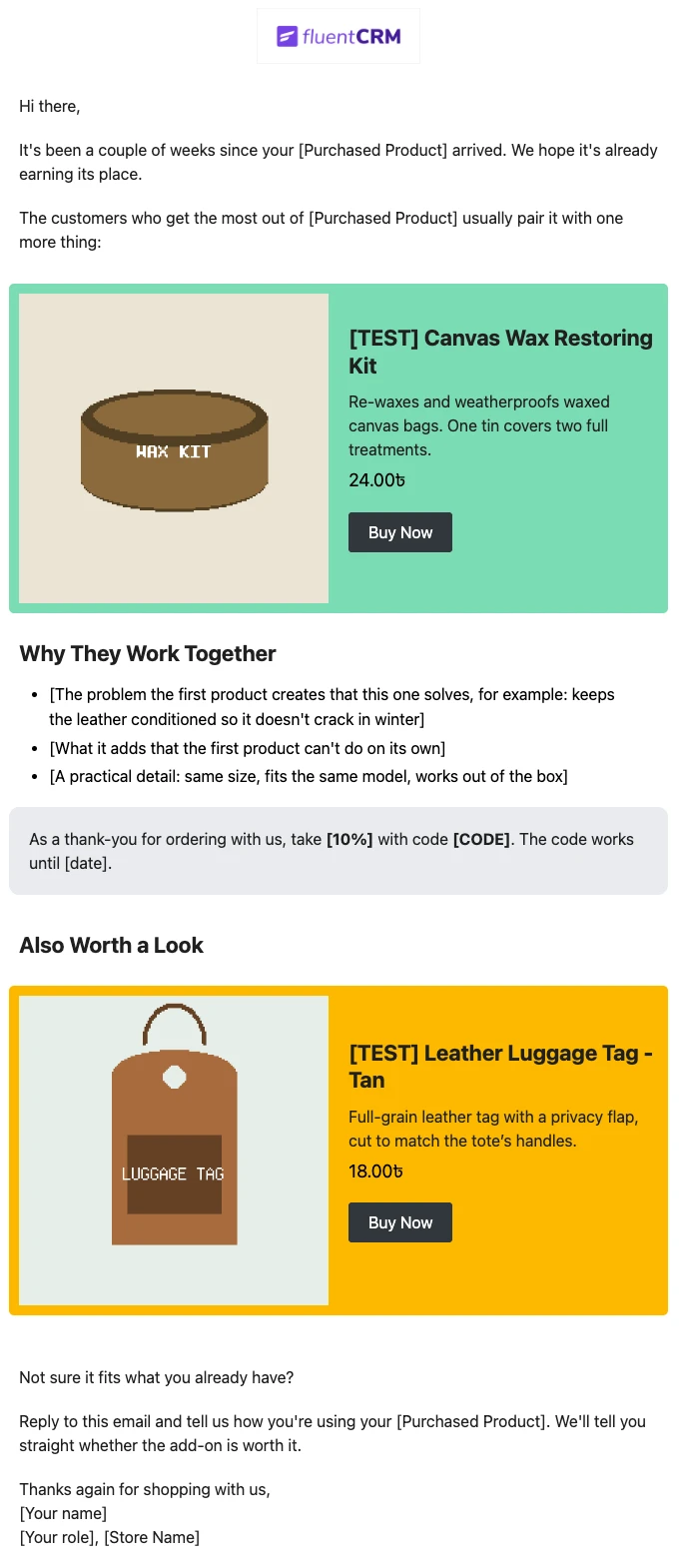
Product Recommendation Email for WooCommerce Cross-Sells
Recommend the one product that makes a customer’s last purchase better. Explain why the two products belong together, and sends customers straight to the add-on.
-
- eLearning Emails
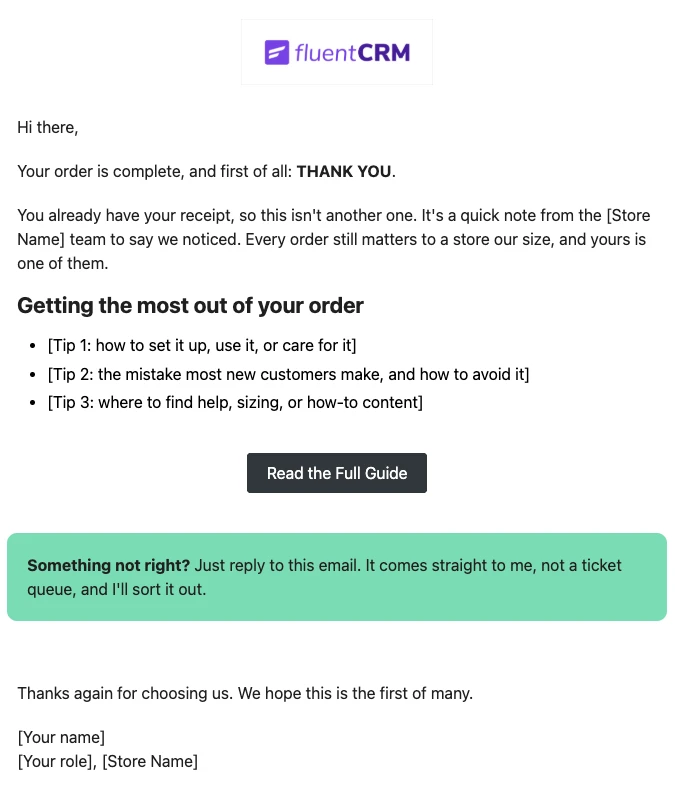
WooCommerce Post-Purchase Thank You Email
Thank customers like a person, not a receipt. Send a short, personal thank-you when a WooCommerce order is completed, with tips that help customers get real value from what they bought.
-
- eLearning Emails
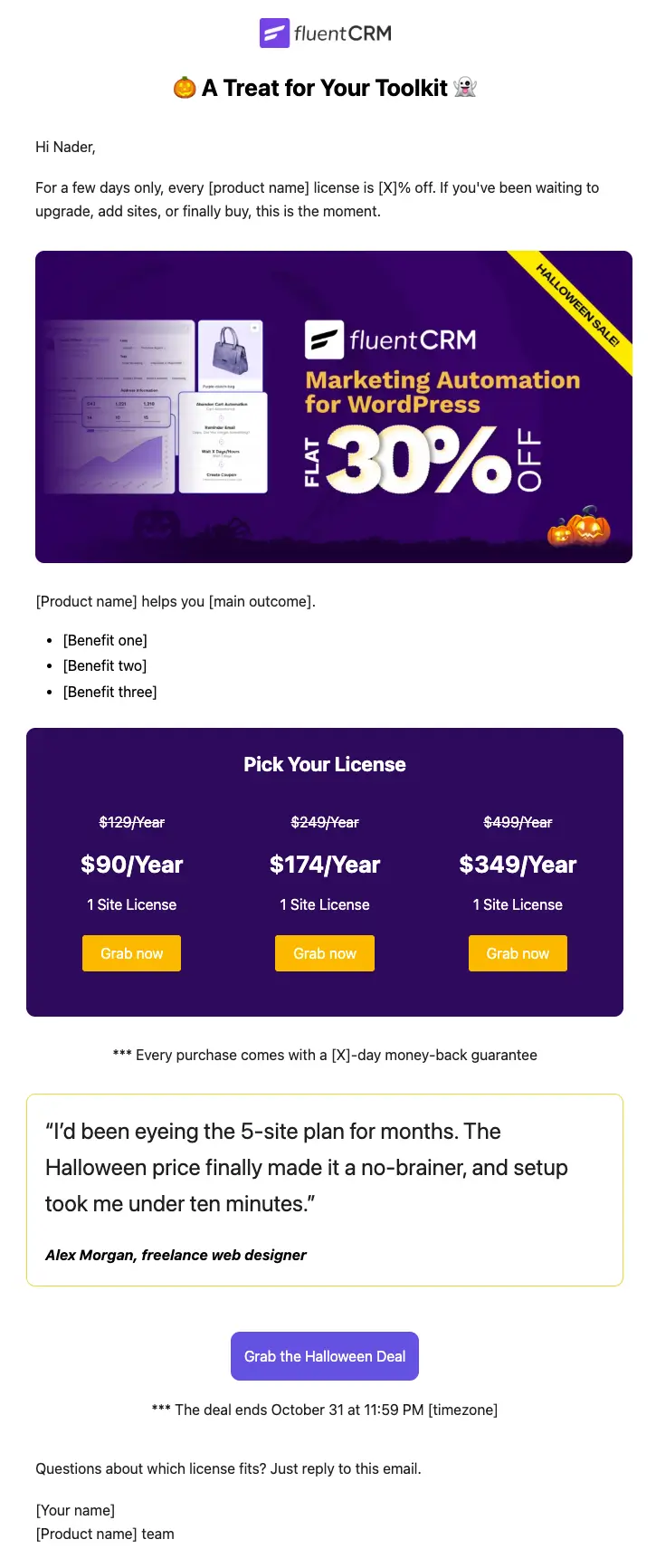
Halloween Email Template for Digital Products
Announce your Halloween license sale with a ready-to-send email built for plugins, themes, SaaS, and online courses
Want More Resources?
Access resources to start faster, decide smarter, and grow your revenue with less complexity.