WooCommerce Post-Purchase Thank You Email
Thank customers like a person, not a receipt. Send a short, personal thank-you when a WooCommerce order is completed, with tips that help customers get real value from what they bought.
- eLearning Emails
Get this template in your inbox
Thanks for sharing your email, please click below to download the template.
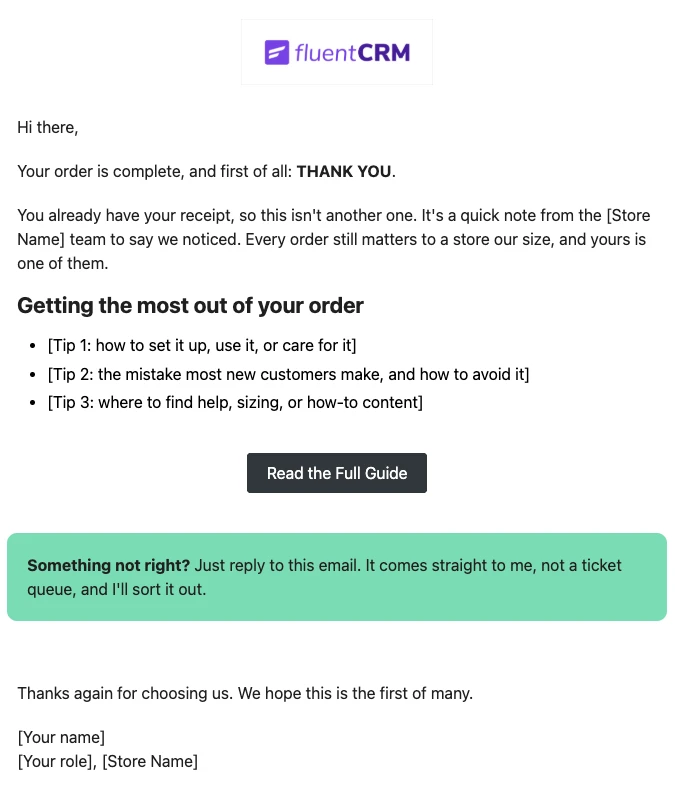
What is a WooCommerce Post-Purchase Thank You Email Template?
A post-purchase email template is a ready-made message you send to customers after they buy. This one is built for WooCommerce stores and is sent from FluentCRM when an order is marked completed, so it lands after the order confirmation, not on top of it.
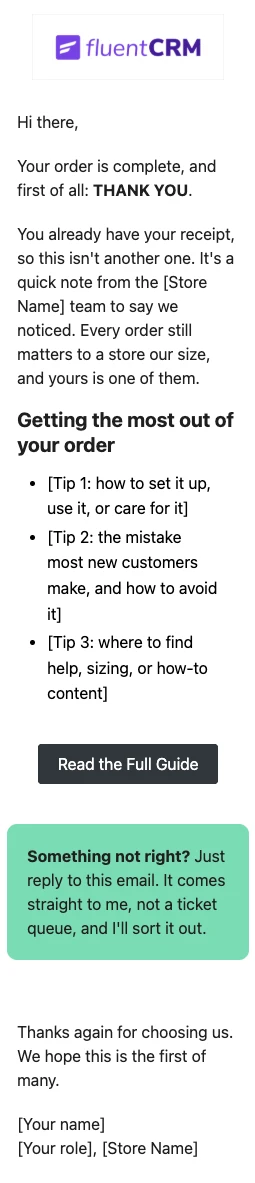
The email doesn’t repeat the receipt. It opens with a plain thank-you and one line that says so, then gives three short tips for getting the most out of the order, a button to a full guide, and a highlighted invitation to reply if anything is wrong. It’s signed by a real person on your team. The greeting uses the contact’s first name through merge tags, with a fallback for guest customers who never typed one.
Best for:
- WooCommerce stores that want customers to feel noticed after checkout, not just processed
- Stores selling products that need setup, care, or sizing guidance, where a few tips prevent returns
- Small and growing shops where a note from the owner is a real advantage over big retailers
- Stores that want to start a post-purchase sequence and need a first email that doesn’t sell
- Agencies setting up customer retention emails for WooCommerce client sites
How do I Send This Post-Purchase Email Automatically?
This email runs in an automation, not a campaign, so it goes out on its own every time an order is completed. The Order Completed trigger needs FluentCRM Pro.
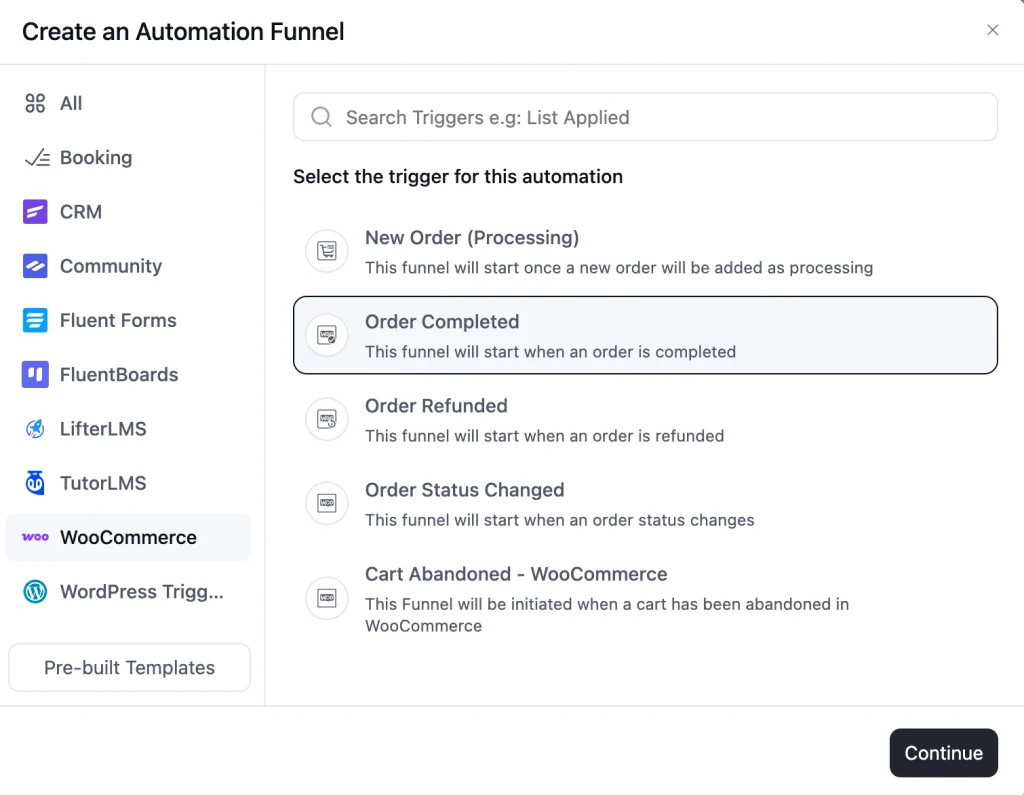
Step 1: In FluentCRM, go to Automations → New Automation, select WooCommerce, and choose the Order Completed trigger
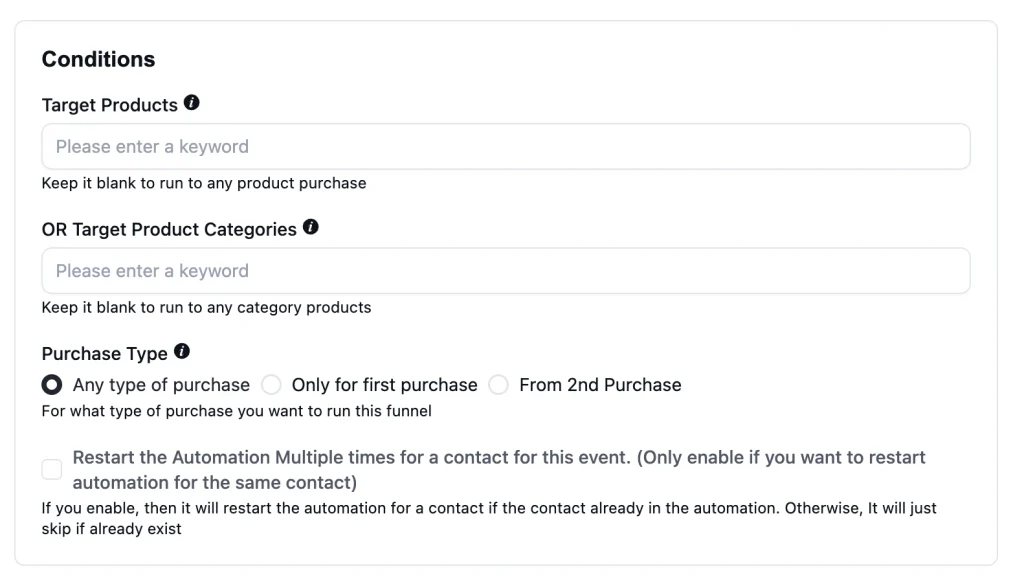
Step 2: Under Purchase Type, choose “Only for first purchase” if this email is for new customers, or “Any type of purchase” to thank everyone. Leave Target Products and Target Product Categories blank to run it for every product
Step 3: Add a “Send Custom Email” action and select the WooCommerce Post-Purchase Thank You Email template
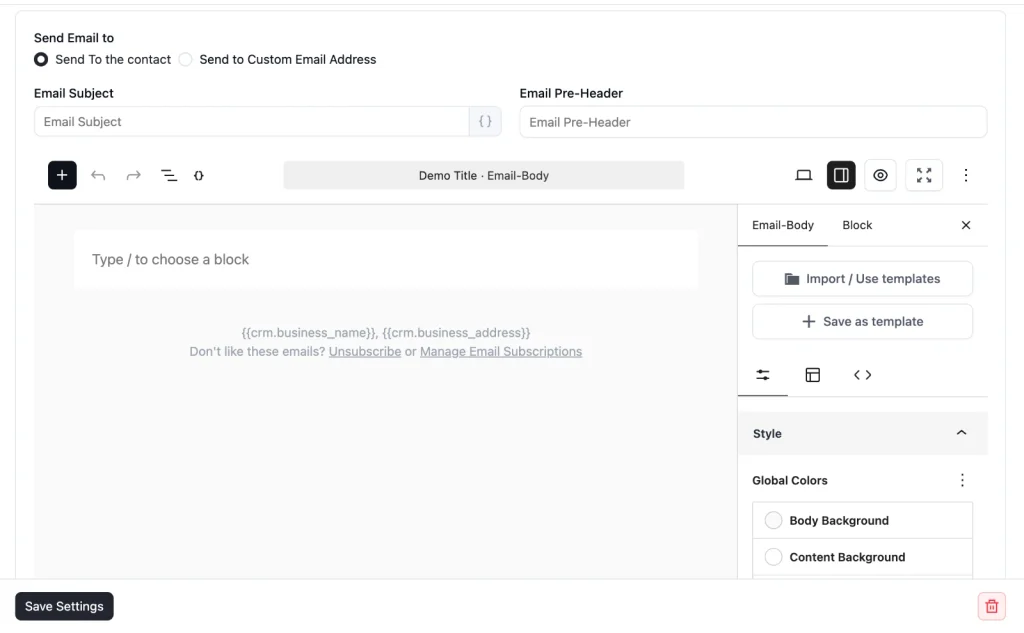
Step 4: Publish the automation
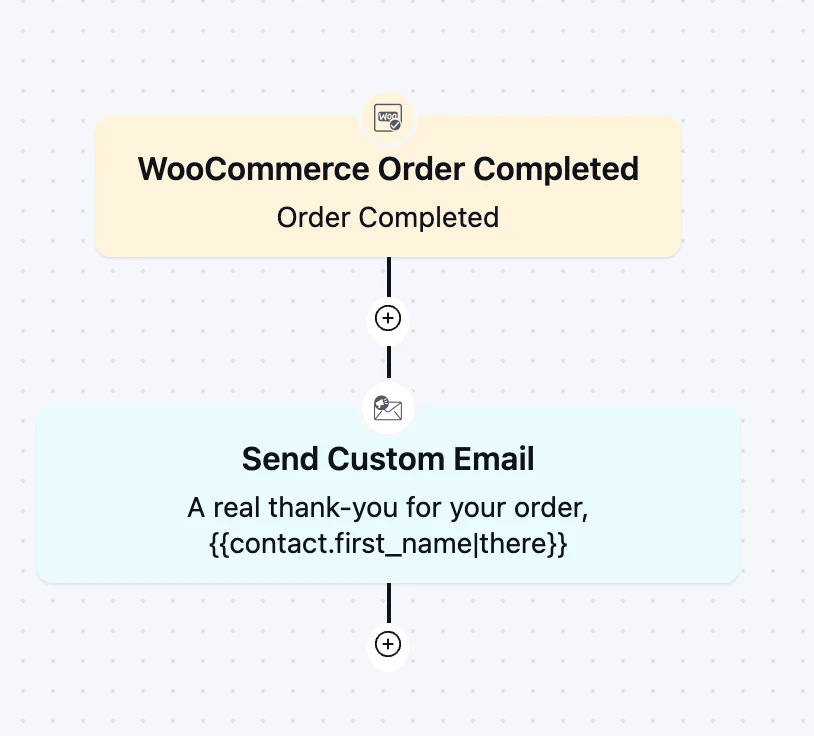
The trigger fires when WooCommerce marks an order as completed. For physical products, that usually happens when you ship, so the email arrives around the time the package does, not minutes after the receipt. For virtual and downloadable products, WooCommerce often completes the order right after payment, so add a “Wait” step of a day or two before the email.
Customization Tips
- Replace the “[Your Store Logo]” and “[Store Name]” placeholders with your own branding before you publish the automation
- Write the three tips for your real products. The most useful tip is usually the mistake new customers make most often, the one that turns into support tickets or returns
- Point the “Read the Full Guide” button to a real page, such as a setup guide, care instructions, or a sizing page. The template ships with a
#placeholder link - Keep the “just reply to this email” box, and make sure the reply-to address goes to an inbox someone reads. That line is a promise
- If you send this to every order, edit “We hope this is the first of many.” It reads oddly to a customer on their tenth order. Or set Purchase Type to “Only for first purchase” and leave it as is
- Leave out discounts, review requests, and product recommendations. Each one works better as its own email later in the sequence
- Sign with a real name and role. A thank-you from “The Team” is a receipt with nicer wording
Post-Purchase Email Subject Lines You Can Use
Keep the fallback on the first name tag, like {{contact.first_name|there}}. Guest customers often check out without an account, and a subject line that reads “A real thank-you for your order” looks broken.
| Subject line | Preview text |
|---|---|
| A real thank-you for your order, {{contact.first_name|there}} | No receipt this time. Just a note from the people behind the store. |
| Thank you for your purchase | Plus three tips to get the most out of it. |
| Your order is complete. Thank you. | Here’s how to make the most of what you bought. |
| We noticed, and we’re grateful | A quick note from our team, not another receipt. |
| Before you unbox it | A few tips from us to help you get started. |
Why Use an Abandoned Cart Email Template?
The days after an order are when a customer is most open to hearing from you, and most likely to decide whether they’ll buy again. A ready-made thank-you email helps you:
- Stand Out From the Receipt: Every store sends an order confirmation. A personal note that arrives later and says it isn’t a receipt gets read
- Prevent Problems Before They Happen: Three short tips at the right moment answer the questions that would otherwise become support tickets, bad reviews, or returns
- Catch Issues While They’re Small: Inviting replies gives unhappy customers a direct line to you before they leave a review or file a chargeback
- Earn the Right to Ask Later: A customer who got help, not a sales pitch, is more likely to leave a review or open your next offer
- Run It Inside WordPress: Orders, contacts, and emails all stay in your WordPress site, with no separate email app to sync with WooCommerce
Build Your Full Post-Purchase Sequence
This template is the first email after an order is completed. Follow it a week or so later with a review request, once the customer has had time to use the product. FluentCRM’s {{woo_order.request_review_table}} SmartCode adds review links for the products in that order. After that, send a related product recommendation or a reorder reminder, depending on what you sell. Keep each email to one job, so the thank-you stays a thank-you.
Frequently Asked Questions
When does this post-purchase email send?
When the WooCommerce order status changes to Completed, which is usually when you ship a physical order. If you’d rather send it at a fixed time after purchase, add a Wait step before the email in your automation.
Does the Order Completed trigger work in the free version of FluentCRM?
No. The WooCommerce automation triggers, including Order Completed and New Order (Processing), are part of FluentCRM Pro. You can still import this template in the free version and send it as a regular email, but it won’t send automatically after each order.
How is this different from the WooCommerce order confirmation email?
WooCommerce’s own email confirms the order and lists what was bought. This template comes later and has a different job: thanking the customer like a person and helping them use the product. Keep WooCommerce’s confirmation turned on. This template doesn’t replace it.
Can I send this only to first-time customers?
Yes. In the Order Completed trigger settings, set Purchase Type to “Only for first purchase”. You can also choose “From 2nd Purchase” to build a separate thank-you for returning customers.
Can I add the order details to this email?
Yes. In an automation started by the Order Completed trigger, the SmartCode picker includes WooCommerce order codes such as {{woo_order.order_number}}, {{woo_order.order_items_table}}, and {{woo_order.total_amount}}. The template leaves them out on purpose because the customer already has a receipt.
What should I put in the three tips?
Whatever your customers ask about most in the first week. Look at your support inbox and returns: setup steps, care instructions, sizing, or the feature people miss. Specific tips for your product work better than general advice.
Related Templates
-
- eLearning Emails
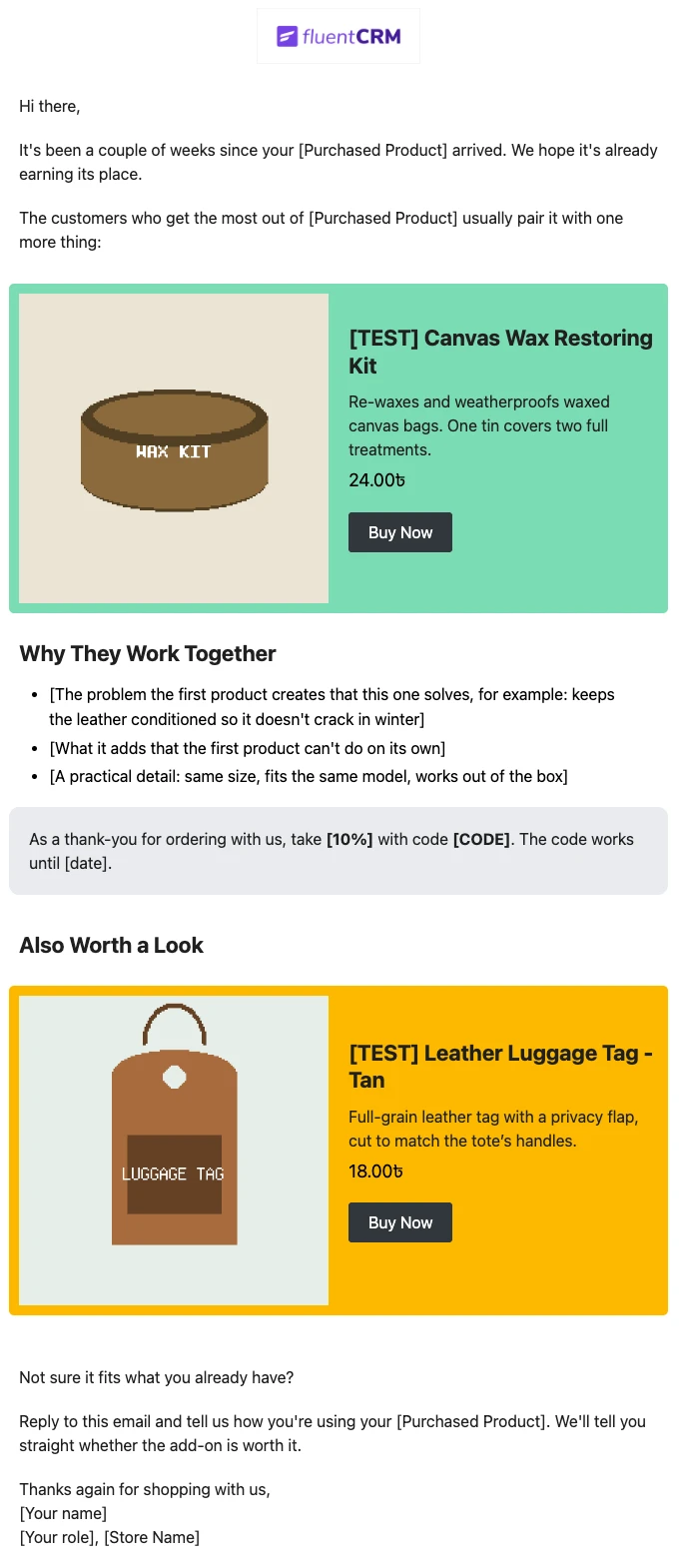
Product Recommendation Email for WooCommerce Cross-Sells
Recommend the one product that makes a customer’s last purchase better. Explain why the two products belong together, and sends customers straight to the add-on.
-
- eLearning Emails
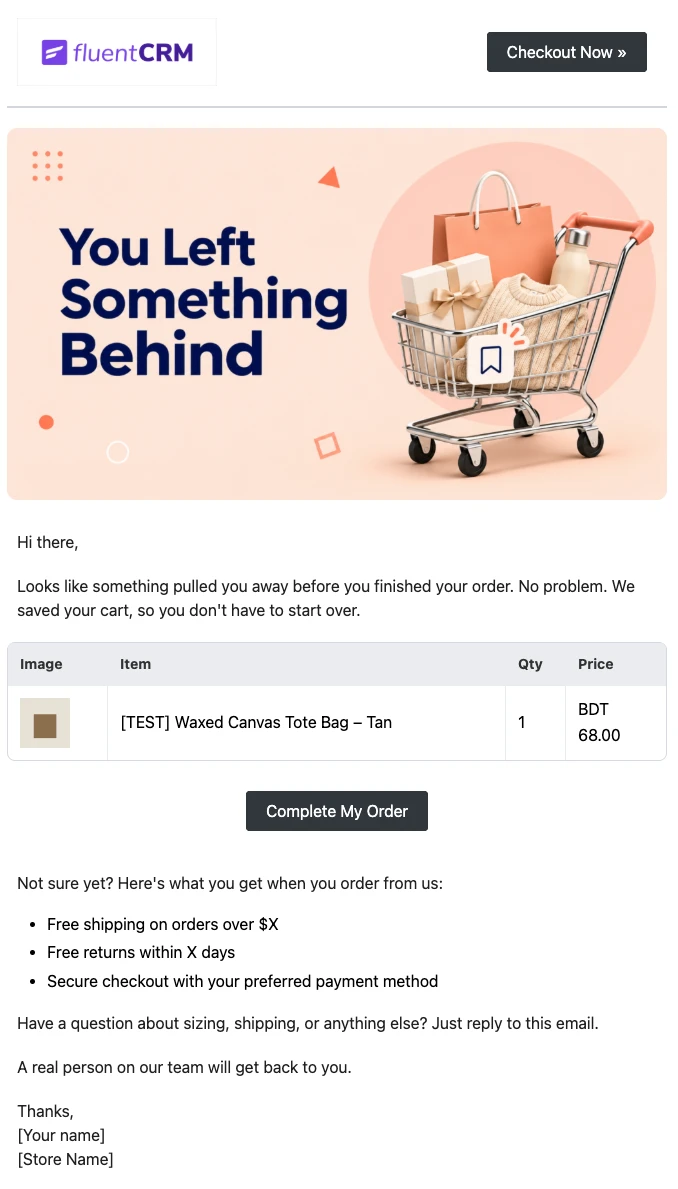
WooCommerce Abandoned Cart Email Template
Bring shoppers back to the checkout they left. Show each customer the exact products in their cart and send them back to a checkout that is already filled in, automatically.
-
- eLearning Emails
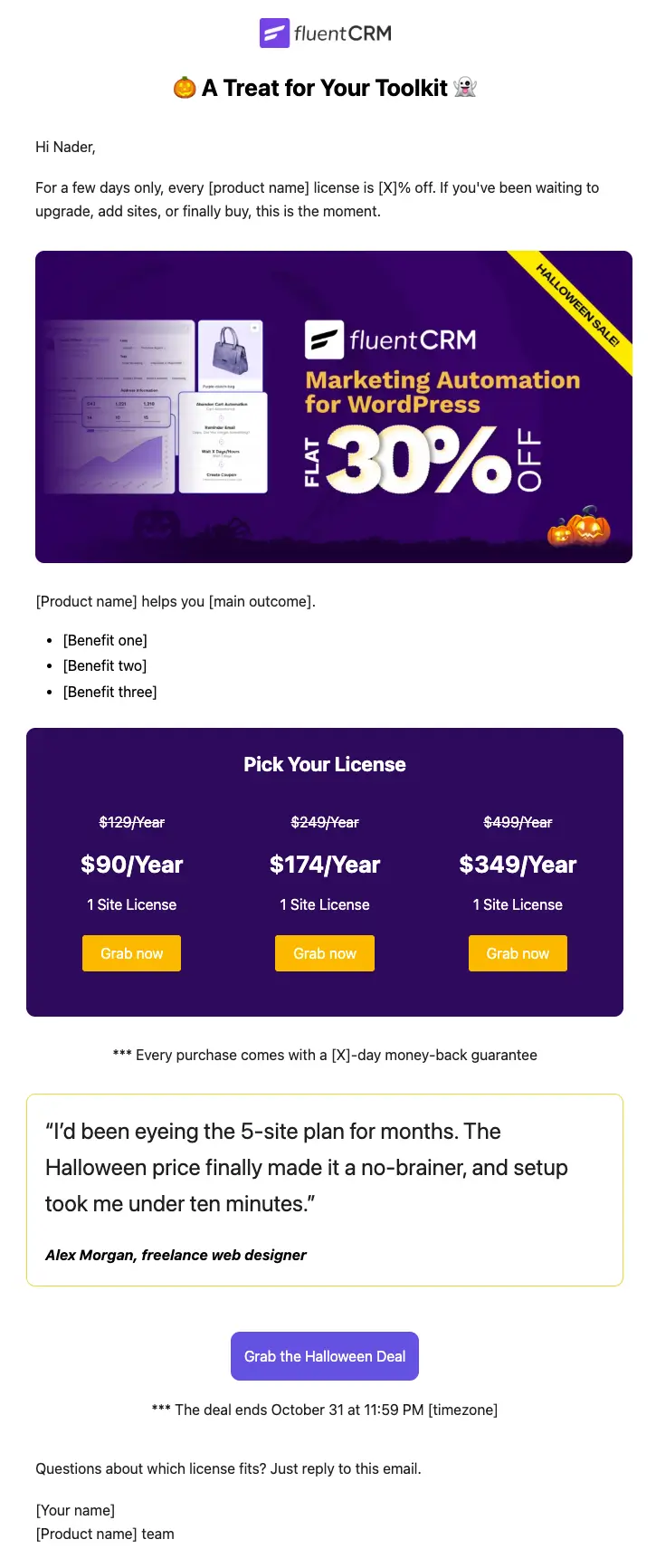
Halloween Email Template for Digital Products
Announce your Halloween license sale with a ready-to-send email built for plugins, themes, SaaS, and online courses
Want More Resources?
Access resources to start faster, decide smarter, and grow your revenue with less complexity.