eCommerce Email Flows: 8 Flows Every Store Needs (and How to Build Them for Free)

Summarize with


Last Updated:
If you run an online store, you probably send an email campaign every few weeks, but the emails that do most of the selling are eCommerce email flows, the ones that go out on their own when a shopper does something.
Think about it, there are many moments when a shopper is already thinking about your store:
- A new subscriber joining your list
- A customer placing their first order
- Someone filling out their cart and leaving without paying
These are moments when a next step, product knowledge, or a simple nudge email can be helpful.
A campaign sent on a fixed date will almost always miss it. But flows can solve that by sending the right email at the right time for every shopper, automatically. And trust me, once your first flow is running, you’ll wonder why you waited this long.
Below you’ll find the eight flows every store should run, what each email should say and when it should go out, how to build each one for free in WordPress, and which one to set up first.
What is an eCommerce Email Flow?
An eCommerce email flow is a set of automated emails and actions triggered by a specific customer action, behavior, or lifecycle event. (such as signing up, abandoning a shopping cart, or making a purchase) rather than a manually scheduled email campaign.
While an email campaign is one email you send to a list or segment on a date you choose (such as a New Arrivals roundup of three new products that goes to your “New Arrivals” list on Thursday morning), an email flow can decide what to do (send an email/SMS/WhatsApp text, add to a list/tag/community, offer a discount, etc.).
Once switched on, the flow runs separately for every person who takes that action, so the five-hundredth subscriber gets the same well-timed welcome as the first.
You’ll also see flows called email sequences or email automations. And in everyday use, all three describe the same thing.
We have covered the wider eCommerce email marketing strategy on our eCommerce email marketing guide. In this article, we’ll focus on the flows themselves and how to build them.
Why Do Email Flows Matter So Much for a Store?
Unlike email broadcast campaigns, eCommerce email flows can reach the shopper at the moment of highest intent.
While a campaign says: “Hi, check out our new arrivals!” or “Get 20% discount sitewide!”, an email flow can say, “Hey, you just purchased item A, so Item B would be an ideal purchase for you!”
That’s the difference.
Flows can reach customers while the signup, the order or the abandoned cart is still fresh in their mind. Every email can be highly personalized to the shopper’s interest, behavior or lifecycle stage.
So customers are more likely to buy from an email sent by a flow rather than a generic broadcast campaign.
Abandoned Carts Show the Size of the Gap Most Clearly
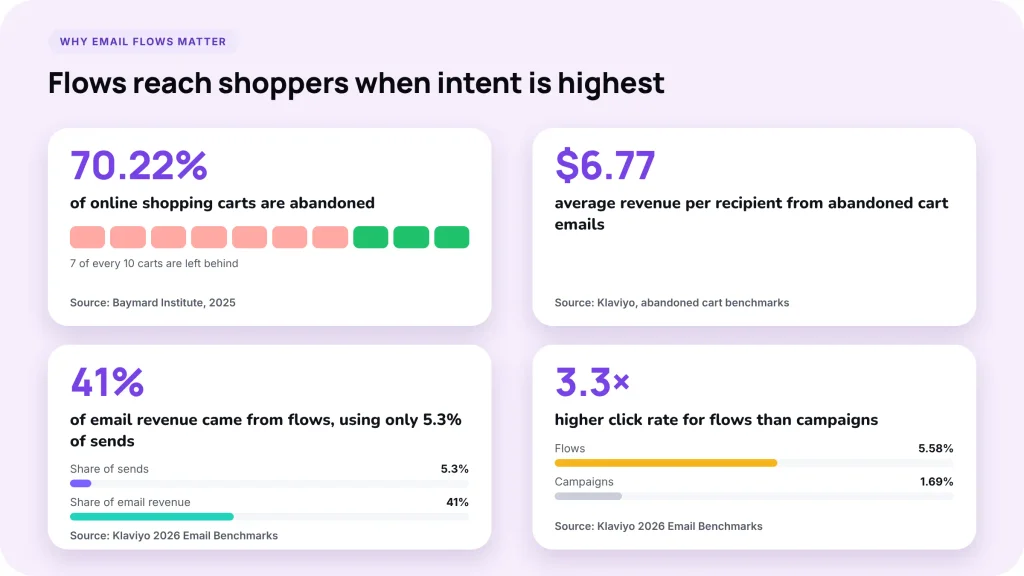
The Baymard Institute puts the average documented online cart abandonment rate at 70.22%. So roughly seven in every ten carts are left behind.
On the other hand, Klaviyo reports that abandoned cart flows earn an average of $6.77 in revenue per recipient by email.
Similar reports can be seen across the other email flows too. Klaviyo’s 2026 benchmark report, drawn from more than 183,000 of its own brands, found that flows produced nearly 41% of email revenue from just 5.3% of sends, with a 5.58% click rate against 1.69% for campaigns.
eCommerce Email Flow Statistics
- 70.22% cart abandonment (Baymard Institute)
- $6.77 revenue per recipient from abandoned cart emails (Klaviyo)
- Flows drive 41% of email revenue from 5.3% of sends and a 3.3× higher click rate (Klaviyo 2026 benchmarks)
These comparisons clearly show what you’d miss out on if you don’t use email flows for your eCommerce store. With that said, let’s get to the flows themselves.
8 eCommerce Email Flows Every Store Should Run
Now that you know why eCommerce email flows are so important, you’re probably wondering how to get started. We are sharing each flow in order so you can build them efficiently. Each flow builds on the one before it, so you never switch on eight flows at once with no idea which one is broken.
1. Welcome Flow
A new subscriber is never more interested in your store than in the first few minutes after they sign up. That is why it’s the right one to build first.
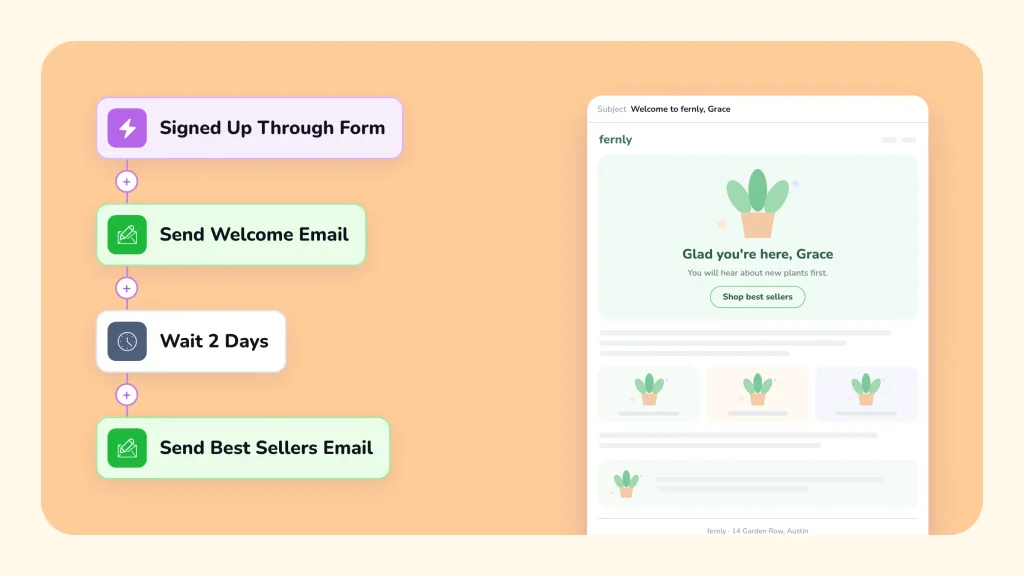
Most stores do well with two or three emails here. The first lands straight away, thanks the subscriber and confirms what they signed up for. The second email could point them to your best sellers, giving someone who doesn’t know your range yet an easy place to start.
The last one sets expectations about how often you’ll write, so your next campaign feels familiar instead of random.
On WordPress, this flow takes two free plugins: FluentCRM, which is where all the flows in this guide are built, and Fluent Forms, which handles the signup form.
You can create the forms under FluentCRM → Forms, and add each new subscriber to a list and tag, such as a “New Arrivals” list or a “Skincare” tag. Double opt-in is switched on here by default, which keeps new subscribers pending until they confirm their email.
While the lists and tags aren’t necessary to build the welcome automation, they will help you personalize communication in the long run. For example, if you have a new shipment, you can inform the “New Arrivals” list about the new products.
Building the Flow
- Once you’ve set up the form and tags, you can build the flow by going to FluentCRM → Automations → New Automation.
- Select the New Form Submission (Fluent Forms) trigger and configure it with the form you’ve created. Then add your welcome email by clicking the (+) icon and selecting the Send Custom Email action.
- You can add multiple emails at specific delays using the Wait X Days/Hours step between the emails.
When you’re satisfied with the flow, switch automation from Draft to Published to activate it. The introduction to FluentCRM automation covers the editor in more detail. If you’re looking for subject lines and layouts that work, these welcome email examples are worth a look.
2. Order Thank-you Flow
Every store sends a receipt. But a receipt is a record, not a relationship. The thank-you flow is one short email that can build the relationship and keep it going.
The idea is simple: when an order happens, thank the customer like a person would, reassure them they made a good choice, and share one tip for getting more out of what they bought, like how to break in a new pair of leather boots.
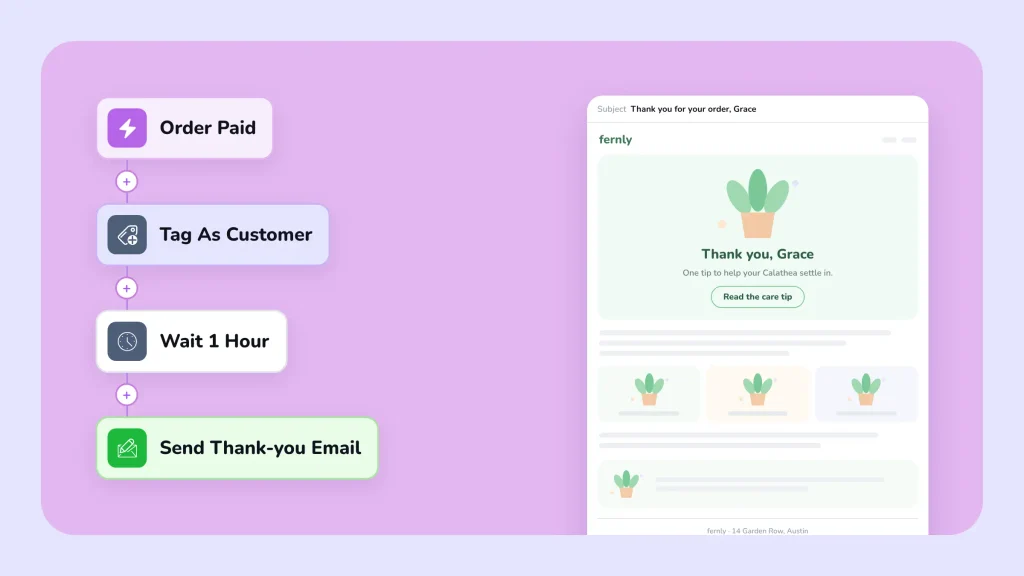
This kind of flow runs from your store instead of a form, so your store and CRM needs to integrate with each other for this to work.
The only real way to get it wrong is to repeat the order details, because then it reads like a second receipt and nobody opens it.
In WordPress, FluentCart and FluentCRM can do this for free. The FluentCart integration for FluentCRM can trigger automation flows on order, shipping, cart and subscription events directly.
If you already have customers, you can bring them into FluentCRM with the Sync Data option under FluentCRM → Settings → Integrations → FluentCart. It’s best to do this before any order flow goes live.
Building the Flow
- Go to FluentCRM → Automations → New Automation and select the Order Paid (Payment/Subscription) trigger.
- Add an Apply Tag action that tags the buyer as “Customer”. This builds a clean list of everyone who has bought from you, which you’ll use later for campaigns and win-back emails.
- Add a Wait X Days/Hours step of about an hour, then your thank-you email with the Send Custom Email action.
Tip: If you don’t want to build separate flows for each product, you can avoid specifying any products in the trigger configuration and personalize your emails with order details by adding order shortcodes. To view the available order shortcodes, click the {} icon.
If you’re not sure what to send after the first note, you can also read our guide to the post-purchase email sequence.
3. Shipping Update Flow
Once an order ships, customers want three things: to know when it’ll arrive, to be able to track it, and to know who to contact if something goes wrong. One clear email can cover all of that and chop off a surprising number of “where is my order?” messages.
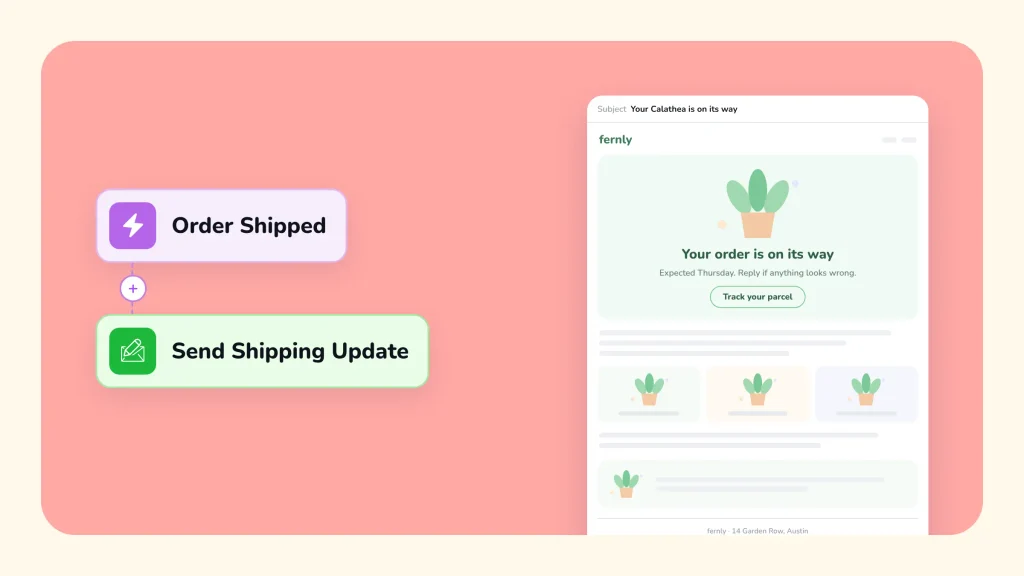
The detail that matters most is the sender address. A shipping email from a no-reply address leaves a worried customer with nowhere to turn, so send it from an address people can actually reply to.
Building the Flow
- Create a new automation with the Order Shipped trigger, which fires when an order’s shipping status changes to shipped in FluentCart.
- Add a single Send Custom Email action with no wait.
4. Review Request Flow
Reviews are easiest to get once the customer has had time to form an opinion. That’s why this flow starts from a delivered order rather than a paid one, and then waits.
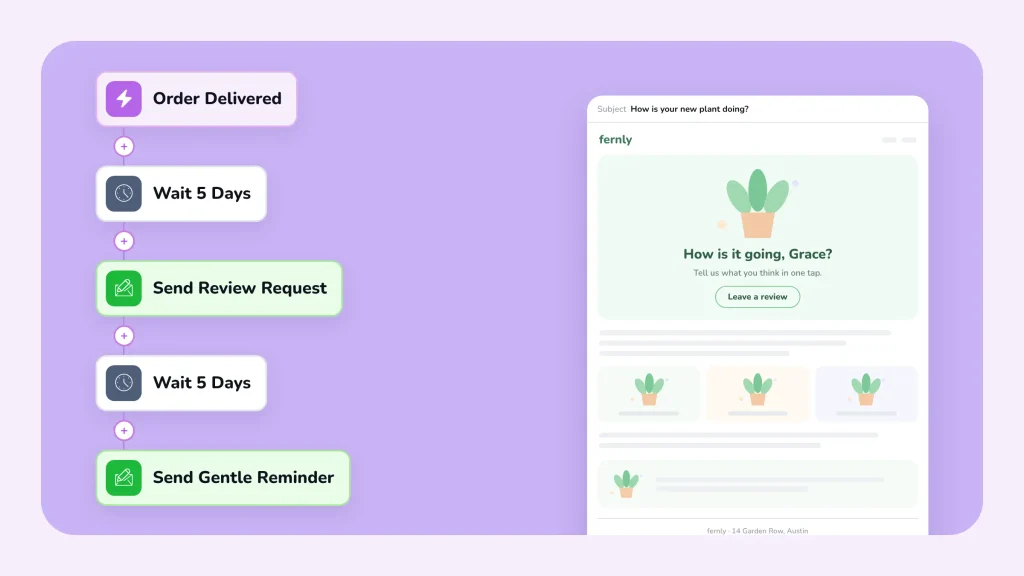
How long it waits depends on what you sell. Someone can judge a phone case in a couple of days, but they need a week or two to know whether a new moisturiser suits their skin.
Keep the email short, ask how things are going and link straight to the review page, so leaving a review takes one click.
Building the Flow
- Create a new automation with the Order Delivered trigger.
- Add a Wait X Days/Hours step of about five days, then your review request with the Send Custom Email action.
- If you want a reminder, add another wait and a second email.
Again, keep the tone light, because the reminder goes to everyone in the flow, including people who have already left a review.
5. Abandoned Cart Flow
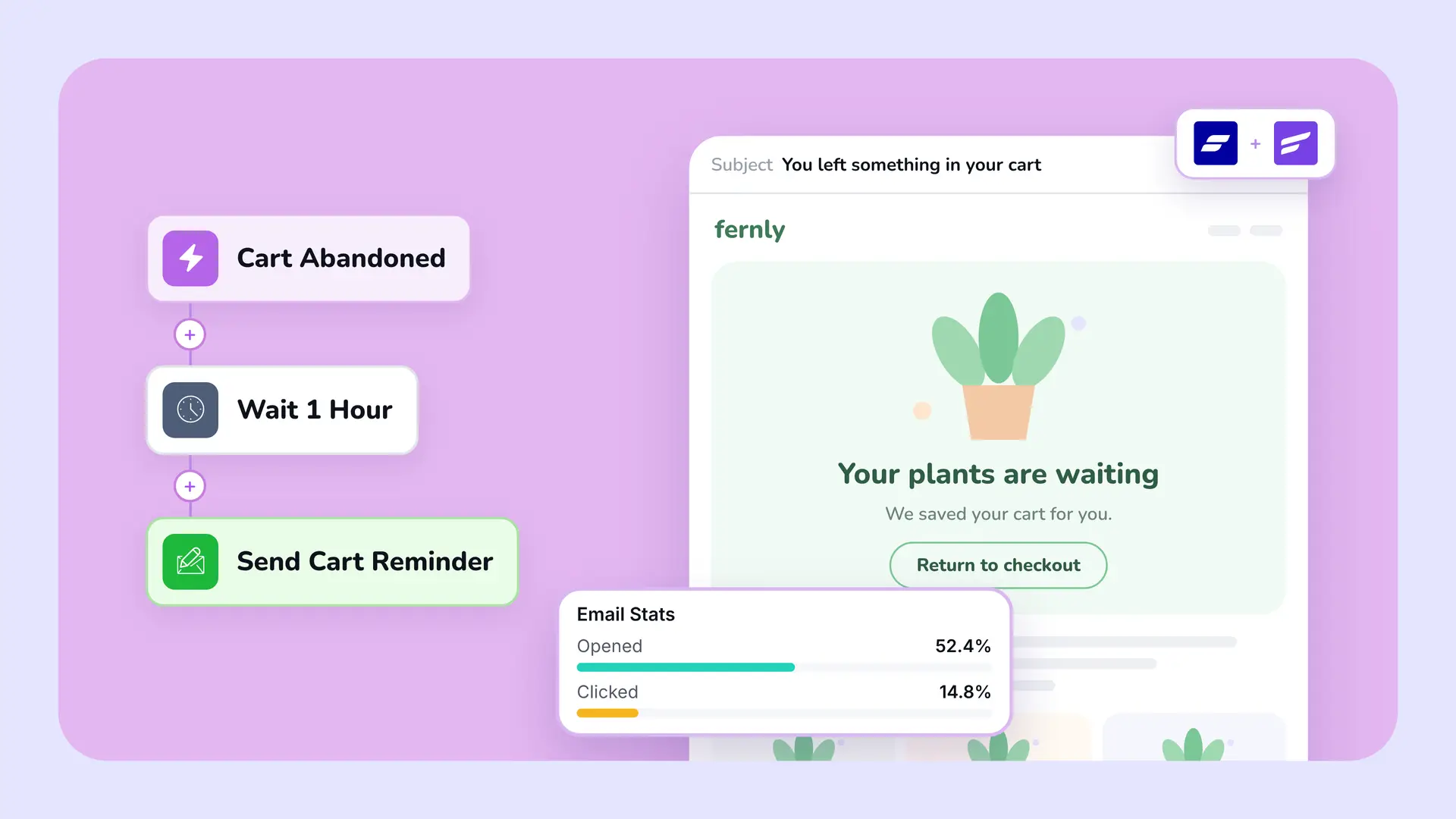
When people leave a cart, it can often mean they simply got distracted. That’s why most eCommerce businesses use an abandoned cart flow to bring back lost sales. It mostly comes down to timing and showing people exactly what they left behind.
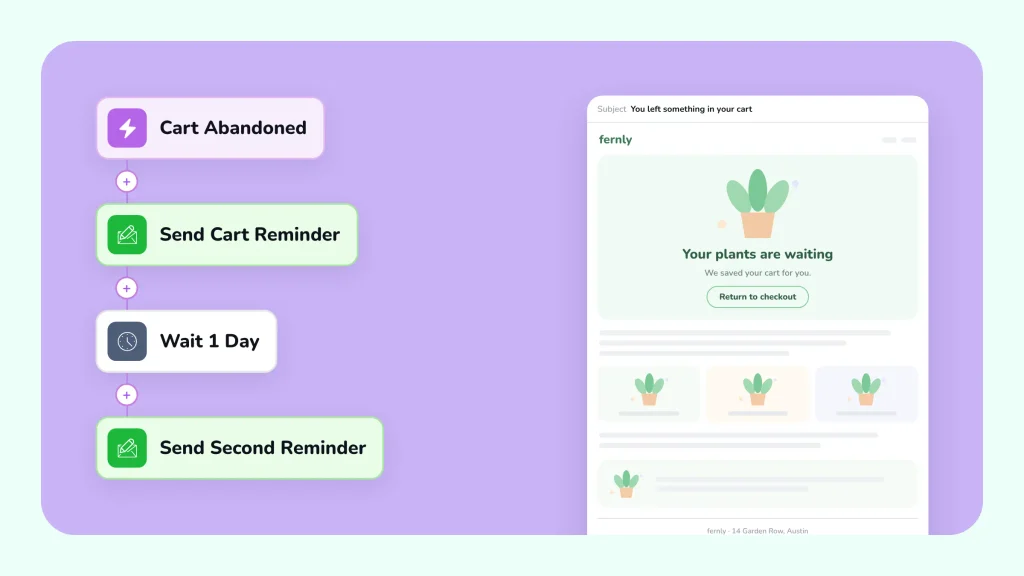
Two emails tend to be the sweet spot. The first goes out within an hour and shows the products in the cart with a single button back to checkout. The second follows the next day and answers the doubts that often stop a purchase, such as delivery times or how returns work.
Cart flows that underperform usually send too late or show a generic banner instead of the product the shopper chose. These abandoned cart email examples show what the better ones look like.
Building the Flow
- Go to FluentCRM → Settings → Abandoned Cart Settings and turn on the Abandoned Cart Module and enable FluentCart.
- Set the Cart Abandoned Cut-off Time to 60 minutes, so a cart counts as abandoned an hour after the shopper leaves. You can also set when a cart is marked as lost, a cool-off period, and the status new contacts get.
- Create a new automation with FluentCart’s Cart Abandoned trigger, or simply download and import the ready-made FluentCart abandoned cart automation template.
- Add your first email straight away, since the cut-off has already done the waiting
- Then add a one-day wait and the second email. You can add more if it suits your business.
FluentCRM also provides abandoned cart recovery reports by default. You can track recovered and lost carts under Reports → Abandoned Carts.
6. First-time vs Repeat Buyer Flow
A first order and a fifth order shouldn’t get the same email. Someone buying for the first time needs reassurance and a little guidance, while a repeat customer already trusts you and would rather hear something that feels like recognition, such as early access to a new range or a simple thank-you for coming back.
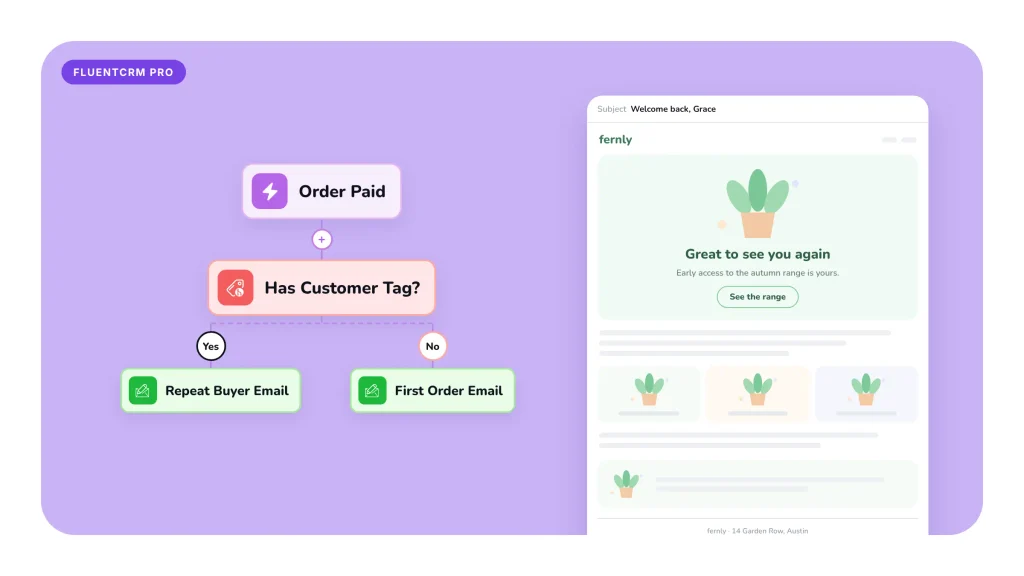
This flow splits your order follow-up into two paths, so each buyer gets the message that fits where they are with your store. It’s also the easiest way to start treating your best customers differently without building a full loyalty program.
Building the Flow
Note that, starting with this automation, the next three eCommerce email flows use conditional features which require FluentCRM Pro. It has more exceptional features like recurring newsletters and advanced eCommerce capabilities. So if you’re interested, check it out!
- Open your order thank-you flow, or create a new automation with the Order Paid (Payment/Subscription) trigger.
- Before the Apply Tag step, add the Has Selected tags condition and set it to the “Customer” tag. Because that tag is only added after someone’s first order, anyone who already has it is a repeat buyer.
- On the “yes” path, add your repeat-buyer email. On the “no” path, keep your first-order thank-you, then add an Apply Tag step and mark them as a “Customer” for next time.
You can read more about building this kind of segment in our guide to eCommerce customer segmentation.
7. Cross-sell Flow (Requires FluentCRM Pro)
Some products almost always lead to a second purchase. For example, someone who buys an espresso machine will need beans and a descaler, someone who buys a camera will want a spare battery.
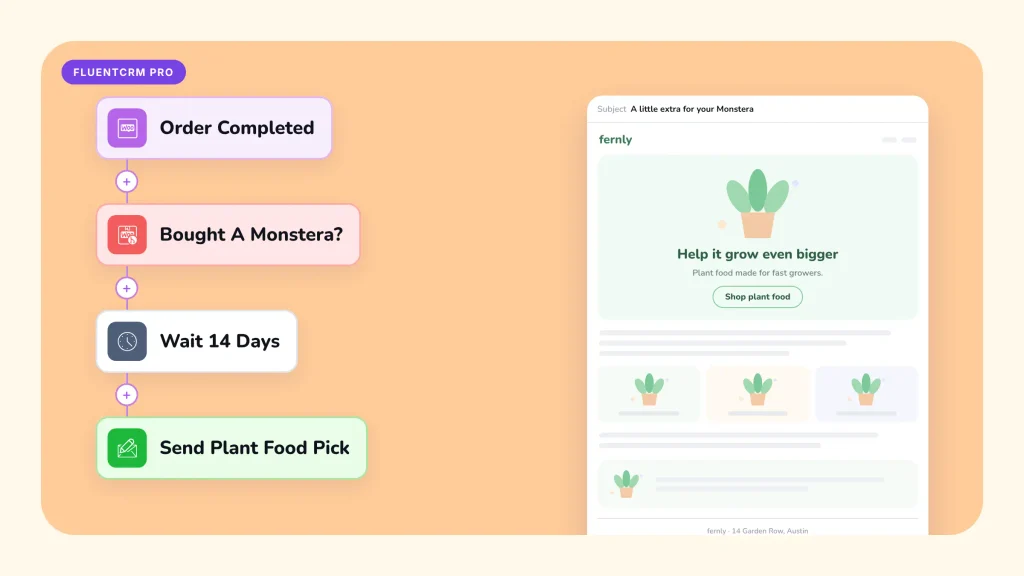
So these kinds of purchases are a good chance to send a cross-sell email. It doesn’t have to feel pushy, or forced, a simple well-timed communication suggesting the right add-on goes a long way.
The key is relevance. A cross-sell that recommends something unrelated to what the customer bought is just another promotion, while one that clearly follows from their order reads like good service.
Building the Flow
This flow is available on WooCommerce stores with FluentCRM Pro:
- Create a new automation with the WooCommerce Order Completed trigger.
- Add a Check if the contact purchased a specific product step and select the product that has a natural add-on.
- On the “yes” path, add a Wait X Days/Hours step, timed to when the customer is likely to need the add-on, then a Send Custom Email that recommends it.
Our guide to post-purchase email examples has more ideas for what to recommend and when.
8. Customer Win-back Flow
Every store has customers who bought once or twice and then went quiet. Maybe they found a better provider or simply forgot your brand.
But they already know your products and trusted you with their card details. So bringing them back is far easier than finding a brand-new customer. And that is what we call a customer win-back flow.
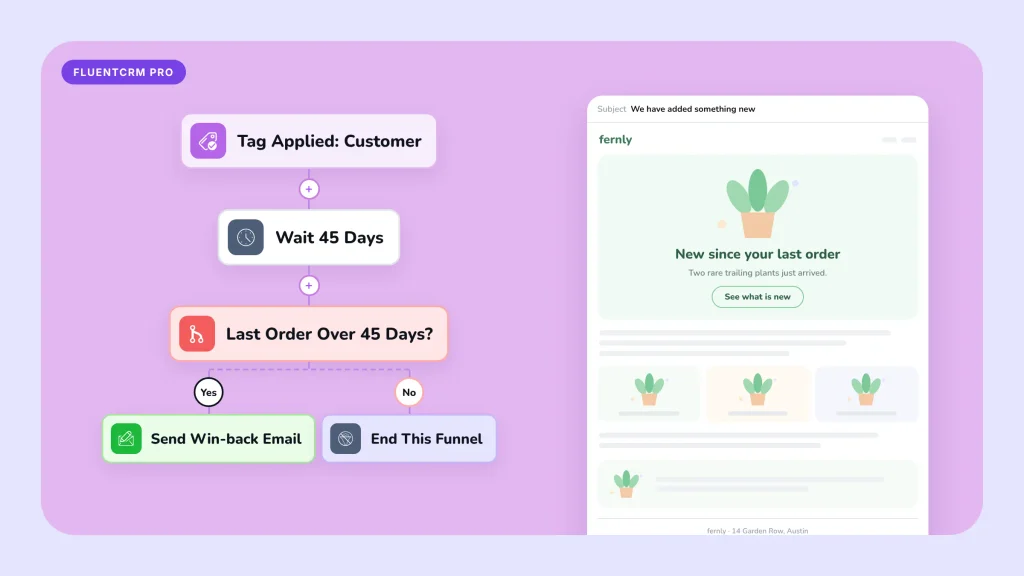
The key idea here is the timing of the emails.
If you’re running a coffee store, you might want to reach out six weeks after the last order, when a bag would normally be running low. If you’re running a furniture store, you should wait a few months at least.
Two emails a couple of weeks apart are usually enough, one that shows what’s new since their last order and one that reminds them of what they bought.
Specific details can also make the difference here. A line like “It’s been a while since your last bag of our Ethiopian roast, and we’ve added two single origins since” lands far better than a generic “we miss you”.
Building the Flow
- Create a new automation with the Tag Applied trigger and select the “Customer” tag from your thank-you flow.
- Add a Wait X Days/Hours step set to your usual reorder cycle, such as 45 or 60 days.
- Add a Check Condition step that checks the customer’s last purchase date, and set it to match anyone whose last order was more than that many days ago.
- On the “yes” path, add your win-back email, then a wait of about two weeks and a final reminder. On the “no” path, add End This Funnel Here, because the customer has bought again since and doesn’t need winning back.
Because the condition looks at the most recent order, only customers who have genuinely gone quiet get the win-back emails, while anyone who has reordered in the meantime drops out quietly.
What Does Every Good Flow Have in Common?
Every working flow is made from the same five elements, and once you know them you can build any flow on this list.
- Audience fit. Only people who agreed to hear from you should enter a marketing flow, and a first-time buyer needs different words from a returning customer, which is why it pays to segment eCommerce customers before writing any copy.
- Trigger. This is the action that starts the flow, such as a form submission, a paid order or an abandoned cart, and if it’s wrong, the wrong people enter the flow or nobody does.
- Wait. This is the delay before each email, and it changes a lot from one flow to the next. For example, a cart reminder works best within the hour while a review request needs several days so the product has arrived and been used.
- One job per email. Each message should ask for one thing, whether that’s “come back to your cart”, “track your parcel” or “leave a review”, because an email that tries to do three jobs usually gets none of them done.
- Length. A flow needs as many emails as the job takes and no more, which for most store email flows means one to three.
Measurement and Optimization is Key
eCommerce email flows aren’t something you set once and forget, and the first two weeks tell you a lot. That’s why we’ve got you covered with FluentCRM’s advanced automation reporting.
Every automation in FluentCRM has its own report, which you can open from the Stats number on the Automations list or from Reports inside the automation editor.
It shows how contacts are moving through that flow, so you can spot where people drop out, whether a wait is too long, or whether a flow isn’t triggering at all.
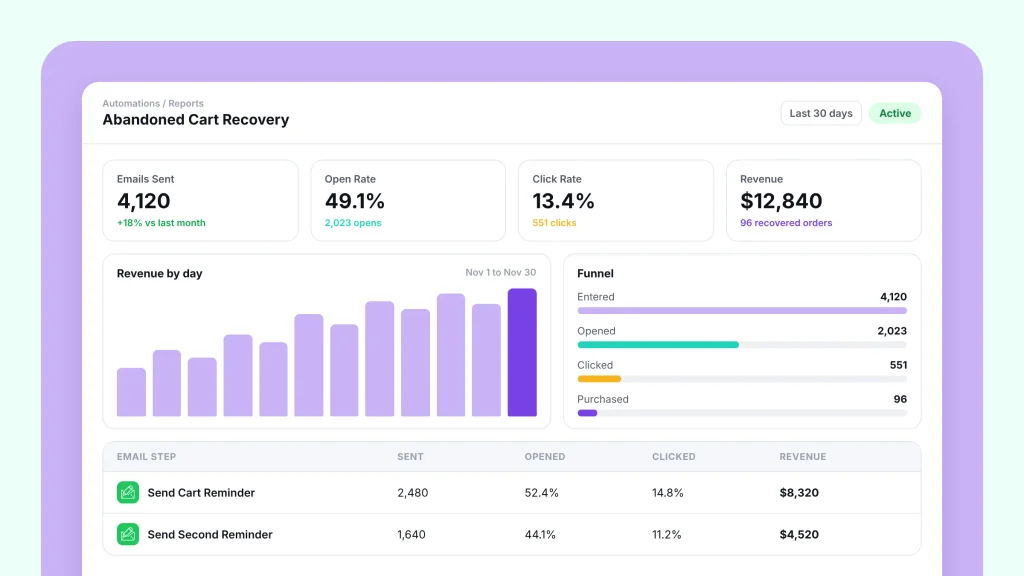
The emails report under Reports → Emails can also show how each email performed once it was sent.
Use the two together: If one product got most of the clicks in your welcome email, it probably deserves the top spot. A subject line nobody opened is worth rewriting, and a jump in unsubscribes usually means a flow is sending more often than it should.
Small changes like these, made every few weeks, are what turn a decent set of flows into a good one.
Build These Free with FluentCRM + FluentCart (Most of them!)
You don’t need all eight flows running at once, because the hardest part is simply getting started. Set up your signup form, make sure your emails reach the inbox, and build the welcome flow first, since every other flow reuses the same pattern with a different trigger.
The good news is that you can do most of it for free. Five of the eight flows in this guide run on the free versions of FluentCRM, FluentCart and Fluent Forms, all part of the Fluent Ecosystem, and there’s no limit on how many contacts you can add.
That matters more than it sounds. Most hosted email platforms charge by the number of contacts, so every one-time buyer who joins your list pushes your bill up, even if they never order again.
Here’s what the same flows would cost on the usual tools at two list sizes.
| Tool and plan | 5,000 contacts | 25,000 contacts | Bill is based on |
| FluentCRM Free with FluentCart | $0 | $0 | No contact limit |
| FluentCRM Pro, single site | $129/year | $129/year | Sites, not contacts |
| Klaviyo, Email | $100/month | $400/month | Active profiles |
| Mailchimp, Standard | $100/month | $310/month | Contacts |
| Omnisend, Standard | $81/month | $282/month | Contacts you send to |
| ActiveCampaign, Starter | $79/month, billed yearly | $391/month, billed yearly | Contacts |
Prices in USD as listed on each vendor’s pricing page on October 27, 2026, for each tool’s entry plan with multi-step automated flows: Klaviyo, Mailchimp, Omnisend, ActiveCampaign and FluentCRM. With FluentCRM, your sending provider charges for the email itself at its own rates.
At 25,000 contacts, a year on Klaviyo’s Email plan comes to $4,800, while the five flows built above cost nothing in software. And when you want more from them, FluentCRM Pro is still priced per site, so a single-site license stays at $129 a year however large your list gets.
Ready to build your first flow?
Install FluentCRM and FluentCart for free!

Nazir Himel
Product Marketing Lead
Hey! I’m an inbound marketing specialist focused on email marketing automation. I love turning complex features into clear, user-centric messaging and when I’m not shaping product stories, I’m experimenting with content frameworks, conversion journeys, and helping others communicate value without sounding salesy!
Table of Content
Related Articles and Topics
-
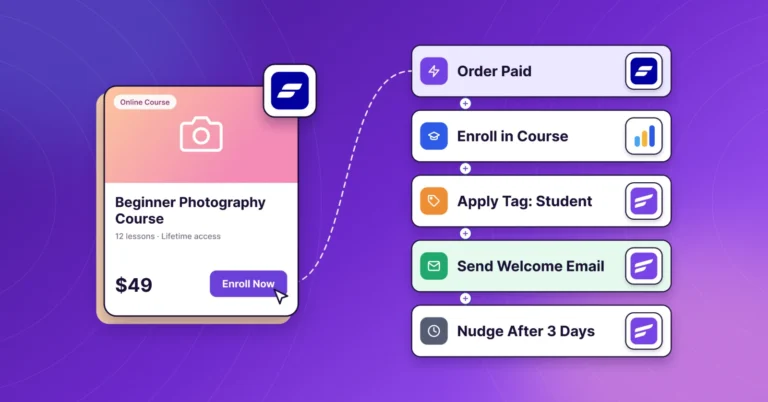
How to Sell Online Courses on Autopilot with FluentCart, LearnDash, and FluentCRM
If you are a course seller, you must be juggling three separate tools for three…
-
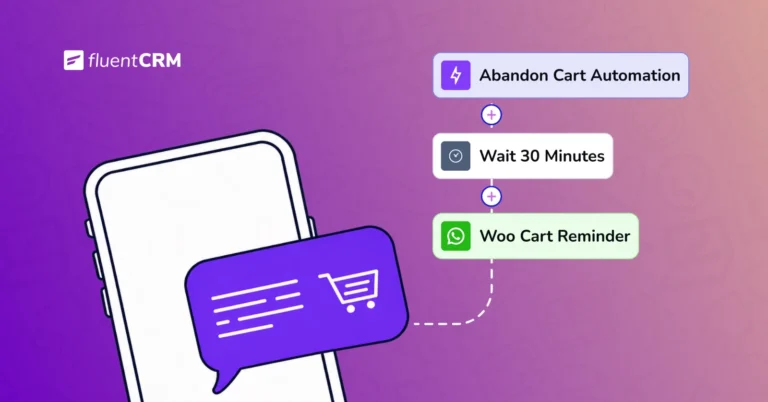
How to Send WooCommerce Order Notifications and Follow-Ups via SMS & WhatsApp
A customer visited your store, added a product to the cart, then clicked “Place Order.” …