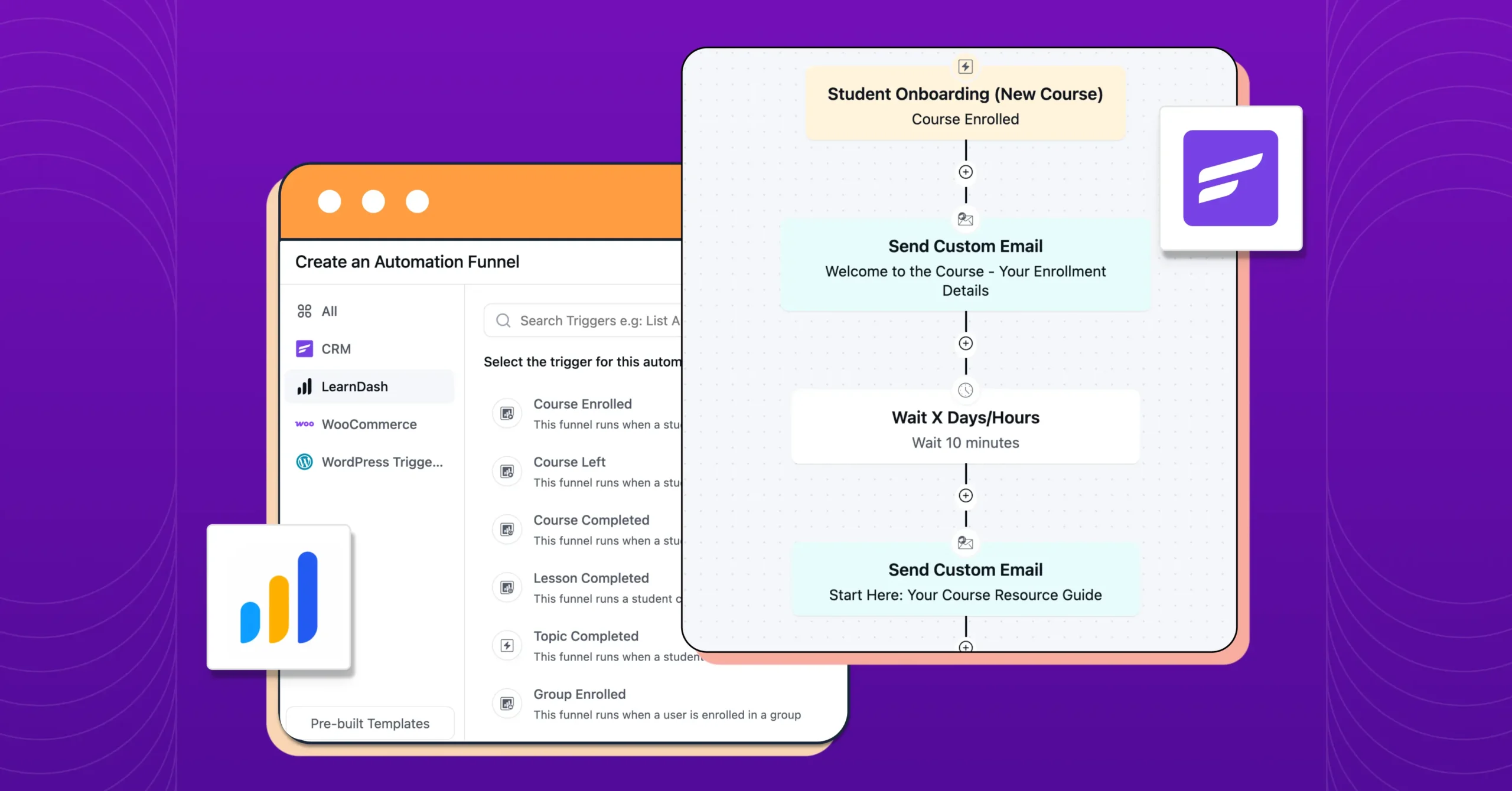
6 Practical Use Cases of LearnDash Automation Triggers Every Course Creator Should Set Up

Summarize with


Last Updated:
A new student joins your course, finishes the first lesson feeling excited, and even emails you to say so.
Then, nothing. Not because they lost interest, but because life got busy and nobody reminded them to come back.
Every online course selling platform experienced this at least once.
So, to close that gap, FluentCRM and LearnDash automation triggers come in.
Every course has some moments like this, and each one can run on autopilot instead of relying on you to notice.
This article covers six of the most useful ones, along with the simplest way to automate each.
Quick Summary
- LearnDash gives you six triggers inside FluentCRM: Course Enrolled, Course Left, Course Completed, Lesson Completed, Topic Completed, and Group Enrollment.
- These sit under FluentCRM’s LMS Triggers category, alongside similar triggers for LifterLMS and TutorLMS.
- Using them requires FluentCRM Pro. The free version does not include LMS integrations.
- Each trigger has one obvious first automation worth building: a welcome sequence, a progress nudge, a completion workflow, and so on.
- Once a few of these are working, you can connect them into one longer journey that follows a student from enrollment to whatever comes next.
What is LearnDash? (And Where FluentCRM Fits In)
LearnDash is one of the most widely used learning management system (LMS) plugins for WordPress. Course creators use it for several use cases:
- Build and sell online courses
- Organize lessons and topics
- Run quizzes
- Hand out certificates
- Manage access to courses
LearnDash already has a built-in email system that covers a handful of one-time notifications, mainly purchase confirmations, registration emails, and invoices. Once those go out, LearnDash moves on and does not check back in.
That is the gap FluentCRM is built to fill. FluentCRM connects directly to LearnDash. Once the two are linked, every day-to-day student action from start to finish can be managed through constant communication.
Read to learn more about this distinction: LearnDash Email Notifications vs. FluentCRM Email Automation
What are LearnDash’s Triggers in FluentCRM?
Once LearnDash is connected, six triggers become available inside FluentCRM’s automation builder. Each one starts a funnel the moment a student does something specific inside a course.
- Course Enrolled: Triggers when a student joins a course.
- Course Left: Triggers when a student is removed from or leaves a course.
- Course Completed: Triggers when a student finishes an entire course.
- Lesson Completed: Triggers when a student finishes a single lesson.
- Topic Completed: Triggers when a student finishes a topic within a lesson.
- Group Enrollment: Triggers when a student is added to a LearnDash group.
These six sit inside FluentCRM’s broader LMS Triggers category; most of them also cover LifterLMS and TutorLMS.
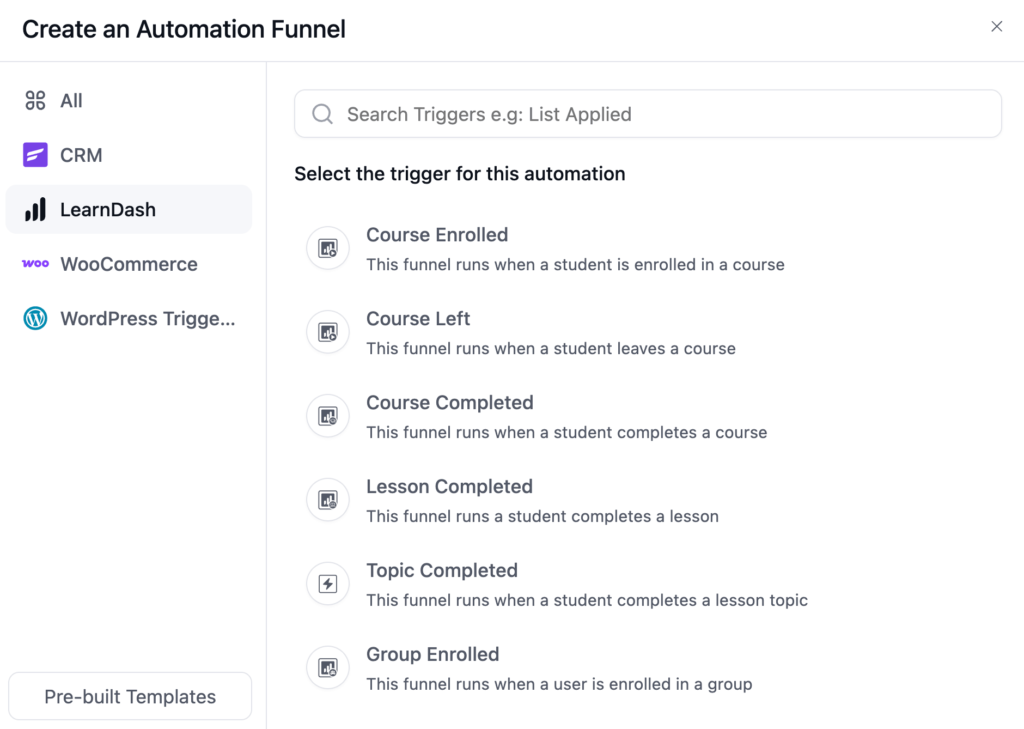
If you run more than one LMS plugin, you will find their triggers organized the same way, just grouped under their own platform.
Each trigger works alongside FluentCRM’s other automation building blocks, including actions, goals, and conditional logic. Those are what let you go beyond a single email and build the kind of small workflows shown later in this article.
Here’s What You Need Before Automating
Before setting up any of the workflows below, make sure the basics are in place.
- LearnDash: Installed and active, with at least one course already set up.
- FluentCRM Pro. The triggers, actions, and conditionals used in this article are part of FluentCRM Pro.
- Turn on Integration. In FluentCRM, go to Settings, then Integration Settings, then LearnDash.
- Sync Data: Set a default list, tag, and contact status for your students, then click Sync LearnDash Students to bring students’ data into FluentCRM.
- Set up Tags: Open a course in LearnDash, go to its Settings tab, and under Course Access Settings, choose the tags you want applied when a student enrolls and when they complete the course.
For a full walkthrough of this setup, see: LearnDash Integration with FluentCRM
Quick Reference: Trigger and Use Case at a Glance
Before getting into the details, here is a quick side-by-side look at all six triggers. Jump straight to the one you need, or keep reading below for the full breakdown of each.
| Trigger | Most Obvious Use Case |
| Course Enrolled | Welcome new students with an onboarding sequence |
| Lesson Completed | Keep students motivated after every lesson |
| Topic Completed | Segment students by topic-level progress |
| Course Completed | Celebrate completion and recommend the next step |
| Course Left | Win back students who leave a course unfinished |
| Group Enrollment | Onboard cohorts and teams with group enrollment |
6 Practical Use Cases for LearnDash Triggers in FluentCRM
Here is how each trigger plays out in practice, along with a simple workflow you can build directly inside FluentCRM’s automation editor.
1. Welcome New Students with an Onboarding Sequence
The moment someone enrolls is usually the moment they are most excited about your course. That excitement fades quickly if nobody reaches out.
So building a student onboarding sequence might just help you reduce the manual workload every time new students enrol in a course.
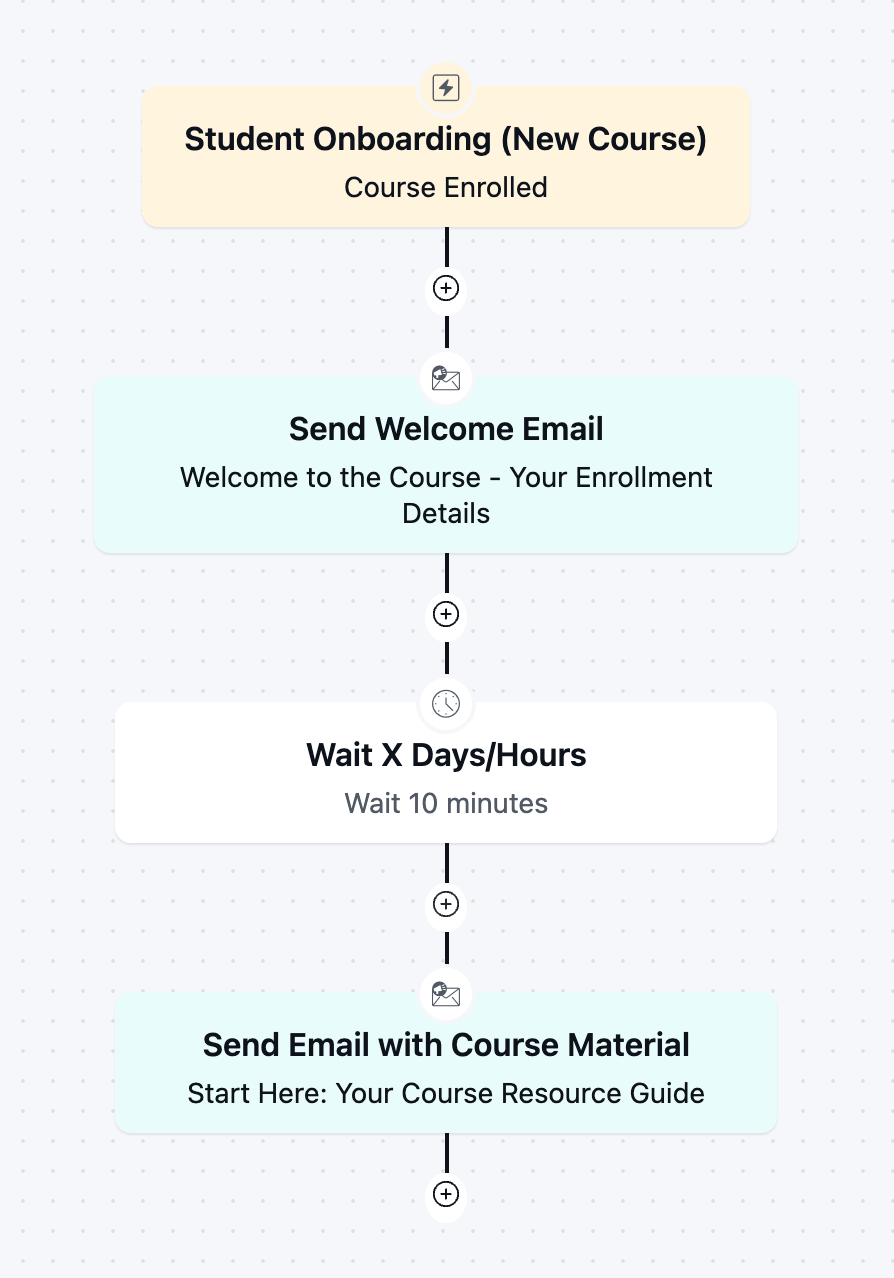
For that, Course Enrolled is the easiest trigger to use to automate students’ onboarding journey.
Here’s a simple workflow built on Course Enrolled:
2. Keep Students Motivated After Every Lesson
A single course might consist of multiple lessons. A student who finishes lesson one but never starts lesson two is a bigger risk than someone who is already halfway through the course.
If students do not receive any gentle reminders, they tend to drop off after a few lessons.
Lesson Completed trigger simplifies this process by giving a gentle nudge every time students stop engaging with a course.
Here’s a simple workflow built on Lesson Completed:
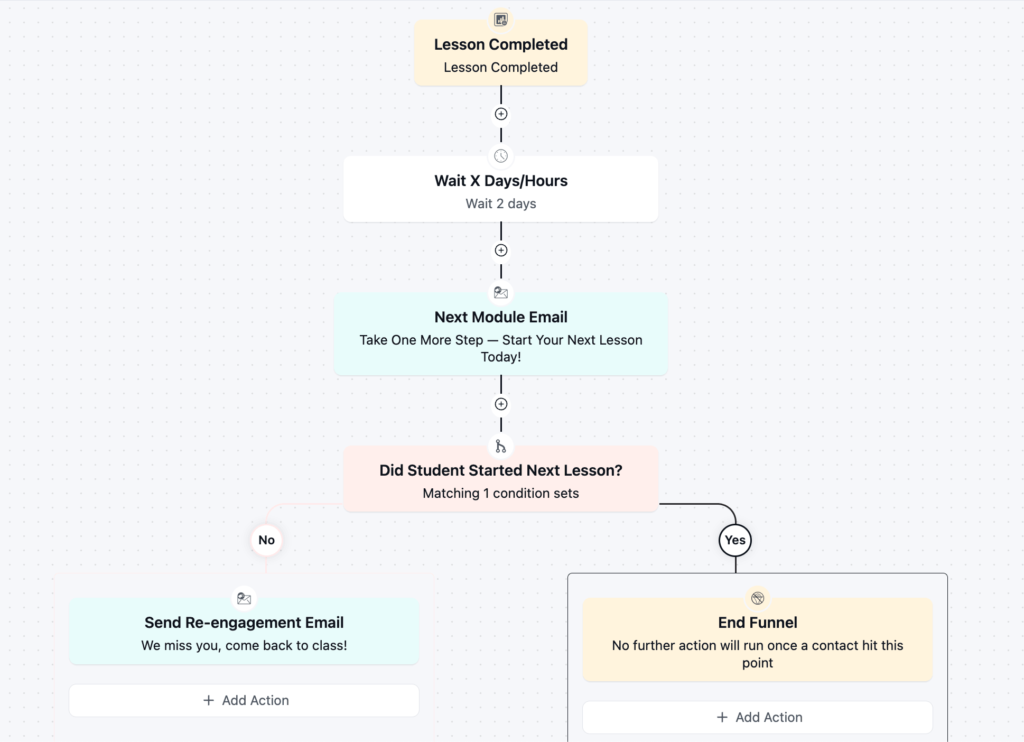
The point of this workflow is not to email students after every lesson. It is to quietly catch the ones who are starting to slow down, while leaving the students making good progress alone.
3. Segment Students by Topic-Level Progress
Topic Completed is the most detailed of the six triggers, since a single lesson is often made up of several topics.
Because of that, it works better for tracking activity-based progress than for sending email. Emailing a student every time they finish a topic would be too much.
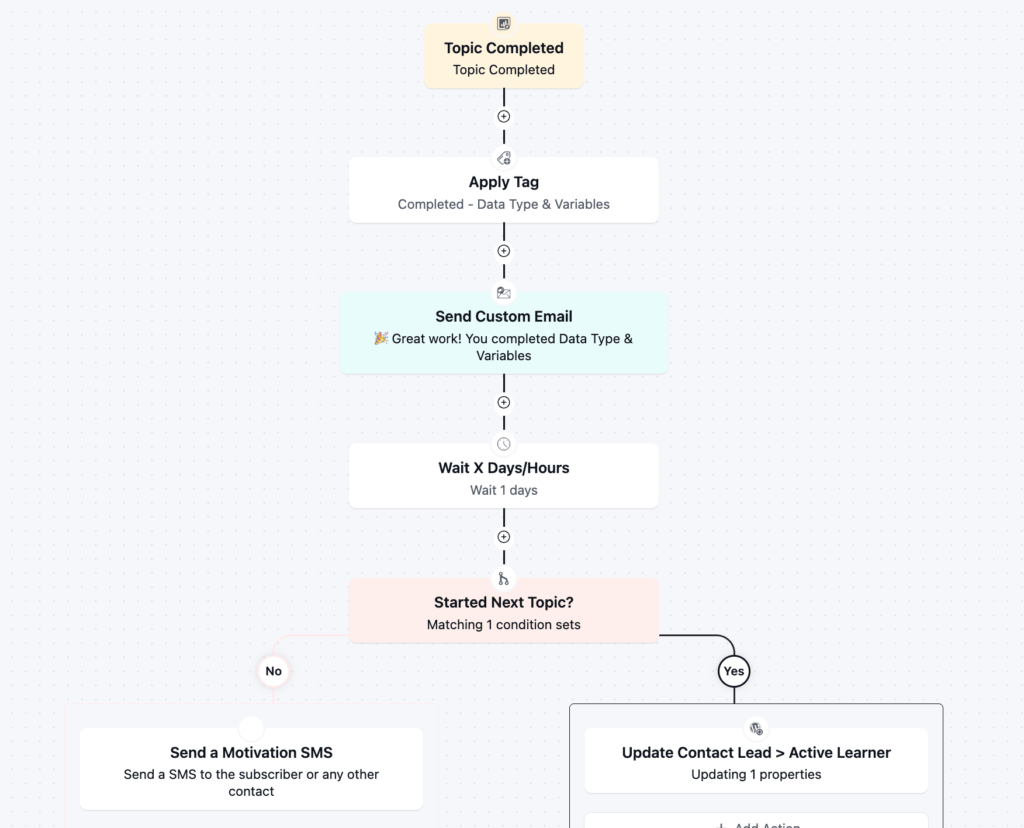
When you have this progress tracking data, you can build segments such as students stuck on a specific topic, or students moving through topics quickly enough that they might be ready for a faster track.
A more practical workflow:
4. Celebrate Course Completion and Recommend the Next Step
Finishing a course is often treated as the end of the relationship. It should not be.
A student who just finished has already paid you once, already trusts your teaching, and has proof the course worked for them. That combination makes them one of your warmest leads for whatever comes next.
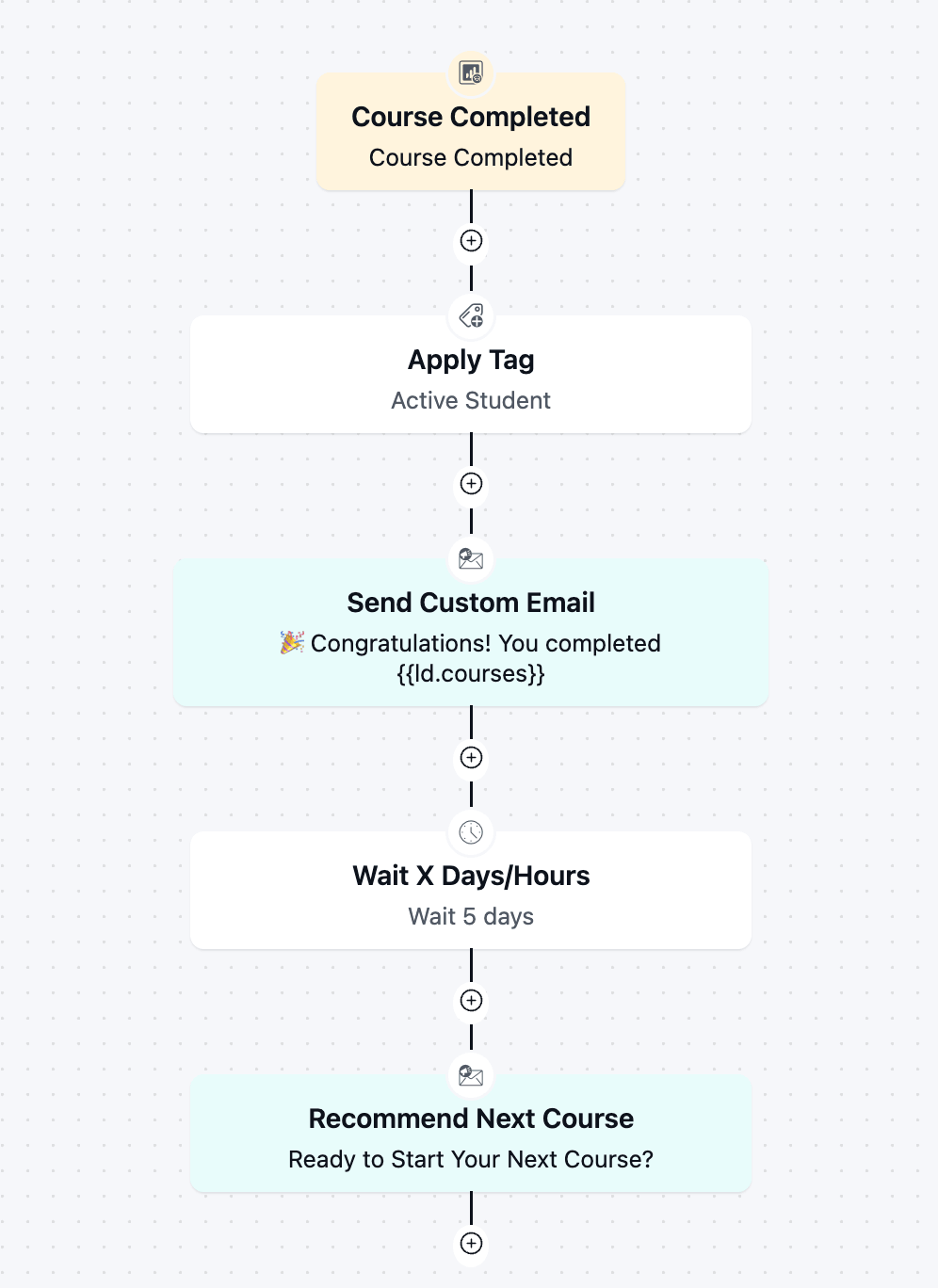
With the Course Completion trigger, you can suggest another course or ask for a coaching call, or more.
It is almost always easier to sell to someone who already trusts you than to go find a brand new customer.
A workflow built on Course Completed:
5. Win Back Students Who Leave a Course Unfinished
Not every student finishes what they start. People get distracted quite often, or sometimes they just lose interest.
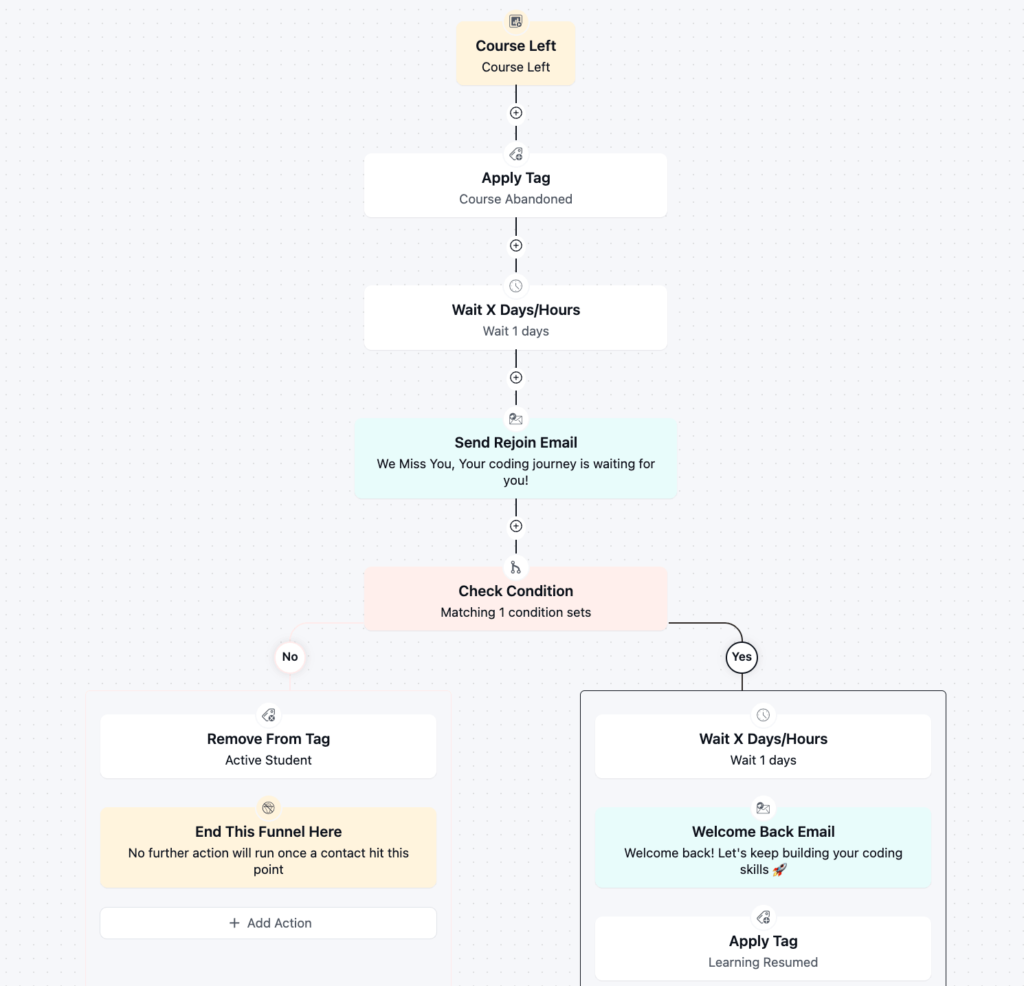
Course Left fires when a student is removed from or drops out of a course, and it is the clearest signal you get that something needs attention.
Moreover, this automated process reduces the risk of sending further emails to students who stopped interacting and left the course.
A simple win-back workflow:
Note: If your course runs on a subscription and access is tied to payment, you can pair this trigger with the Remove From Group action, so a student’s access is cleaned up automatically the moment they leave.
6. Onboard Teams With Group Enrollment
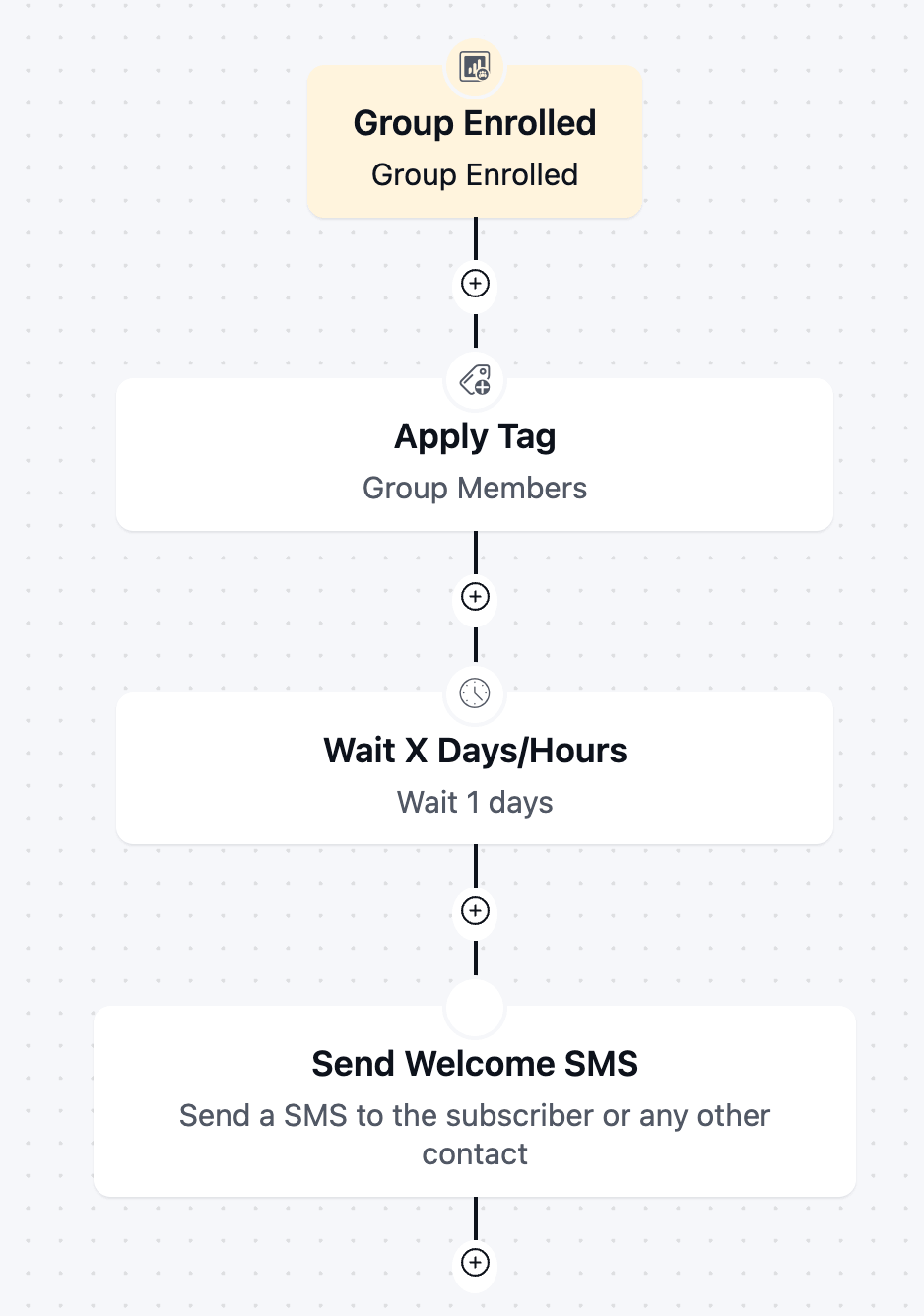
Group Enrollment works a little differently from the other five, since it fires based on a group rather than a single course.
When students join in batches, such as a cohort with a shared start date, or a company that buys course seats for its team, that’s when it becomes most useful.
This use case matters most if you sell to businesses or run scheduled cohorts, rather than always-on, self-paced courses.
A workflow built on Group Enrollment:
Let the LMS Triggers Do the Work
Most course sites lose students quietly. Nobody complains. They just stop logging in, and by the time anyone notices, the moment to help them has already passed.
These six use cases above are not complicated, but together they cover the moments that matter most: joining, learning, finishing, and leaving.
Once they are running, you are no longer the one deciding who needs a nudge today. The automation checks that for you and reaches out at the right moment on its own.
Start with just one, most likely the onboarding sequence on Course Enrolled, and build outward from there.
Once a few of these are working, you can begin connecting them so a single student moves from enrollment, through encouragement, to completion, and into whatever comes next for your course business, without you sending a single email by hand.
Frequently Asked Questions (FAQ)
Still have more queries? Let’s help you with this.
Tanzil Ebad Efti
Content Writer & Strategist
Words are my favorite playground. As a Creative Writer at WPManageNinja, I don’t just produce content; I tell stories. By mixing fiction and metaphors with real-life examples, I turn my writing into a creative journey that’s easy for readers to digest and relate to.
Table of Content
Related Articles and Topics
-
How to Build a Course Certificate Automation Funnel in FluentCRM [+Setup Guide]
A student clicks “Finish Course,” the progress bar hits 100%, and a small message appears:…
-
How to Recover Inactive LearnDash Learners to Improve Student Engagement Using FluentCRM
Imagine a student who blazed through the first three lessons in two days, then went…