Free eCommerce Welcome Email
Greet every new shopper the moment they sign up or place their first order. This free template hands over a first-order gift, and sends them to shop.
Get this template in your inbox
Thanks for sharing your email, please click below to download the template.
What is an eCommerce Welcome Email Template?
An eCommerce welcome email template is a ready-made email your online store sends automatically when someone joins your list, creates an account, or buys from you for the first time. It thanks them for showing up, gives them a reason to shop now, and puts your best product in front of them while they are still paying attention.
This template is built like a small storefront. It opens with your logo and a Home, Shop, About, and Contact menu, leads with a large welcome headline and a “Get Your Gift” button, then shows one featured product with a short description and a “Shop Now” button. With FluentCRM, you can personalize it with the shopper’s name using merge tags and send it within seconds of sign-up, with no manual work.
Best for:
- WooCommerce and FluentCart stores welcoming new subscribers or first-time buyers
- Fashion, footwear, and accessories brands with a hero product to show off
- Stores that offer a welcome discount, free shipping, or a gift on the first order
- Small shops and solo sellers who want a branded welcome without hiring a designer
- Digital product sellers welcoming new account holders
Where this Fits in Your Automation?
This template is the first email in a store welcome automation, sent right after someone signs up or creates an account. It is usually followed by a reminder a few days later if the gift is still unused, an email showing bestsellers or customer reviews, and, once they buy, a thank-you email and a request for a review.
How do I Trigger this Email Automatically When Someone Signs Up?
Set it up once, and every new shopper gets their welcome within seconds.
Step 1: In FluentCRM, go to Automations → Create New Automation
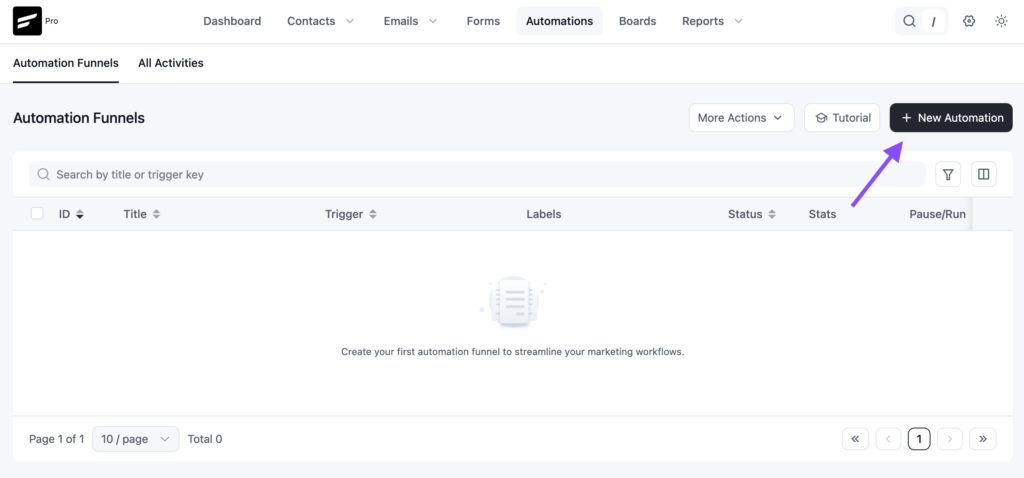
Step 2: Pick the trigger that matches how shoppers reach you. For a newsletter or discount pop-up built with Fluent Forms, choose the Fluent Forms submission trigger and select that form. For new store accounts, use the new user sign-up trigger.
To welcome first-time buyers instead, choose the new order trigger for WooCommerce or FluentCart. If your store adds shoppers to a list or tag, use “List Applied” or “Tag Applied”.
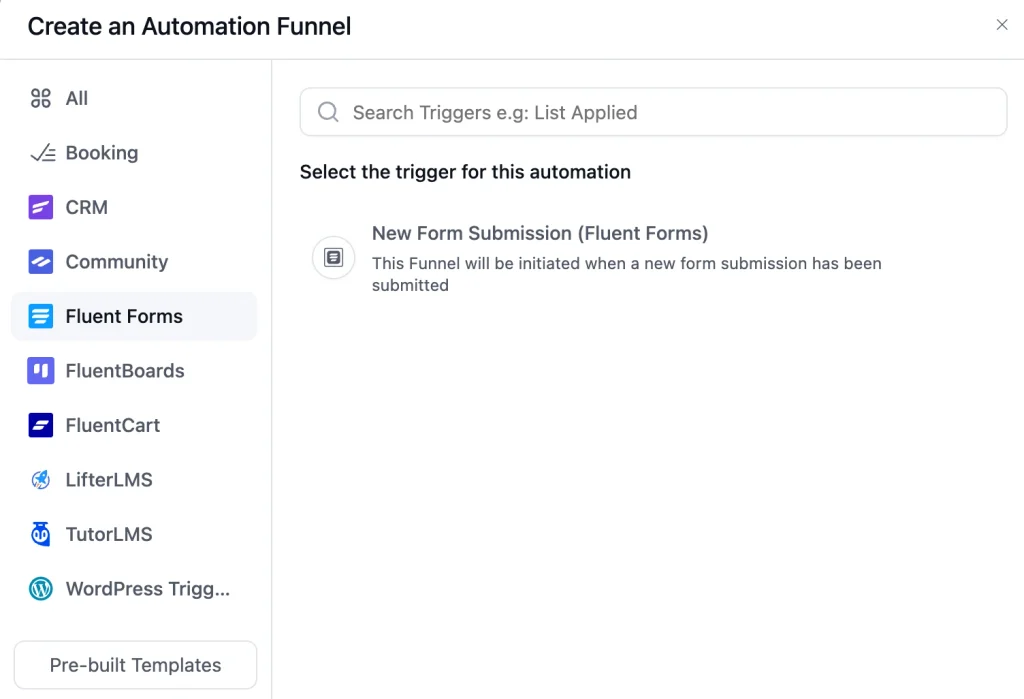
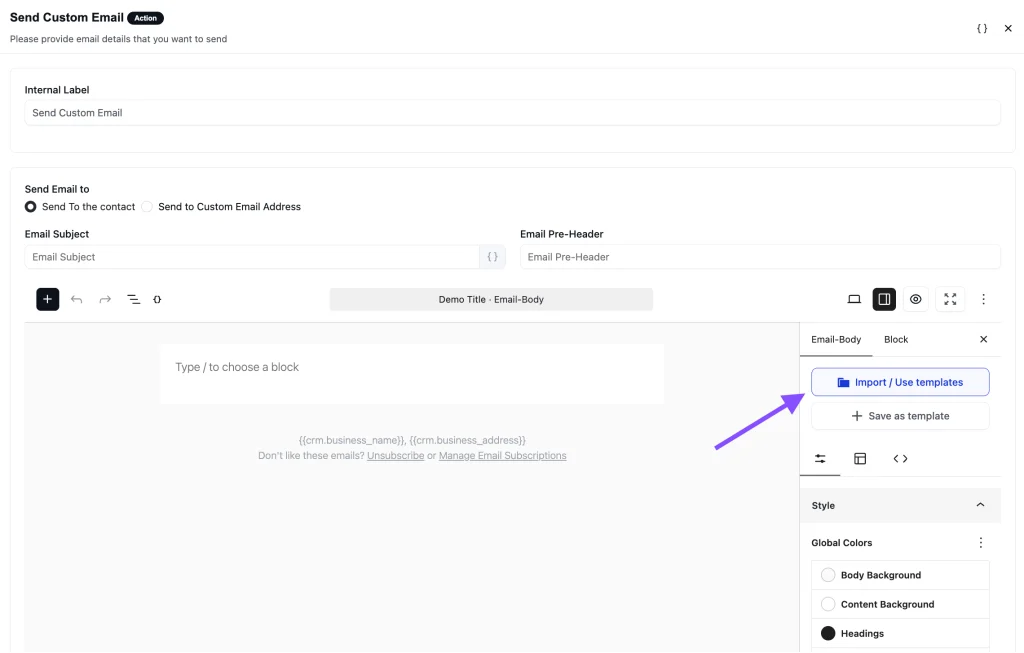
Step 3: Add a “Send Custom Email” action, click Import / Use Templates, and pick the eCommerce Welcome Email template. Add your offer, product, and links, then click Save.
Step 4: Toggle the button to Published to activate the automation
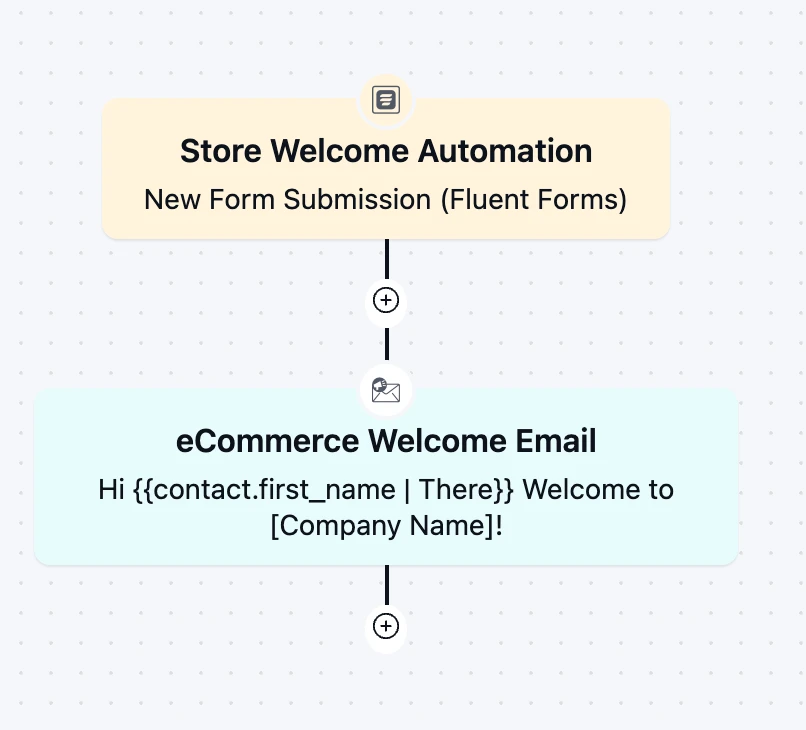
From then on, the automation runs in the background every time a new shopper joins.
Customization Tips
- Replace the “Your Logo” block and tagline with your store’s logo so shoppers recognize the sender right away
- Link the Home, Shop, About, and Contact menu to your real pages, and remove any item you do not have
- Add a greeting above the headline with
{{contact.first_name}}, since the default design has no personal greeting - Keep one “Welcome” headline, then use the two lines below it for a subheading and the offer itself, for example, “Here is 10% off your first order”
- Name the gift before the button. Say exactly what shoppers get, and include the coupon code in the email so they do not have to hunt for it
- Rename “Get Your Gift” to match the offer, such as “Claim 10% Off” or “Get Free Shipping”, and link it to a page where the discount is already applied
- Swap the boot photo for your bestseller or a product that fits a first purchase, and link the image to its product page
- Replace the placeholder paragraph with two or three sentences on what makes your store worth buying from: materials, shipping speed, returns, or your story
- Point “Shop Now” to a bestsellers or new arrivals page instead of your homepage, so shoppers land on products right away
- Change the brown accent color on the menu and buttons to match your brand palette
- Add your business address and an unsubscribe link in the footer to stay compliant with email-sending rules
Frequently Asked Questions
When should an ecommerce welcome email be sent?
Immediately after sign-up. Shoppers who were promised a discount expect it right away, and many are still on your site when the email arrives. A delay gives them time to leave and forget.
Do I have to offer a discount in a welcome email?
No. The gift can be free shipping, a free sample, early access to new arrivals, or a useful guide. If you do not want to offer anything, rename the first button to “Start Shopping” and use the space to introduce your brand.
Can I customize this template without coding?
Yes. You can change the logo, headline, text, button, and colors directly in FluentCRM’s email editor. No HTML knowledge is needed.
Can I use this as a new customer welcome email after a first purchase?
Yes. Trigger it from a new order instead of a sign-up form, change the headline to a thank-you, and swap the gift for an offer on their second order. The layout stays the same.
What should an ecommerce welcome email include?
A greeting, a short thank-you, the offer you promised, one clear button, and one or two products to start with. Keep it short. The goal is a first order, not a tour of your whole catalog.
Related Templates
-
- eLearning
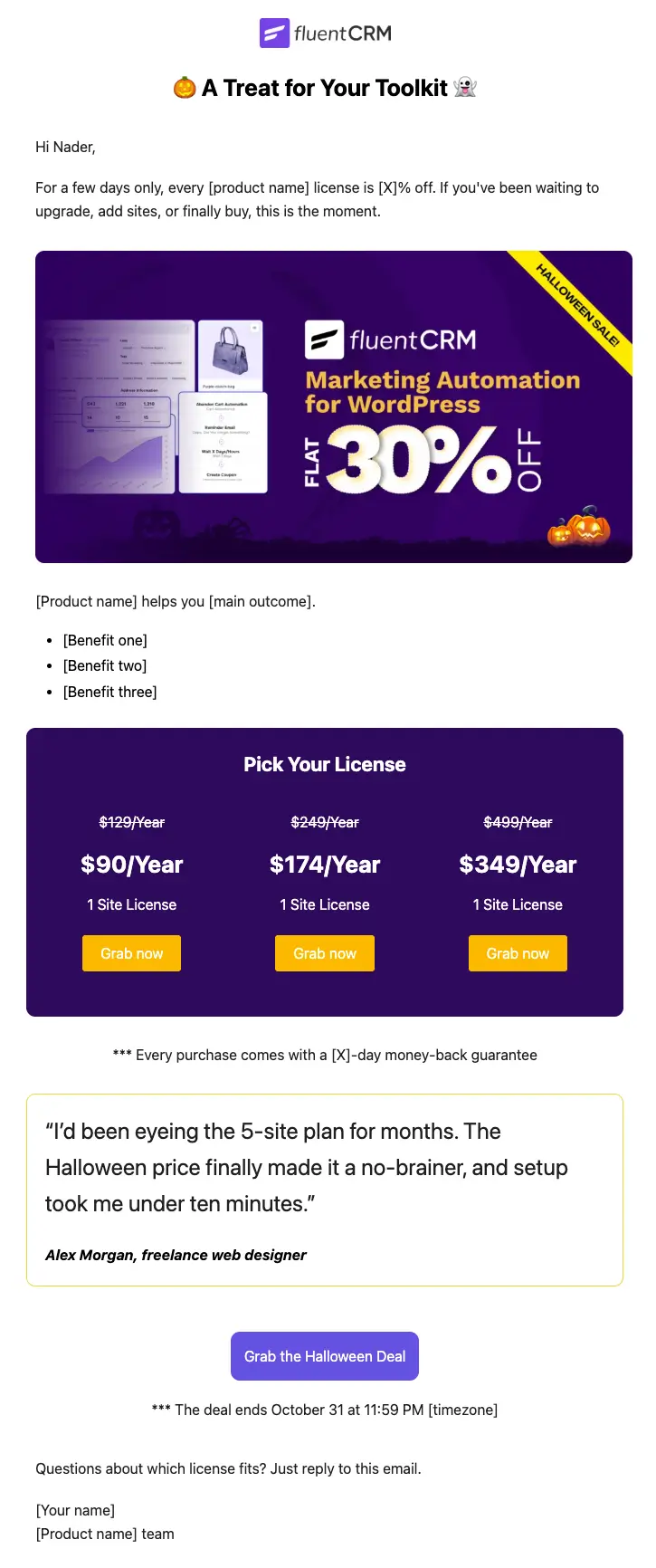
Halloween Email Template for Digital Products
Announce your Halloween license sale with a ready-to-send email built for plugins, themes, SaaS, and online courses
-
- eLearning
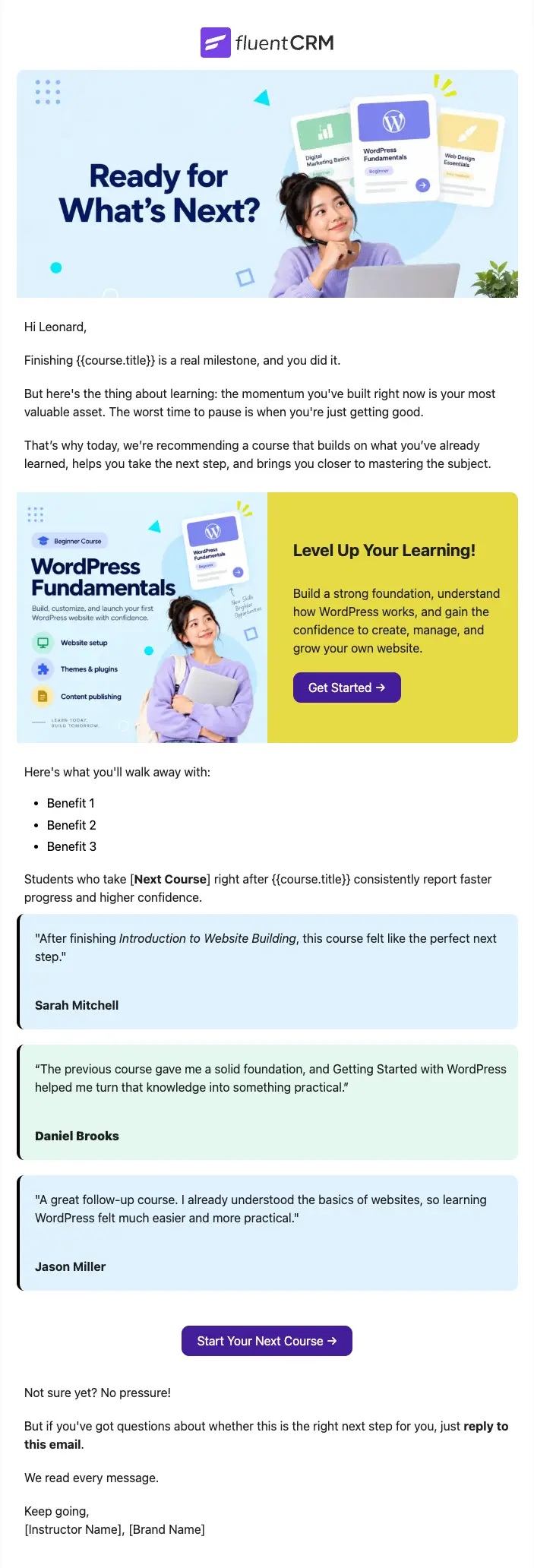
Next Course Recommendation Email
Use this free course recommendation email template to re-engage students after course completion and drive repeat enrollments with FluentCRM automations
-
- eLearning
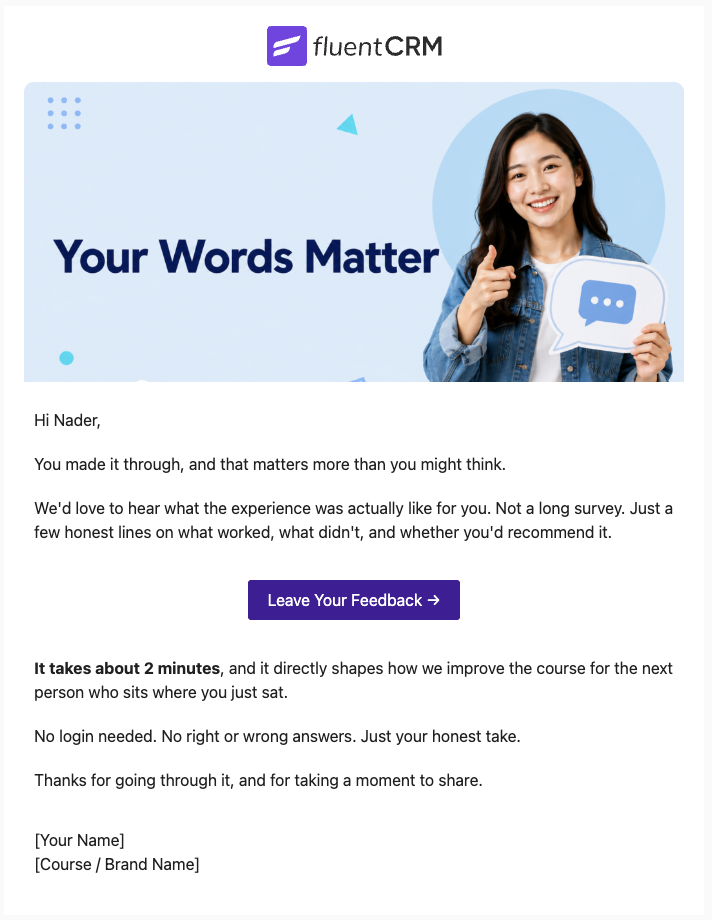
Course Feedback Email
Collect honest student reviews automatically and turn course completions into the insights that make your next launch better.
Want More Resources?
Access resources to start faster, decide smarter, and grow your revenue with less complexity.