
Using Amazon SES, you can track the invalid email and mark them as Bounced. Amazon will track the delivery status of the email and if it failed to reach the recipient’s mail server, it will be marked as Bounced in your audience status so that you can exclude them in the future campaign.
*Tutorial: How to Configure Amazon SES with FluentCRM
Create a topic in Amazon SNS #
1. Go to Amazon SNS console.
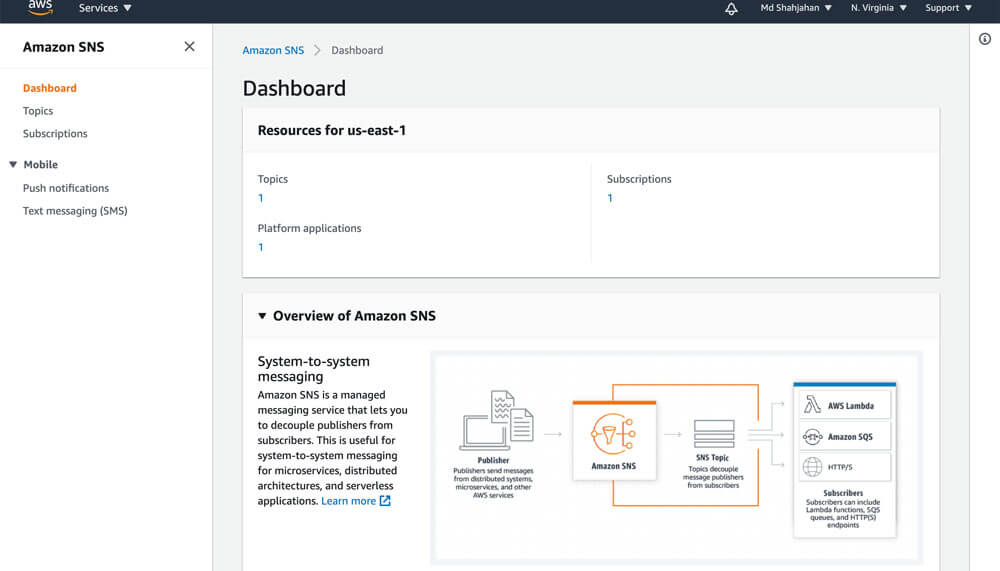
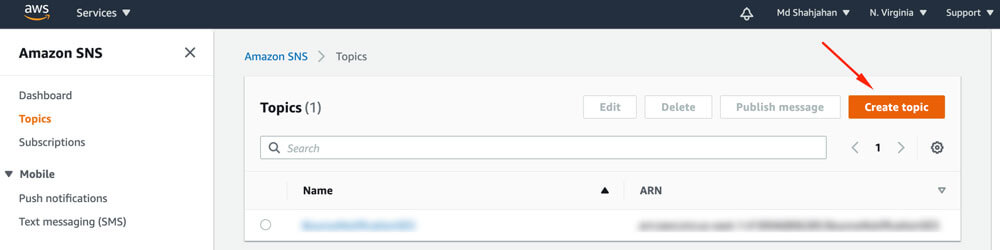
2. Choose Create topic.
3. Select the Type Standard enter a name for the Topic, click on Create topic button..

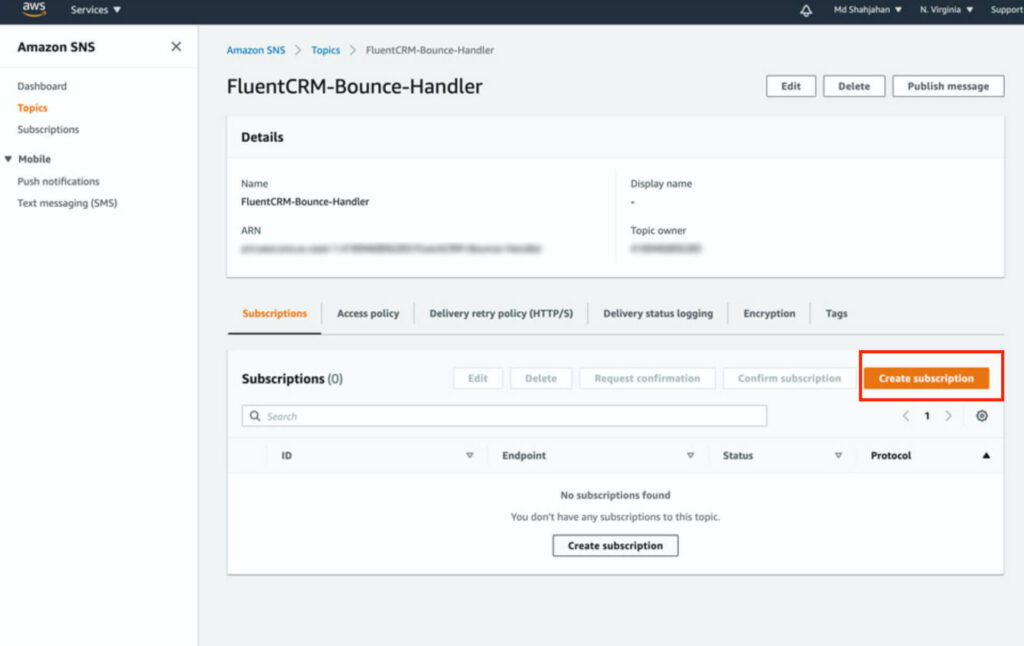
4. From the Topic details of the topic that you created, navigate to Subscriptions, and then choose Create subscription.
5. The topic will be pre-selected, in the Protocol select http or https (based on your server’s SSL status).
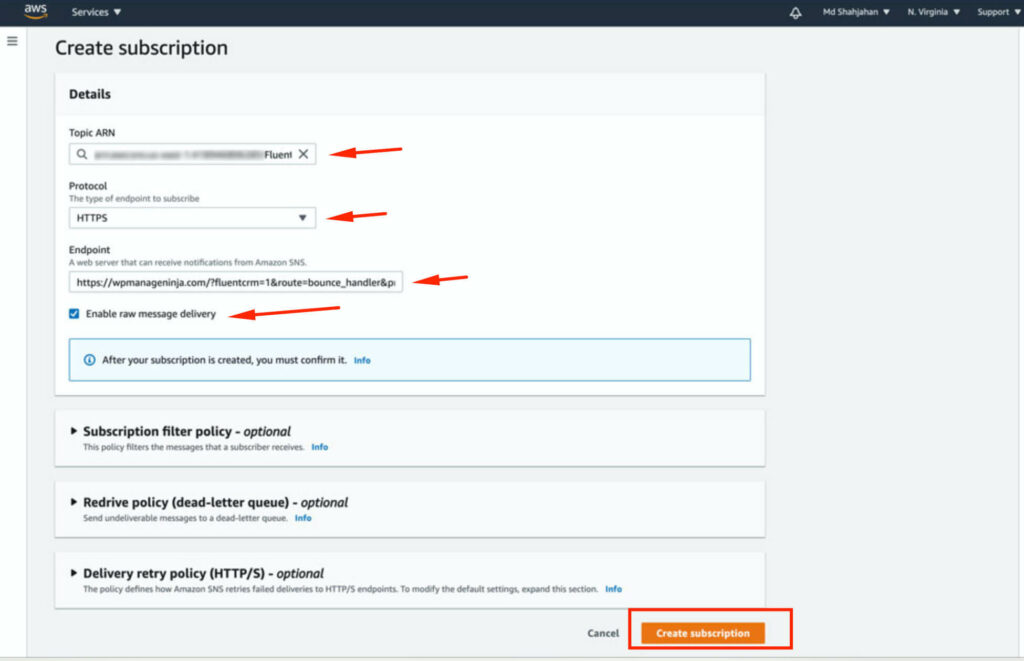
In Endpoint, you need to give your FluentCRM’s endpoint, grab the URL from your FluentCRM dashboard -> Settings -> SMTP/Email Service Settings section.
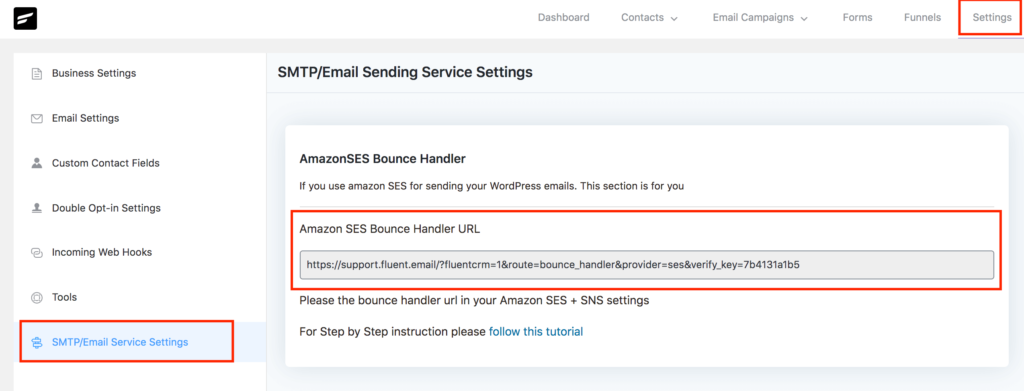
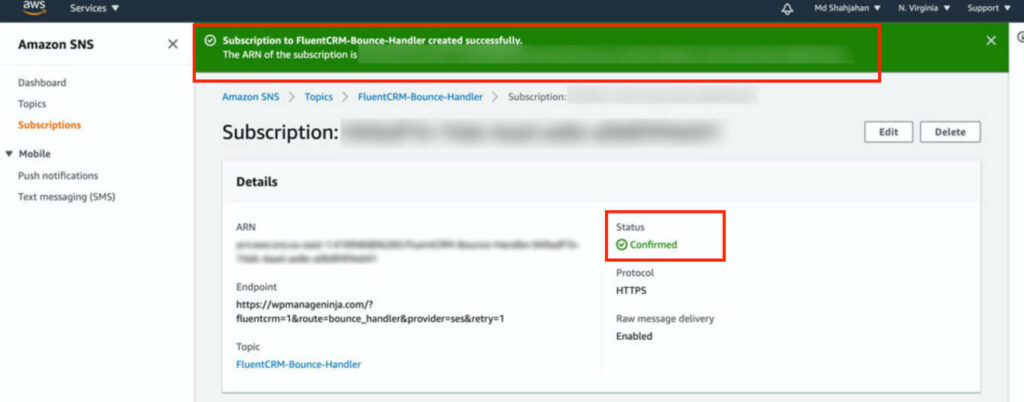
After putting the URL in the Endpoint field, check Enable raw message delivery and click on Create subscription button. You should see a success screen like below:
Configure Amazon SES to send bounce information to FluentCRM #
1. Go to Amazon SES console home, In the navigation pane, choose Verified Identities, and click on Create Identity.
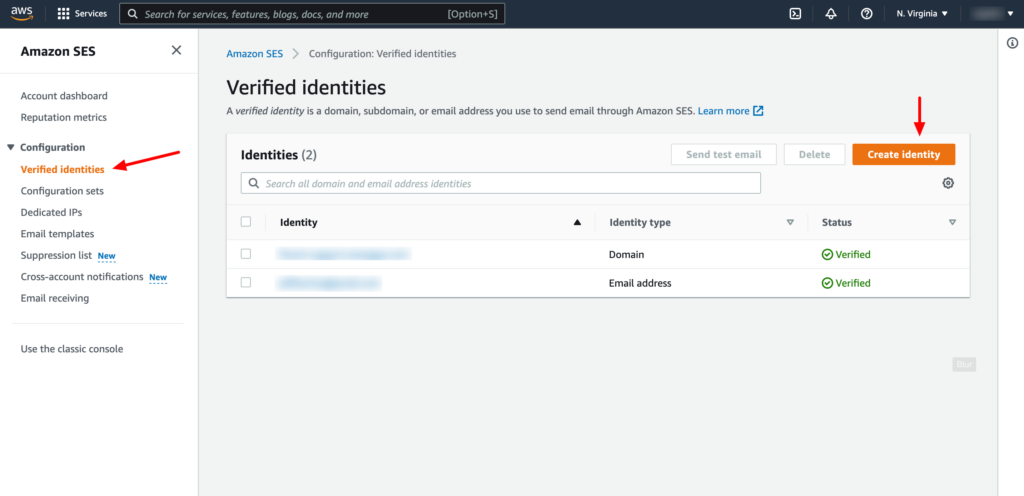
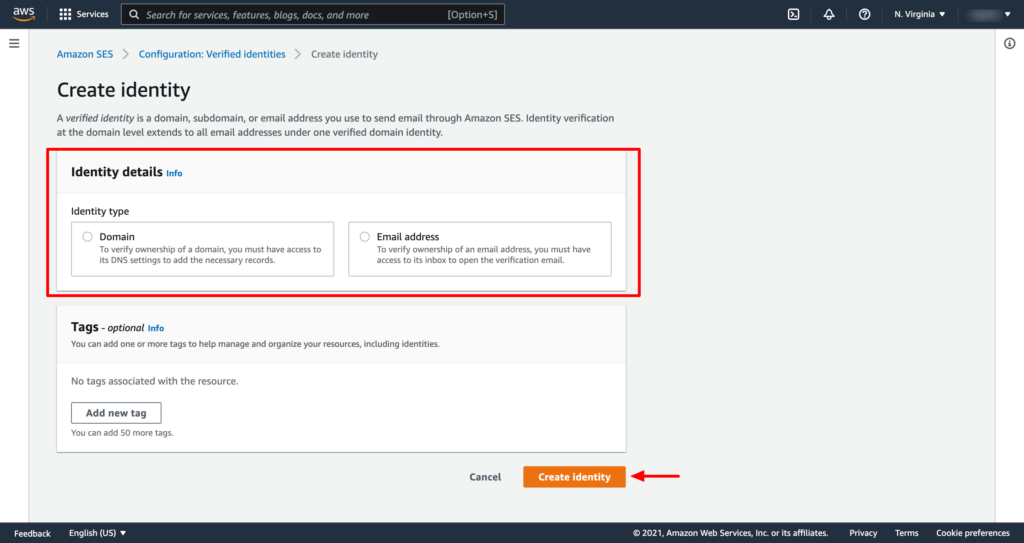
2. Create two identities, one for Domain and another for Email Address. You have to verify the domain and email address in order to set up the notification.
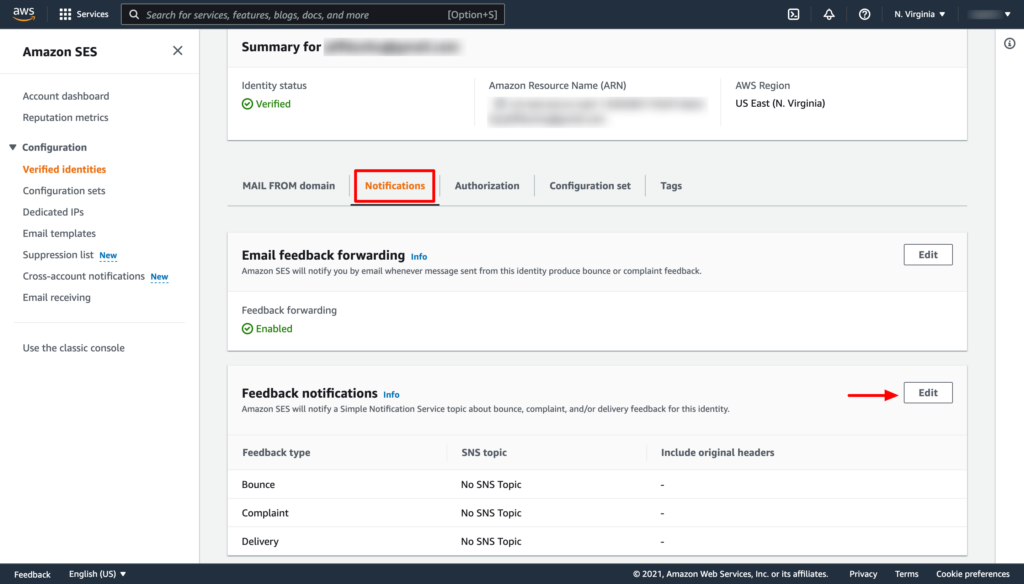
3. From the verified Identities list select the domain or email that you have just verified, In the navigation pane, choose Notifications, and click on the Edit button from the Feedback notifications section.
4. Under SNS Topic Configuration, for Bounces, select the SNS topic that you created. Do the same for Complaints.
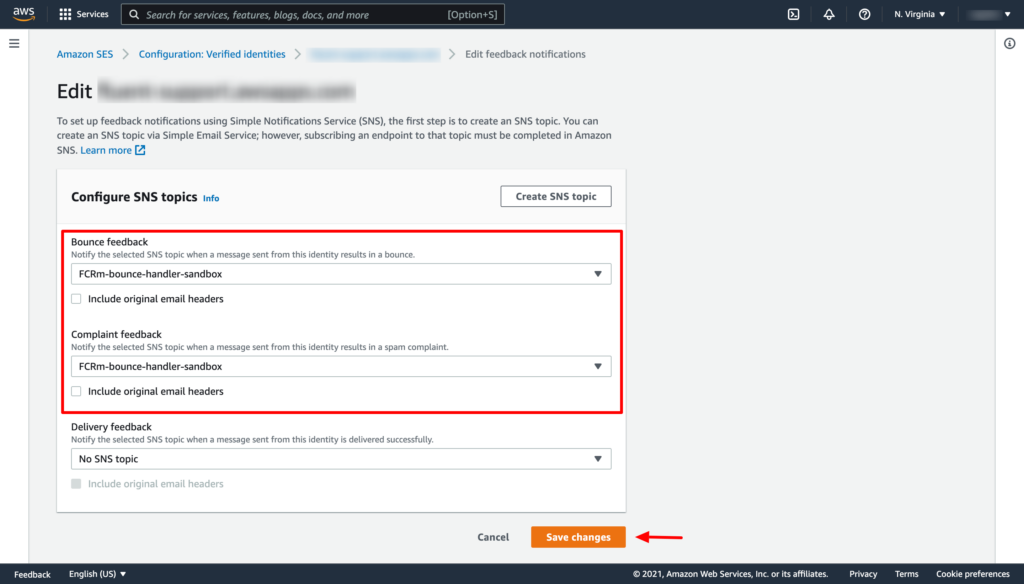
Now click on the Save changes button. Thats it!
You have to repeat the above two steps of adding the SNS topic for both the verified domain and email address separately.
Viewing Bounced Contacts #
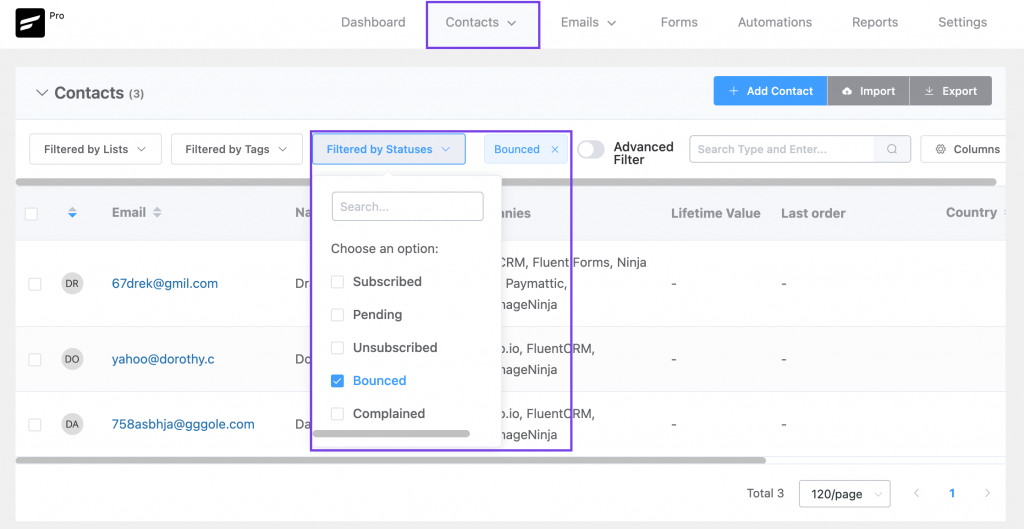
If you want to view bounced contacts, go to FluentCRM Contacts. Then click Filter By Statuses and enable the Bounced checkbox.


I have multiple sub-domains in SES for sending. FluentCRM is not marking bounced emails even after setting the bounce handler as stated in above guide.
Will a ‘Bounced’ subscription status in FluentCRM prevent further emails from being sent? Or is that something we will need to set up in FluentCRM separately?
Yes, FluentCRM won’t send any emails to bounced contacts.
I have 4 verified email identities. How do I know which one should be configured with the notification? Should it be the email address that Fluent sends from?
This looks wonderful, it would be a great addition to FluentSMTP for WordPress to similarly handle bounced emails. 🙂
I did the complete process. I created the SNS TOPIC and it was confirmed with the green message.
But I can’t include it in the Configure SNS topics (procedure 2), because the SNS topic option created in the Configure SNS topics field does not appear. Only the default NO SNS TOPIC appears.
Remembering that I had already created and confirmed the identities before.
Please add notice when add the SNS or SES URL,
to select the SAME LOCATION before beginn with the setup!
i was not connected SNS with SES because i was not aware of it.
FluentCMR is detecting “Verified Email Sender” that email no longer exist. That email was deleted a long time ago. Is there anything I can to make fluentCMR detected the new verified email sender I created.
Hi Jose, FluentCRM should detect the new verified email sender automatically. Are you sure you added the new email through FluentSMTP? If yes, please contact our support.
after this setup, if the users email were in the email sequence, after the first hard bounce, will it auto be removed from the email sequnce and not to send them emails in the future?
Hi John, hard bounces are registered as complaints. So yes, the users won’t receive any emails.
Same as Mark. This needs updating. On the bottom of the side navigation menu, users have to open out of the new console before seeing the info for the SES tutorial.
Hi, Thanks for the suggestion. We will update the doc soon!
I suggest screencasting a work-through video for that purpose. That way, many newbies can learn by following the actions on the screen, as compared to asking questions and waiting for someone to respond. A video tutorial will go a long way