

Using Amazon SES, you can track the invalid email and mark them as Bounced. Amazon will track the delivery status of the email and if it failed to reach the recipient’s mail server, it will be marked as Bounced in your audience status so that you can exclude them in the future campaign.
*Tutorial: How to Configure Amazon SES with FluentCRM
Create a topic in Amazon SNS #
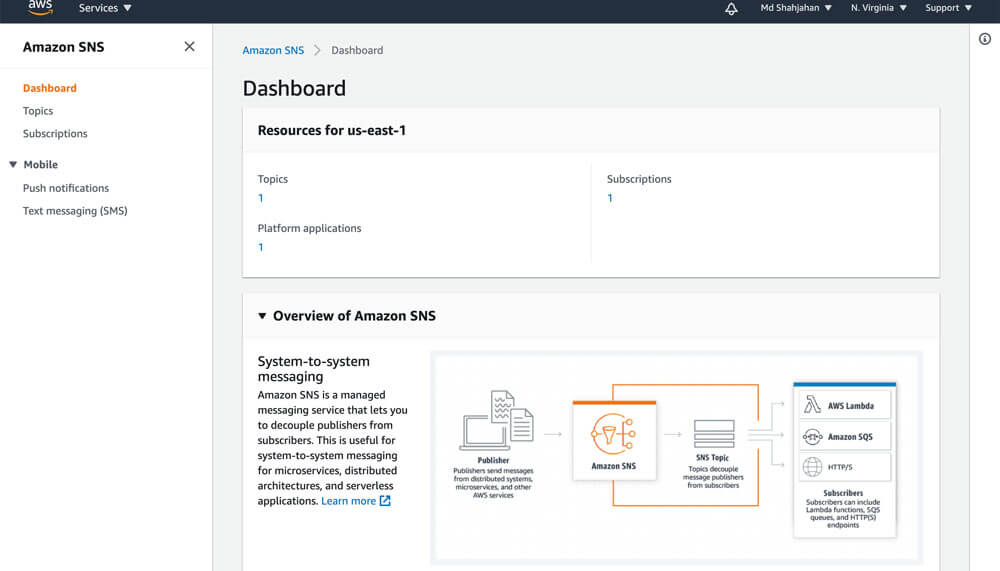
1. Go to Amazon SNS console.
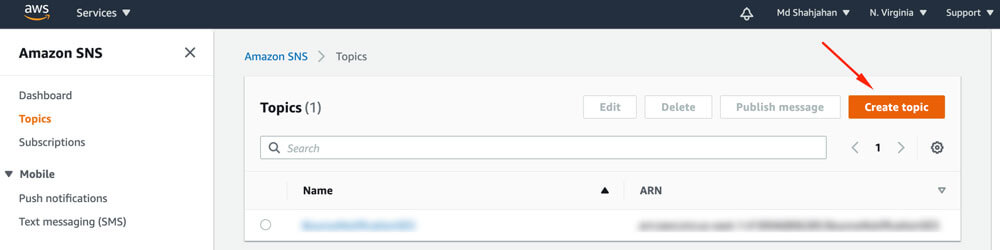
2. Choose Create topic.
3. Select the Type Standard enter a name for the Topic, click on Create topic button..

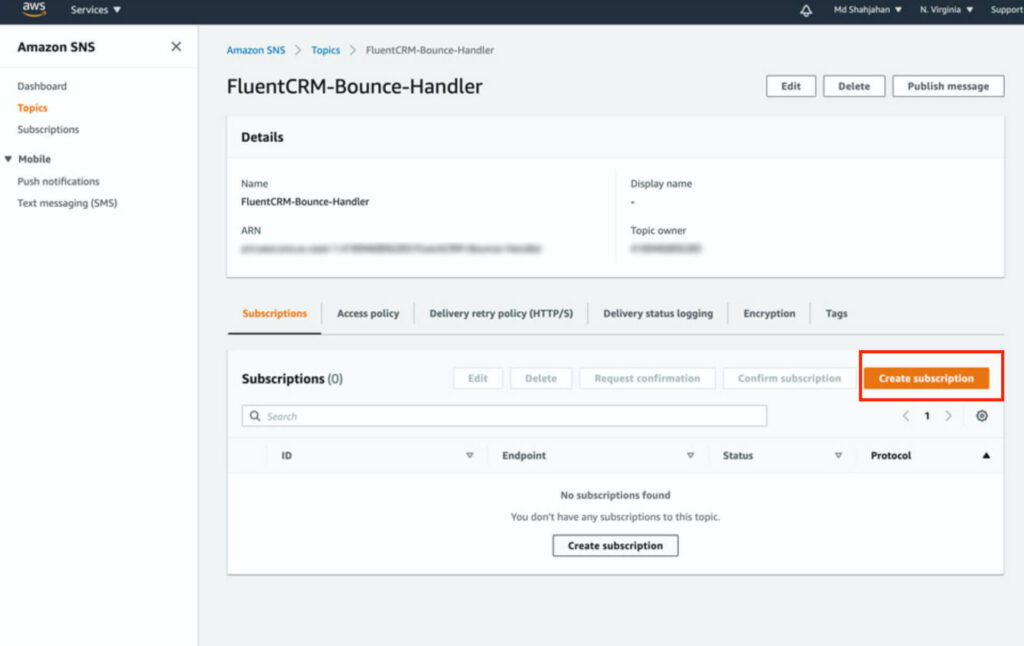
4. From the Topic details of the topic that you created, navigate to Subscriptions, and then choose Create subscription.
5. The topic will be pre-selected, in the Protocol select http or https (based on your server’s SSL status).
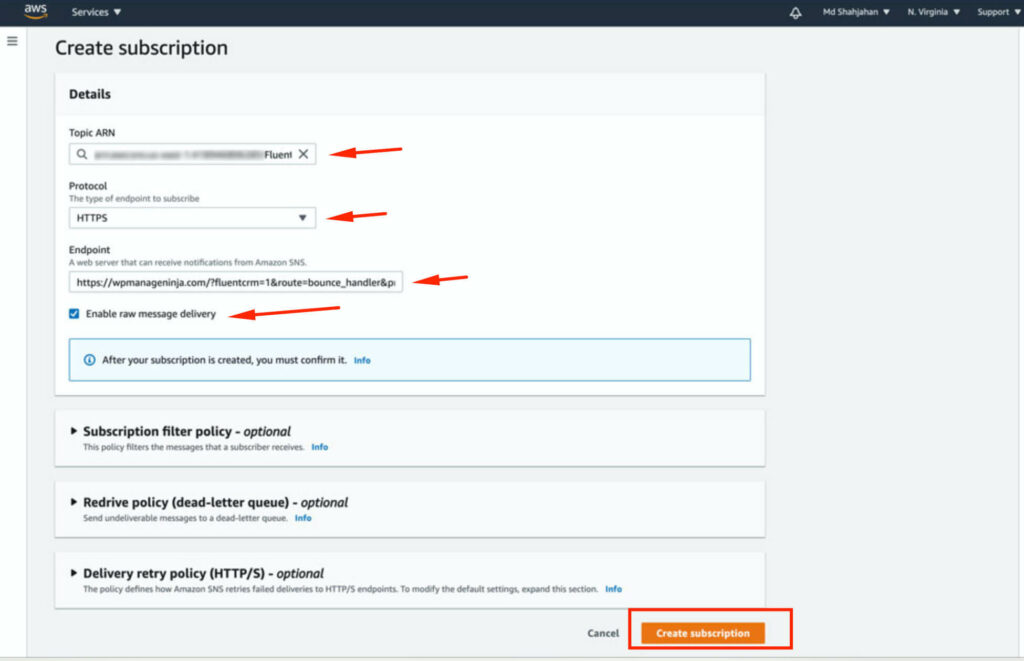
In Endpoint, you need to give your FluentCRM’s endpoint, grab the URL from your FluentCRM dashboard -> Settings -> SMTP/Email Service Settings section.
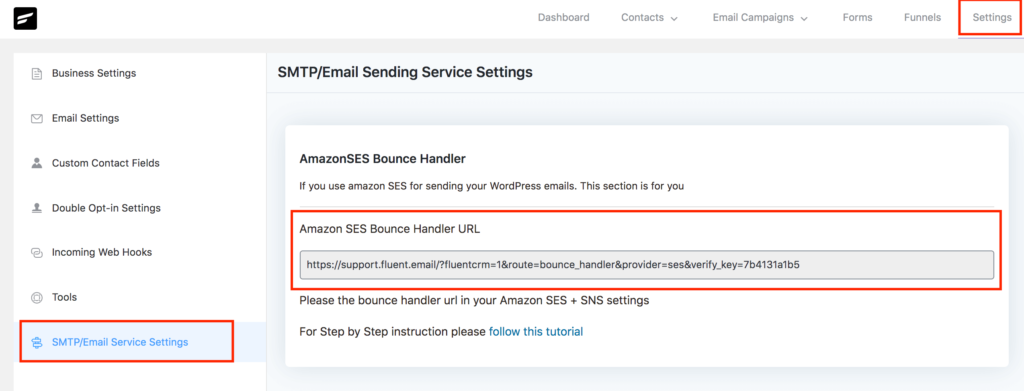
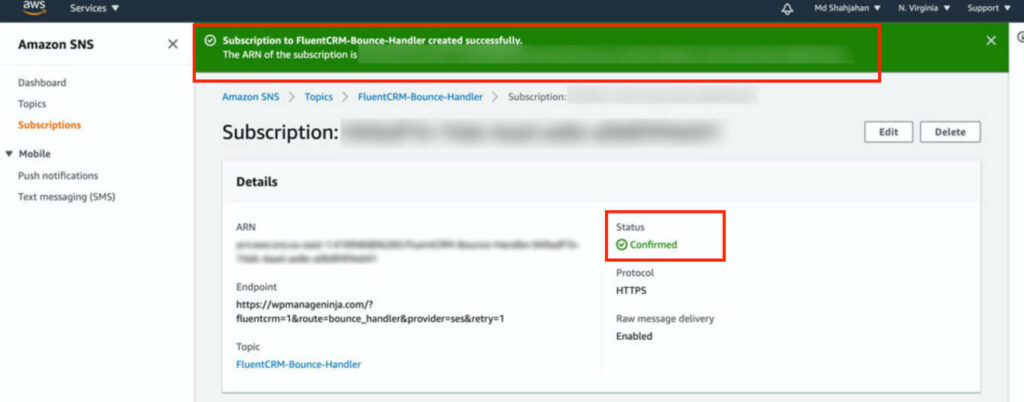
After putting the URL in the Endpoint field, check Enable raw message delivery and click on Create subscription button. You should see a success screen like below:
Configure Amazon SES to send bounce information to FluentCRM #
1. Go to Amazon SES console home, In the navigation pane, choose Verified Identities, and click on Create Identity.
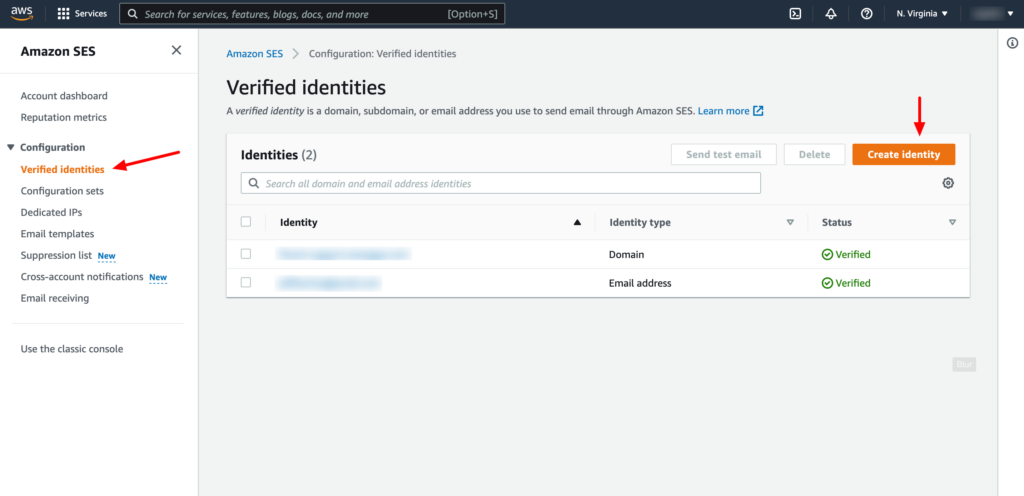
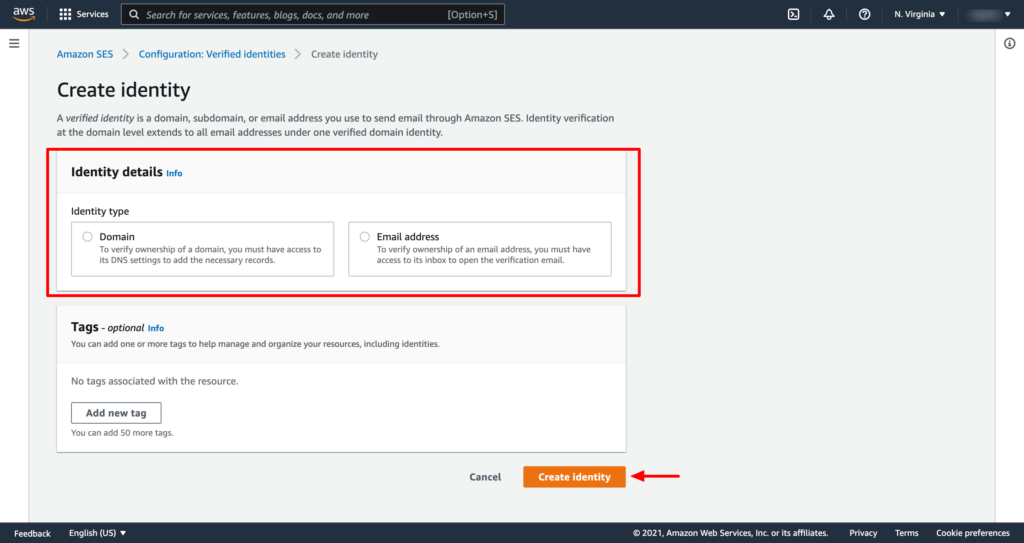
2. Create two identities, one for Domain and another for Email Address. You have to verify the domain and email address in order to set up the notification.
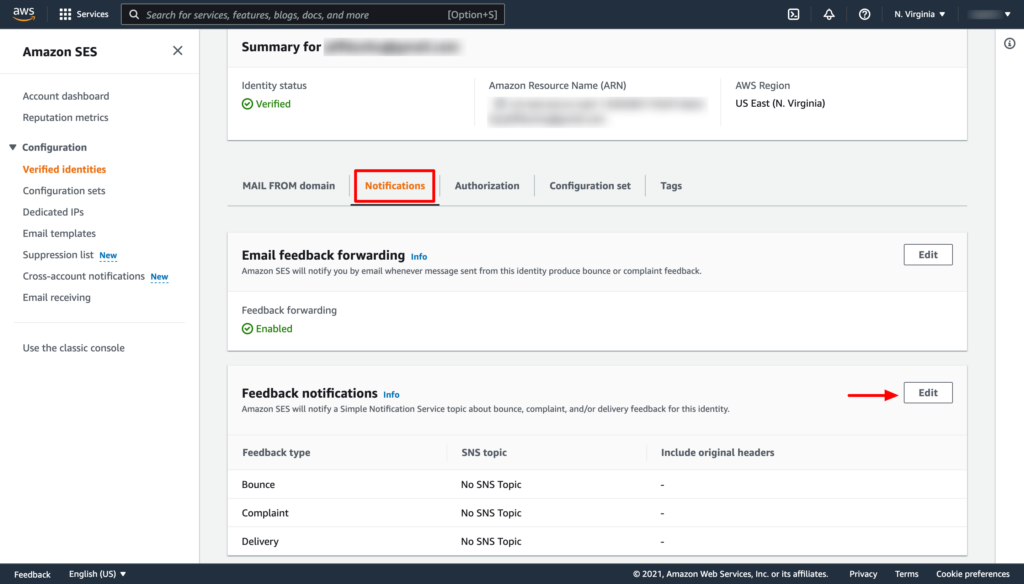
3. From the verified Identities list select the domain or email that you have just verified, In the navigation pane, choose Notifications, and click on the Edit button from the Feedback notifications section.
4. Under SNS Topic Configuration, for Bounces, select the SNS topic that you created. Do the same for Complaints.
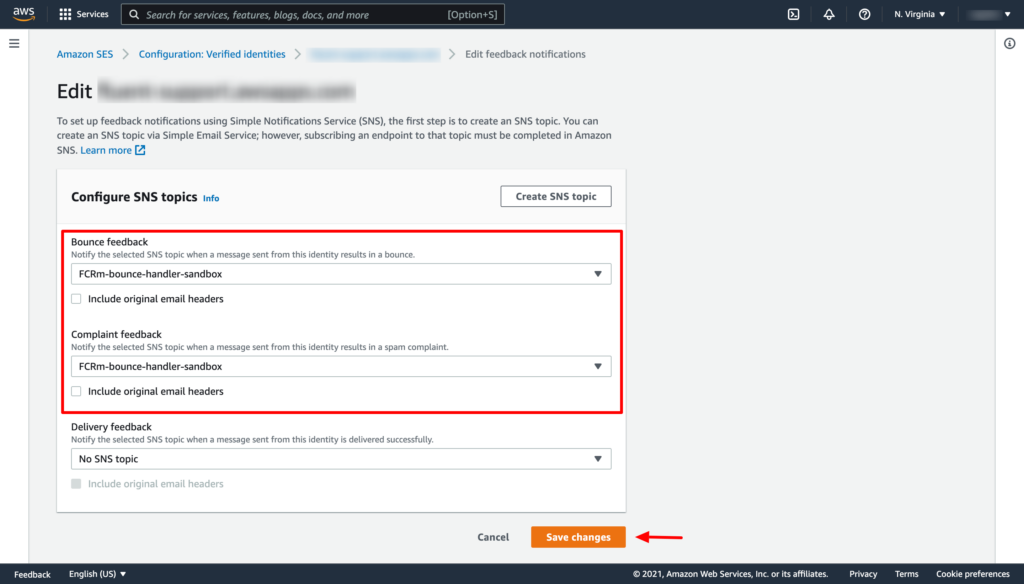
Now click on the Save changes button. Thats it!
You have to repeat the above two steps of adding the SNS topic for both the verified domain and email address separately.
Viewing Bounced Contacts #
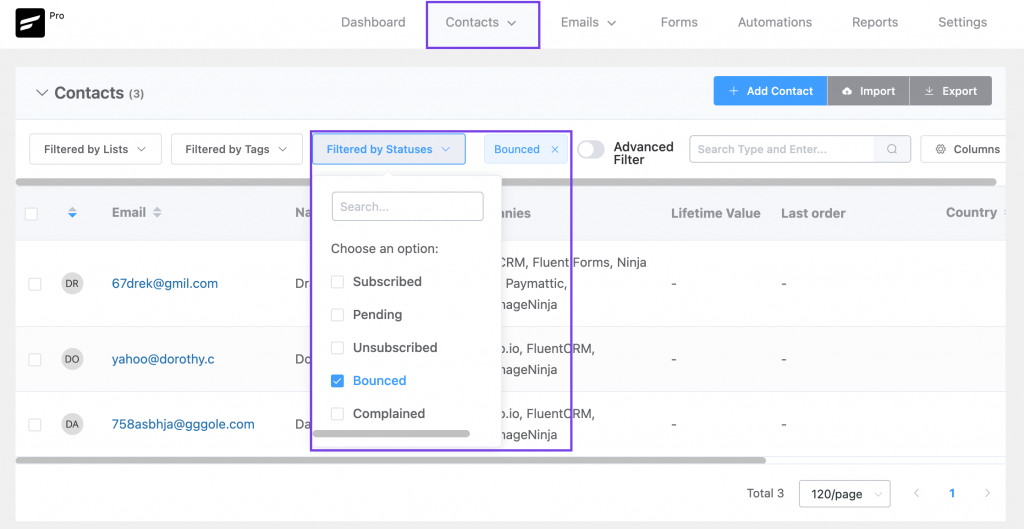
If you want to view bounced contacts, go to FluentCRM Contacts. Then click Filter By Statuses and enable the Bounced checkbox.


Feeling very competent with this thorough explaination!
When creating a topic, I have to choose between two types: FIFO and Standards. Which should I select?
Standards
P.S every time i try to save the connection, that msg appears……
HI, I have done all the settings properly.
But in the end, I still can’t use Amazon SES….
It says:
Opendir(/home/smithgui/public_html/wp-content/cache/db/000000/options_comments
Fail to open dir: No such file or directory
Any possible solution from your team? It would be great if I can get your help soon…..
Thanks for your help
Smith..
Hi Smith, Please submit a support ticket: https://wpmanageninja.com/support-tickets/. Our support team will get back to you soon.
Hi,
I am a new user and i am setting up the smtp. However, when I start doing this ‘ Configure Amazon SES to send bounce information to FluentCRM ’
I can’t find my domain in that section. Wish you could give some advice on it. Since I have been stuck in this part for few days………
Thanks,
Smith.
Hi Smith, you’re probably stuck at Amazon SNS. Please go to Amazon SES and the domain section will appear.
I am stuck at Configuring Amazon SES to send bounce information to FluentCRM. When I go to Amazon SES console, my navigation pane doesn’t have a Domain option. It only has:
Topics
Subscriptions
Mobile
Push notifications
Text messaging (SMS)
I don’t know how to progress.
Thanks,
Franc
Hi Franc,
you’re probably stuck at Amazon SNS option, the domain option is available at SES.
Bonjour,
le menu a changé et il n’est plus possible d’utiliser http ou https.
Amazon propose à la plce Amazon SQS.
Est-ce un problème de choisir cela?
Hello, we sent a letter to all members a few days ago, but in the dashboard, we only saw the number of single-digit open letters less than 10 per day.
In the past few days, I have also discovered that the test letter cannot be received after sending it.
I don’t know if there is a limit to the delivery volume per day, or where is it not set successfully?
The link to SES console in step 1 under “Configure Amazon SES to send bounce information to FluentCRM #” (anchor text “Amazon SES console”) should be https://console.aws.amazon.com/ses/home
You currently have it as: https://console.aws.amazon.com/sns/home
Awesome tutorial. Cannot wait for SMTP plugin to complete this setup.