

Creating a new Email Template #
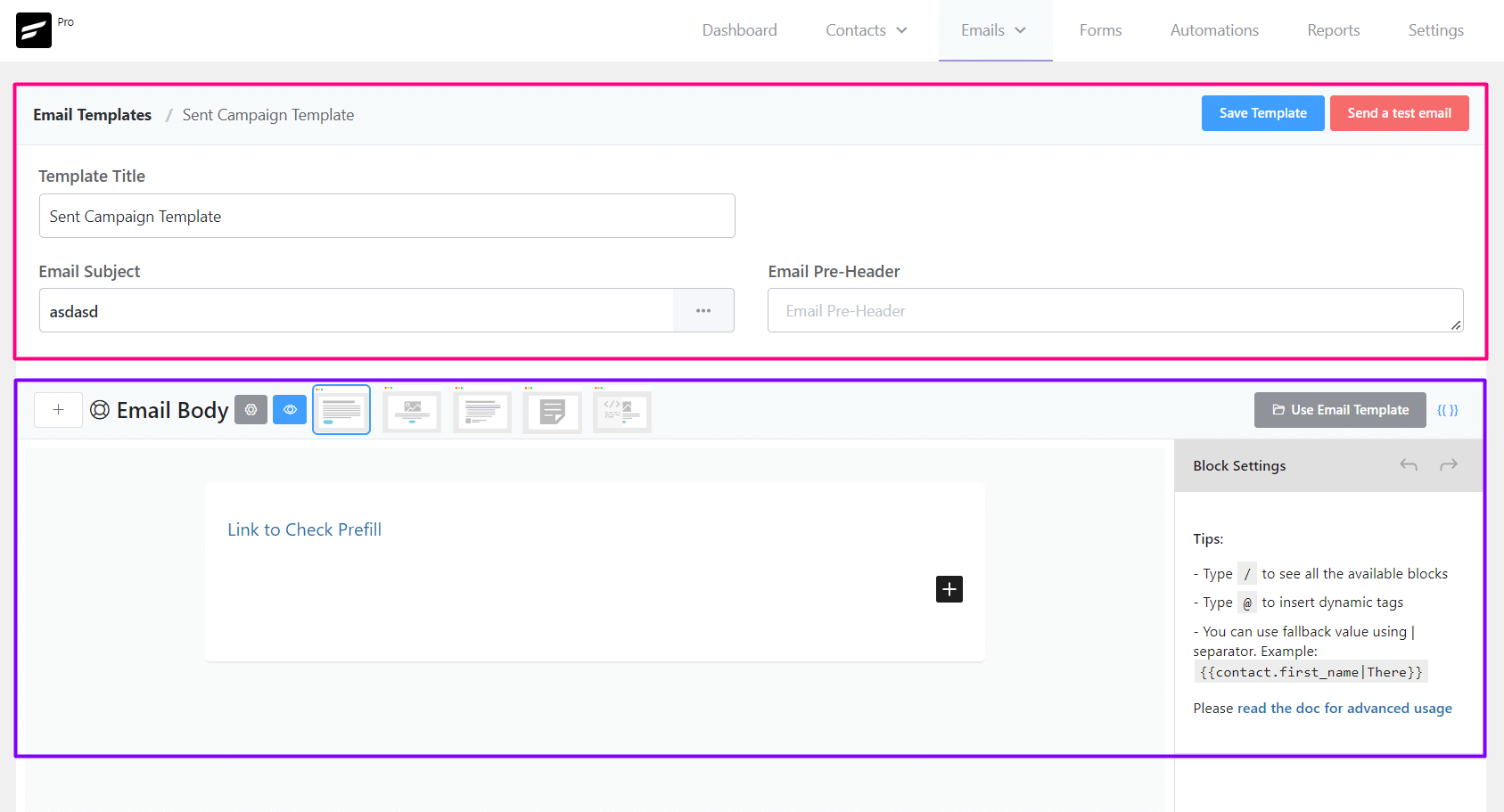
From Emails ➜ Email Templates you can create a template that can be used later around the FluentCRM. The available settings options for Email templates are:
- Template Title: The Title, as an identifier for later use for the Template.
- Email Subject: The Email Subject that is shown as a subject or topic in the recipient’s email clients.
- Email Pre-Header: An Additional short subject that is shown as a small subject line beside the primary subject.
- Save Template: Button to save the template.
- Email Body: Compose your email body using the block editor or visual builder
Sending a Test Email from Email Templates #
To send a test email from Email Templates, please click on the Send a test email button from the top right corner of the Email Templates Settings section as shown in the below screenshot and then input the email address where you want to receive the test email and click on the Send button.
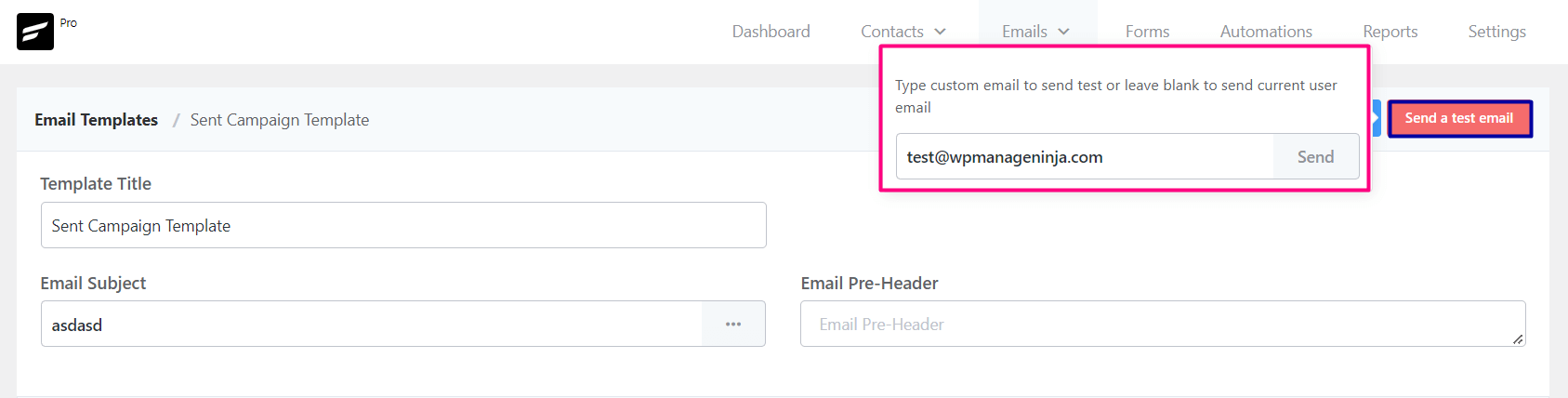
Once the email is sent successfully you will see a Success Message saying the Test email is sent successfully. on the top right corner.
Importing Email Templates into FluentCRM #
To import a predesigned email template from any other sources,
- Go to Emails -> Email Templates and Create a new Email Template. The RAW HTML template type needs to be selected.
- Upload the relevant images to the WordPress website and keep note of the media URLs.
- Open the HTML template with any text editor and update the image URLs.
- Copy the updated code and paste it into the FluentCRM RAW HTML template as the source.
- *** DO NOT CHANGE THE RAW HTML TEMPLATE TYPE ***.
- Now Preview by clicking on the Eye icon and see if the template looks promising.
- Now Save the template and you can now also send a test email to your email address to see how it looks practically.
That’s all about the Email Template. Now use the Email Template from other places in the FluentCRM without recreating the whole template again.


Hi there,
I don’t have the option to add emoji’s to my email subject lines like that which is displayed above. Is it another plugin i need to install?
Is there any way to add emoji’s to the email body?
I also don’t have RSS, spacer, table or verse in the backslash options, are these also additional plugins that i need to instal before they show up in the list?
Thanks
Hi! If you’re working on a desktop, for emojis you can open a tab in your browser and paste this website: https://es.piliapp.com/emoji/list/ thats the one I use. You then pick your emoji and paste it in the subject bar.
A slight change to the functionality of this might be helpful.
After creating a losing email templates a couple of times (because I couldn’t see or find a ‘save’ button), I have just discovered by pure accident that we need to press ‘+Create Template’ twice! before the save button appears. ie. pressing ‘+create template’ once permits the creation of an email template, but no ‘save’ button is displayed.
Nice work with the new plugins, but a small change to this workflow might be warranted. 🙂
Thanks
Hi Mianne, I’m sure two button will appear when you create an email template. One for saving your template and another for sending a test email. If it doesn’t, please submit a support ticket: https://wpmanageninja.com/support-tickets/
The same thing happened to me, you must correct this function so that both buttons can appear automatically.
Hi Gian, the feature is already available. If it doesn’t appear, there might be a plugin conflict issue or something. that’s exactly why I was referring to support.
Umm, how do you save an email template? LOL
I’ve just been through the process of creating one but then wasn’t able to save anywhere. I thought maybe it’s automatically saved, but, umm, that wasn’t the case either. :/
I couldn’t find a ‘save’ button anywhere, and trust me, I looked.
Help? 🙂
Can the email content be configured to show woocommerce products?
yes. The new 2.2 version will do that
Hi, is there a way to ajust the padding on the mail content? I find the text very close to the edge and would like there to be more space around it (but still the text must be left aligned).
Best Marie
I create custom field (your_url) for contact. Then using webhook to add a contact.
But I use Email Template, I don’t see {{contact.your_url}}.
How can I get custom field in Email Template? Do you have document for it?
Thank you so much
I also would like to pull in Contact Customer Fields into the email.
Hi Dennis, Just start typing your field label. For example, if your field label is brand name, start typing @brand, and then you should see your custom fields. Also, after you add a custom field, it is recommended to do a browser reload.
how do i get the persons first name into the body of the email?
I would like to know this too, did they reply? Seem like an obvious thing to need for an email template right.
You need to type “@” and the prefixes will appear. (note: type “@” for prefixes and “/” for the available blocks)
Hi! you just have to write {{contact.first_name}} or you can just type @ and the menu options will appear. Just choose: First name.
You need an article on how to use the templates. I can create – but how do I send one?
Exactly!!!!!!!! I gave up and just use Brevo. It shouldn’t be this hard.
Hi JR Fent and Toni Rodgers, Thanks for reporting the issue. We do have detailed articles on composing email using both the block editor and visual builder but they weren’t linked before. We’ve added the links so hopefully you’ll find it easier now. If you run into any other issues, please feel free to share.
Are there any pre-designed templates?
I would love to see a few samples… Especially how they are looking on responsive devices.