

Creating a new Email Template #
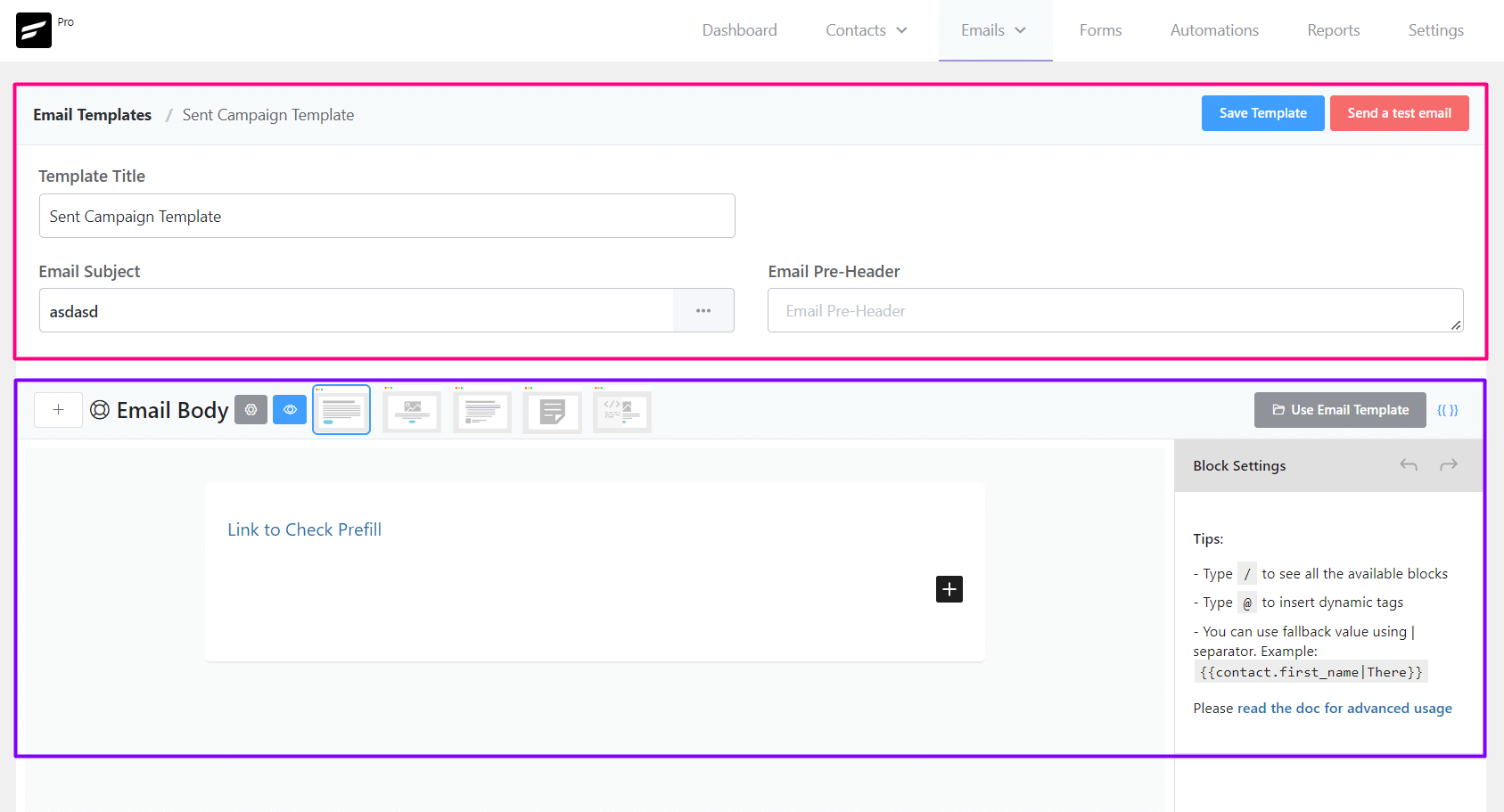
From Emails ➜ Email Templates you can create a template that can be used later around the FluentCRM. The available settings options for Email templates are:
- Template Title: The Title, as an identifier for later use for the Template.
- Email Subject: The Email Subject that is shown as a subject or topic in the recipient’s email clients.
- Email Pre-Header: An Additional short subject that is shown as a small subject line beside the primary subject.
- Save Template: Button to save the template.
- Email Body: Compose your email body using the block editor or visual builder
Sending a Test Email from Email Templates #
To send a test email from Email Templates, please click on the Send a test email button from the top right corner of the Email Templates Settings section as shown in the below screenshot and then input the email address where you want to receive the test email and click on the Send button.
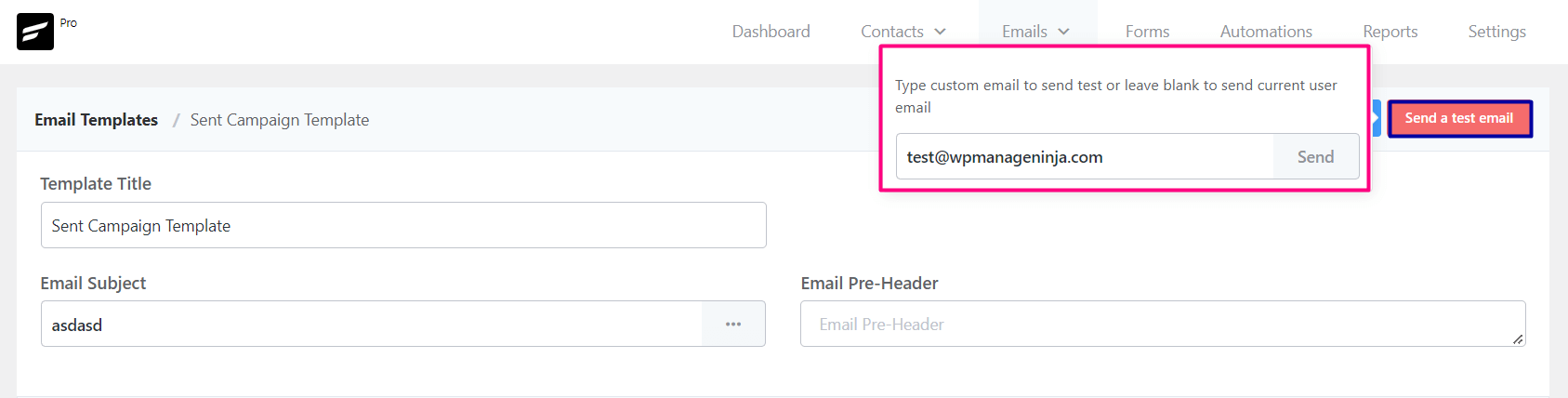
Once the email is sent successfully you will see a Success Message saying the Test email is sent successfully. on the top right corner.
Importing Email Templates into FluentCRM #
To import a predesigned email template from any other sources,
- Go to Emails -> Email Templates and Create a new Email Template. The RAW HTML template type needs to be selected.
- Upload the relevant images to the WordPress website and keep note of the media URLs.
- Open the HTML template with any text editor and update the image URLs.
- Copy the updated code and paste it into the FluentCRM RAW HTML template as the source.
- *** DO NOT CHANGE THE RAW HTML TEMPLATE TYPE ***.
- Now Preview by clicking on the Eye icon and see if the template looks promising.
- Now Save the template and you can now also send a test email to your email address to see how it looks practically.
That’s all about the Email Template. Now use the Email Template from other places in the FluentCRM without recreating the whole template again.


I would love it if you could style the default footer to have a black background and white text.
Possible. Please check the email styling options.
Hello,
I have read some really good reviews about fluentCRM functionality, however the draw back and deal breaker seem to be the lack of email templates and/or builder. It is a USP for your competitors like mailpoet, mailster etc. it simply make fluentCRM designed for the more techy people. I think by delaying the addition of email templates at the very least will loose you more customers.
how hard can it be? you’ve come up with way complex design with fluent SMTP fail safe feature.
just saying.
Hi Steve,
I’ve forwarded your suggestion to our R&D. We’ll let you know if they decide to add email templates. For now, you might want to use Stripo and export HTML directly to FluentCRM.
Hey!
How about style option to chose frame color of columns, not only the bg-color?
Greetings
Hi Jan, I’ve forwarded your request to our R&D. Hopefully they’ll consider adding this as a feature in the next update!
Hey,
How to export Newsletter/Email Templates?
Greetings
I am using fluentforms, when a user registers I save a custom field, but when creating a tracking template it does not appear to insert only the basic fields, how can I use it? (I already tried typing “@” but only the basic fields appear)
and another thing, can I insert shortcodes generated by me to the mail template?
Thank you!!
Hi Pedro, Just start typing your custom field name and it should appear. And your second query hasn’t been tested. However, the way plugins work, you may not be able to use your shortcodes on the email template.
Is there any ways to create more complex template (HTML and CSS) that will look even more like my site?
Yeah, you can export any type of email template and import the RAW HTML on the editor(Please do not switch templates after importing)
Where can I @import a font?
We use a google font, but the list on here is far from complete. How can I add a custom font, if the google font isn’t on the list?
Mautic Might be getting worried…
Custom Contact Fields
When I am comping and email – I don’t see how I can use these fields in the email.
I have tried: {{contact.brand_name}} but nothing comes thru in the email
Is there a way to pull the Custom Contact Fields in?
Hi Nazir, Thanks for your reply. I wonder about how to better my explanation. I made a screenshot, guess there is no upload option for chat. We hit the @ “command” but it seems there is no date/time hook eg. for HTTP callbacks, user defined to get date/time triggered to be shown in something like a textfield. Greetings Jan
Got it! For this you can simply capture a date field data inside FluentCRM, press @, and start typing the label of your custom field in the email editor. The dynamic tag string will automatically fetch the date field into your email templates.
Hi Nazir,
first of all it is really great done! Compliments to the team from my side. We are using FluentForms Pro also.
Now one of our main but maybe also a stupid question: How do we get a date format shown into the newsletter template, with a shortcode o something else. The shortcode simply should fetch the date mm/dd/YYYY or dd/mm/Year (german codex) when sending the email and show it in the newsletter like people do in letters or notes. Indeed i guess there’s a really simple solution for that. At a plugin of a competitor it is just a simple click on the date/time icon to select to push into the template.
Greetings
Jan
Hi Jan, I’m not 100% sure about what you meant when you said you wanted to show a date format into email templates. If your contact property includes this data, you can simply hit @ and start typing your contact field name to bring up any information.