

Creating a new Email Template #
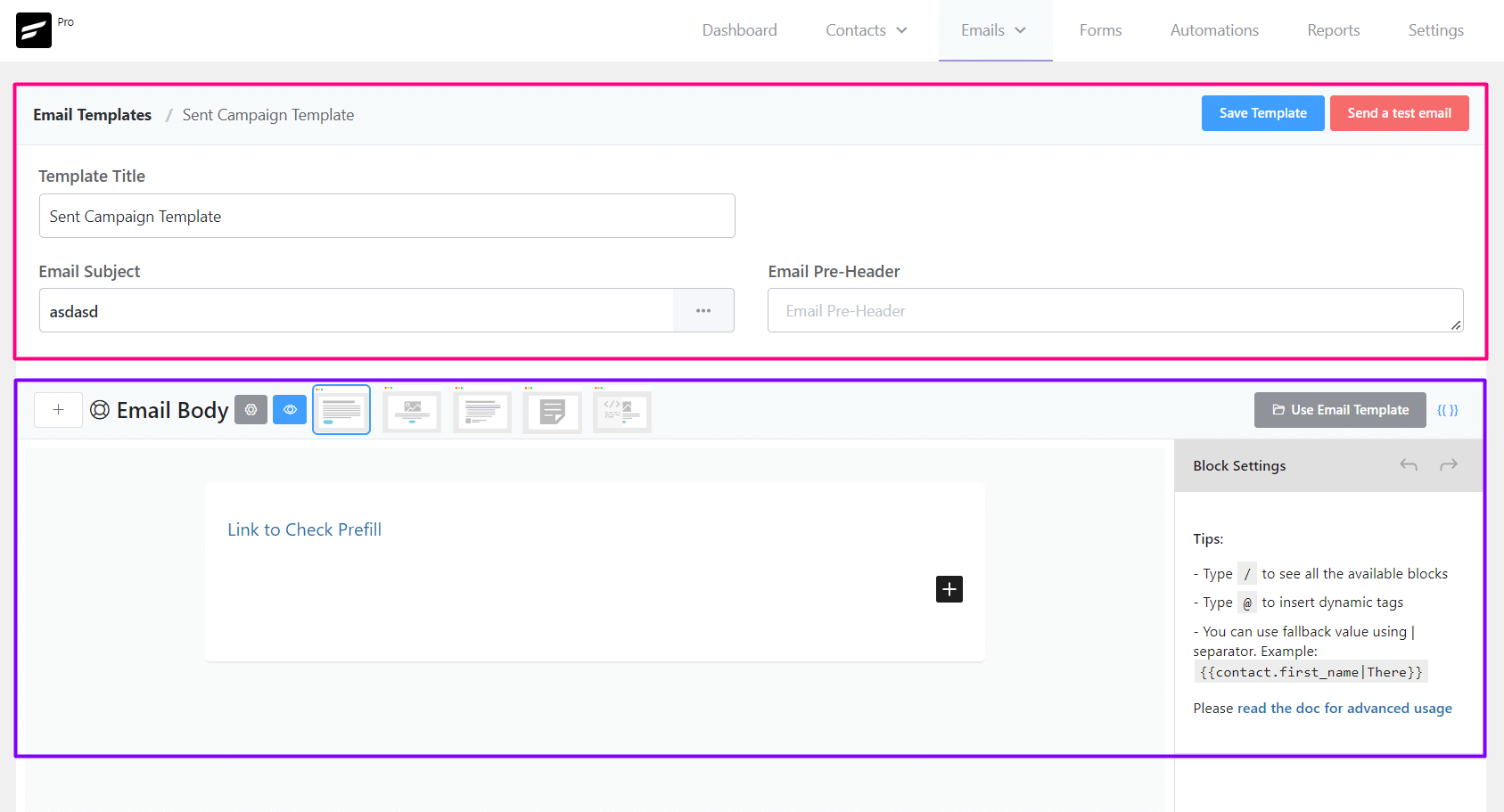
From Emails ➜ Email Templates you can create a template that can be used later around the FluentCRM. The available settings options for Email templates are:
- Template Title: The Title, as an identifier for later use for the Template.
- Email Subject: The Email Subject that is shown as a subject or topic in the recipient’s email clients.
- Email Pre-Header: An Additional short subject that is shown as a small subject line beside the primary subject.
- Save Template: Button to save the template.
- Email Body: Compose your email body using the block editor or visual builder
Sending a Test Email from Email Templates #
To send a test email from Email Templates, please click on the Send a test email button from the top right corner of the Email Templates Settings section as shown in the below screenshot and then input the email address where you want to receive the test email and click on the Send button.
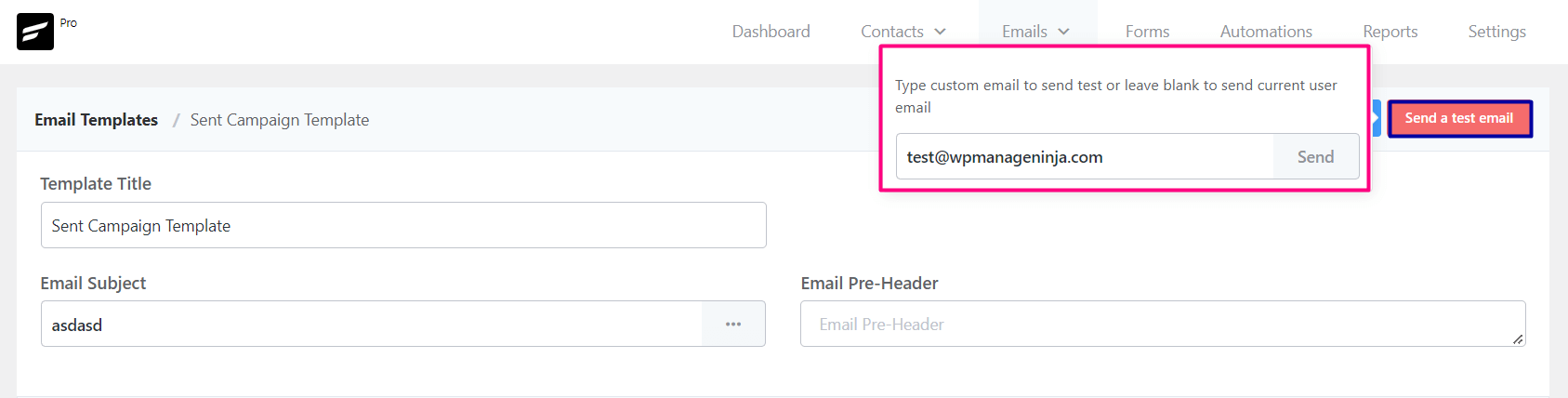
Once the email is sent successfully you will see a Success Message saying the Test email is sent successfully. on the top right corner.
Importing Email Templates into FluentCRM #
To import a predesigned email template from any other sources,
- Go to Emails -> Email Templates and Create a new Email Template. The RAW HTML template type needs to be selected.
- Upload the relevant images to the WordPress website and keep note of the media URLs.
- Open the HTML template with any text editor and update the image URLs.
- Copy the updated code and paste it into the FluentCRM RAW HTML template as the source.
- *** DO NOT CHANGE THE RAW HTML TEMPLATE TYPE ***.
- Now Preview by clicking on the Eye icon and see if the template looks promising.
- Now Save the template and you can now also send a test email to your email address to see how it looks practically.
That’s all about the Email Template. Now use the Email Template from other places in the FluentCRM without recreating the whole template again.


Hello,
How do i delete email templates that i don’t want as an option anymore?
Thanks
Hi Hannah, Go to email templates and click the three dots beside your email template. Then click “Delete Template” to remove email templates. You can also select multiple templates and bulk delete them.
When using the Visual Templates there are many errors with paragraph breaks and block padding. In gmail and some other email providers, the email looks good, but when you send it to others, there are additional breaks and spaces in between blocks and it looks bad.
Hi Jack, I’m not sure this issue existed. Did you contact our support team?
Hi there! My email template isn’t importing, it looks like its going to load and then goes back to the blank composing page. Please advise.
Hi Kelsey, Please get in touch with our support: https://wpmanageninja.com/support
How do you use an email template? I built one but it isn’t an option when I go to write an email.
Hi Donna, when you write an email just simply click on import template option and select the template you have created.
we definitely need an e-mail template website
Sure, we will introduce some email template later.
I echo this comment and hope something pops up soon.
estoy impaciente, los clientes me reclaman mejorar en este aspecto
Hi everyone, apologies for the delay on this. We are releasing an update in a few days and you’ll get some email templates. 🙂
Did this happen yet
Hi Donna, we had to release a quick update due to Google and Yahoo’s recent email deliverability policy change. The “email template” update is due in a few days. 🙂
Did these ’email templates’ ever eventuate?
Hi Lauren, really sorry about this. The email template was ready after few days of my comment. But there are a few technicalities which we need to figure out. We want to make sure we can regularly add more templates and that’s what is actually taking time. But our devs informed it’s will be done this quarter and you can rely on us.
I support this with my full chest!
Hi,
I need to create a sequences of emails.
in all the emails, I want that will appear in the footer my services.
How can I do it easily?
Thank you
Custom footer isn’t available yet. You can add the services URL to the global footer by going to settings.
Is it possible to put a cc field and bcc field in the template? Also can either cc or bcc be added to a message sent directly to a contact?
Hi Felicia, you can’t put a cc/bcc field.
I have a feature request:
I would like the ability to save a template from an existing campaign. I often create a campaign and want to re-use it in another campaign, automation, or sequence. It would save a LOT of time being able to do this!
Hi Nicole, you can duplicate the campaign and click the “three dots” button to save as template. Same can be done for automation or sequenced emails.
This tool is well thought out and seems to be the future for WordPress eMail marketing.
Especially for beginners, however, templates are missing to get started quickly and to have a red thread for later adjustments. Also for automations this is desirable
I have imported an email template using HTML, however now my pre-header is not pulling through in test emails.
The test email instead is displaying the url for the first image of the email in the pre-header field, not the text I input to the FluentCRM pre-header. Is there some code I need to insert at the start of my HTML to correct this?