

FluentCRM offers its users to import contacts from numerous sources and ways to import them. There are 3 types of contact importing processes in FluentCRM which are from the CSV file, WordPress users list from the core and other plugins, and 3rd party or Other CRM services.
Importing Contacts from CSV File #
The CSV import tool will help you add contacts to FluentCRM. You can easily upload contacts into FluentCRM from a valid CSV(comma-separated value) file. During the import process, you can also auto-update the properties of already existing contact at once.
Prerequisites to import contacts from a CSV file #
- You already have your contacts in a spreadsheet program like MS Excel or Google Sheets, Now export the contacts as a CSV file.
- The date field must be formatted in a specific way for example the Date of Birth or other Dates must follow the Y-m-d format.
- In FluentCRM, you can categorize your contacts based on their subscription status, like subscribed or unsubscribed. You can only select one status at a time.
- FluentCRM has no limit to the number of subscribers you can import like other SaaS email marketing providers, so feel free to import all your contacts.
- If you are importing a Country for the contacts please use the Alpha-2 Value [2 Letter] ISO 3166 Country Codes. Example: BD, US, GB, etc.
- The minimum field to import contacts into FluentCRM is the Email field.
Start Importing contacts from the CSV file #
Go to the FluentCRM Dashboard ➜ All Contacts and then click on the Import button from the top right corner.

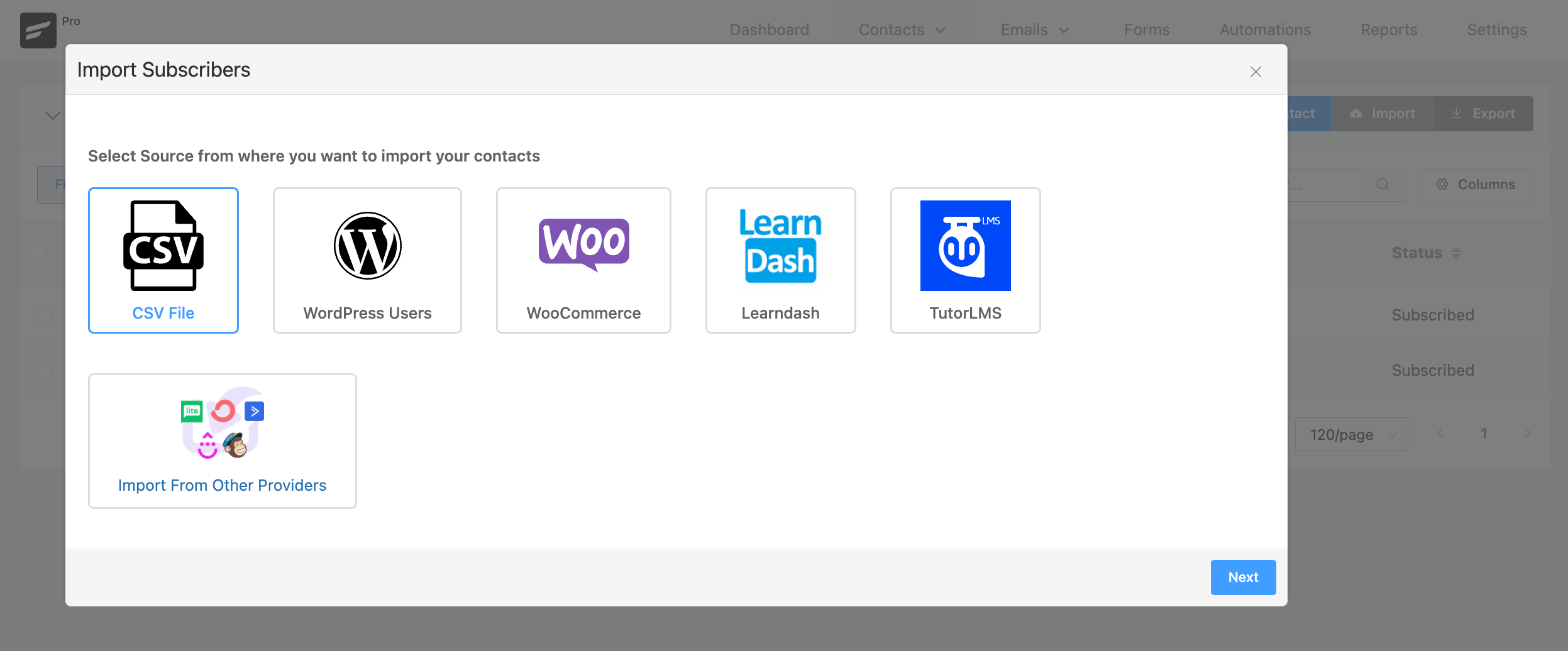
This will open a modal and you will see a few options and select the CSV file from the available options.
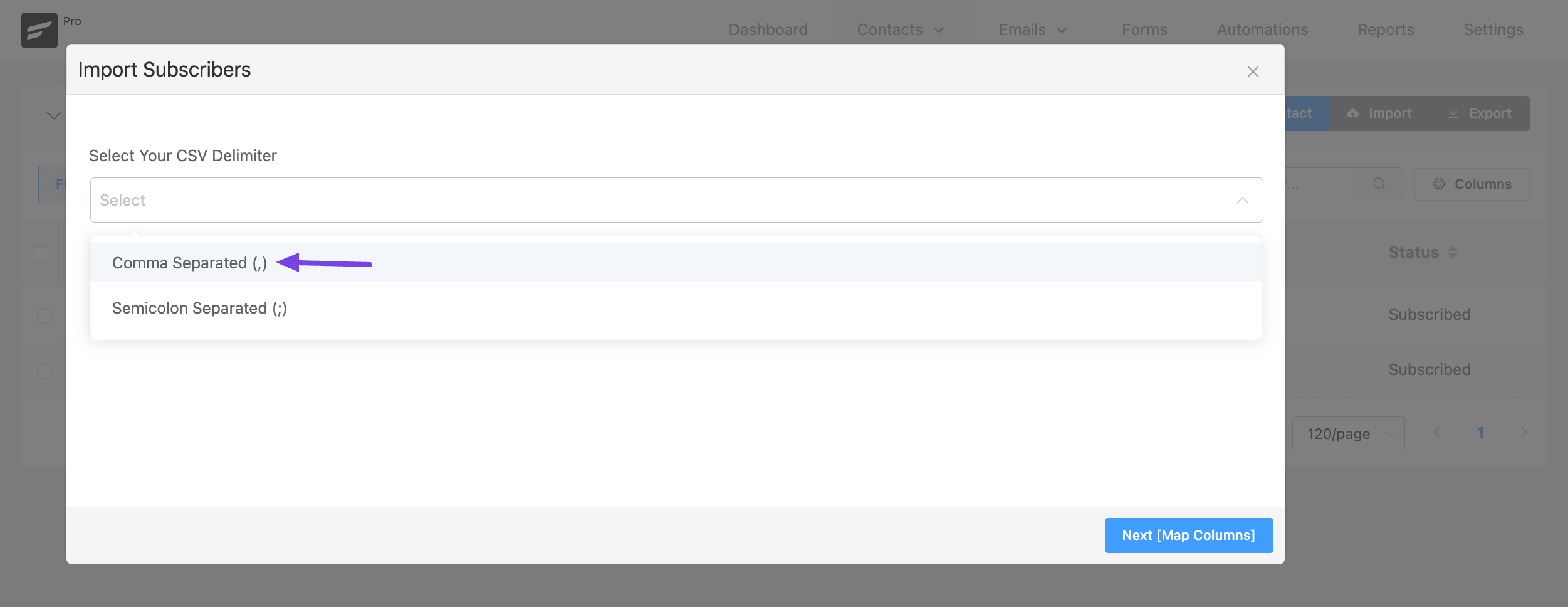
On the next screen, you will be asked to select the Separator Operator of the CSV file. The most common format is Comma Separated and we strongly recommend this format.
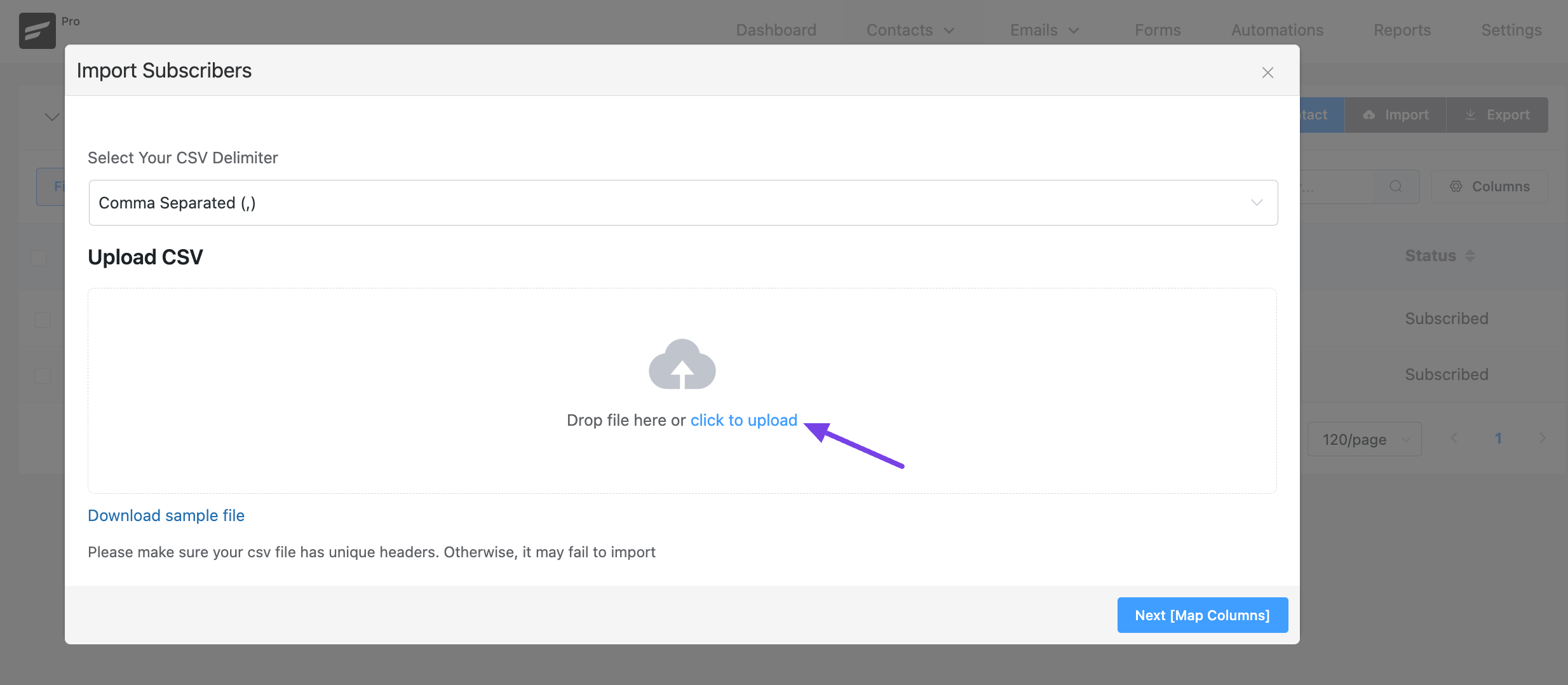
Now click to upload or Drag a CSV file that you want to use to import your contacts.
On the next screen, you will be asked to map the CSV fields into FluentCRM fields. Please check and select the fields accordingly.
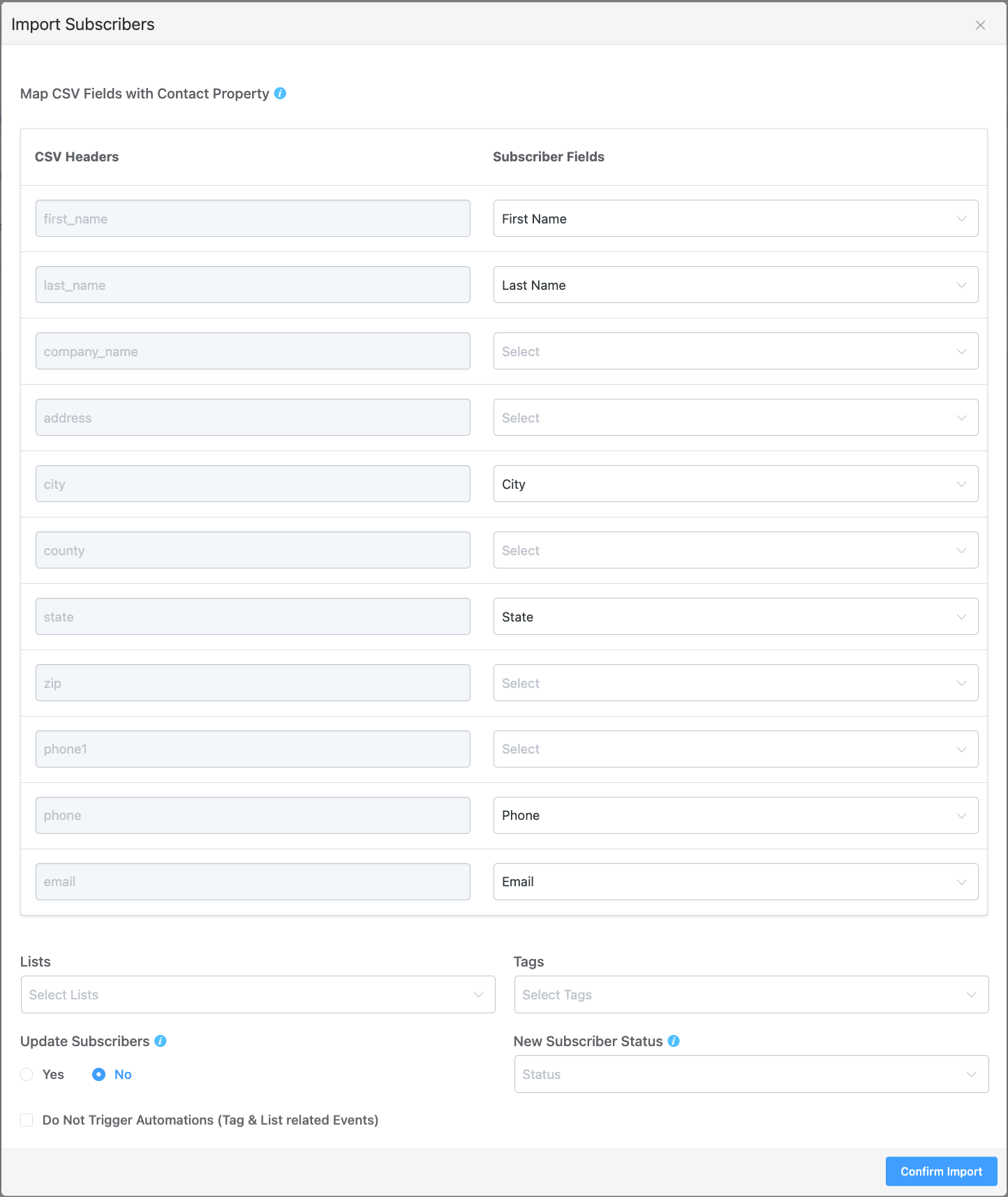
The available general fields as of now are:
- Name Prefix.
- First Name.
- Last Name.
- Full Name.
- Email.
- Timezone.
- Address Line 1.
- Address Line 2.
- City.
- State.
- Postal Code.
- Country.
- IP Address.
- Phone.
- Source.
- Date of Birth (Y-m-d format)
You will also see a few other additional Custom Fields if you added them to the Custom Contact Fields.
The Other Options are:
- Lists: Assign the Lists you want to the contacts.
- Tags: Attache Tags to the contact by choosing them from the dropdown.
- Update Subscribers: If any contact is already present you can update new data for them. Otherwise, existing contacts will be skipped.
- New Subscriber Status: Give a status for the contacts.
- Do Not Trigger Automations (Tag & List Related Events): This option asks you if you want the new contacts to be added to automation if the Lists, Tags, or other conditions are triggered.
- Force update contact status. This will update all imported contact statuses regardless of their previous status: If you want to force the Contact Subscription Status to be updated to the one you select now.
Importing WordPress Users as Contacts #
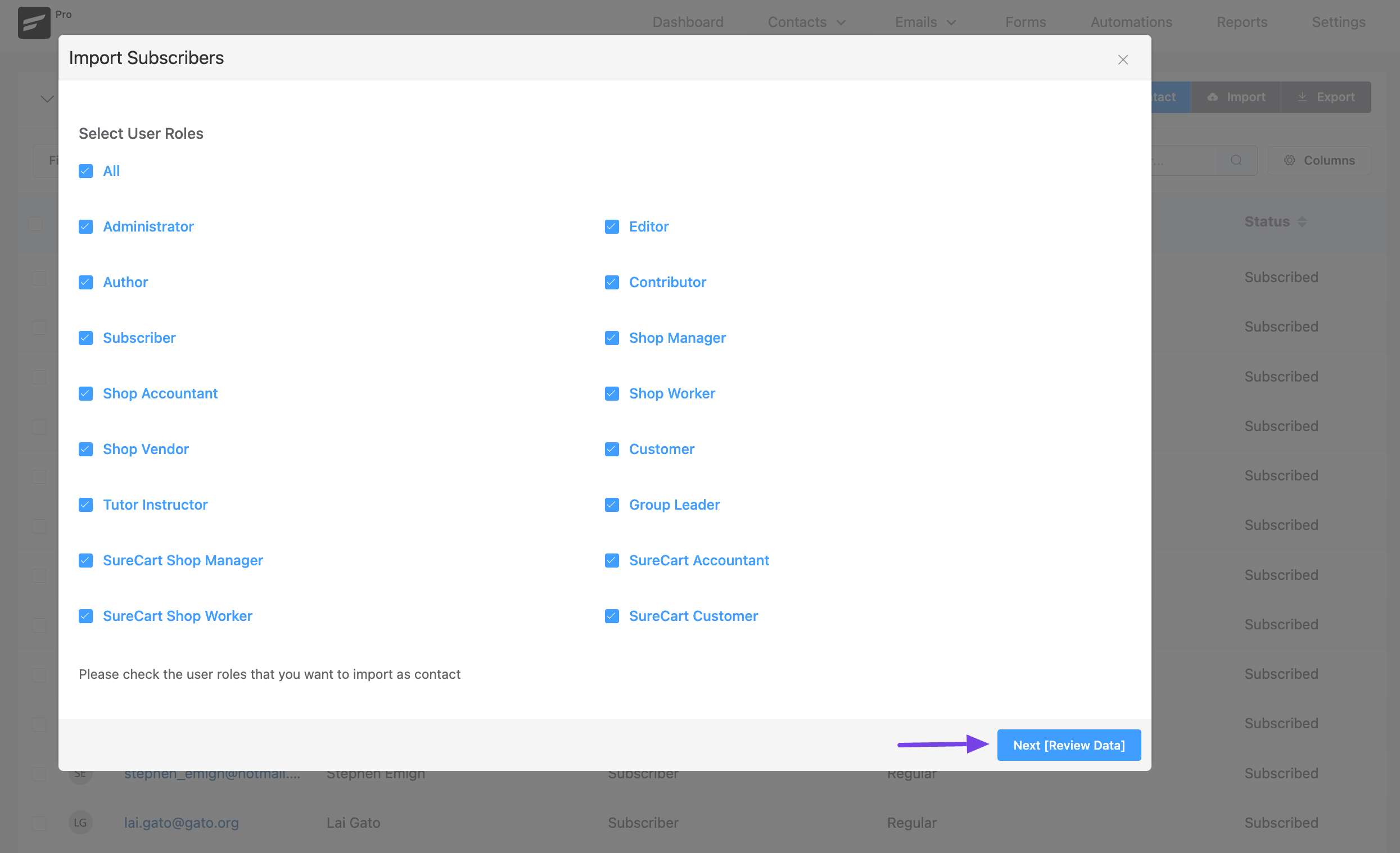
Same as the CSV Method selection to import WordPress users this time select WordPress Users. This will provide a modal to select the available User Roles to be imported. You can either select All User Roles or Select Specific User Roles by checking them.
On the next screen, a few of the users will be listed as per your selection in the previous screen.
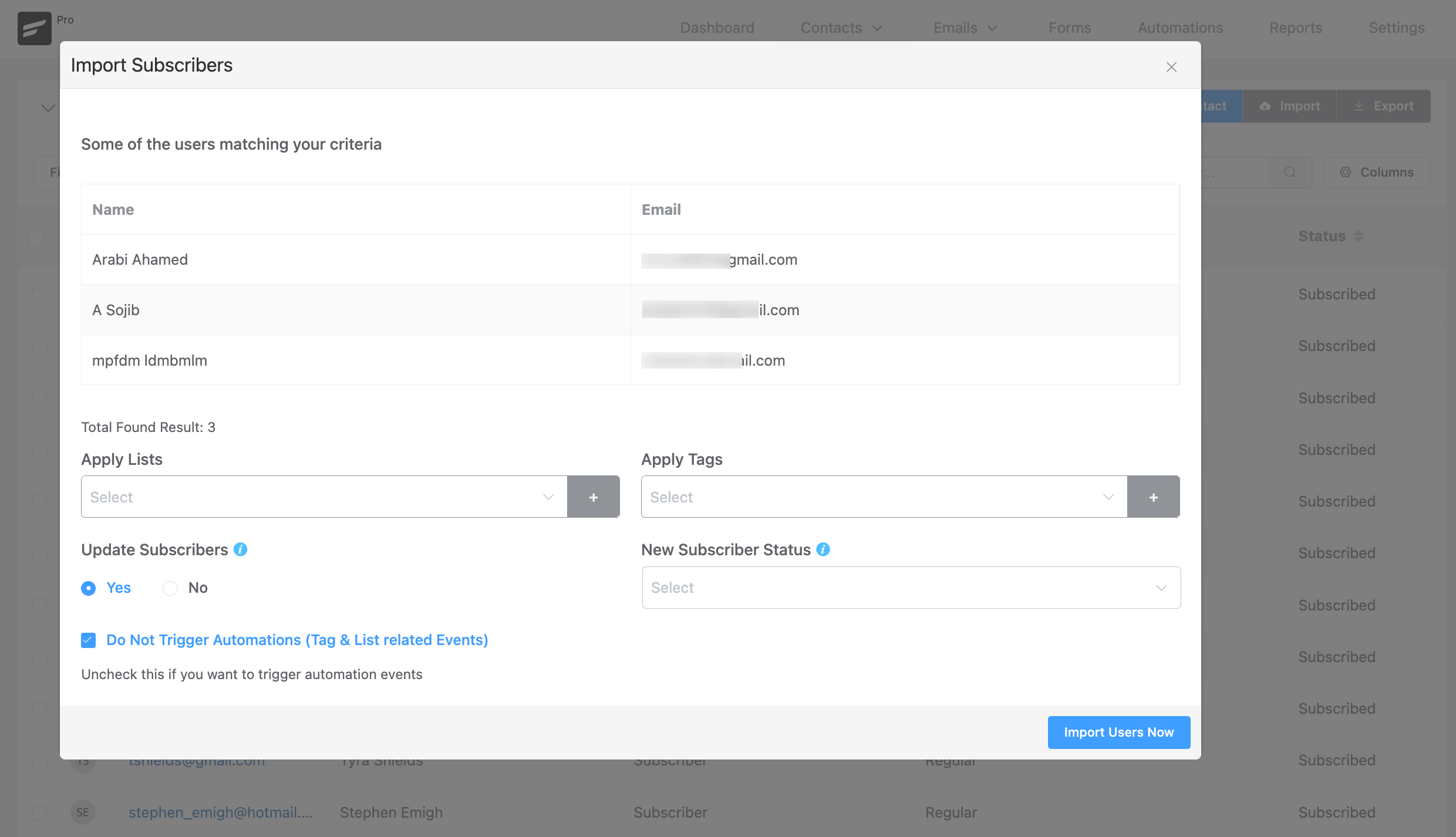
The options available here to be selected are:
- Apply Lists: Assign the Lists you want to the contacts.
- Apply Tags: Attache Tags to the contact by choosing them from the dropdown.
- Update Subscribers: If any contact is already present you can update new data for them. Otherwise, existing contacts will be skipped.
- New Subscriber Status: Give a status for the contacts.
- Do Not Trigger Automations (Tag & List Related Events): This option asks you if you want the new contacts to be added to automation if the Lists, Tags, or other conditions are triggered.
Importing Contacts from Other Integrations #
FluentCRM allows you to import users from other WordPress plugins into FluentCRM contacts. The relevant importing guides are listed below:
- Import contacts from WooCommerce
- Import contacts from Easy Digital Downloads (EDD)
- Import contacts from Learndash
- Import contacts from LifterLMS
- Import contacts from TutorLMS
- Import contacts from Learnpress
- Import contacts from Paid Memberships Pro
- Import contacts from MemberPress
- Import contacts from Restrict Content Pro
Importing Contacts from Other CRM #
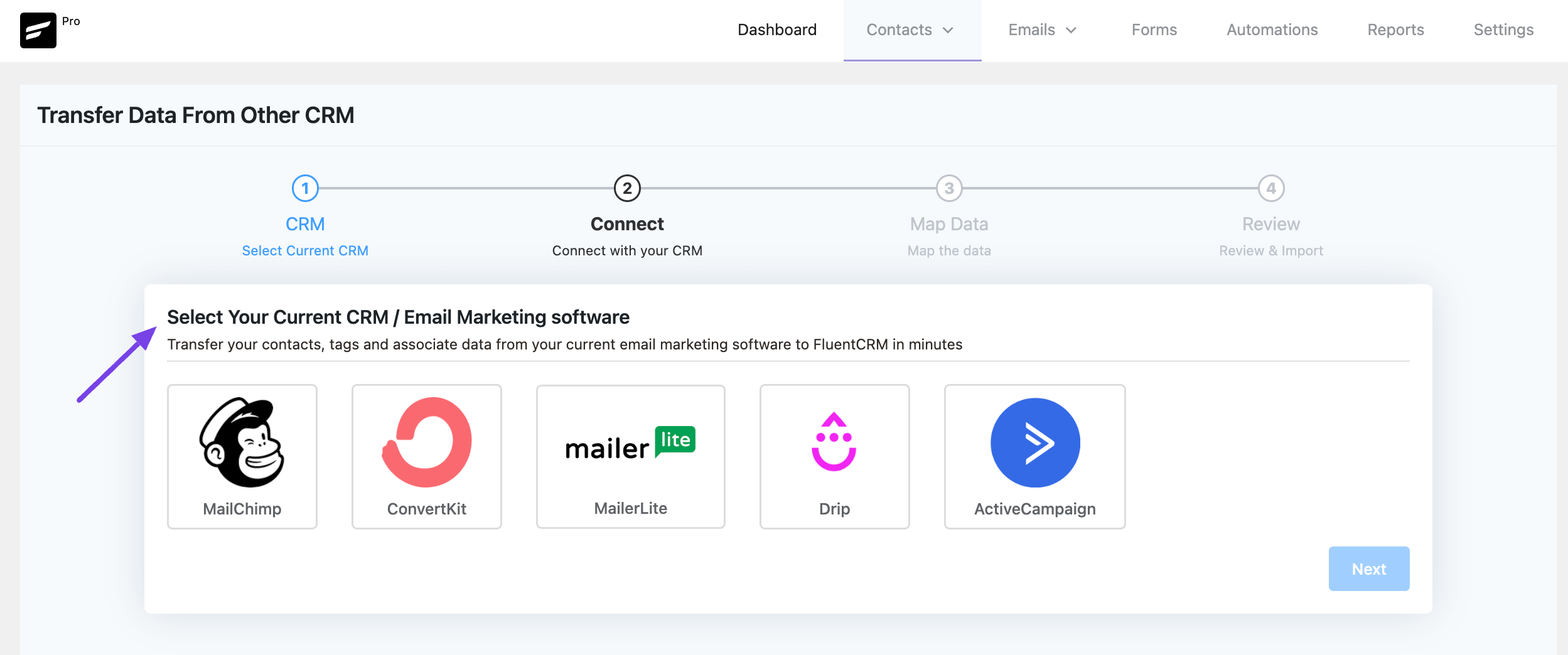
FluentCRM also provides an easy way to import Contacts from Other CRM Services like Mailchimp, ConvertKit, Mailerlite, Drip, and ActiveCampaign.


Hi, I have a csv* file that has more then 10k cutomers. Every time i try to upload, it will stop at 6969 and show this error.
Errors
{
“message”: “Expected data must be a string or stringable”
}
What should i do to be able to upload the contacts with no error.
Hello,
I’ve found the issue, there is a cron in FluentCRM which delete the .CSV when it is older than 15mn. There’s no check if an import is still active on it, leading to this kind of error.
Read more + workaround: https://wordpress.org/support/topic/expected-data-must-be-a-string-or-stringable-while-importing-large-csv/
Hi,
when trying to import, the importer wrapper opens up and states “Select Source from where you want to import your contacts”. Then there are no choices given und in the bottom right corner of the browser it is stated “Error! Sorry, you are not allowed to do that.”
Do you have any ideas, where that error comes from?
Best
Michael
I’m not sure why it’s happening. Please submit a support ticket so that our team can check.
My CSV is exported from the client’s CRM which used tags to identify contacts by different attributes. I would like to import the tags along with the users’ other data in the CRM. How do I do this?
I have a great deal of experience with working with CSV files, but I cannot get my contacts spreadsheet (csv) to import into CRMFluent. Also, the “Sample File” link within WordPress does not work. ~ Any suggestions?
works only 50% for our csv files from excel, seems that UTF-8 special characters like umlauts and accents are skipped: the record is there but the field is missing.
works if you check carefully it is csv-utf8 and not just csv…
Yes, this is a problem. We should not assume all contacts have email addresses on file. Or email addresses at all.
How import Username field from WordPress user?
Because I test to import all user but the Username field from WordPress user not contain in fields of FluentCRM contact
I am looking for one too! The online help is very random and there is no path I have found for initial setup.
Love the potential so far….obviously brilliant developers….but are there any documentation people?
I am looking for a way to import a list of contacts via csv and auto-tagging them instead of having to upload individual lists and adding one tag at a time. Is there a way to upload a list and include what tags contacts should be assigned in the upload csv file?
Thanks
Hi,
I have uploaded my MailChimp contacts, but the contact column is looking a bit weird. I do not see the “name” and “Email” column. The import went good and I selected the right columns from the csv file as shown in this article.
Could you help me.
Did you try again? Please contact our support if this continues. I think something is causing a conflict.