

FluentCRM offers lots of dynamic merge codes for your email subject, the body that you can use to personalize your emails.
Basic Structure: #
Merge codes are structured as {{DataGroup.Property|FallbackValue|Transformer}}
- DataGroup: FluentCRM has different types of data group. Examples: contact, contact.custom, wp etc.
- Property: Each data groups offer many data values, and you can call that the property. For example: first_name, last_name, email
- Fallback Value (Optional): This is an optional parameter. If the defined property is empty, the fallback value will be returned.
- Transformer (optional): Fluent Forms offers utility functions to transform the dynamic return value. For example: {{contact.first_name|Hi|ucfirst}} will make this first letter of the first as uppercase.
Usage: #
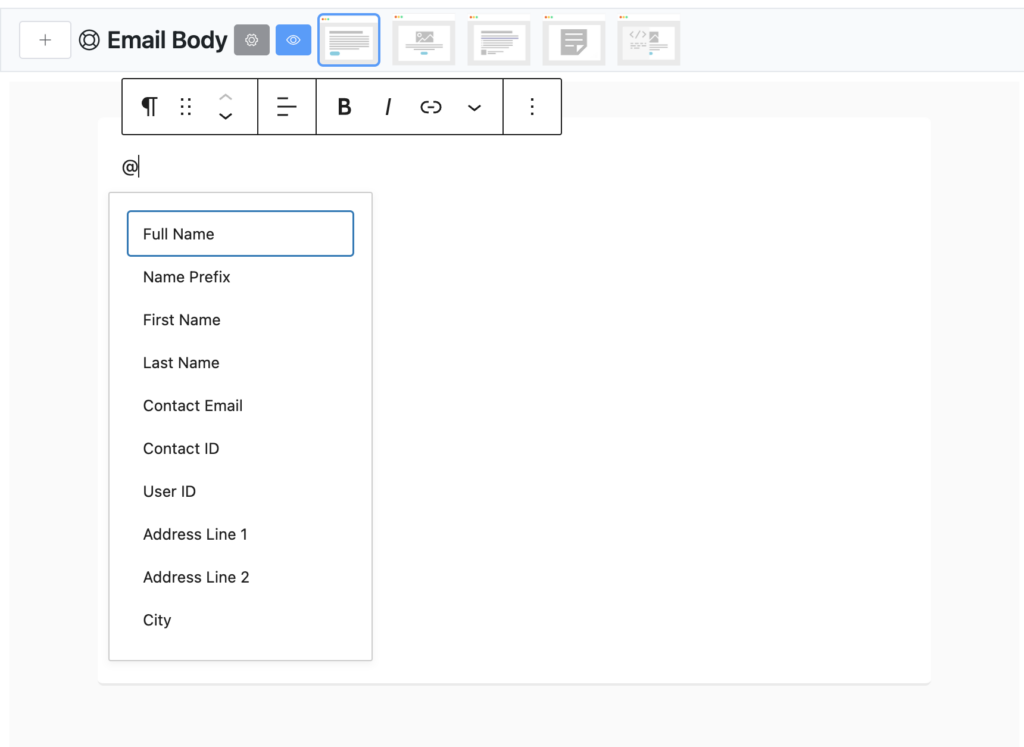
Using merge is very easy. From your email composer, just type @ and then type the name or title of the merge code and you can see all of them.
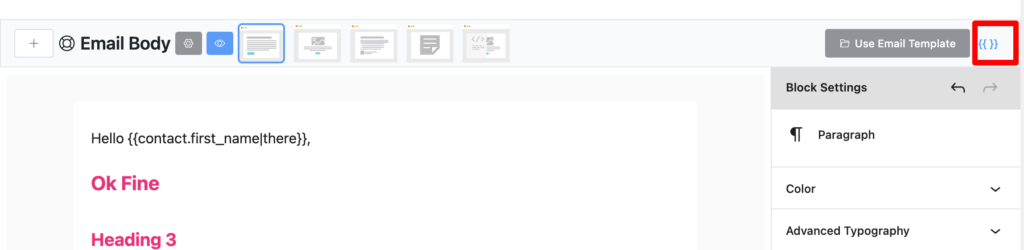
You can see all the merge codes by clicking the {{ }} icon in your email composer’s top bar.
This will show a pop-up and you can copy any SmartCode you want and use it in your email body or subject.
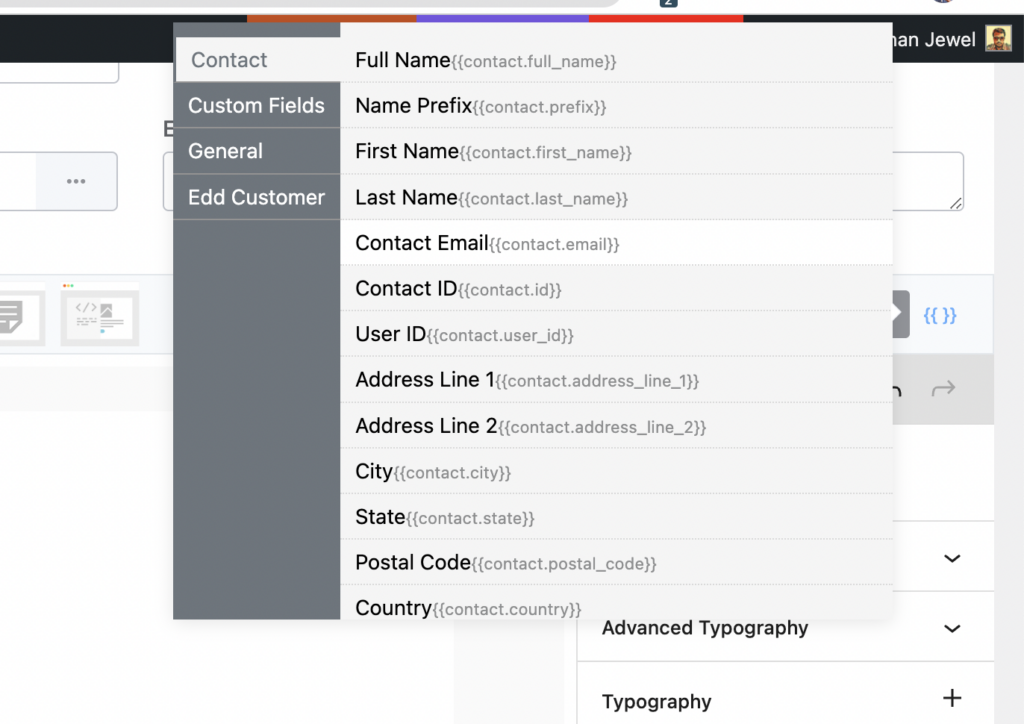
Contact’s Default Merge Codes #
| Code | Description |
|---|---|
| {{contact.full_name}} | Full name of the contact |
| {{contact.prefix}} | Name Prefix of the contact |
| {{contact.first_name}} | First Name of the contact |
| {{contact.last_name}} | Last Name of the contact |
| {{contact.email}} | Email address |
| {{contact.id}} | Contact’s unique ID (Numeric) |
| {{contact.user_id}} | Connected User ID of the contact |
| {{contact.address_line_1}} | Address Line 1 |
| {{contact.address_line_2}} | Address Line 2 |
| {{contact.city}} | Address City |
| {{contact.state}} | Address State |
| {{contact.postal_code}} | Address Postal Code |
| {{contact.country}} | Address Country |
| {{contact.phone}} | Phone Number |
| {{contact.status}} | Contact’s Status |
| {{contact.date_of_birth}} | Date of Birth |
| {{contact.custom.CUSTOM_FIELD_SLUG}} | Custom Field value of the contact. Please replace CUSTOM_FIELD_SLUG with your defined slug of the field |
Other General Codes #
| Code | Description |
|---|---|
| {{crm.business_name}} | Business Name defined in FluentCRM Settings |
| {{crm.business_address}} | Business Address defined in FluentCRM Settings |
| {{wp.admin_email}} | Email Address defined in WordPress settings |
| {{wp.url}} | Your Website URL |
| {{other.date.+2 days}} | Dynamic Date Field. You can replace +2 days with your own date strings. it will return the date (WP Date Format) when parsing the data. |
| {{other.date_format.Y-m-d}} | Current date field as your own date format. Support Y-m-d date formate. |
| ##crm.unsubscribe_url## | Unsubscribe URL of the contact |
| ##crm.manage_subscription_url## | Manage Subscription page URL of the contact |
| ##web_preview_url## | Web preview Url of an email |
| {{crm.unsubscribe_html|Unsubscribe}} | This will return an unsubscribe link with HTML code and link text will be Unsubscribe. |
| ‘{{crm.manage_subscription_html|Manage Preference}} | Manage Subscription Hyperlink HTML with link text “Manage Preference” |
WP User Codes #
If the contact is also your WordPress user then you can use the following merge codes in your email
| Code | Description |
|---|---|
| {{user.ANY_USER_PROPERY}} | example: get any user property from WP_User Class. Example: user_login, user_first_name etc. |
| {{user.meta.USER_META_KEY}} | access meta value of a user |
| {{user.password_reset_direct_link}} | Direct Password Reset link of a user |
Data Transformers #
Using Data Transformers you can transform / Format a dynamic value easily. Here is the list of available transformers
| Transformer | Usage | Description |
|---|---|---|
| trim | {{contact.first_name|There|trim}} | if the contact.first_name returns value and have space at first or after it will trim that. |
| ucfirst | {{contact.first_name|There|ucfirst}} / {{contact.first_name||ucfirst}} | If the contact.first_name returns the first letter lowercase, it will make it uppercase of the first letter |
| strtolower | {{contact.first_name|There|strtolower}} / {{contact.first_name||strtolower}} | It will make the all the letters as lowercase |
| strtoupper | {{contact.first_name|There|strtoupper}} / {{contact.first_name||strtoupper}} | It will make the all the letters as uppercase |
| ucwords | {{contact.full_name|There|ucwords}} / {{contact.full_name||ucwords}} | This will make the first letter of each word uppercase. |
| concat_first | {{contact.first_name||concat_first|Hello}} | if a contact’s first name is John then it will return as “Hello John” |
| concat_last | {{contact.first_last||concat_last|,}} | Sometimes you need to add “,” after the first name if the name exists. This example will return “John,” if the first name exists . If first name does not exist then nothing will return. |
| show_if | {{contact.full_name||show_if|First name exist}} | If contact’s full name exist then it will return “First name exist” |


Hi
How do we add social media icons when we have created our own template from scratch.
What is the code or block in the visual builder ?
Hi Sebastian, we use unlayer for drag and drop emails and they don’t have this yet. We may have the social media block for the block editor in the next few releases.
I’d like to incorporate some custom fields from a product. Is this feature on the roadmap somewhere?
Not at this moment. If there’s enough feature requests, we may consider this.
How can I change the background color of the entire email body?
You can do this through the Global settings by clicking the gear icon.
Hi, I’m trying to use FluentCRM automation to send messages to WhatsApp, how can I break lines using the body field for automated messages using fluentcrm?
Which code i need to use?
Hi Flavio, as we don’t have Whatsapp integration, we’ll have to know how you’re doing this. Please submit a support ticket so our technical experts can help. 🙂
Do you have to add this one?
Hi Goedang, WhatsApp integration is coming soon. Should have this feature as intended. 🙂
What are the examplse with two pipe characters? Or a slash? I guess the slash is to separate two different examples?
It would be helpful to see a couple of things:
1. How to use multiple Data Transformers at once (i.e. if I want to use trim and ucfirst together)
2. How to replace the merge code if the field isn’t populated. Some of my customer’s haven’t entered their first name, so whilst I want emails to to be addressed to “Hi {{contact.first_name}}”, if {{contact.first_name}} is blank I’d like to replace it with “there” – i.e. “Hi there” instead of “Hi {{contact.first_name}}” – is that possible?
Cheers
Is there a way I can change the CSS of the H3, H2 and H1 styles? Currently, I need to manually change them from their default setting every time I need a headline (changing the colour, font weight, size and alignment of each title).
I also wish to standardise the look of the buttons so others can use the template and reproduce the same look.
good evening
can a PDF be attached to an automated email?
does fluentcrm support right to left languages? and how can it be done?
Small correction needed to the WP User Code for Direct Password Reset link of a user:
%%user.password_reset_direct_link%%
should be
{{user.password_reset_direct_link}}
Hope that helps!
תודה רבה!
יש אפשרות להדגיש בצבע רקע רק משפט אחד מסוים?
כן זה אפשרי. פשוט נסה את זה כמו שאתה עושה עם וורדפרס. הערה: זה לא יעבוד אם הגדרת עיצובים גלובליים.