

Once your list and forms are set, you are ready to go for creating an email campaign. You can run email campaigns to send your marketing messages to the subscribers who opted for your marketing messages. In FluentCRM, an email campaign is a bulk email marketing campaign that is sent to many contacts at once instantly or in a scheduled time defined by you. This is as easy as adding a template, adding the content, designing the template, selecting your audience group, and then sending it off to your subscribers.
Things to do before you start an email campaign with FluentCRM
- Firstly make sure you have subscribers in your contact lists. If you don’t have subscribers in your contact lists, Import Contacts into FluentCRM or follow the Opt-in Forms (Fluent Forms) Basic Configuration to capture leads from a Signup form.
- Be sure to FluentCRM Global Settings before you start sending your first email campaign.
Create a New Campaign #
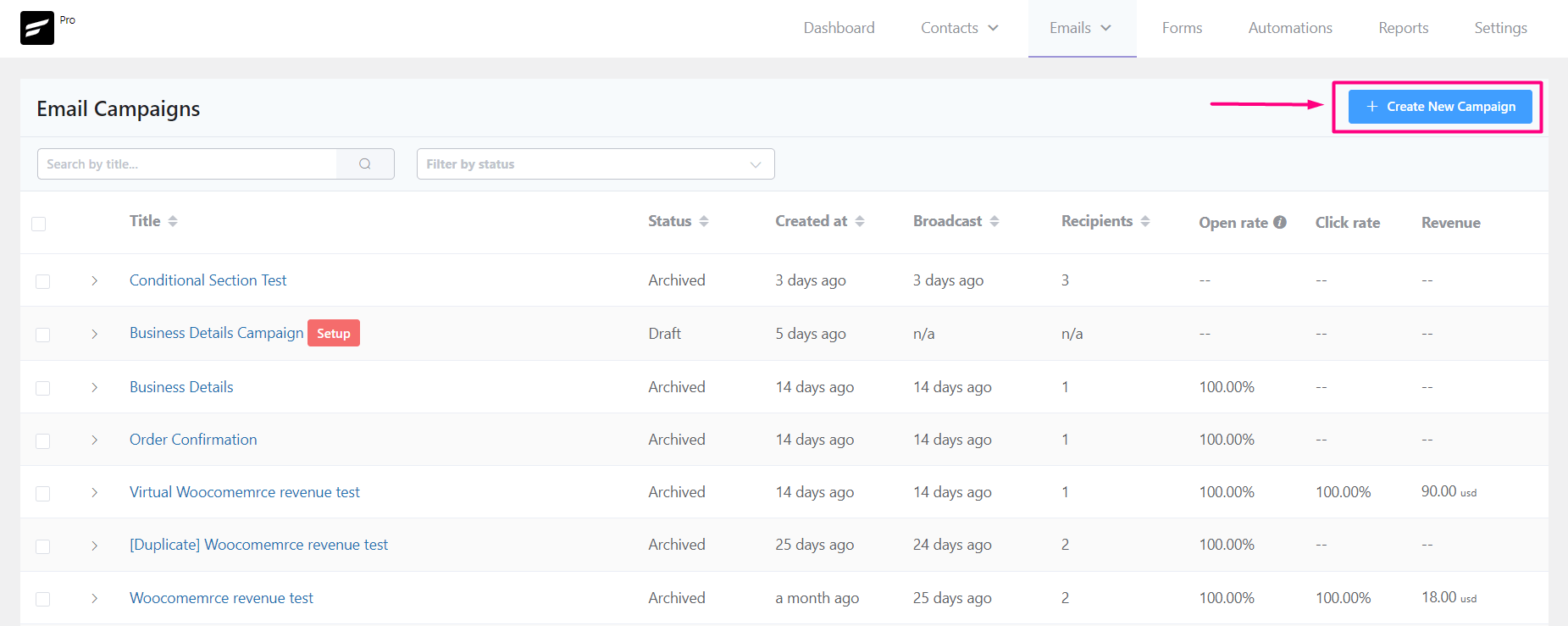
From Emails ➜ All Campaigns, you can create an email campaign by clicking on the + Create New Campaign button.
After clicking on the button a modal window will appear asking for the Email Campaign Name. Please provide a relevant Email Campaign Name and click on the Create Campaign button.

Compose Email #
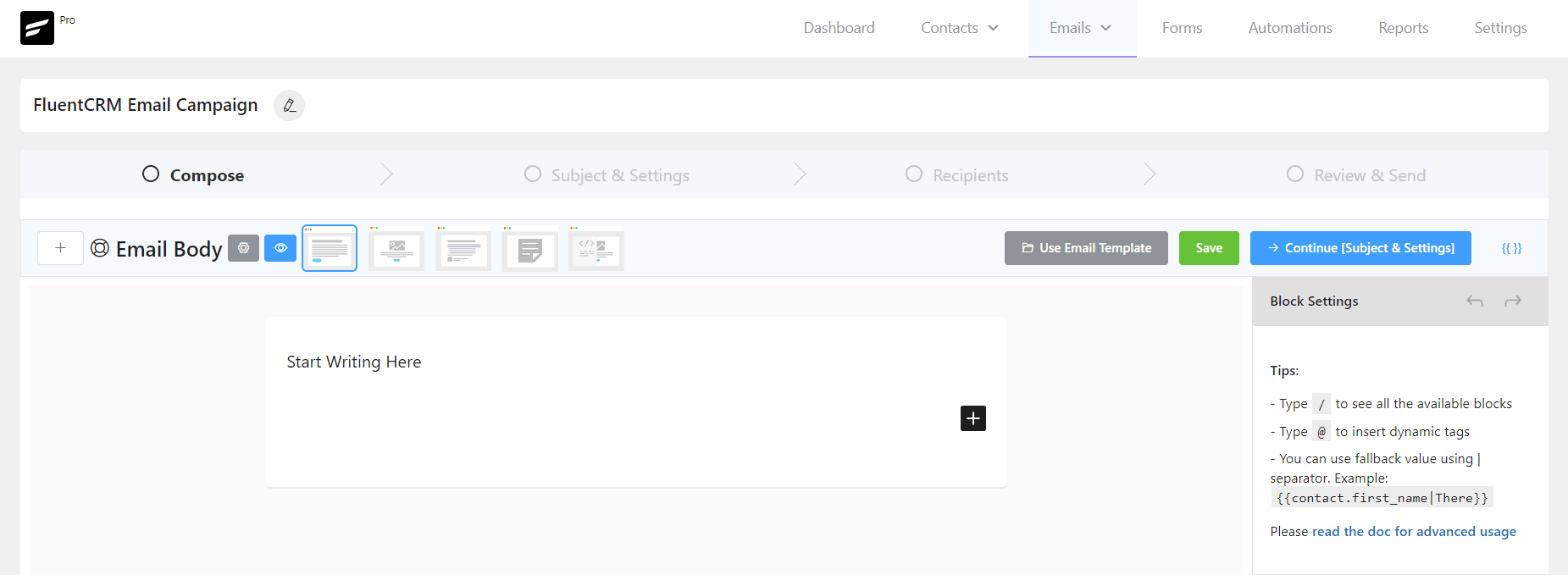
Then you will be redirected to the Email Composing page of the Campaign. Please check our Compose Email in FluentCRM to know a detailed guide about composing Emails in FluentCRM.
Import Existing Email Template #
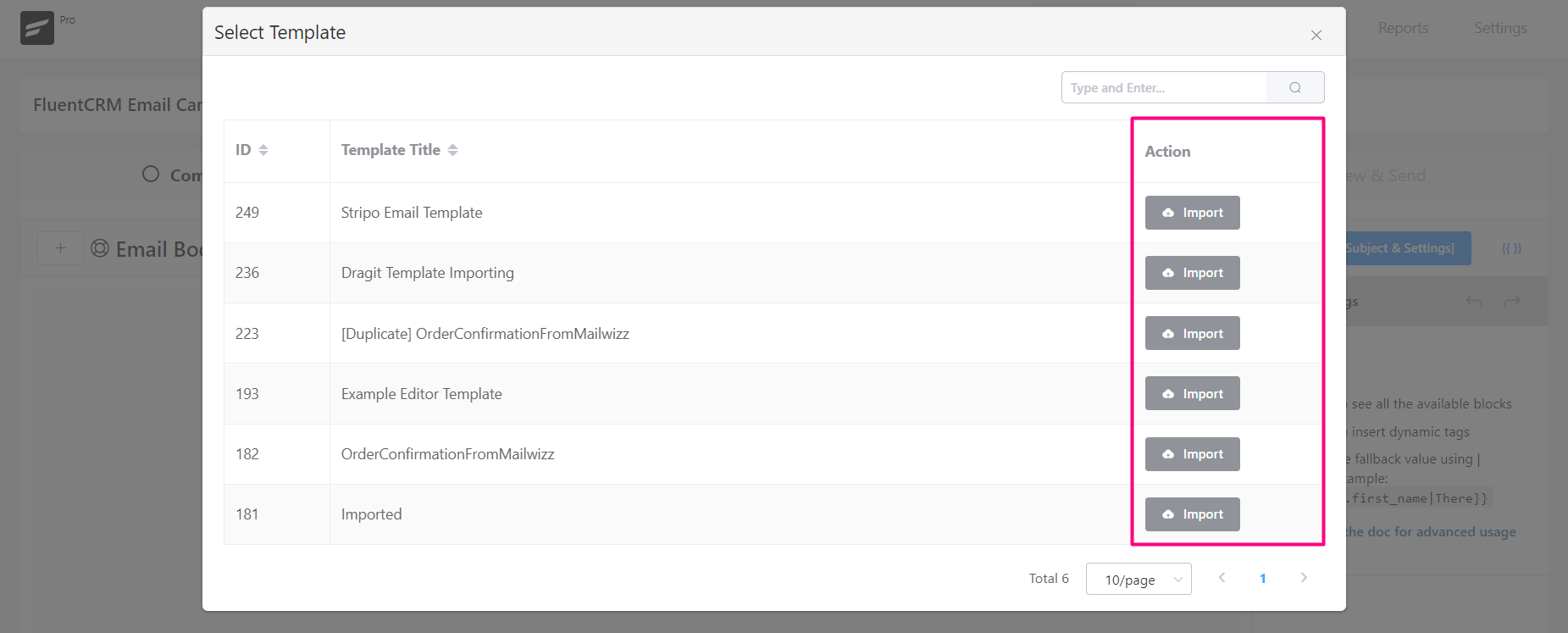
You can also use a premade or predesigned Email Template to use in the Email Campaign by Clicking on the Use Email Template button. To know more details about Email Templates please visit Email Templates in FluentCRM.
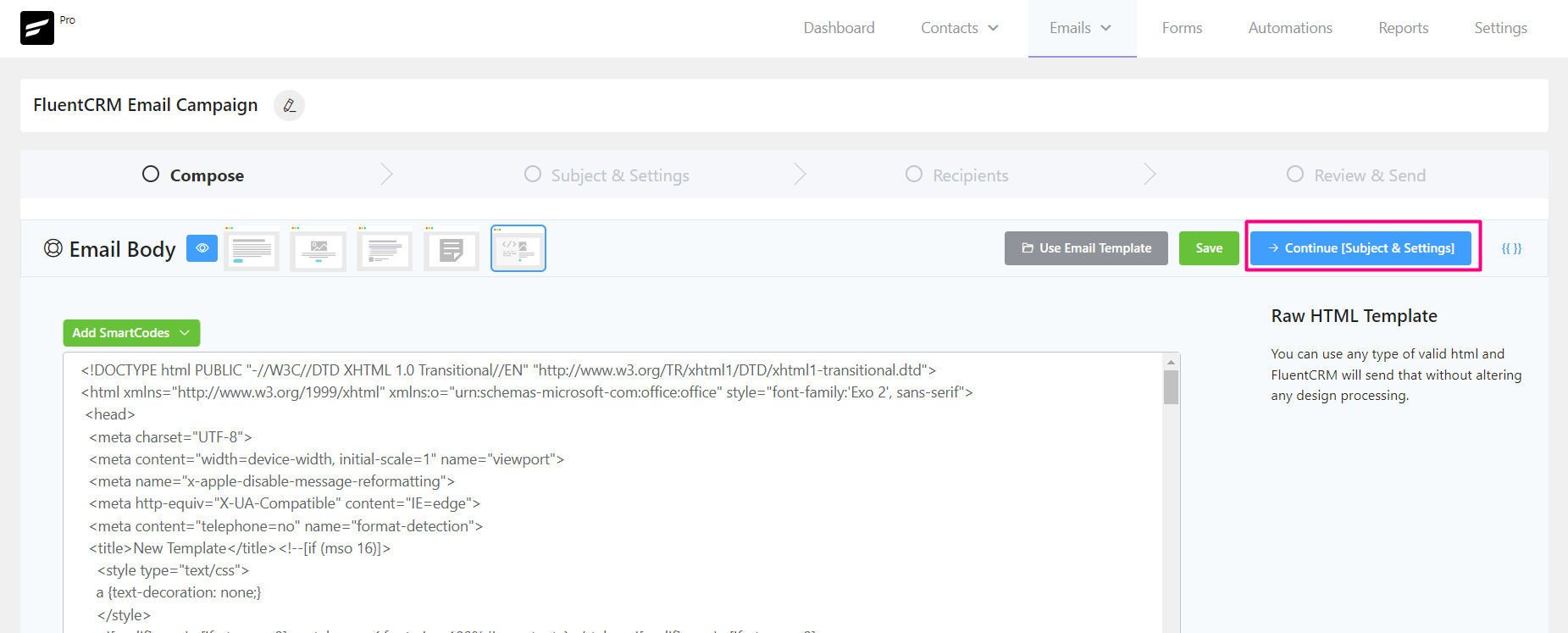
Once you are done manually composing the new Email Content or Importing an existing Email Template Click on the ➜ Continue [Subject & Settings] button to go to the next step.
Subject & Settings #
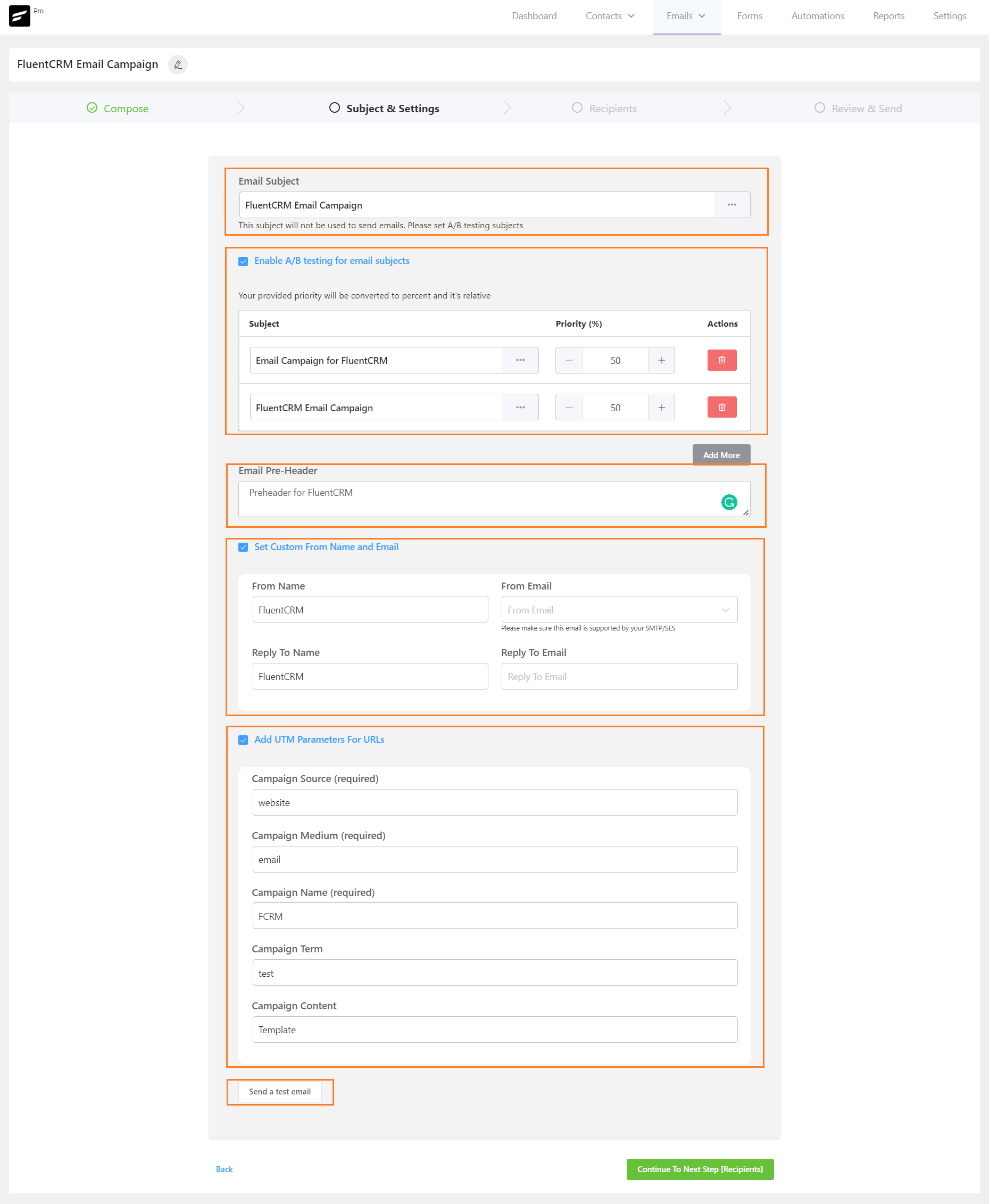
In this section, you will work on the various components of your Email Subject & Other Settings. This step defines the Email Campaign settings that are mostly technical and very important parts of Email Marketing.
Primary Subject & A/B Subjects #
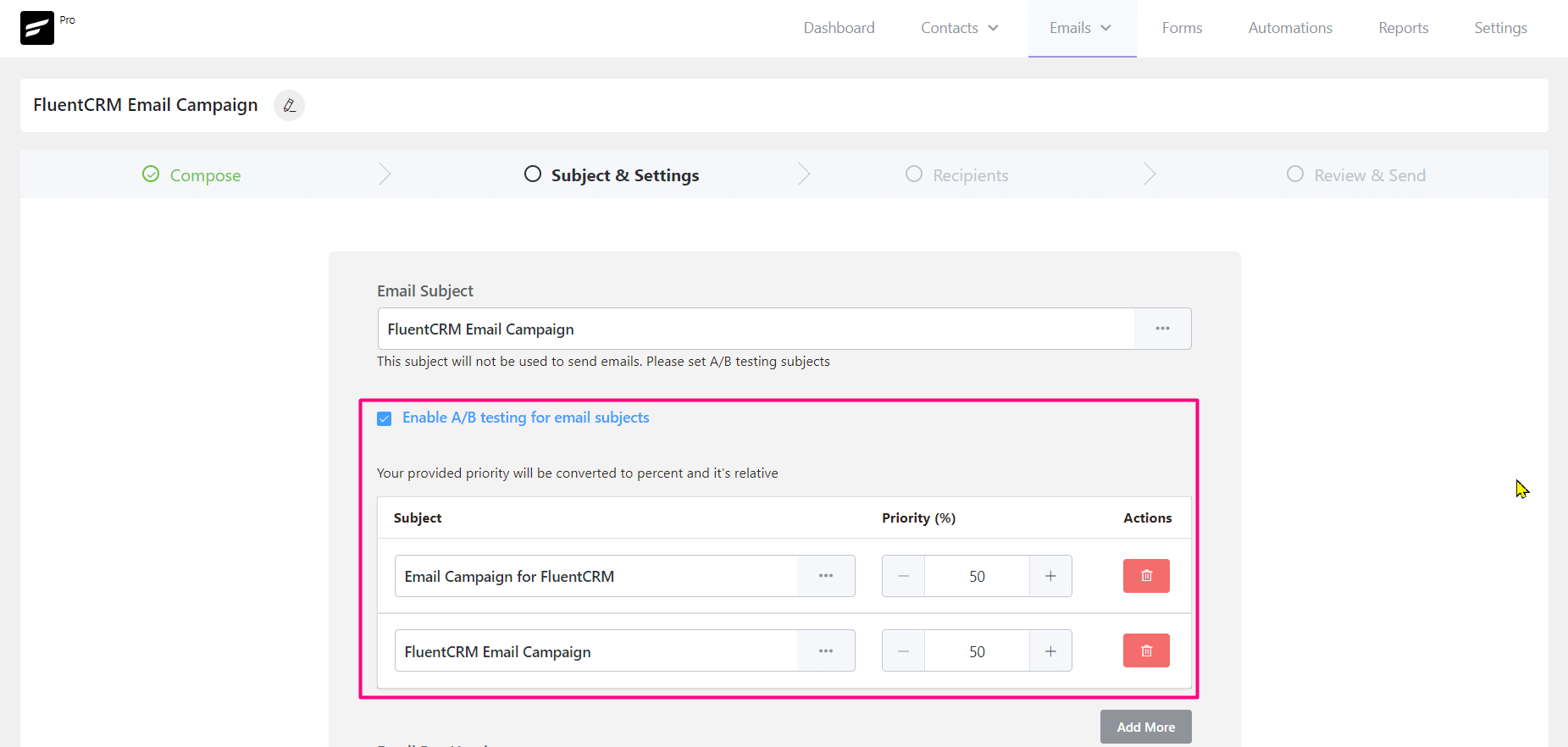
In the Subject field, enter a subject line for your email. The subject plays a very important role in whether the email will be opened by a user or will just ignore the email.
You can add multiple subjects for A/B testing. This will help you determine which subject is working best for your emails by checking the A/B test result. The priority ratio defines how many emails with that subject out of the total users will be sent.
You can also use dynamic values in the Email Subject choosing them by clicking on the 3 Dots. The available data properties are discussed in the SmartCode in Email Editor.
Email Pre-Header #

This is the short summary text that follows the subject line when viewing an email from the inbox.
Custom Mail From #
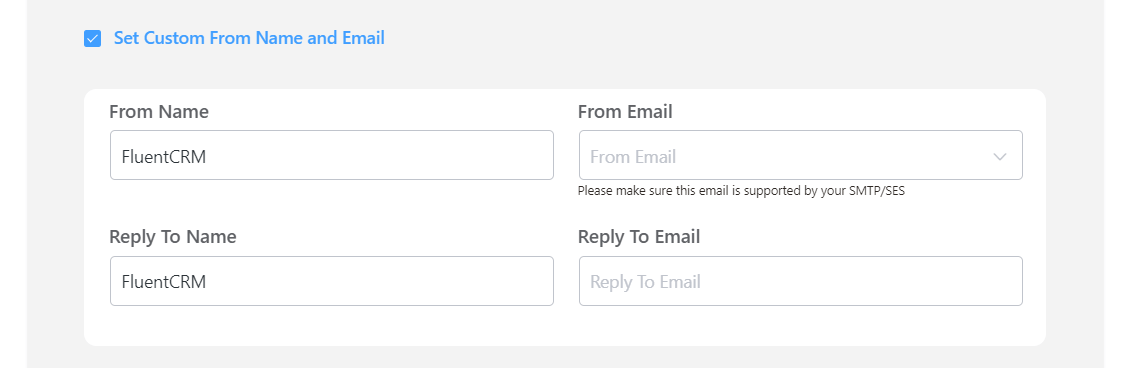
Click the checkbox to set the custom from the name and email. If you don’t set it here then your global email setting will be used for sending the emails.
If you have configured multiple email connections as delivery or senders in the FluentSMTP plugin. You can use any of them as a sender for this Email Campaign. For example, you may use global@wpmanageninja.com as the default sender. But if you want to use marketing@wpmanageninja.com as the sender for this email campaign you would need to configure it in the FluentSMTP first and then you can use it in the Custom Mail From setting here.
UTM Parameters #
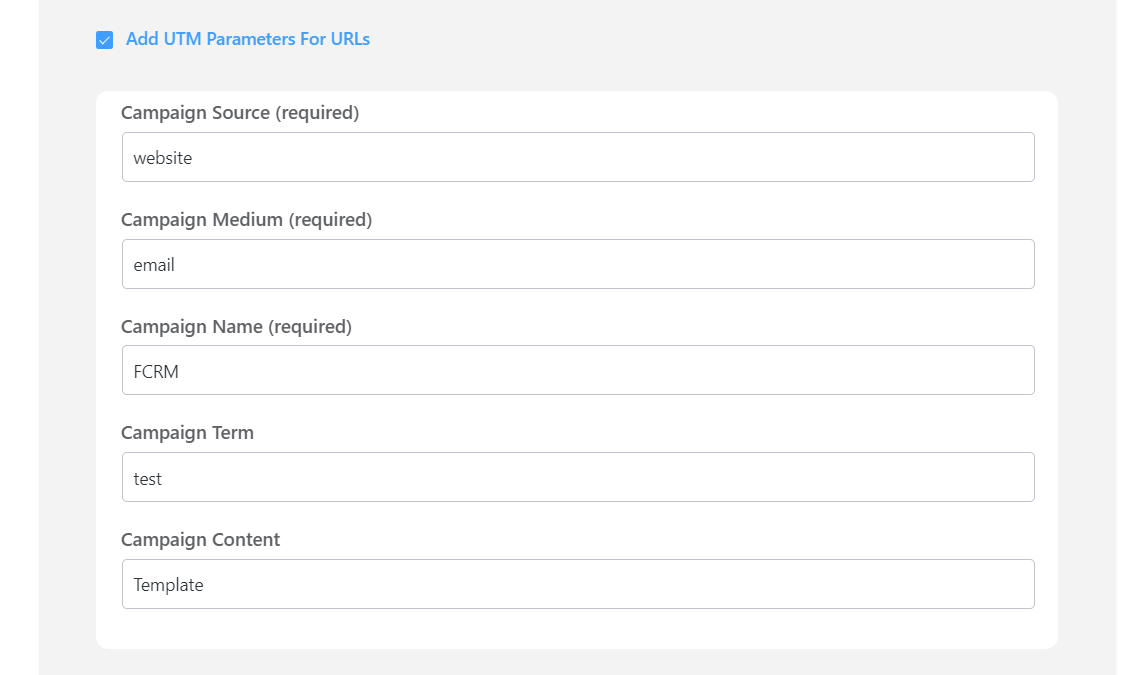
Click the checkbox to Add the required UTM Parameters For URLs: Campaign Source, Medium, and Campaign Name for the UTM parameter. You can also add Campaign Term and Content for the URL parameter.
Sending a Test Email from Email Campaigns #
When you are done with all the fields of Subject & Settings, you can send a test email to your mailbox.
To send a test email from Email Campaigns, please click on the Continue [Subject & Settings] button from the top right corner of the Email Campaign Compose Settings section and then click on the Send a test email button and input the email address where you want to receive the test email and click on the Send button as shown in the below screenshot.
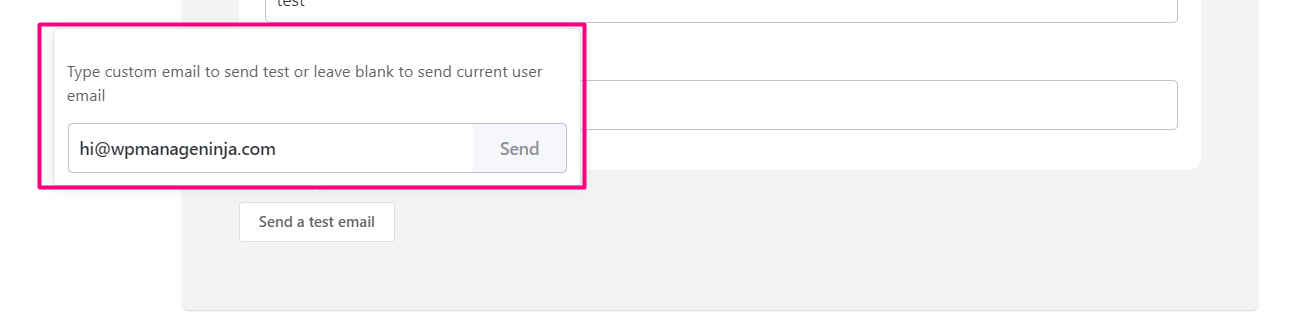
Once the email is sent successfully you will see a Success Message saying the Test email is sent successfully. on the top right corner.
Click on the Continue button and go to the next step to add the recipient to this email campaign.
Full Overview of Subject & Settings #
Once you have configured all of the above depending on your requirements, you will see the options as below. You may leave any of the options if you do not wish to use or set them. But an Email Subject is required.
Recipients #
Now when you are done with the Email Content, Email Subject, and Sender details, it’s time to select the recipients who will get the campaign or newsletter email.
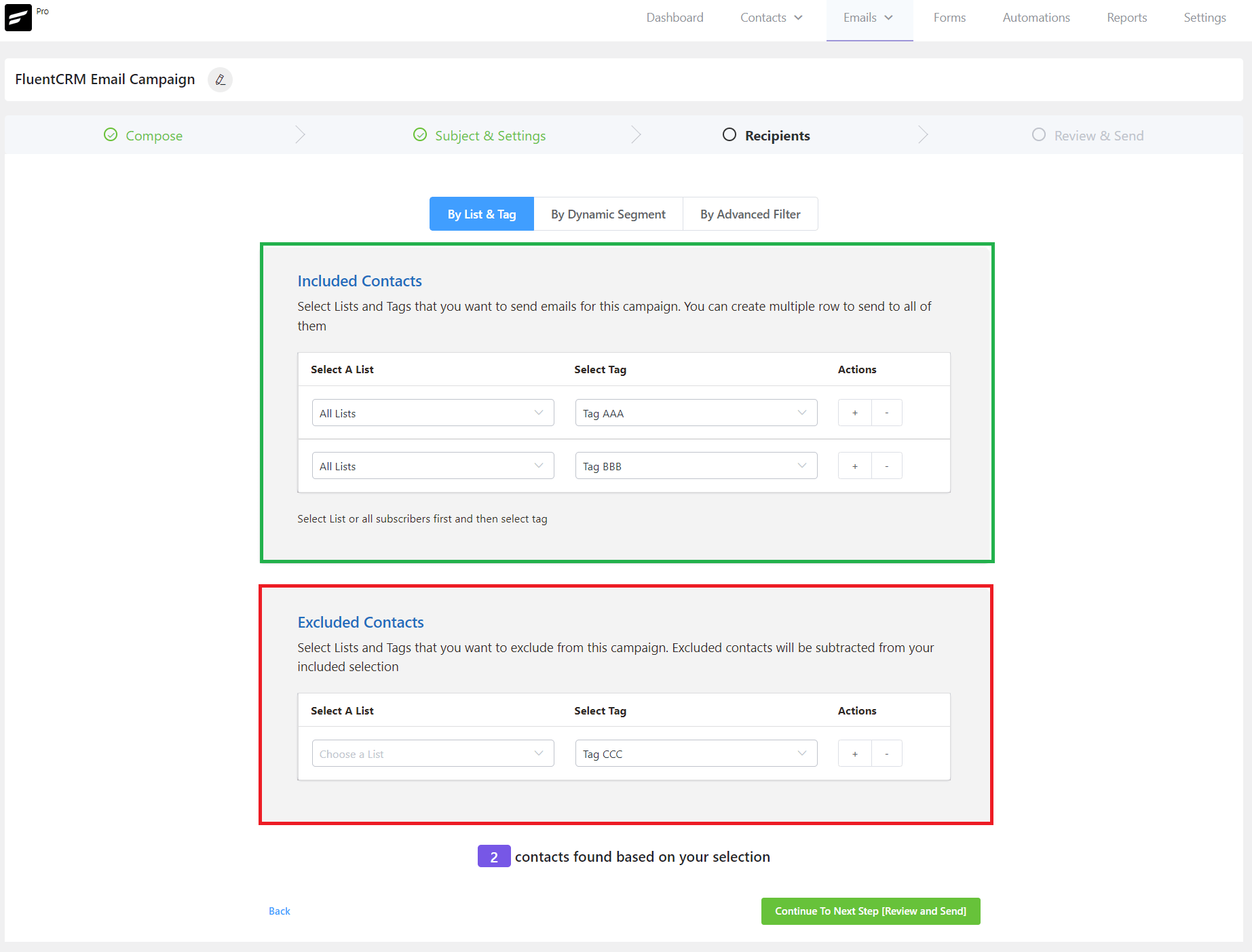
You can add recipients:
- By List & Tag,
- By Dynamic Segment and
- By Advanced Filter.
By List & Tag #
Choose your List & Tag. You can select one list and one tag from the dropdown. To use multiple Lists and tags Please click on the + (Plus) icon or – (Minus) icon to remove any of them. You can also exclude contacts from the campaign based on a certain List and Tag.
By Dynamic Segment #
You can also run the campaign by dynamic segments, for example, Woocomemrce Users or LearnDash, LifterLMS users, or any other dynamic segments you created in FluentCRM. Please visit the General & Dynamic Segments documentation to know more details.
By Advanced Filter #
You can select custom contacts by using Advanced Filter and filter the contacts accordingly. This is a wide conditional section based on various Data Properties for Contacts and Activities inside FluentCRM.
Recipients Processing #
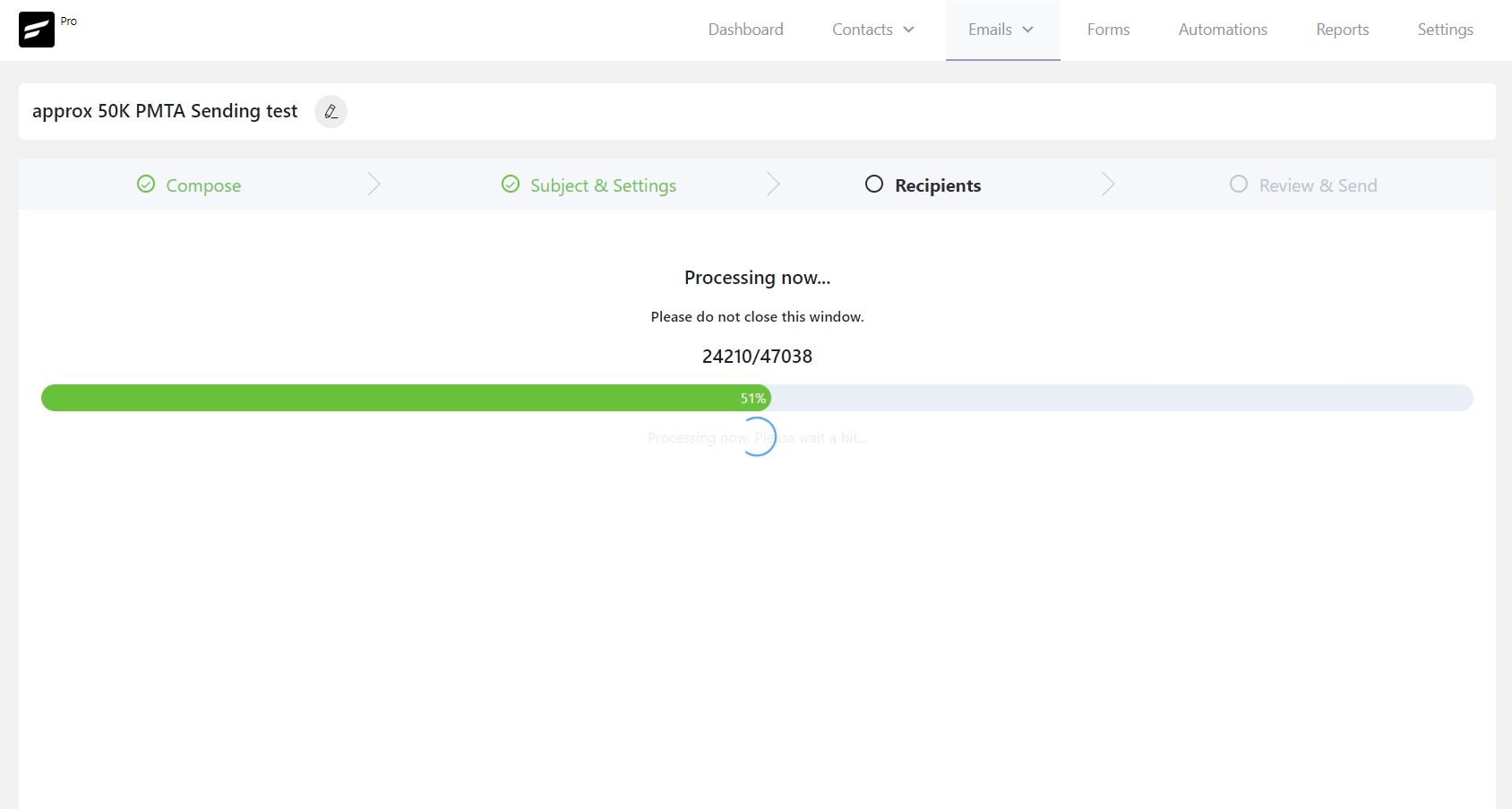
Depending on your selection or the number of contacts the recipients of the email campaign will now be processed. You may not see this screen for only a few contacts. But if the recipients are too high in the number you may see a processing window like the below screenshot. It also depends on the website server resources like CPU, and MEMORY allocated to the website.
Once you are done choosing the Recipients, click continue to the Review & Send step.
Review & Send #
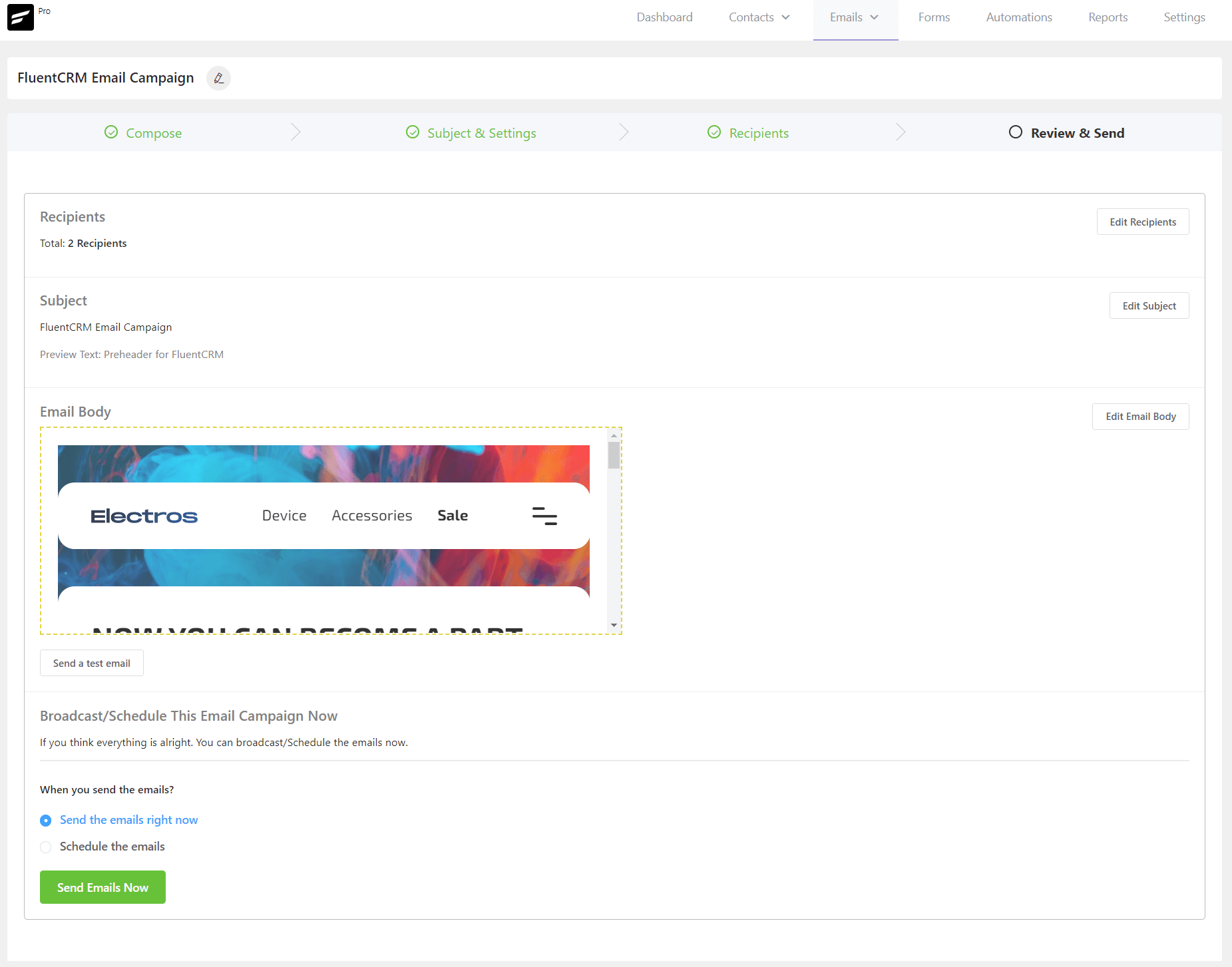
This step will provide you with a brief overview to review the details before sending the email campaign. The email campaign has successfully been set up. Now you can review all your settings in this step. You can still go to Edit Recipients, Edit Subjects, Edit the Email Body, and Send a Test Email.
If anything needs to change you can go back and edit. If everything has been set up correctly you can start the campaign right away.
Send Campaign immediately #
Now when you are done with all the previous settings, you can either send the campaign immediately or schedule it discussed in the later section.
Schedule Campaign #
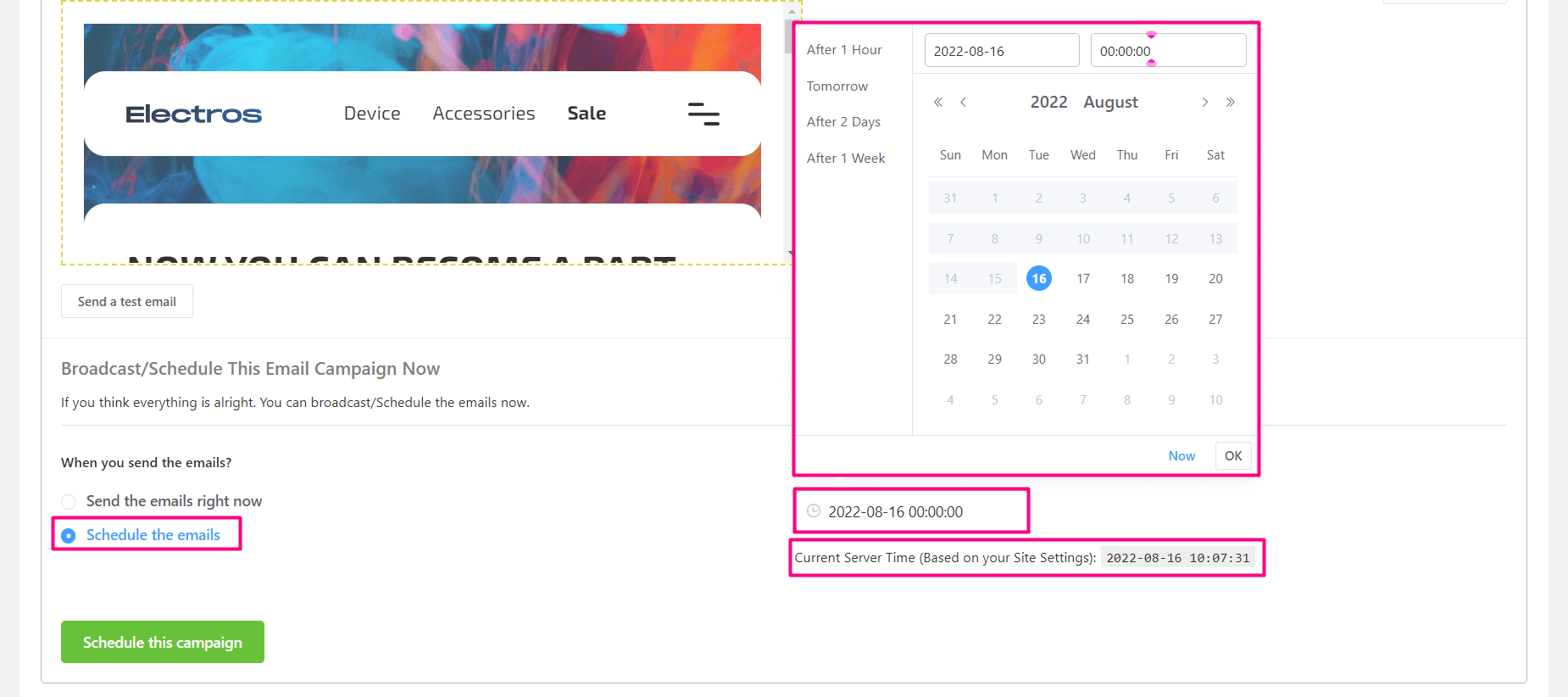
You can schedule the campaign also by selecting the date and time. You will be able to schedule it After 1 Hour, Tomorrow, After 2 days, and After 1 Week as a built-in option on the left of the calendar. The Send the Email Right Now button will work as the immediate sending as the previous option. Please make sure to compare the time according to your needs with the WordPress Time settings. You will also be able to see the Current Server Time defined in the WordPress Settings.
Campaign Delivery #
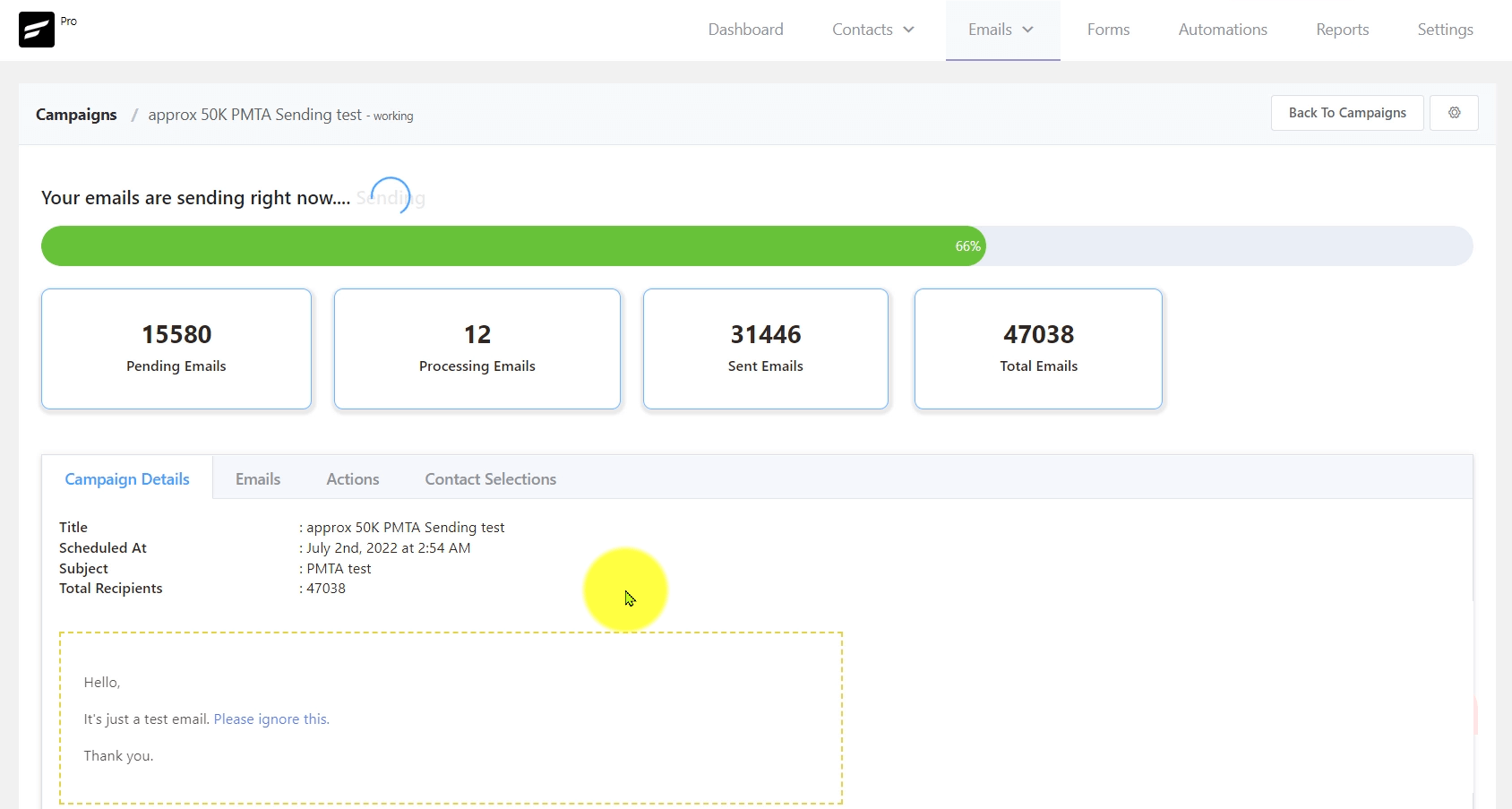
Once you start sending immediately you will see a screen similar to the below screenshot. It will show you the Number of:
- Pending Emails: The number of remaining emails to be processed and sent.
- Processing Emails: The number of emails processing or in the memory to be sent.
- Sent Emails: Already sent or delivered emails to recipients.
- Total Emails: The total recipients for the campaign.
Pause Campaign #
If you want to pause the running campaign delivery, please click on the Gear Icon in the Top Right corner and then click on the Pause button.
Once all the emails are delivered you will then see the campaign summary with the statistics and some other actions. Please visit Campaign Summary & Actions to know in-depth details that are available in the summary.
That’s all for Email Campaign creation and sending. Please visit the Campaign Summary & Actions documentation to Manage the campaigns or apply various actions to users of the campaign you sent.


How do I add attachments to my email?
That would be great, too!
How can I select a campaign that has already been sent and replicate it to send to new subscribers?
Click the > button beside the campaign and then click duplicate. Then you can select the recipient.
Hi lovely team!
Is there a way to set a default value for a custom field?
Use case: I want to use the personalization field for the contact’s name – but I would like to have a default value so that if the contact does not have a name value assigned to them they don’t just see a gap – is that possible?
Hi Katie, you an use a fallback value with merge tags. For example: you can use “Hi, {{contact.first_name | there}}” instead of “Hi, {{contact.first_name}}”. If the name isn’t available, “there” will appear as a fallback. More examples here
Can you add a pdf attachment to a campaign template
Hi, Attaching files to bulk emails will cause spamming. So this feature isn’t available.
Could you add this options and just, add a warning on it ?
Thanks
Hi John, unfortunately, our R&D has rejected this feature and it won’t be available in FluentCRM.
How do you recommend we send .ics for our scheduled events?
Maybe allow attachements with minimal size?
This can be an option, I’ll check with the developers.
Is there away to add recipients to an active Email Campaign?
Also I do not see the option to Delete a Contact, only remove from list.
or Unsubscribe
Hey I am creating a campaign.
But at the Recipients Step I get Error
“Sorry, No subscribers found based on your filters”
QUESTION: Of course I have none…Im setting this up for the first time…whats up with that? What am I missing?
Thanks
Hey Pasquale,
The step won’t let you pass if you have no contacts, consider adding a sample email to go to the next step.
Will campaigns automatically exclude contacts who are set as a status of bounced?
yes, bounced addresses will be excluded automatically.
Is it possible to schedule an email campaign to send every week automatically?
make them smaller and test, that worked out for me.
When creating campaign you cannot go back in and edit anything. Terrible design.
This whole app is terribly designed and the flow is horrible.
Editing anyting in this app is a nightmare. Haven’t been this disappointed in an app in a login time.